111 lines
6.7 KiB
Markdown
111 lines
6.7 KiB
Markdown

|
# Coding Mode (Beta)
|
||
|
|
|
||
|
|
> **Beta Feature**: Coding Mode is QwenPaw's IDE-style workbench for code-centric tasks. It upgrades the Agent from "chat assistant" to "a collaborator that reads and edits your code directly". Still under active iteration — please share feedback on [GitHub](https://github.com/agentscope-ai/QwenPaw/issues).
|
||
|
|
|
||
|
|
QwenPaw's regular Chat mode is great for Q&A and one-off tasks. But once you want the Agent to **work continuously inside a specific project** — reading source, editing files, running tests, checking git — a chat window is not enough. Coding Mode gives you a lightweight IDE view that combines project files, an editor, diff previews and the chat panel in one layout, plus two code-aware tools tuned for software understanding: `lsp` (precise jump-to-definition / find-references) and `ast_search` (structural syntactic queries).
|
||
|
|
|
||
|
|
---
|
||
|
|
|
||
|
|
## When to Use Coding Mode
|
||
|
|
|
||
|
|
| Scenario | Recommended mode |
|
||
|
|
| --------------------------------------------------------------- | ----------------- |
|
||
|
|
| One-off Q&A, throwaway scripts, casual chat | Regular Chat mode |
|
||
|
|
| Reading code, editing files, fixing bugs, refactoring in a repo | **Coding Mode** |
|
||
|
|
| Cross-project exploration not tied to a single codebase | Regular Chat mode |
|
||
|
|
|
||
|
|
> **Rule of thumb**: turn Coding Mode on when you want the Agent to treat a directory as its workshop and stay there. Keep it off for quick one-shot questions.
|
||
|
|
|
||
|
|
---
|
||
|
|
|
||
|
|
## Quick Start
|
||
|
|
|
||
|
|
### 1. Switch to Coding Mode
|
||
|
|
|
||
|
|
In the chat header, find the `Code` / `Chat` toggle button and click `Code` to enter.
|
||
|
|
|
||
|
|
### 2. Choose a Project
|
||
|
|
|
||
|
|
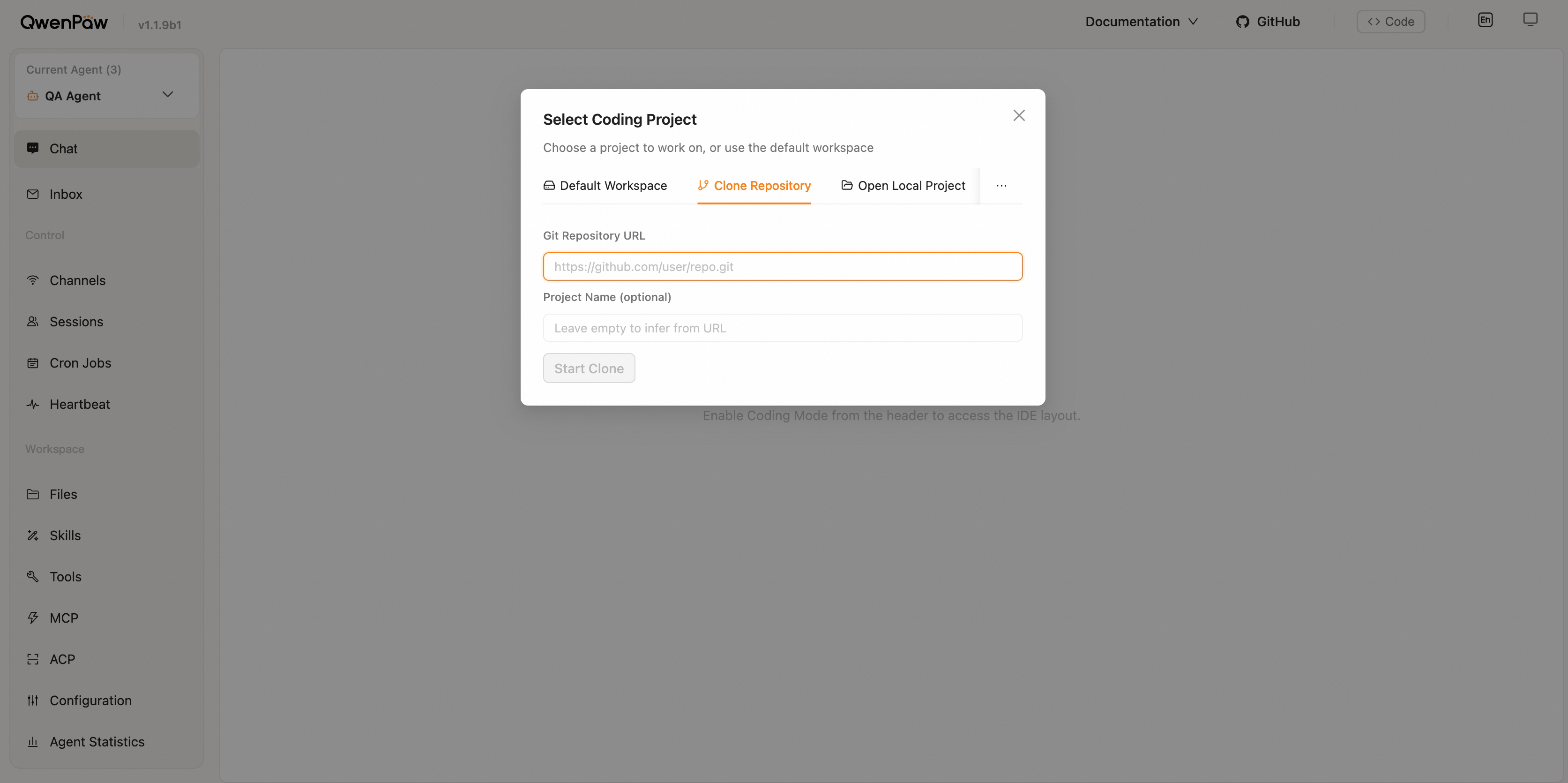
The first time you enter Coding Mode, a project picker opens. There are two approaches:
|
||
|
|
|
||
|
|
- **Open an existing directory** — browse and select a local directory via the file browser. The Agent works directly in that directory without copying anything. Best when you want the Agent to operate on your existing project in place.
|
||
|
|
- **Import as a copy** — **clone a remote repo**, **copy a local folder**, **upload a zip**, or **create a blank project**. The result lands as a **copy** under `coding_projects/<name>/` inside QwenPaw's workspace. Your original directory is never modified.
|
||
|
|
|
||
|
|
Either way, the selected directory becomes the "project directory" referenced throughout the rest of this guide.
|
||
|
|
|
||
|
|
|
||
|
|
|
||
|
|
> **Open vs Import?** If your project has an IDE open, uncommitted changes, or CI running, consider importing as a copy to keep the Agent away from your active working tree. The copy still includes `.git`, so you can commit / push as usual. If you want the Agent to work directly on the original directory (e.g. quick edits or code review), choose "Open Directory".
|
||
|
|
|
||
|
|
**Terminal TUI shortcut:** start QwenPaw from a project directory with
|
||
|
|
`qwenpaw .`, or pass an explicit directory with `qwenpaw tui /path/to/repo`.
|
||
|
|
This enables Coding Mode prompt and tool behavior for that TUI session only; it
|
||
|
|
does not change the project saved in `agent.json` or selected in the Console.
|
||
|
|
|
||
|
|
### 3. Start Working
|
||
|
|
|
||
|
|
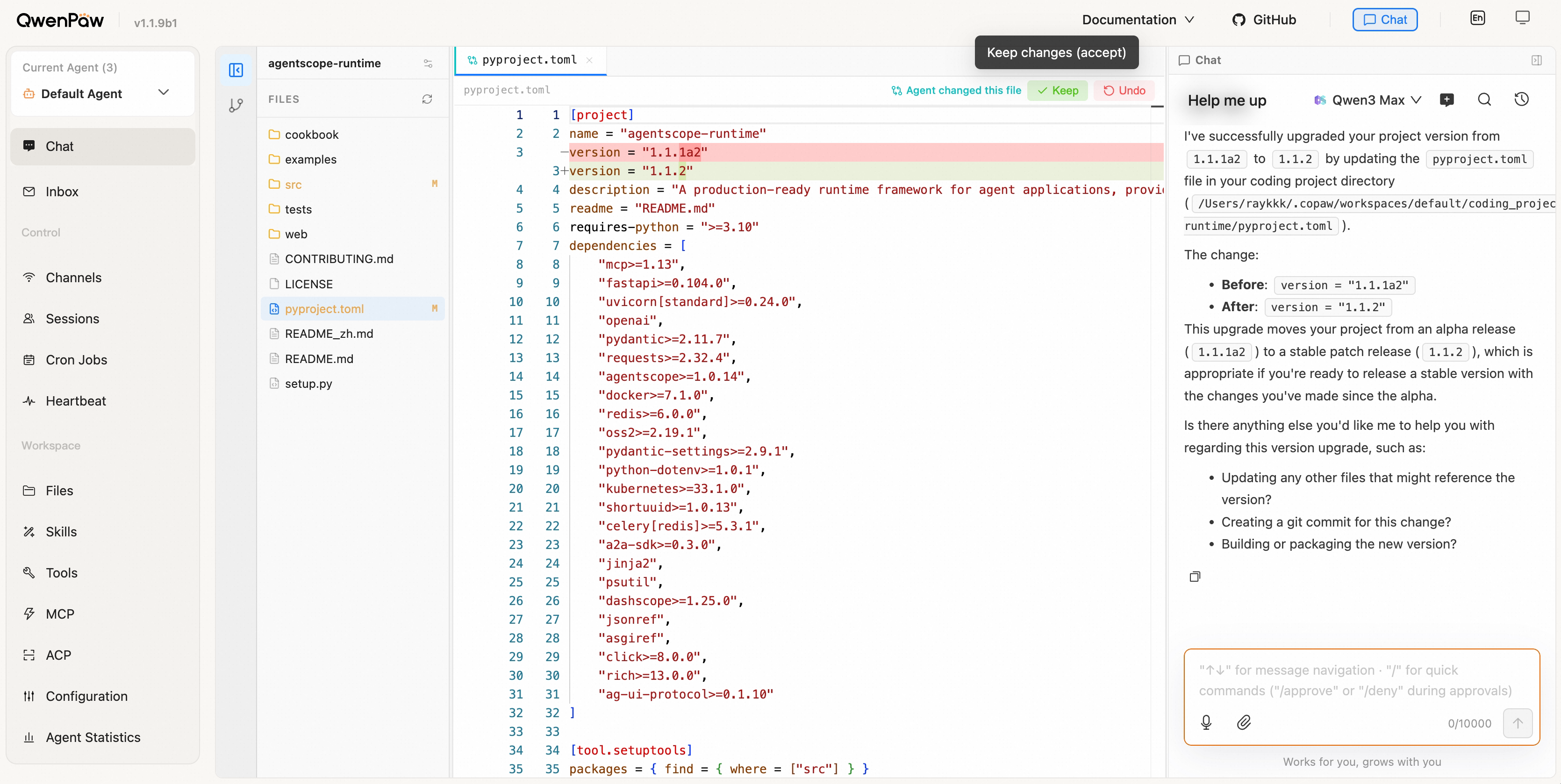
After the IDE view loads, you get three panels: file tree on the left, tabbed editor with diff preview in the middle, chat panel on the right. Talk to the Agent as usual, for example:
|
||
|
|
|
||
|
|
- "Read `src/auth/login.py` and walk me through how `verify_password` works"
|
||
|
|
- "Add `tests/test_login_rate_limit.py` covering a 10-minute lockout after 5 failures"
|
||
|
|
- "What files changed on this branch vs main? Draft me a PR description"
|
||
|
|
|
||
|
|
|
||
|
|
|
||
|
|
---
|
||
|
|
|
||
|
|
## What Coding Mode Does Behind the Scenes
|
||
|
|
|
||
|
|
In regular mode the Agent only sees a "workspace" with no notion of a specific project. When you turn Coding Mode on, QwenPaw automatically:
|
||
|
|
|
||
|
|
### 1. Injects a Coding-Specific System Prompt
|
||
|
|
|
||
|
|
The Agent is told:
|
||
|
|
|
||
|
|
- **The active project is XXX; all file operations must use absolute paths under that root**
|
||
|
|
- Shell commands must explicitly set `cwd=` to the project directory — otherwise they land in the agent workspace
|
||
|
|
- When referencing code, use `path/to/file.py:42` notation (the IDE makes these clickable)
|
||
|
|
- For non-trivial tasks, create a `{TASK}_TODO.md` checklist and tick boxes as you go
|
||
|
|
|
||
|
|
### 2. Auto-Registers Two Code-Understanding Tools
|
||
|
|
|
||
|
|
| Tool | Purpose | Auto-enabled when |
|
||
|
|
| ------------ | ------------------------------------------------------------------------------------------------------- | ------------------------------------------------------- |
|
||
|
|
| `lsp` | Precise symbol queries — definition / references / jump-to. Best for "where is X defined? who calls Y?" | At least one LSP server is detected (Python/TS bundled) |
|
||
|
|
| `ast_search` | Structural code queries via AST — best for "all functions taking `Request` returning `Response`" | The `ast-grep` CLI is installed (bundled) |
|
||
|
|
|
||
|
|
Both tools are **read-only** — they never modify files. The Agent prefers them over `grep` to avoid false positives and misses.
|
||
|
|
|
||
|
|
### 3. Separates "Project Directory" from "Workspace Directory"
|
||
|
|
|
||
|
|
- **Project directory**: the repo you picked — the Agent's main workshop
|
||
|
|
- **Workspace directory**: QwenPaw's internal folder for configs, session history, memory, etc. — the Agent **should not touch this by default**
|
||
|
|
|
||
|
|
The Coding Mode system prompt repeatedly reinforces this distinction so the Agent doesn't `ls` or write files in places it shouldn't.
|
||
|
|
|
||
|
|
---
|
||
|
|
|
||
|
|
## Exiting Coding Mode
|
||
|
|
|
||
|
|
Click the same toggle button to switch from `Chat` back to regular mode. The Agent's project binding and prompt injection are released immediately. Your project files, git state and so on remain untouched.
|
||
|
|
|
||
|
|
---
|
||
|
|
|
||
|
|
## FAQ
|
||
|
|
|
||
|
|
**Q: Will switching to Coding Mode affect my existing memory or Skills?**
|
||
|
|
|
||
|
|
No. Coding Mode only changes the Agent's system prompt and tool set. Memory, Skills, Persona and other features are independent.
|
||
|
|
|
||
|
|
**Q: Can I bind multiple projects at once?**
|
||
|
|
|
||
|
|
Each Agent is bound to one project at a time. To switch, reopen the project picker and choose another directory.
|
||
|
|
|
||
|
|
**Q: I don't see `lsp` / `ast_search` in the tool list — why?**
|
||
|
|
|
||
|
|
Open a new chat and try again. Both tools are registered dynamically per project and environment; old sessions need a restart. If no matching LSP server is installed for your project's language (e.g. a pure Go project with only pylsp available), `lsp` will simply skip that language.
|
||
|
|
|
||
|
|
**Q: Can I combine Coding Mode with Skills / Plan / Cron?**
|
||
|
|
|
||
|
|
Yes. Coding Mode is just a UI layout + tool augmentation layer and is orthogonal to other features.
|