544 lines
19 KiB
Markdown
544 lines
19 KiB
Markdown

|
# Console
|
||
|
|
|
||
|
|
The **Console** is QwenPaw's built-in web interface. After running `qwenpaw app`,
|
||
|
|
open `http://127.0.0.1:8088/` in your browser to enter the Console.
|
||
|
|
|
||
|
|
**In the Console, you can:**
|
||
|
|
|
||
|
|
- Chat with QwenPaw in real time
|
||
|
|
- Enable/disable/configure messaging channels
|
||
|
|
- View and manage all chat sessions
|
||
|
|
- Manage scheduled jobs and heartbeat
|
||
|
|
- Edit QwenPaw's persona and behavior files
|
||
|
|
- Enable/import skills to extend QwenPaw's capabilities
|
||
|
|
- Toggle tools on or off
|
||
|
|
- Manage MCP clients
|
||
|
|
- Modify runtime configuration
|
||
|
|
- Manage multiple agents
|
||
|
|
- Configure LLM providers and select models
|
||
|
|
- Manage environment variables required by tools
|
||
|
|
- Manage security options for tools and skills
|
||
|
|
- View LLM token usage statistics
|
||
|
|
- Configure how voice messages are handled
|
||
|
|
|
||
|
|
The sidebar on the left lists all features in four groups — **Chat**, **Control**,
|
||
|
|
**Workspace**, and **Settings**. Click an item to switch pages. The sections below
|
||
|
|
walk through each feature in order.
|
||
|
|
|
||
|
|
> **Not seeing the Console?** Make sure the frontend has been built. See
|
||
|
|
> [CLI](./cli).
|
||
|
|
|
||
|
|
---
|
||
|
|
|
||
|
|
## Chat
|
||
|
|
|
||
|
|
> Sidebar: **Chat → Chat**
|
||
|
|
|
||
|
|
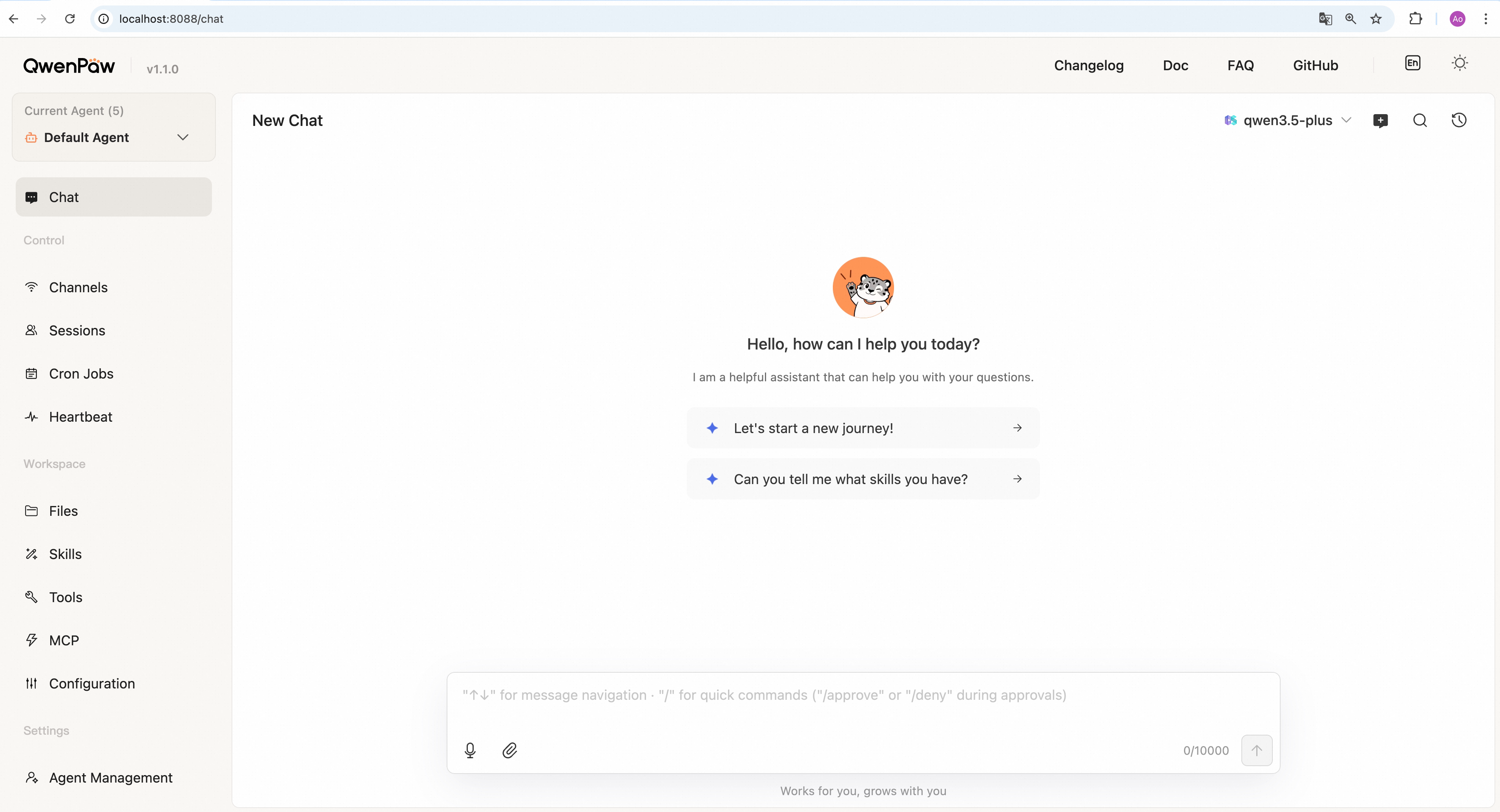
This is where you talk to QwenPaw. It is the default page when the Console opens.
|
||
|
|
|
||
|
|
|
||
|
|
|
||
|
|
**Choose a model:**
|
||
|
|
Use the control at the **top-right** of the chat page to pick the model for the
|
||
|
|
current agent.
|
||
|
|
|
||
|
|
**Send a message:**
|
||
|
|
Type in the input box at the bottom, then press **Enter** or click the send
|
||
|
|
button (↑). QwenPaw replies in real time.
|
||
|
|
|
||
|
|
**Voice input:**
|
||
|
|
The composer supports **voice input** (browser and OS microphone permission
|
||
|
|
required). Behavior matches **Voice transcription** settings (e.g. transcribe
|
||
|
|
first, then send text to the model).
|
||
|
|
|
||
|
|
**Attachments:**
|
||
|
|
You can attach **files** such as documents, images, and audio/video (follow
|
||
|
|
on-screen limits; per-file size caps apply).
|
||
|
|
|
||
|
|
**Create a new session:**
|
||
|
|
Click the **New Chat** button at the top-right of the chat page to start a new
|
||
|
|
conversation. Each session keeps separate history.
|
||
|
|
|
||
|
|
**Switch sessions:**
|
||
|
|
Click the **Chat history** button at the top-right to view and switch between
|
||
|
|
past conversations.
|
||
|
|
|
||
|
|
**Delete a session:**
|
||
|
|
In the chat history panel, click the **trash** button on the right of a session
|
||
|
|
row to delete it.
|
||
|
|
|
||
|
|
---
|
||
|
|
|
||
|
|
## Inbox
|
||
|
|
|
||
|
|
> Sidebar: **Inbox → Inbox**
|
||
|
|
|
||
|
|
Inbox is the centralized place to handle approvals and review execution results
|
||
|
|
from cron jobs and heartbeat runs.
|
||
|
|
|
||
|
|
**Unread indicator:**
|
||
|
|
The Inbox entry shows an unread dot. Open Inbox regularly to avoid missing
|
||
|
|
important notifications.
|
||
|
|
|
||
|
|
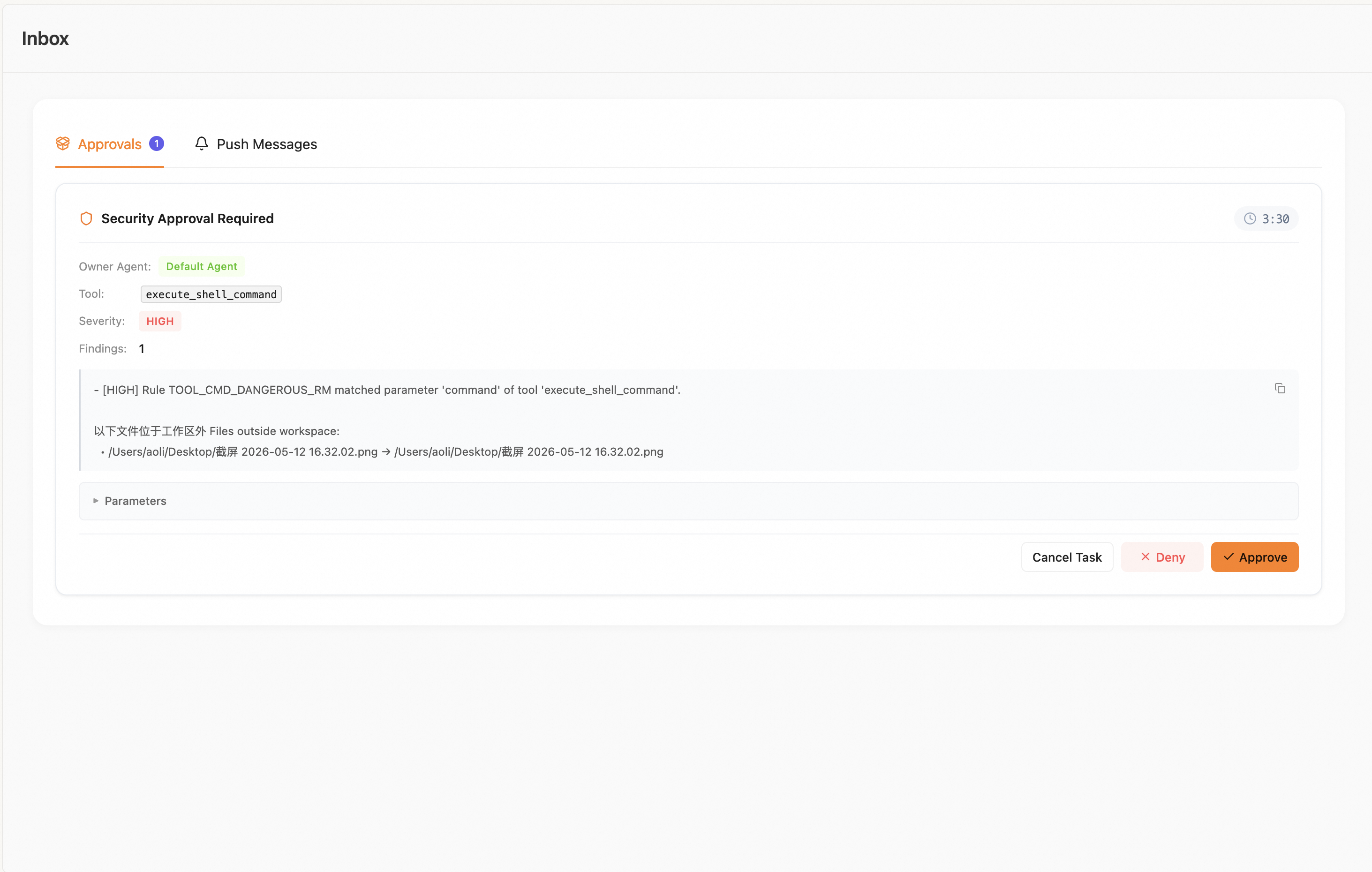
**Approvals:**
|
||
|
|
Approval-required actions triggered from any agent chat in the Console channel
|
||
|
|
appear in the Inbox approval page.
|
||
|
|
|
||
|
|
|
||
|
|
|
||
|
|
You can handle approvals from all agents in one place (approve / reject /
|
||
|
|
cancel task). Approval cards include a countdown; if no action is taken before
|
||
|
|
timeout, the request is **rejected by default**. Actions taken here stay in sync
|
||
|
|
with approval popups in chat.
|
||
|
|
|
||
|
|
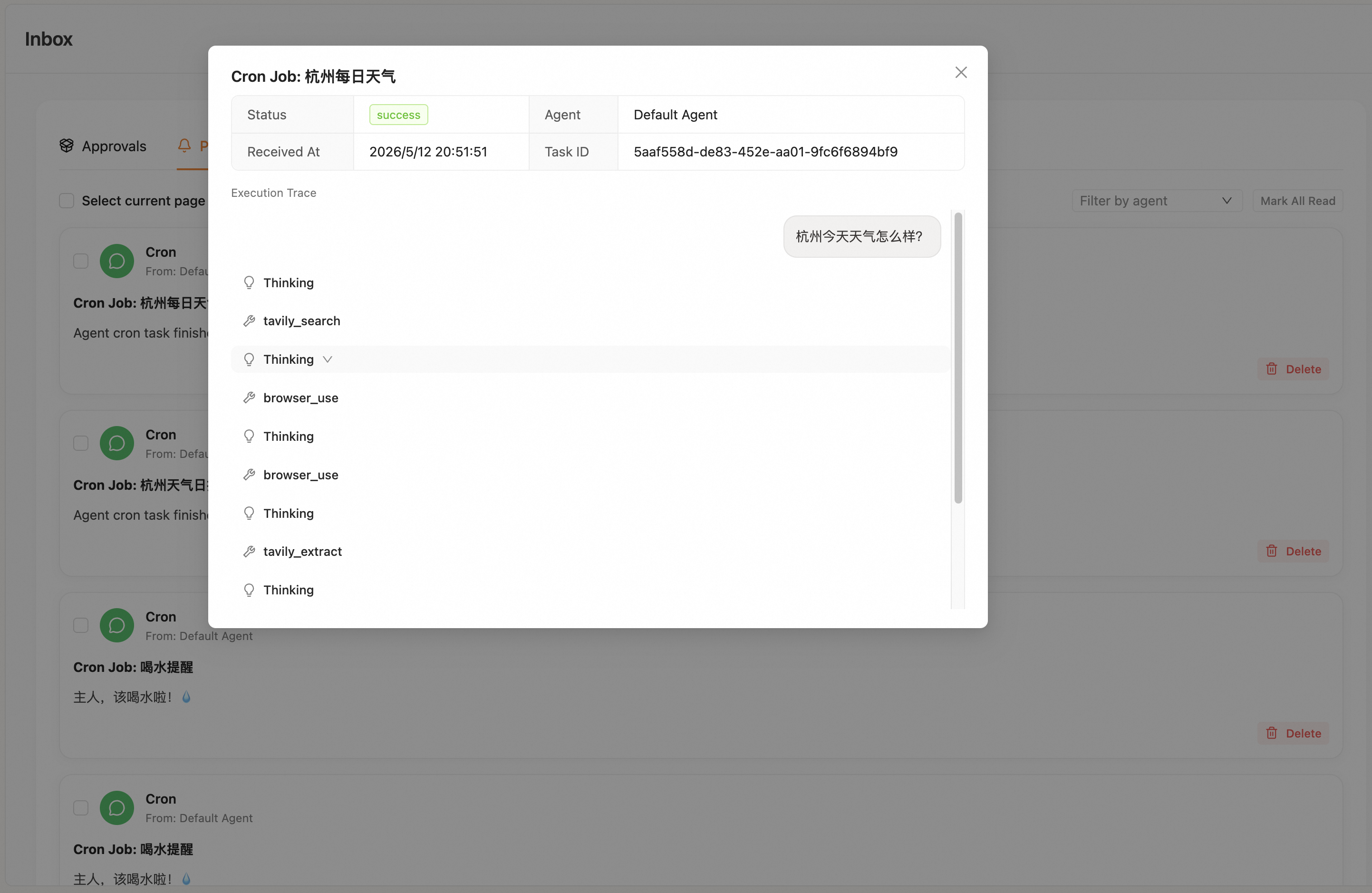
**Push messages:**
|
||
|
|
For cron jobs and heartbeat, users can choose whether execution results should
|
||
|
|
be pushed to Inbox. Click a message to view execution details, including traces.
|
||
|
|
|
||
|
|
|
||
|
|
|
||
|
|
---
|
||
|
|
|
||
|
|
## Channels
|
||
|
|
|
||
|
|
> Sidebar: **Control → Channels**
|
||
|
|
|
||
|
|
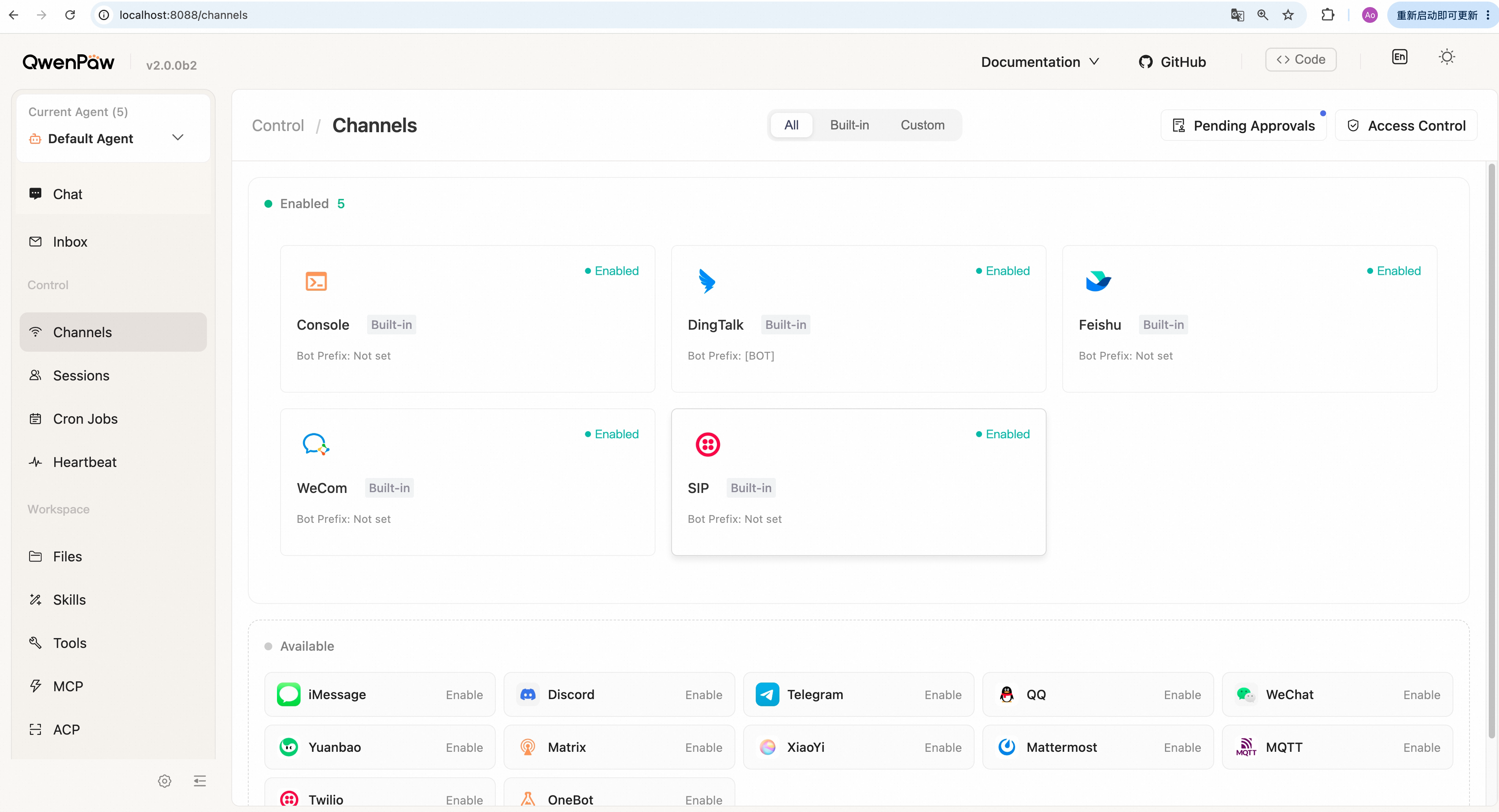
Manage messaging channels (Console, DingTalk, Feishu, Discord, QQ, WeChat,
|
||
|
|
iMessage, etc.): enable/disable and credentials.
|
||
|
|
|
||
|
|
|
||
|
|
|
||
|
|
**Enable a channel:**
|
||
|
|
|
||
|
|
1. Click the channel card you want to configure.
|
||
|
|
2. A settings panel slides out on the right. Turn on **Enable**.
|
||
|
|
3. Fill in required credentials — each channel differs; see [Channels](./channels).
|
||
|
|
4. Click **Save**. Changes take effect in seconds, no restart required.
|
||
|
|
|
||
|
|
**Disable a channel:**
|
||
|
|
Open the same panel, turn off **Enable**, then click **Save**.
|
||
|
|
|
||
|
|
> For credential setup details, see [Channels](./channels).
|
||
|
|
|
||
|
|
---
|
||
|
|
|
||
|
|
## Sessions
|
||
|
|
|
||
|
|
> Sidebar: **Control → Sessions**
|
||
|
|
|
||
|
|
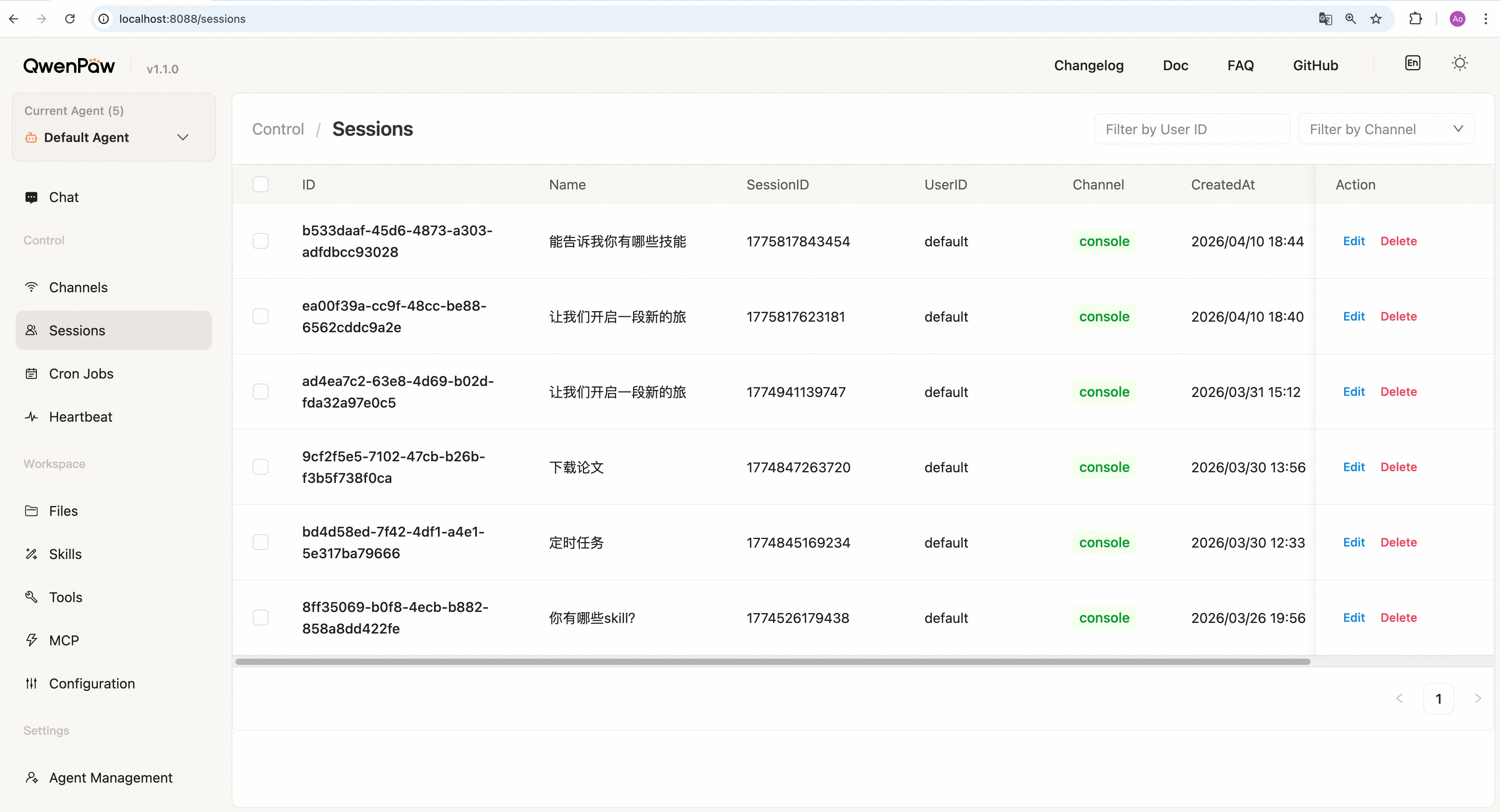
View, filter, and clean up chat sessions across all channels.
|
||
|
|
|
||
|
|
|
||
|
|
|
||
|
|
**Find sessions:**
|
||
|
|
Use the search box to filter by user, or use the dropdown to filter by
|
||
|
|
channel. The table updates immediately.
|
||
|
|
|
||
|
|
**Rename a session:**
|
||
|
|
Click **Edit** on a row → change the name → click **Save**.
|
||
|
|
|
||
|
|
**Delete one session:**
|
||
|
|
Click **Delete** on a row → confirm.
|
||
|
|
|
||
|
|
**Batch delete:**
|
||
|
|
Select rows → click **Batch Delete** → confirm.
|
||
|
|
|
||
|
|
---
|
||
|
|
|
||
|
|
## Cron Jobs
|
||
|
|
|
||
|
|
> Sidebar: **Control → Cron Jobs**
|
||
|
|
|
||
|
|
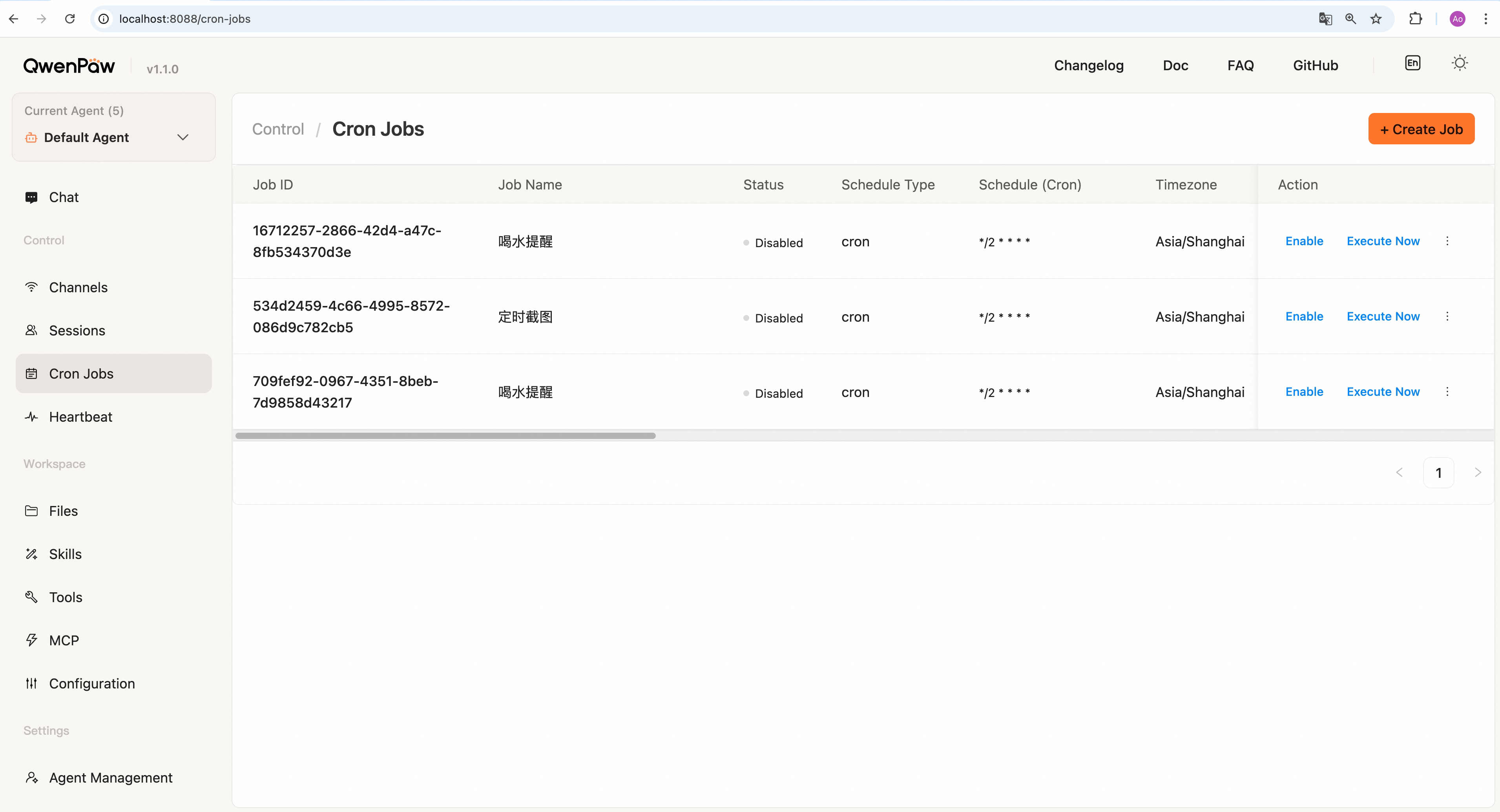
Create and manage scheduled jobs that QwenPaw runs automatically by time.
|
||
|
|
|
||
|
|
|
||
|
|
|
||
|
|
**Create a new job:**
|
||
|
|
|
||
|
|
> If the cron job fails to be created, please refer to the **Troubleshooting Scheduled (Cron) Tasks** section in the [FAQ](https://qwenpaw.agentscope.io/docs/faq) to identify the cause.
|
||
|
|
|
||
|
|
The **simplest way to create a cron job is to chat directly with QwenPaw** and let it handle the creation for you. For example, if you want to receive a reminder to drink water on DingTalk, simply message QwenPaw on DingTalk: "Help me create a cron job to remind me to drink water every 5 minutes." Once created, you can view the new task on the Cron Jobs page in the console.
|
||
|
|
|
||
|
|
Alternatively, you can create tasks directly via the Console interface:
|
||
|
|
|
||
|
|
1. Click **+ Create Job**.
|
||
|
|
2. Fill in each section:
|
||
|
|
- **Basic info** — Job ID (e.g. `job-001`), display name (e.g. "Daily summary"),
|
||
|
|
and enable the job.
|
||
|
|
- **Schedule** — Pick a schedule; if presets are not enough, enter a **cron
|
||
|
|
expression** (five fields, e.g. `0 9 * * *` = 9:00 daily). Timezone defaults
|
||
|
|
to the current agent's user timezone; you can change it here.
|
||
|
|
- **Task type & content** — **Text**: send fixed text from **Message content**.
|
||
|
|
**Agent**: fill **Request content**; on each run QwenPaw receives the text
|
||
|
|
from `content.text` as the request.
|
||
|
|
- **Delivery** — Target channel (Console, DingTalk, etc.), target user,
|
||
|
|
target session id, and mode (**Stream** = token stream, **Final** = one
|
||
|
|
complete reply).
|
||
|
|
- **Advanced** — Optional: max concurrency, timeout, misfire grace time.
|
||
|
|
3. Click **Save**.
|
||
|
|
|
||
|
|
**Enable/disable a job:**
|
||
|
|
Toggle the switch in the row.
|
||
|
|
|
||
|
|
**Edit a job:**
|
||
|
|
**Disable** the job first, click **Edit** → change fields → **Save**.
|
||
|
|
|
||
|
|
**Run once immediately:**
|
||
|
|
Click **Execute Now** → confirm.
|
||
|
|
|
||
|
|
**Delete a job:**
|
||
|
|
**Disable** the job first, click **Delete** → confirm.
|
||
|
|
|
||
|
|
---
|
||
|
|
|
||
|
|
## Heartbeat
|
||
|
|
|
||
|
|
> Sidebar: **Control → Heartbeat**
|
||
|
|
|
||
|
|
|
||
|
|
|
||
|
|
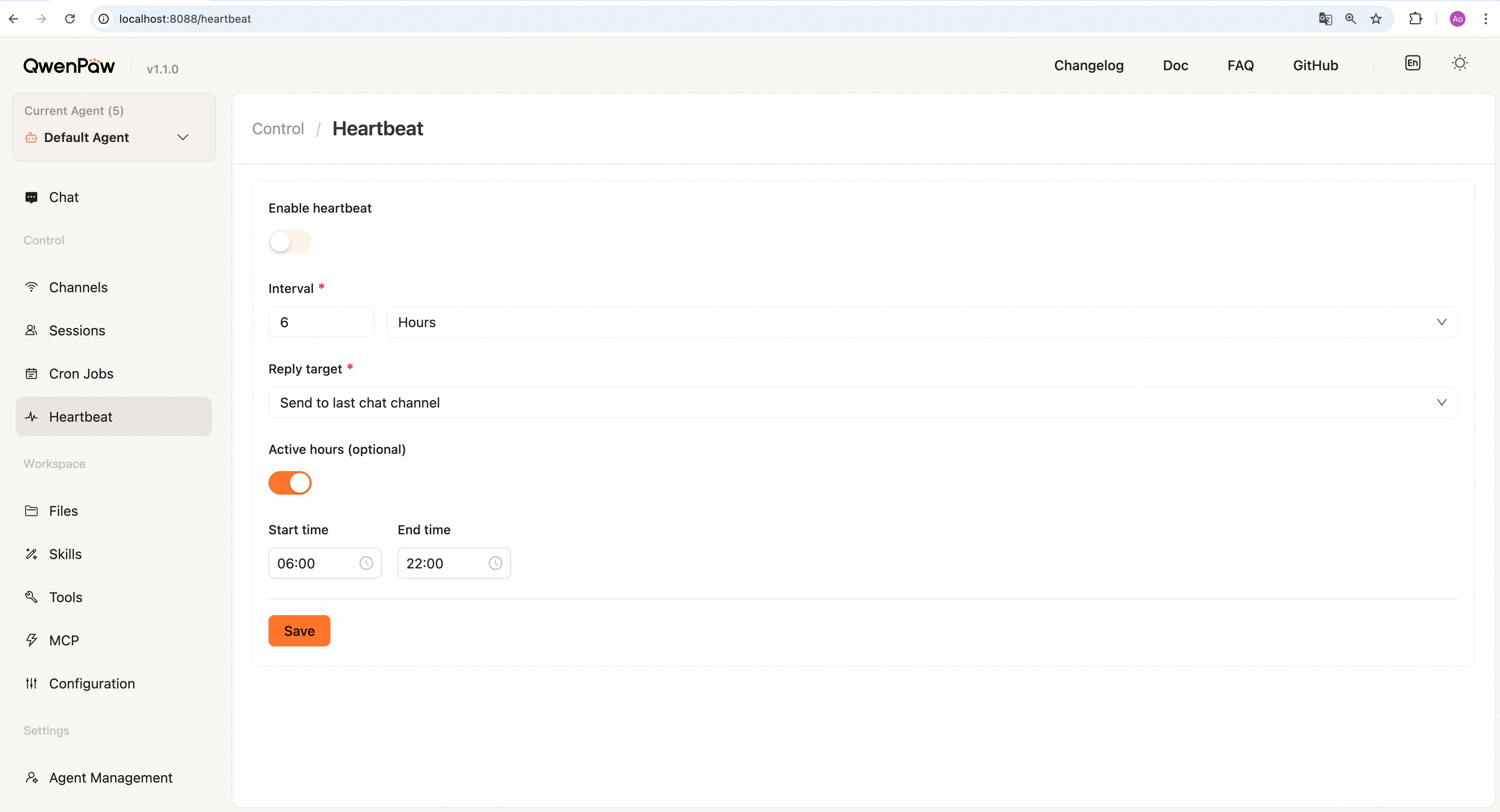
Configure periodic "self-check" for the **currently selected agent**: on each
|
||
|
|
tick, send the contents of `HEARTBEAT.md` as a user message to QwenPaw, and
|
||
|
|
optionally deliver the reply to a chosen target.
|
||
|
|
|
||
|
|
**Common options:**
|
||
|
|
|
||
|
|
- **Enable** — Must be on for the schedule to run.
|
||
|
|
- **Interval** — Number + unit (minutes / hours).
|
||
|
|
- **Delivery target** — `main` runs in the main session only; `last` can send
|
||
|
|
results to the channel from your last user conversation.
|
||
|
|
- **Active hours** (optional) — Only fire within a daily window to avoid night
|
||
|
|
noise.
|
||
|
|
|
||
|
|
Click **Save** to apply. See [Heartbeat](./heartbeat) for wording and semantics.
|
||
|
|
|
||
|
|
---
|
||
|
|
|
||
|
|
## Files
|
||
|
|
|
||
|
|
> Sidebar: **Workspace → Files**
|
||
|
|
|
||
|
|
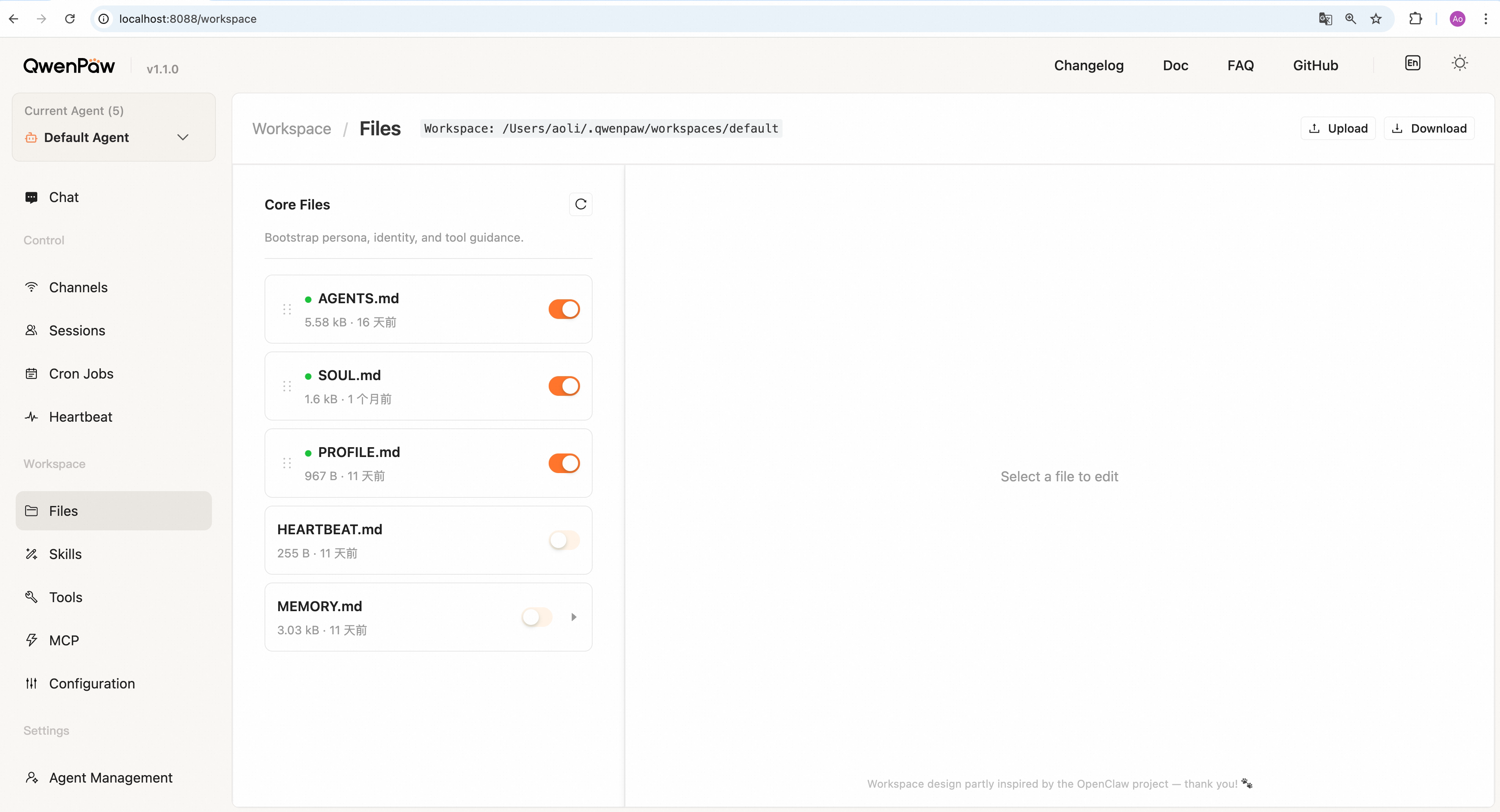
Edit files that define QwenPaw's persona and behavior — `SOUL.md`, `AGENTS.md`,
|
||
|
|
`HEARTBEAT.md`, etc. — directly in the browser.
|
||
|
|
|
||
|
|
> **Multi-agent:** Starting from **v0.1.0**, QwenPaw supports **multi-agent** mode.
|
||
|
|
> You can run multiple independent agents in one QwenPaw instance, each with its own
|
||
|
|
> workspace, configuration, memory, and history. Agents can collaborate. Use the
|
||
|
|
> switcher at the top of the Console to change the active agent. See
|
||
|
|
> [Multi-Agent](./multi-agent).
|
||
|
|
|
||
|
|
|
||
|
|
|
||
|
|
**Edit files:**
|
||
|
|
|
||
|
|
1. Click a file in the list (e.g. `SOUL.md`).
|
||
|
|
2. The editor shows file content. Turn off preview if needed, then edit.
|
||
|
|
3. Click **Save** to apply, or **Reset** to discard and reload.
|
||
|
|
|
||
|
|
**View daily memory:**
|
||
|
|
If `MEMORY.md` exists, click the **▶** arrow to expand date-based entries. Click a
|
||
|
|
date to view or edit that day's memory.
|
||
|
|
|
||
|
|
**Download workspace:**
|
||
|
|
Click **Download** to export the entire workspace as a `.zip` to your machine.
|
||
|
|
|
||
|
|
**Upload/restore workspace:**
|
||
|
|
Click **Upload** → choose a `.zip` (max 100 MB). Existing workspace files will be
|
||
|
|
replaced. Useful for migration and backup restore.
|
||
|
|
|
||
|
|
---
|
||
|
|
|
||
|
|
## Skills
|
||
|
|
|
||
|
|
> Sidebar: **Workspace → Skills**
|
||
|
|
|
||
|
|
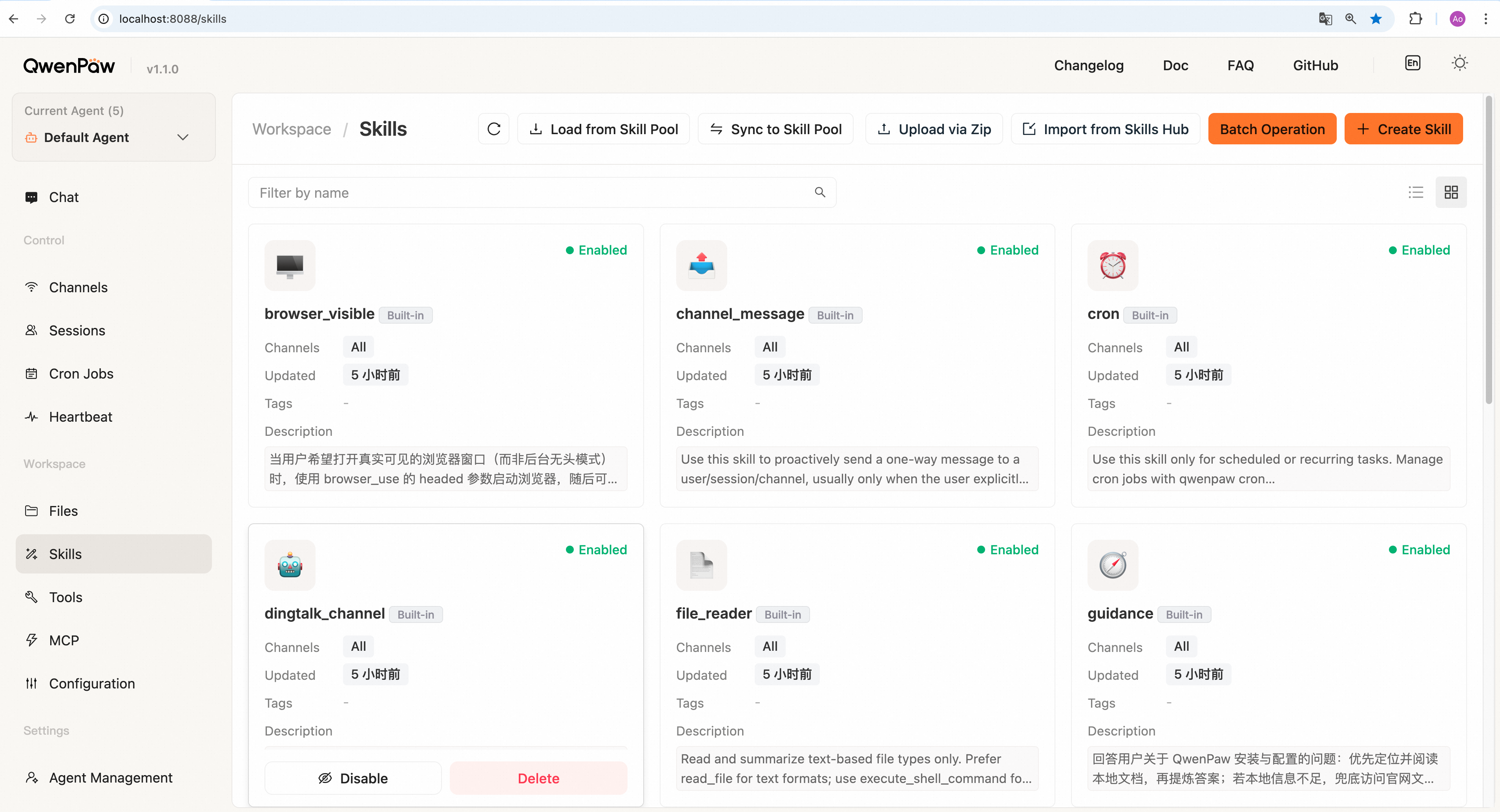
Manage skills that extend QwenPaw (e.g. read PDF, create Word, fetch news). More
|
||
|
|
detail: [Skills](./skills).
|
||
|
|
|
||
|
|
|
||
|
|
|
||
|
|
**Enable a skill:**
|
||
|
|
Click **Enable** at the bottom of a skill card. It takes effect immediately.
|
||
|
|
|
||
|
|
**Disable a skill:**
|
||
|
|
Click **Disable**. It also takes effect immediately.
|
||
|
|
|
||
|
|
**View skill details:**
|
||
|
|
Click a skill card for the full description.
|
||
|
|
|
||
|
|
**Edit a skill:**
|
||
|
|
Click a skill card → turn off content preview → edit → **Save**.
|
||
|
|
|
||
|
|
**Add a skill:**
|
||
|
|
|
||
|
|
The **Add Skill** dropdown at the top right is the unified entry for every way
|
||
|
|
of adding a skill:
|
||
|
|
|
||
|
|
- **Create Skill**: enter a skill name (e.g. `weather_query`) and skill content
|
||
|
|
in Markdown (must include `name` and `description`), then click **Create**.
|
||
|
|
- **Load from Skill Pool**: pick skills to add to the current agent in the
|
||
|
|
dialog, then click **Confirm**.
|
||
|
|
- **Upload via Zip**: choose a local skill **zip** file to import.
|
||
|
|
- **Upload via URL**: paste a skill URL (the dialog lists supported sources
|
||
|
|
with example URLs — click one to fill it in), then click **Confirm**.
|
||
|
|
- **Browse Market**: the page switches to the embedded Skill Market; search or
|
||
|
|
filter by category, then click **Save** on a card to install it into the
|
||
|
|
current agent. Click **Back** (or use browser back) to return to the list.
|
||
|
|
|
||
|
|
**Sync to skill pool:**
|
||
|
|
|
||
|
|
1. Click **Sync to Skill Pool**.
|
||
|
|
2. Select skills to push to the pool.
|
||
|
|
3. Click **Confirm**.
|
||
|
|
|
||
|
|
**Delete a skill:**
|
||
|
|
Click **Delete** on the card and confirm. If the skill is enabled, it is
|
||
|
|
automatically disabled first.
|
||
|
|
|
||
|
|
---
|
||
|
|
|
||
|
|
## Tools
|
||
|
|
|
||
|
|
> Sidebar: **Workspace → Tools**
|
||
|
|
|
||
|
|
|
||
|
|
|
||
|
|
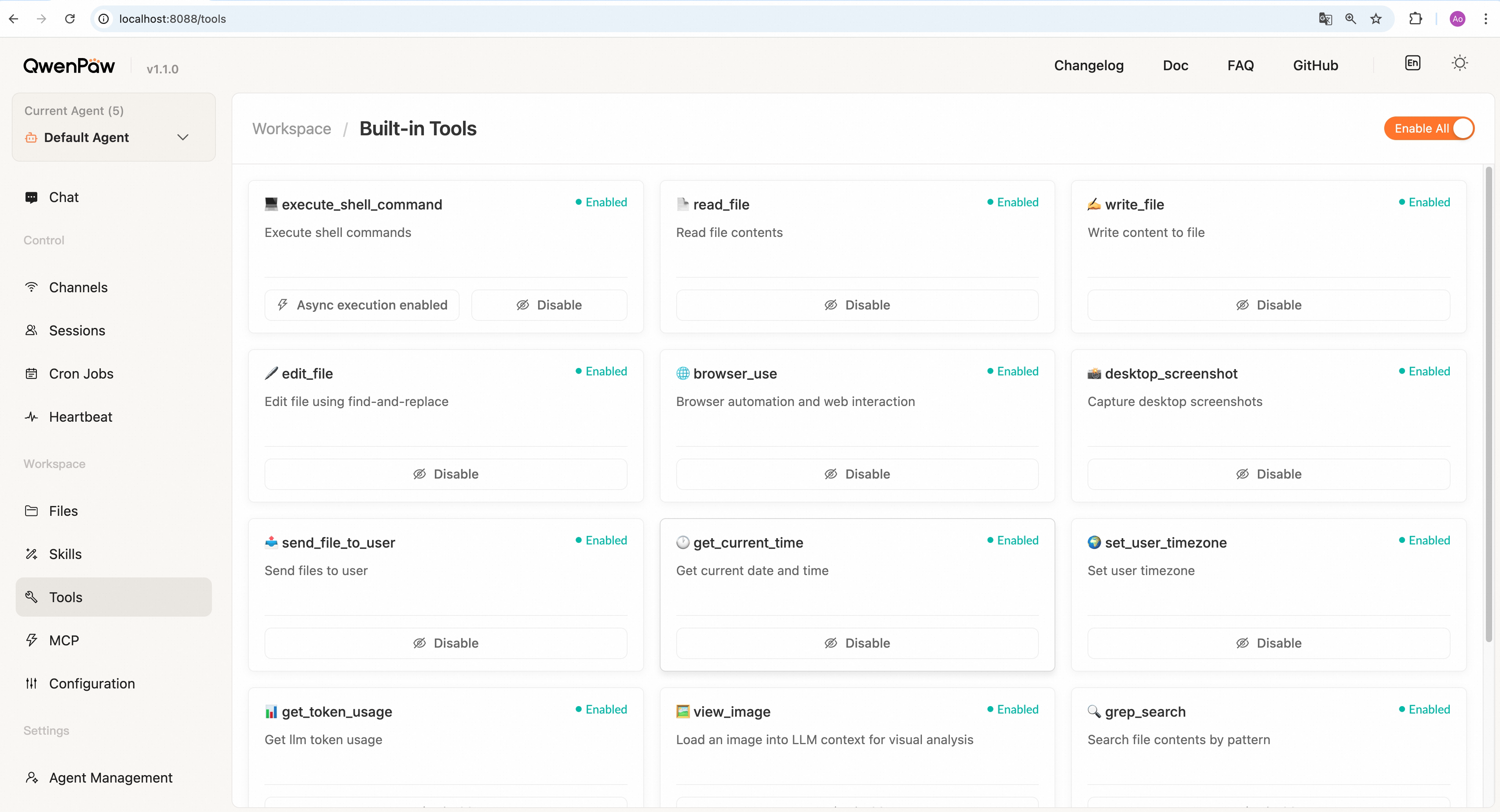
Toggle **built-in tools** by name (read files, run commands, browser, etc.). When
|
||
|
|
off, this agent cannot call that tool in chat.
|
||
|
|
|
||
|
|
Use **Enable all** / **Disable all** at the top for batch changes. Changes apply
|
||
|
|
to the **current agent** immediately.
|
||
|
|
|
||
|
|
---
|
||
|
|
|
||
|
|
## MCP
|
||
|
|
|
||
|
|
> Sidebar: **Workspace → MCP**
|
||
|
|
|
||
|
|
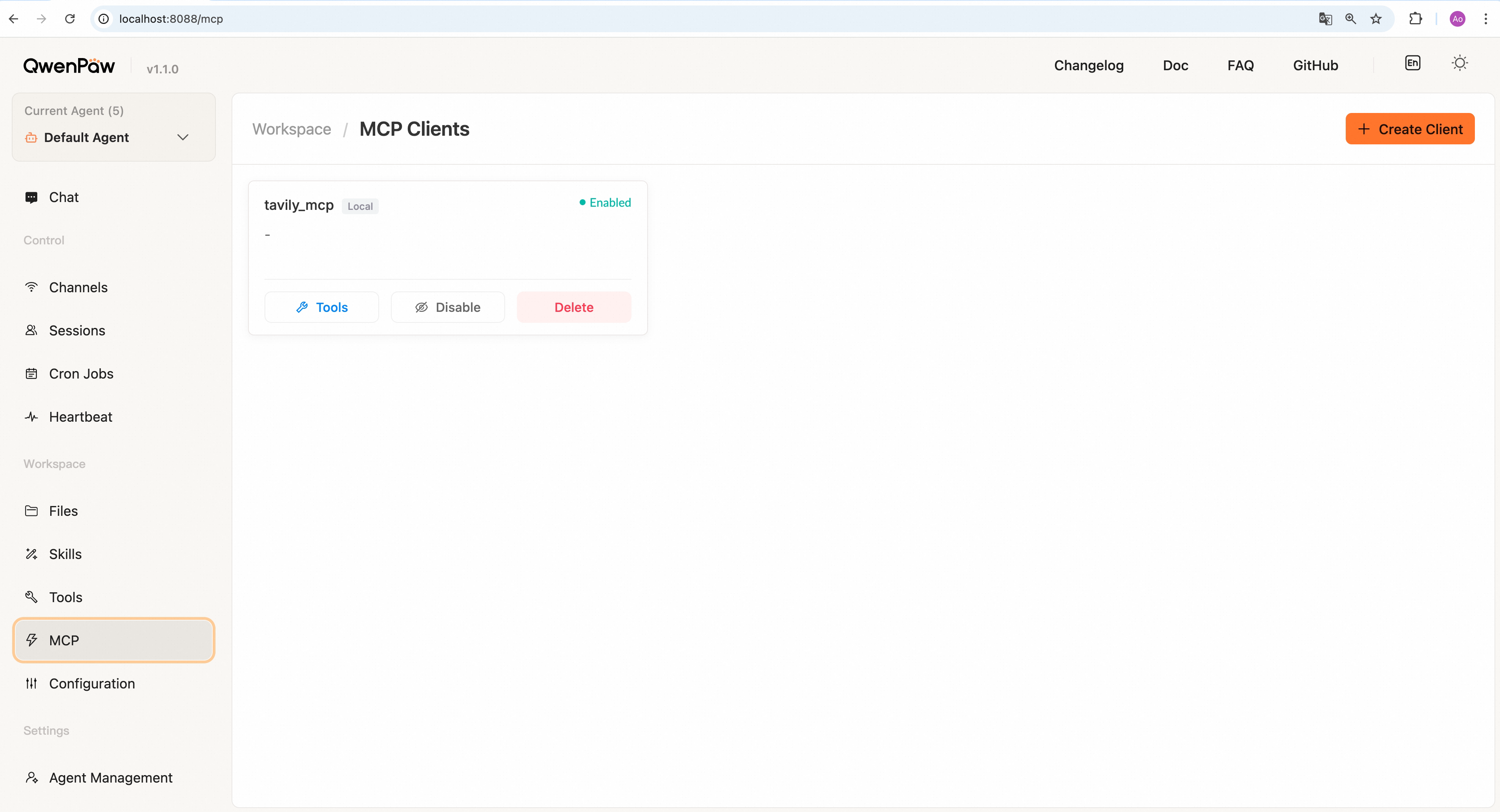
Enable/disable/delete **MCP** clients here, or create new ones.
|
||
|
|
|
||
|
|
|
||
|
|
|
||
|
|
**Create a client**
|
||
|
|
Click **Create Client** in the top-right, fill in required fields, then **Create**.
|
||
|
|
The new client appears in the list.
|
||
|
|
|
||
|
|
---
|
||
|
|
|
||
|
|
## Configuration
|
||
|
|
|
||
|
|
> Sidebar: **Workspace → Configuration**
|
||
|
|
|
||
|
|
|
||
|
|
|
||
|
|
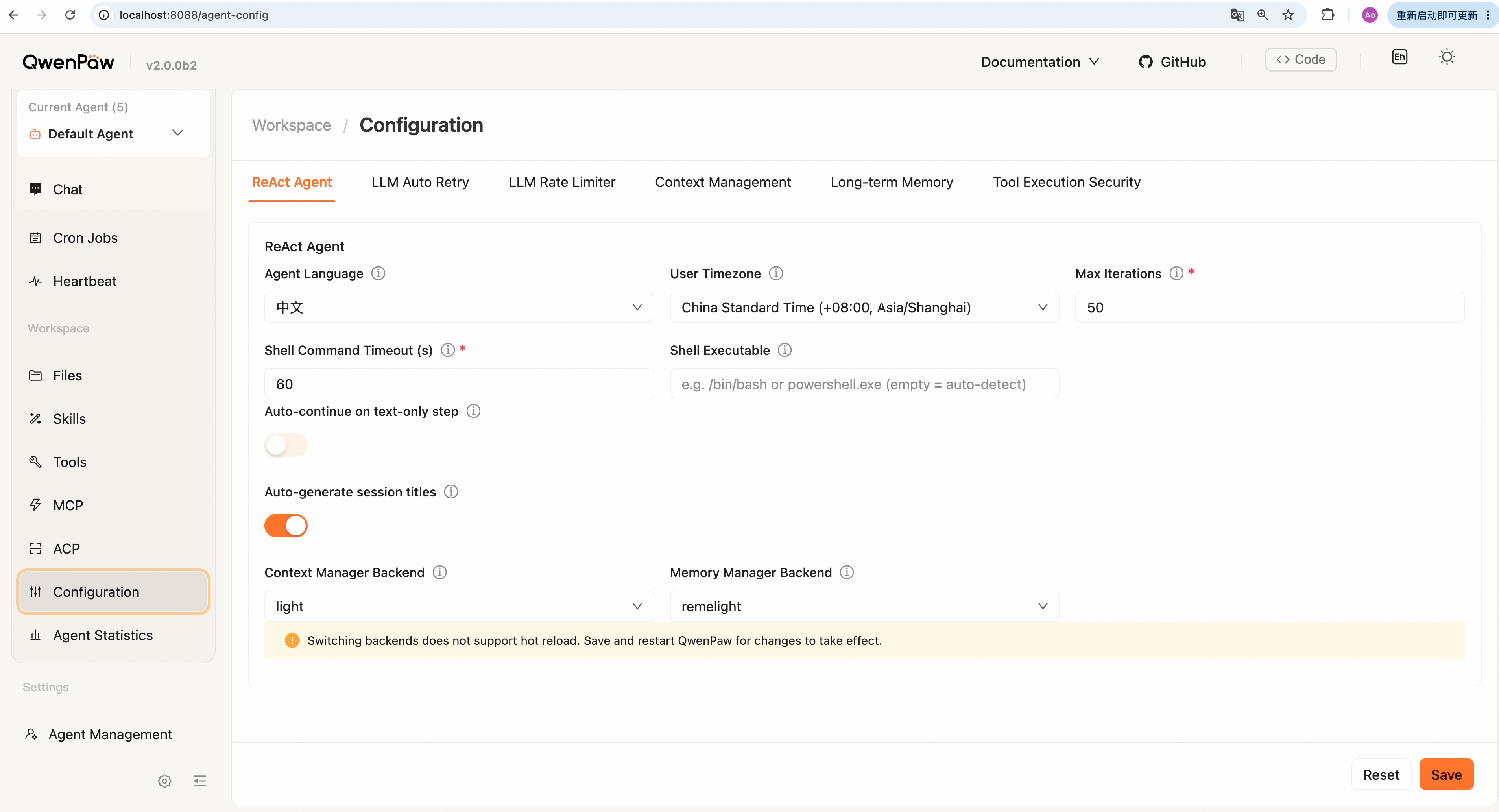
This page configures **runtime parameters for the current agent**, grouped in
|
||
|
|
cards. Click **Save** at the bottom (**Reset** reloads from the server).
|
||
|
|
|
||
|
|
- **ReAct Agent** — UI language, user timezone, max iterations, max context length, etc.
|
||
|
|
- **LLM auto-retry** — Max retries, etc.
|
||
|
|
- **LLM concurrency** — Max concurrent requests, etc.
|
||
|
|
- **Context management** — Max input length, etc.
|
||
|
|
- **Context compaction** — Compaction threshold ratio, etc.
|
||
|
|
- **Tool result compaction** — Recent tool result window, etc.
|
||
|
|
- **Memory summarization** — Max auto-search results, etc.
|
||
|
|
- **Embedding model** — Whether to enable embedding cache, etc.
|
||
|
|
|
||
|
|
For mechanics, see [Context](./context) and [Config & working directory](./config).
|
||
|
|
|
||
|
|
---
|
||
|
|
|
||
|
|
## Agent management
|
||
|
|
|
||
|
|
> Sidebar: **Settings → Agent management**
|
||
|
|
|
||
|
|
|
||
|
|
|
||
|
|
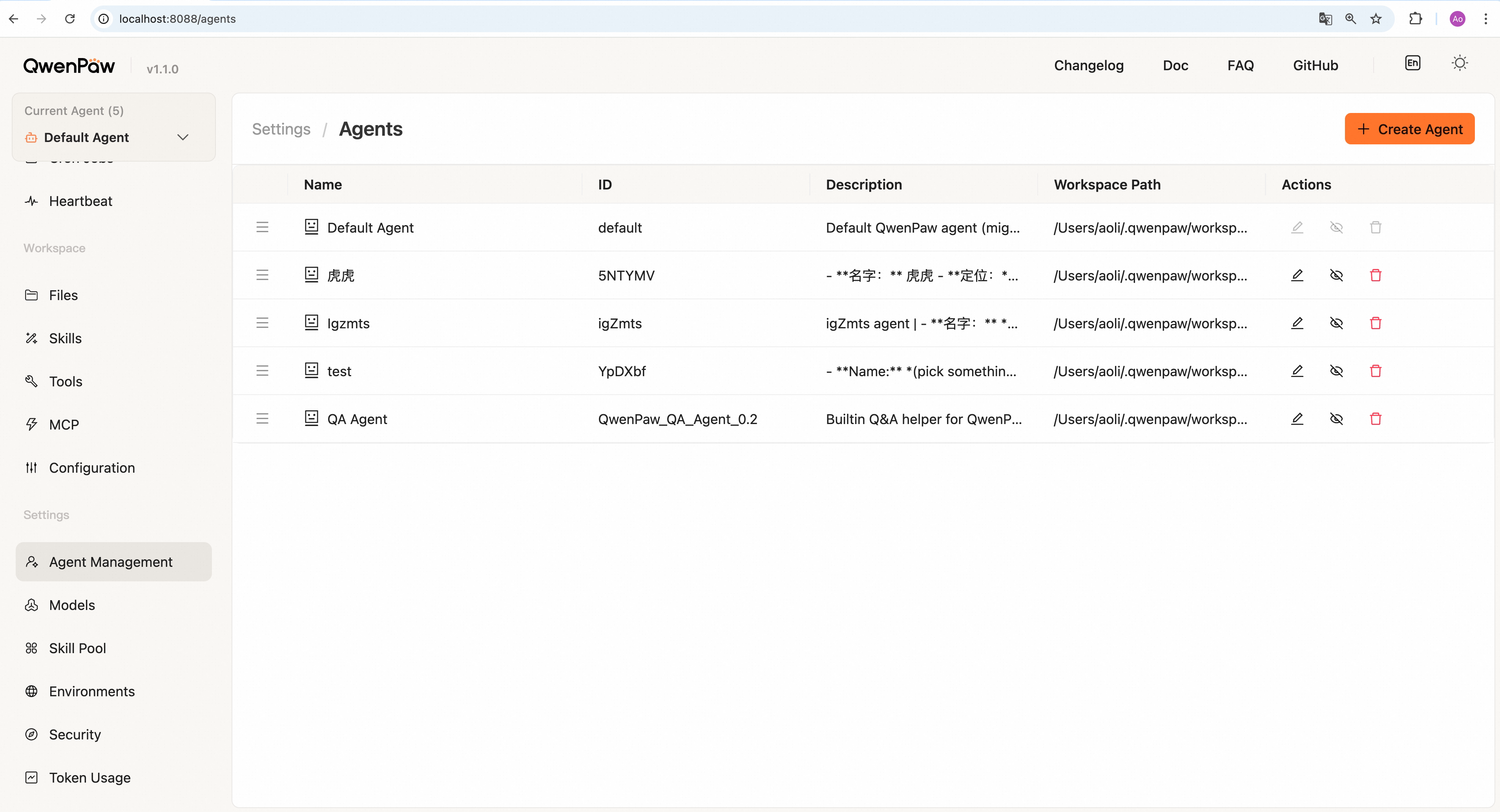
Create, edit, enable/disable, or delete agents. The **Description** field is used
|
||
|
|
when multiple agents collaborate — write a clear role.
|
||
|
|
|
||
|
|
**Current agent** at the top-left of the Console selects which agent you operate
|
||
|
|
on; this page edits each agent's metadata (name, description, custom workspace
|
||
|
|
path, etc.). See [Multi-Agent](./multi-agent).
|
||
|
|
|
||
|
|
---
|
||
|
|
|
||
|
|
## Models
|
||
|
|
|
||
|
|
> Sidebar: **Settings → Models**
|
||
|
|
|
||
|
|
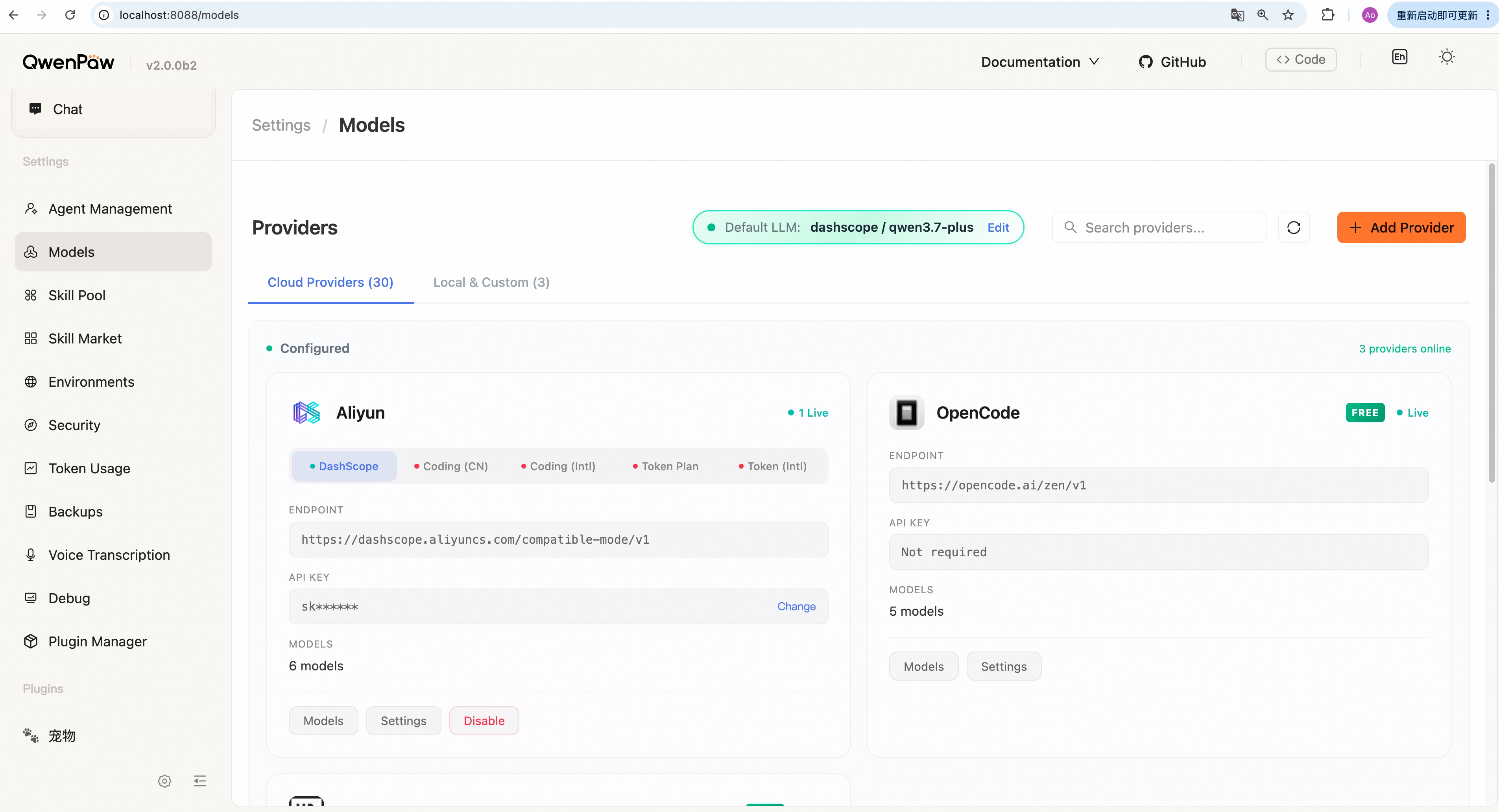
Configure LLM providers and select the default model for agents. See [Models](./models) for details on provider and model configuration.
|
||
|
|
|
||
|
|
|
||
|
|
|
||
|
|
On this page you can:
|
||
|
|
|
||
|
|
- Configure Cloud Providers (ModelScope, DashScope, OpenAI, Anthropic, etc.)
|
||
|
|
- Configure Local Providers (llama.cpp, Ollama, LM Studio)
|
||
|
|
- Add Custom Providers by filling in API details
|
||
|
|
- Select the default model for agents
|
||
|
|
|
||
|
|
---
|
||
|
|
|
||
|
|
## Skill pool
|
||
|
|
|
||
|
|
> Sidebar: **Settings → Skill pool**
|
||
|
|
|
||
|
|
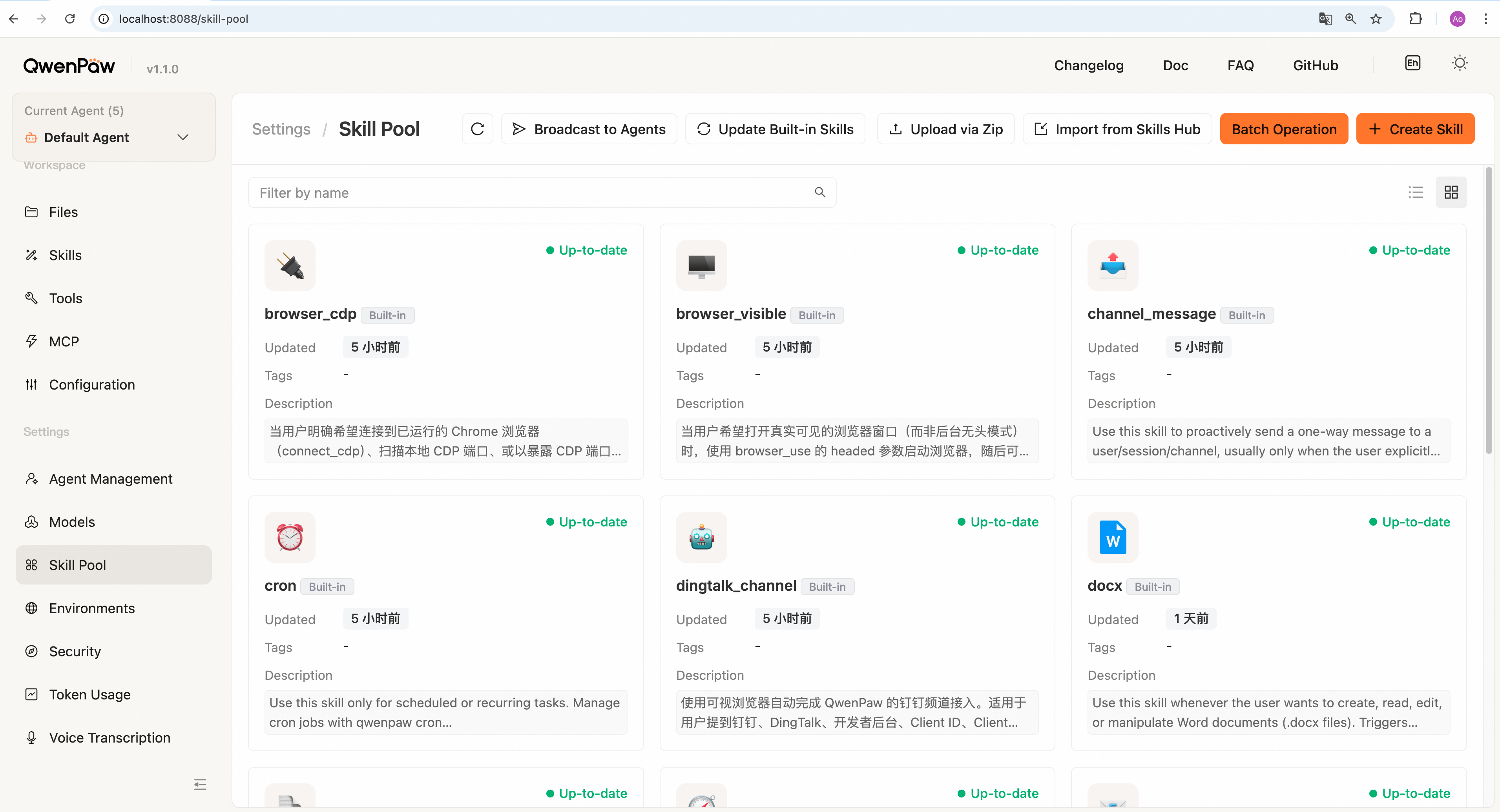
Global skill management. More detail: [Skills](./skills).
|
||
|
|
|
||
|
|
|
||
|
|
|
||
|
|
On this page you can:
|
||
|
|
|
||
|
|
- Broadcast skills to specific agents
|
||
|
|
- Update built-in skills to the latest version
|
||
|
|
- Add skills through the **Add Skill** entry: Create Skill, Upload via
|
||
|
|
Zip, Upload via URL, or Browse Market (clicking **Save** in the market saves
|
||
|
|
into the pool)
|
||
|
|
- Edit skills
|
||
|
|
- Delete skills
|
||
|
|
|
||
|
|
---
|
||
|
|
|
||
|
|
## Environment Variables
|
||
|
|
|
||
|
|
> Sidebar: **Settings → Environments**
|
||
|
|
|
||
|
|
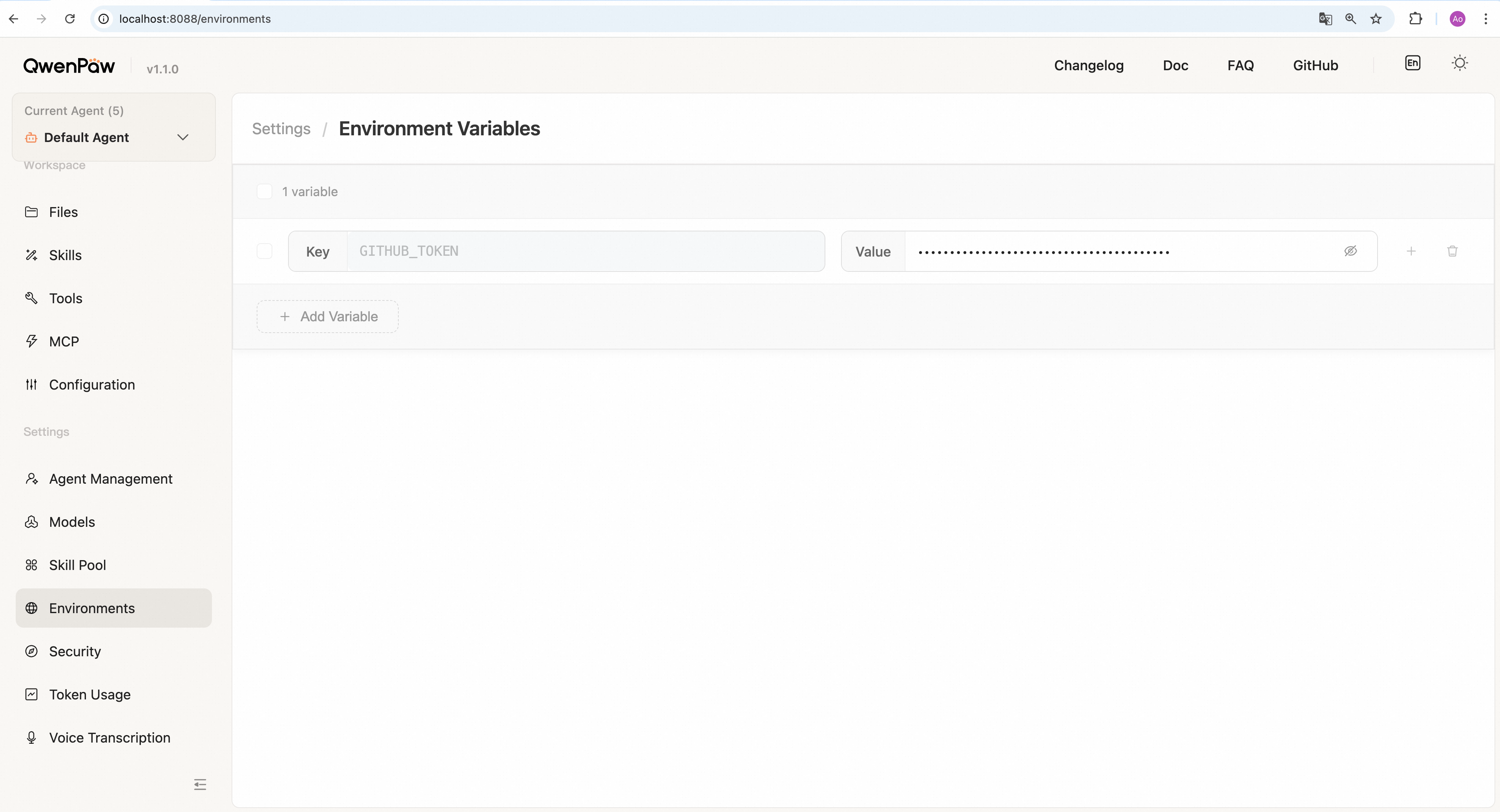
Manage runtime environment variables needed by QwenPaw tools and skills (e.g.
|
||
|
|
`TAVILY_API_KEY`).
|
||
|
|
|
||
|
|
|
||
|
|
|
||
|
|
**Add a variable:**
|
||
|
|
|
||
|
|
1. Click **+ Add Variable** at the bottom.
|
||
|
|
2. Enter the variable name (e.g. `TAVILY_API_KEY`) and value.
|
||
|
|
3. Click **Save**.
|
||
|
|
|
||
|
|
**Edit a variable:**
|
||
|
|
Change the **Value** field, then click **Save**.
|
||
|
|
(Variable names are read-only after save; to rename, delete and recreate.)
|
||
|
|
|
||
|
|
**Delete a variable:**
|
||
|
|
Click the **🗑** icon on a row → confirm.
|
||
|
|
|
||
|
|
**Batch delete:**
|
||
|
|
Select rows → click **Delete** in the toolbar → confirm.
|
||
|
|
|
||
|
|
> **Note:** Variable validity is your responsibility. QwenPaw only stores and loads
|
||
|
|
> values.
|
||
|
|
>
|
||
|
|
> See [Config — Environment variables](./config#environment-variables).
|
||
|
|
|
||
|
|
---
|
||
|
|
|
||
|
|
## Security
|
||
|
|
|
||
|
|
> Sidebar: **Settings → Security**
|
||
|
|
|
||
|
|
|
||
|
|
|
||
|
|
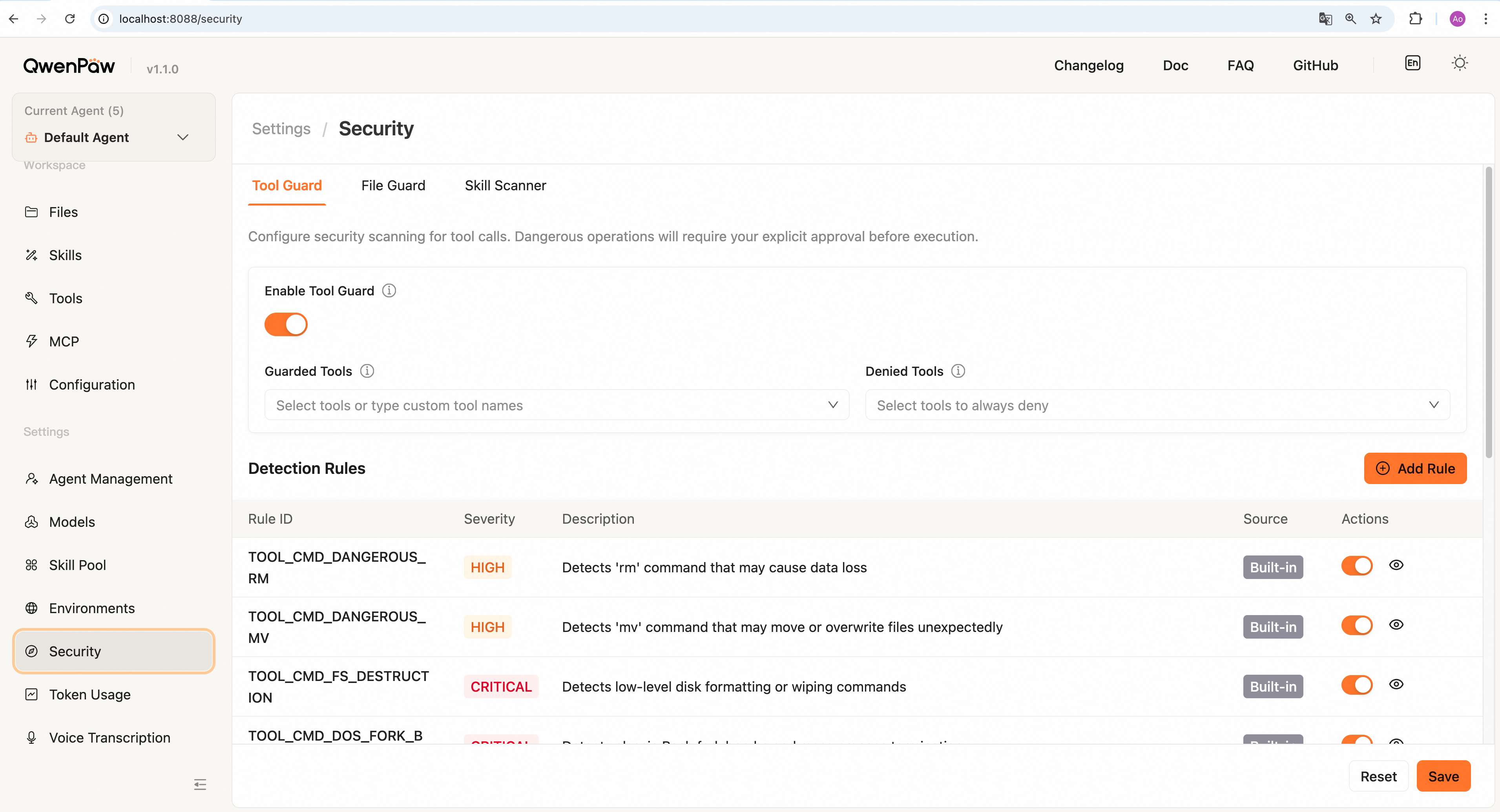
Tabs for **tool guard**, **file guard**, **skill scanner**, etc.: control
|
||
|
|
dangerous-tool parameter blocking, sensitive path access, and skill package
|
||
|
|
scanning policy.
|
||
|
|
|
||
|
|
Click **Save** after changing toggles or rules. Details: [Security](./security).
|
||
|
|
|
||
|
|
---
|
||
|
|
|
||
|
|
## Token Usage
|
||
|
|
|
||
|
|
> Sidebar: **Settings → Token Usage**
|
||
|
|
|
||
|
|
|
||
|
|
|
||
|
|
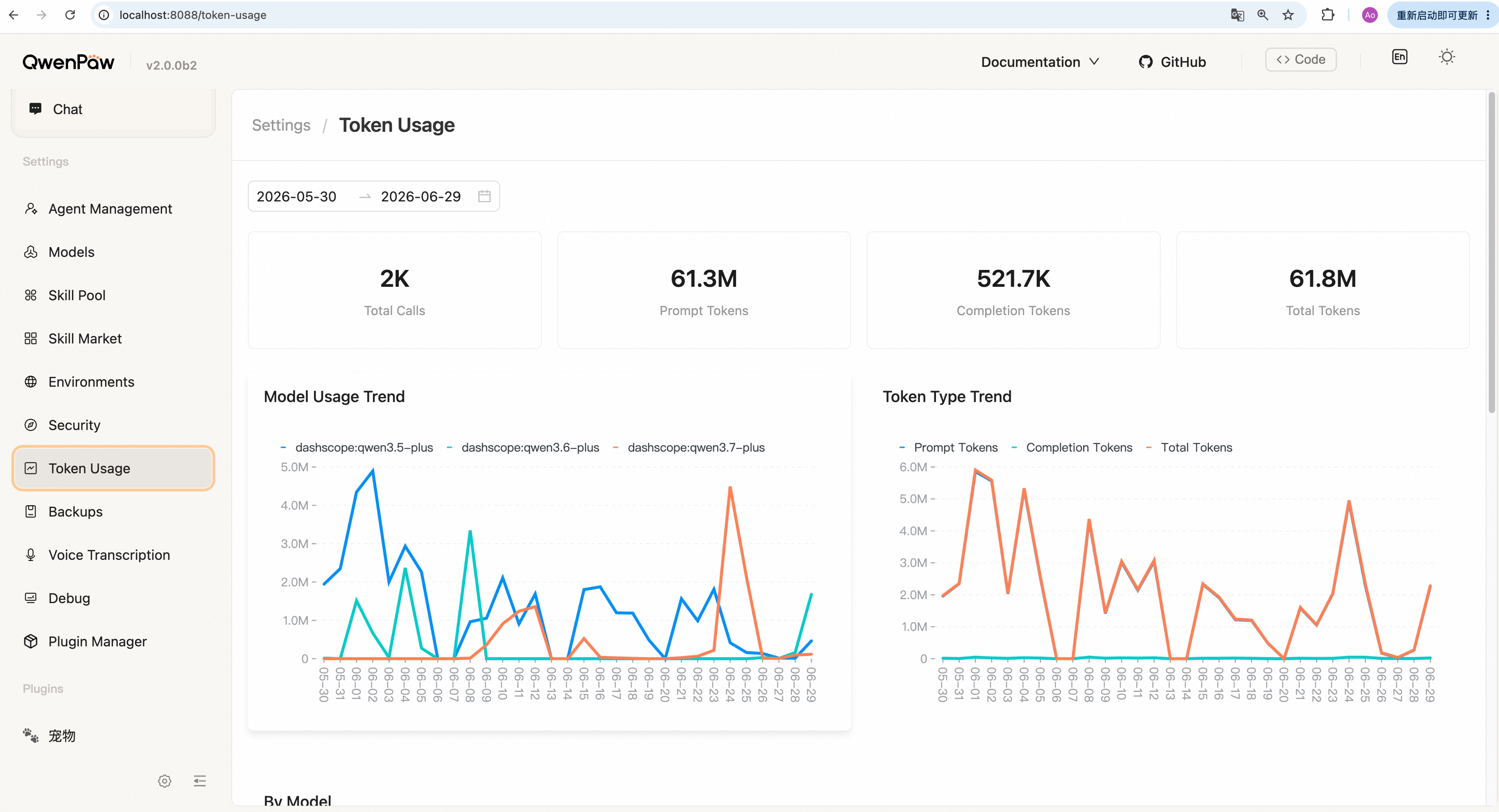
View LLM token usage over a range, by date and model.
|
||
|
|
|
||
|
|
**View usage:**
|
||
|
|
|
||
|
|
1. Select a date range (default: last 30 days).
|
||
|
|
2. Click **Refresh** to fetch data.
|
||
|
|
3. The page shows total tokens, total calls, and breakdowns by model and date.
|
||
|
|
|
||
|
|
**Query via chat:**
|
||
|
|
Ask e.g. "How many tokens have I used?" or "Show token usage." The agent calls
|
||
|
|
`get_token_usage` and returns stats.
|
||
|
|
|
||
|
|
> Data is stored in `~/.qwenpaw/token_usage.json`. Override the filename with
|
||
|
|
> `QWENPAW_TOKEN_USAGE_FILE`. See [Config — Environment variables](./config#environment-variables).
|
||
|
|
|
||
|
|
---
|
||
|
|
|
||
|
|
## Voice transcription
|
||
|
|
|
||
|
|
> Sidebar: **Settings → Voice transcription**
|
||
|
|
|
||
|
|

|
||
|
|
|
||
|
|
Configure how **voice/audio from channels** is handled before it reaches the
|
||
|
|
model (same settings apply to voice input in chat and channel voice messages).
|
||
|
|
|
||
|
|
- **Audio mode** — **Auto**: transcribe per settings below, then send text
|
||
|
|
(works for most models). **Native**: send audio as an attachment (only for
|
||
|
|
models that support audio).
|
||
|
|
- **Transcription backend** — **Off**; **Whisper API**; **Local Whisper**.
|
||
|
|
|
||
|
|
**Whisper API setup:**
|
||
|
|
|
||
|
|
1. Add an OpenAI-compatible provider under [Models](#models).
|
||
|
|
2. Make sure the provider supports `audio/transcriptions` and has a valid API
|
||
|
|
key.
|
||
|
|
3. Return here and select that provider as the Whisper API backend.
|
||
|
|
|
||
|
|
**Local Whisper setup:**
|
||
|
|
|
||
|
|
1. Install `ffmpeg` with your system package manager.
|
||
|
|
2. Install the optional Python dependency in the environment that runs QwenPaw:
|
||
|
|
`pip install "qwenpaw[whisper]"`.
|
||
|
|
3. Restart QwenPaw, then select **Local Whisper** here.
|
||
|
|
|
||
|
|
Verify the local installation with:
|
||
|
|
|
||
|
|
```bash
|
||
|
|
ffmpeg -version
|
||
|
|
python -c "import whisper; print('openai-whisper installed')"
|
||
|
|
```
|
||
|
|
|
||
|
|
**Save** applies to newly received audio. Follow on-page help for details.
|
||
|
|
|
||
|
|
---
|
||
|
|
|
||
|
|
## Quick Reference
|
||
|
|
|
||
|
|
| Page | Sidebar path | What you can do |
|
||
|
|
| --------------------- | ------------------------------ | ---------------------------------------------- |
|
||
|
|
| Chat | Chat → Chat | Chat, voice, attachments, sessions |
|
||
|
|
| Channels | Control → Channels | Enable/disable, credentials |
|
||
|
|
| Sessions | Control → Sessions | Filter, rename, delete |
|
||
|
|
| Cron Jobs | Control → Cron Jobs | Create/edit/delete, run now |
|
||
|
|
| Heartbeat | Control → Heartbeat | Interval, delivery target, active hours |
|
||
|
|
| Files | Workspace → Files | Persona files, memory, upload/download |
|
||
|
|
| Skills | Workspace → Skills | Enable/disable, create/zip/URL/market add |
|
||
|
|
| Tools | Workspace → Tools | Toggle built-in tools by name |
|
||
|
|
| MCP | Workspace → MCP | MCP clients |
|
||
|
|
| Configuration | Workspace → Configuration | Iterations, context, retries, compaction, etc. |
|
||
|
|
| Agent management | Settings → Agent management | CRUD agents, enable/disable |
|
||
|
|
| Models | Settings → Models | Providers, local models, active model |
|
||
|
|
| Skill pool | Settings → Skill pool | Built-in and shared reusable skills |
|
||
|
|
| Environment Variables | Settings → Environments | Keys for tools/skills |
|
||
|
|
| Security | Settings → Security | Tool guard, skill scan, file guard |
|
||
|
|
| Token Usage | Settings → Token Usage | Usage by date/model |
|
||
|
|
| Voice transcription | Settings → Voice transcription | Audio mode, Whisper API/local |
|
||
|
|
|
||
|
|
---
|
||
|
|
|
||
|
|
## Related Pages
|
||
|
|
|
||
|
|
- [Config & working directory](./config) — Config fields, providers, env vars
|
||
|
|
- [Channels](./channels) — Per-channel setup and credentials
|
||
|
|
- [Skills](./skills) — Built-in skills and custom skills
|
||
|
|
- [Heartbeat](./heartbeat) — Heartbeat configuration
|
||
|
|
- [Context](./context) — Compaction and context
|
||
|
|
- [Security](./security) — Web login, tool guard, file guard
|
||
|
|
- [CLI](./cli) — Command-line reference
|
||
|
|
- [Multi-Agent](./multi-agent) — Multi-agent setup, management, collaboration
|