# Channels
A **channel** is where you talk to QwenPaw: connect DingTalk and it replies
in DingTalk; same for QQ, etc. If that term is new, see [Introduction](./intro).
Two ways to configure channels:
- **Console** (recommended) — In the [Console](./console) under **Control → Channels**, click a channel card, enable it and fill in credentials in the drawer. Changes take effect when you save.
- **Edit `agent.json` directly** — Agent workspace config at `~/.qwenpaw/workspaces/{agent_id}/agent.json`, set `enabled: true` and fill in that platform's credentials. Saving triggers a reload without restarting the app.
Below is how to get credentials and fill config for each channel.
---
## DingTalk (recommended)
### Create a DingTalk app
Video tutorial:

Step-by-step:
1. Open the [DingTalk Developer Portal](https://open-dev.dingtalk.com/)
2. Create an **internal enterprise app**
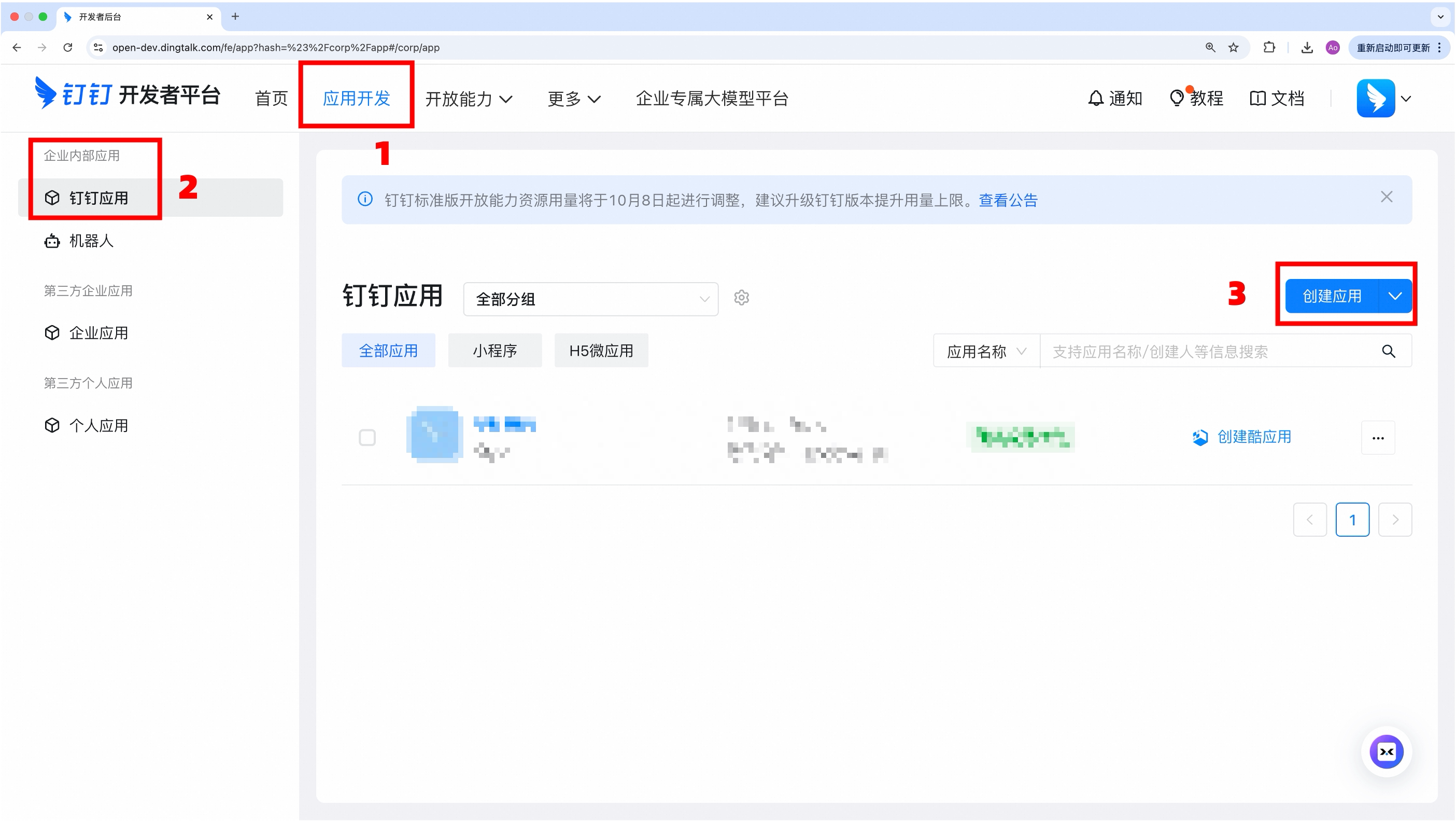
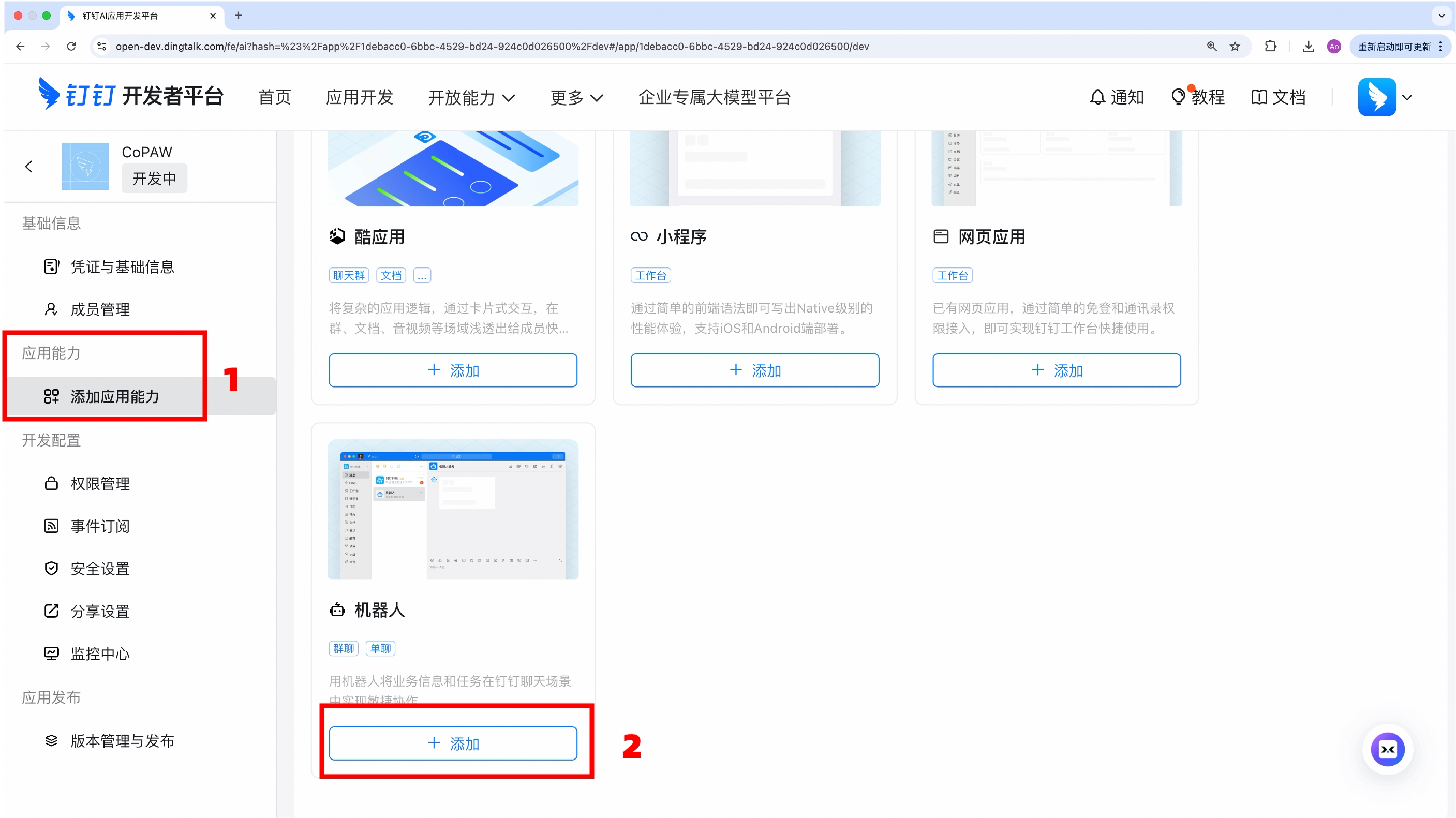
3. Add the **「Robot」** capability
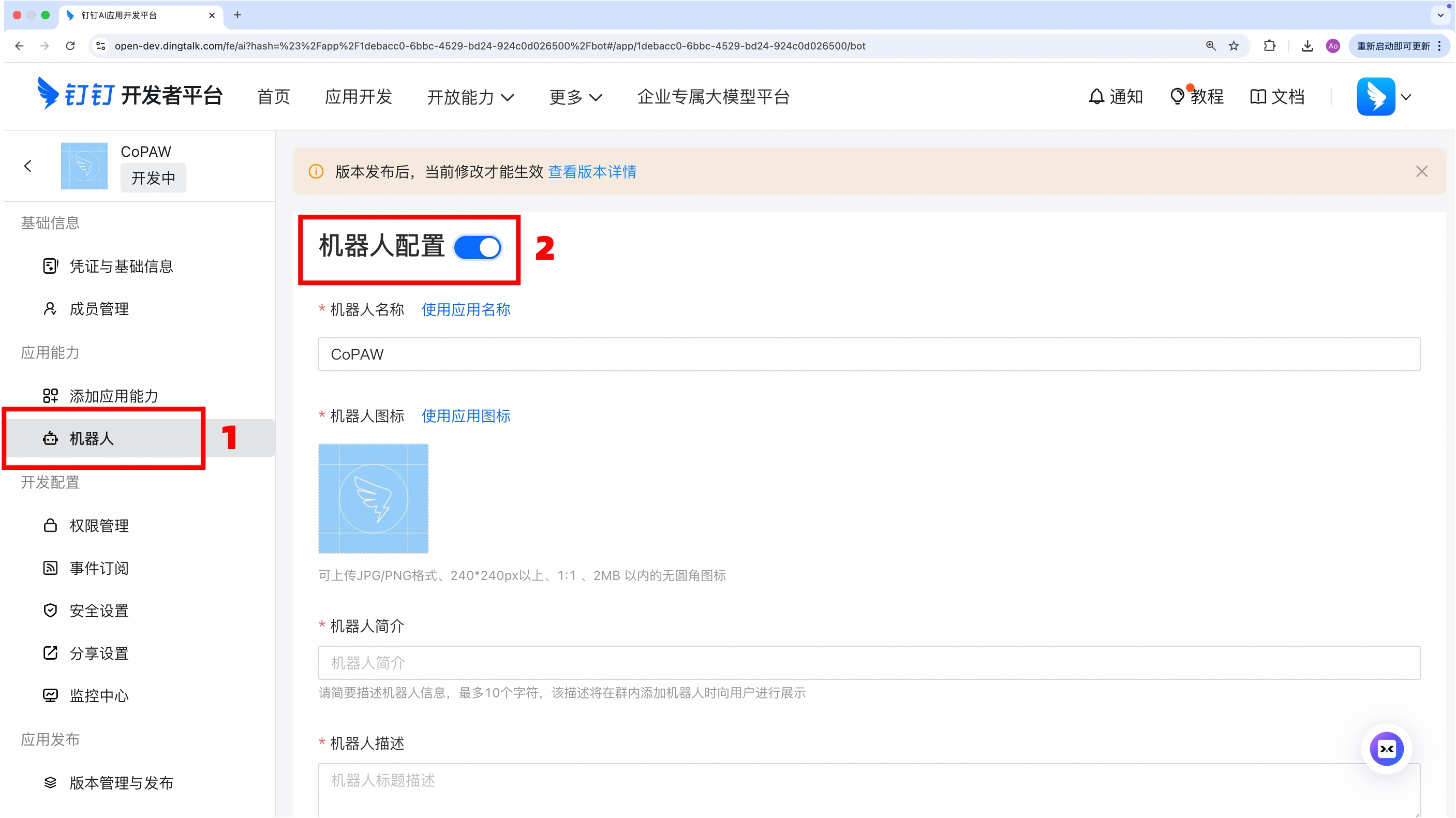
4. Set message receiving mode to **Stream** then publish
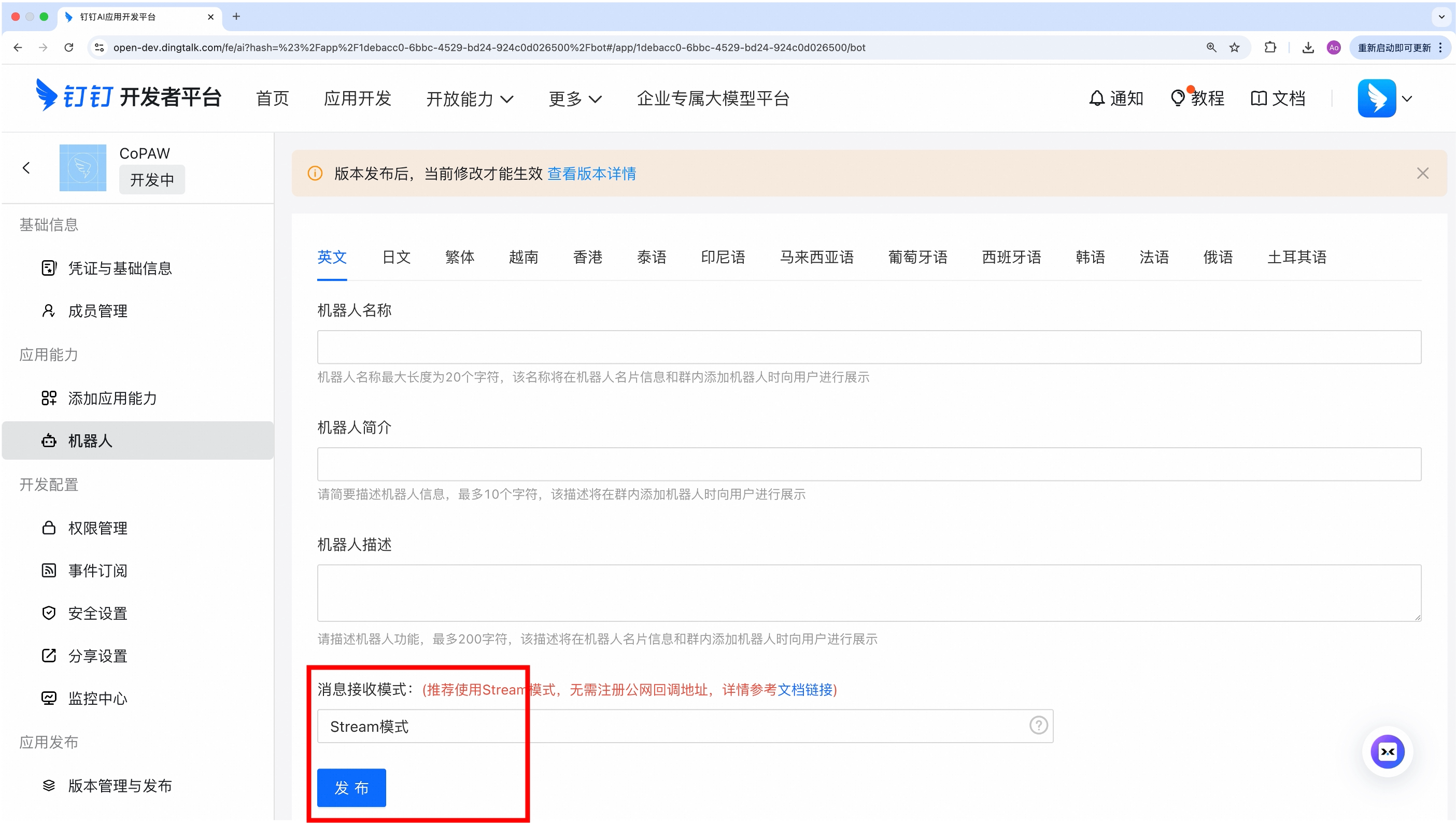
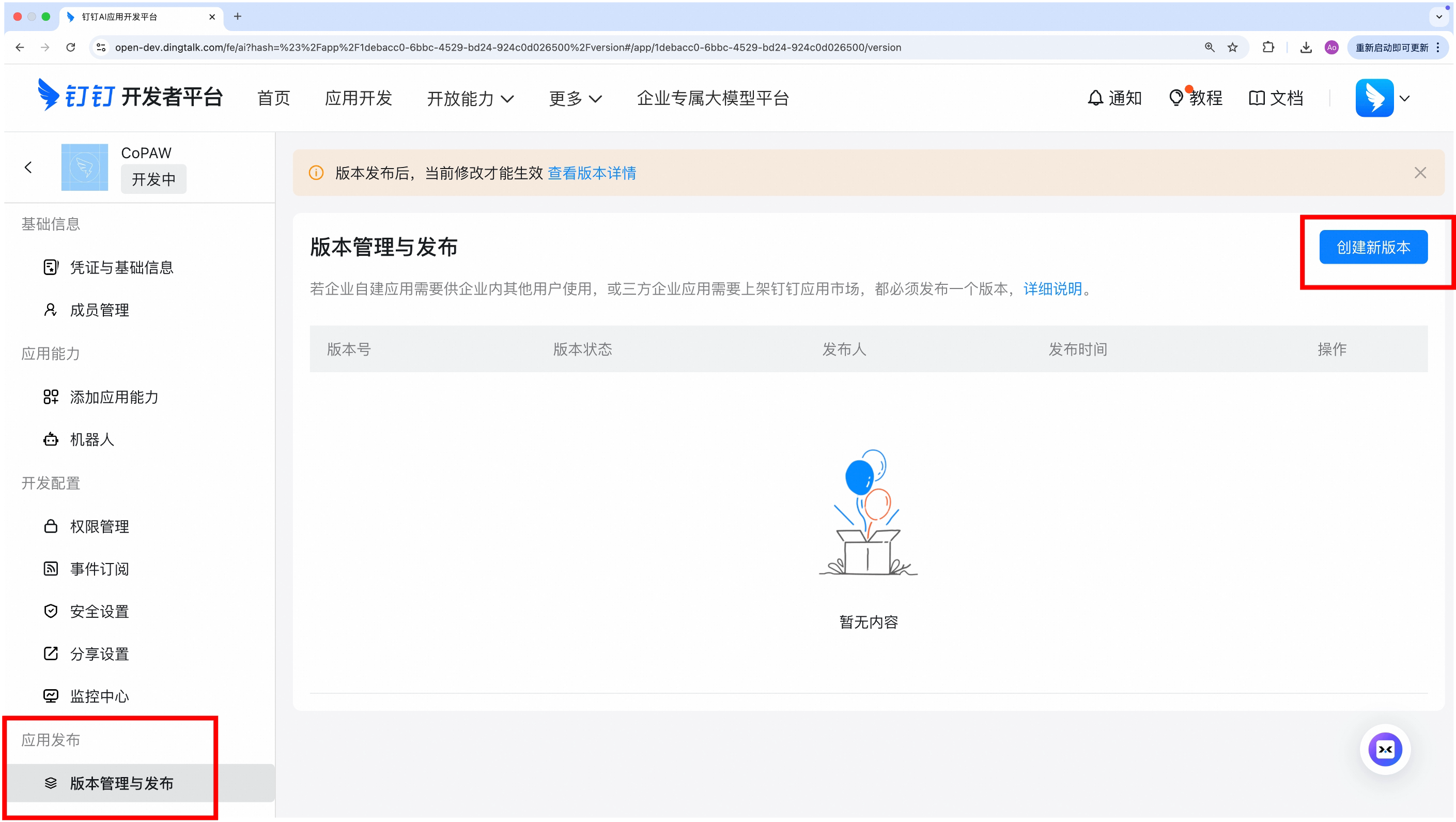
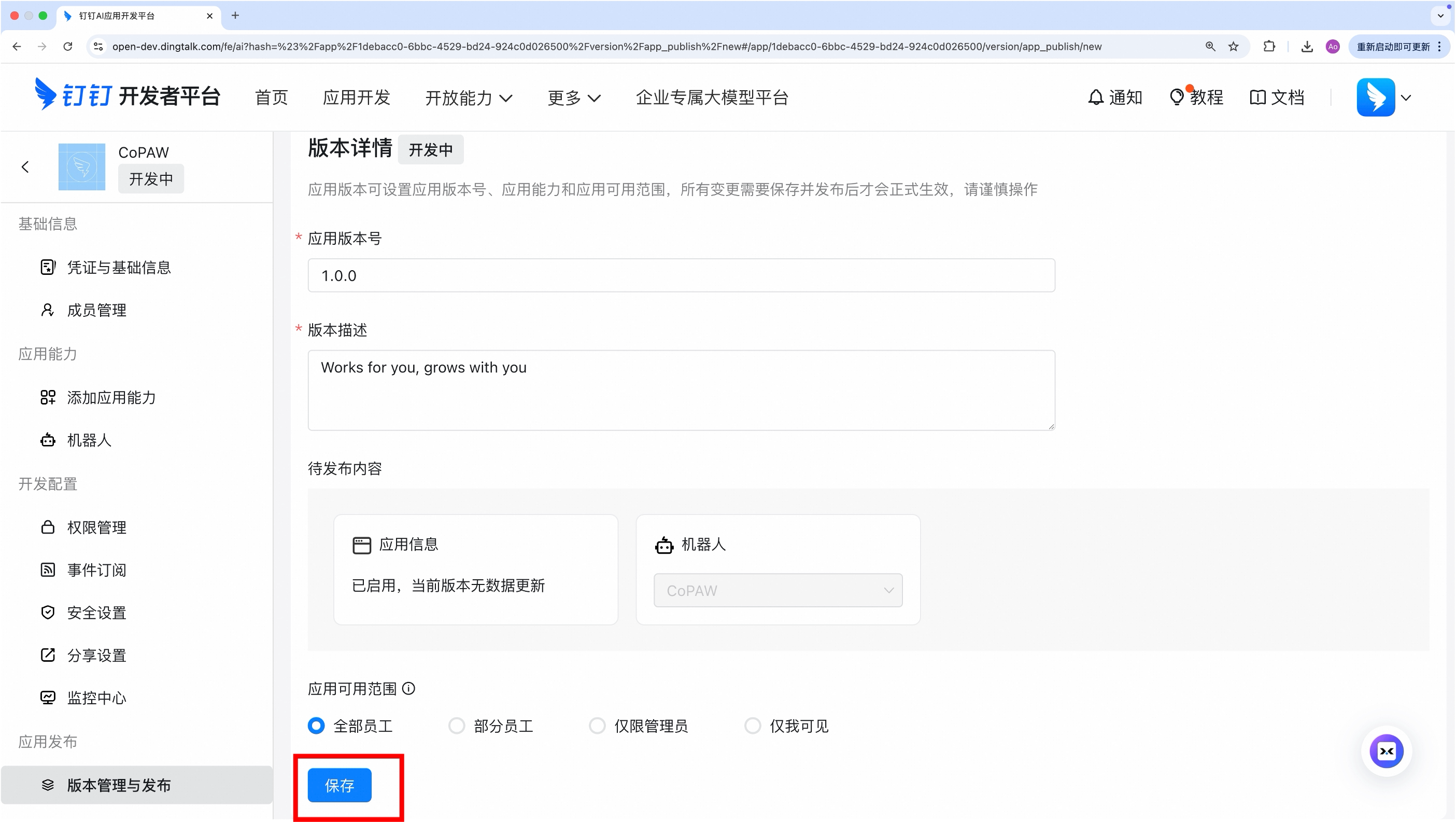
5. Create a new version to publish, fill in basic info and save
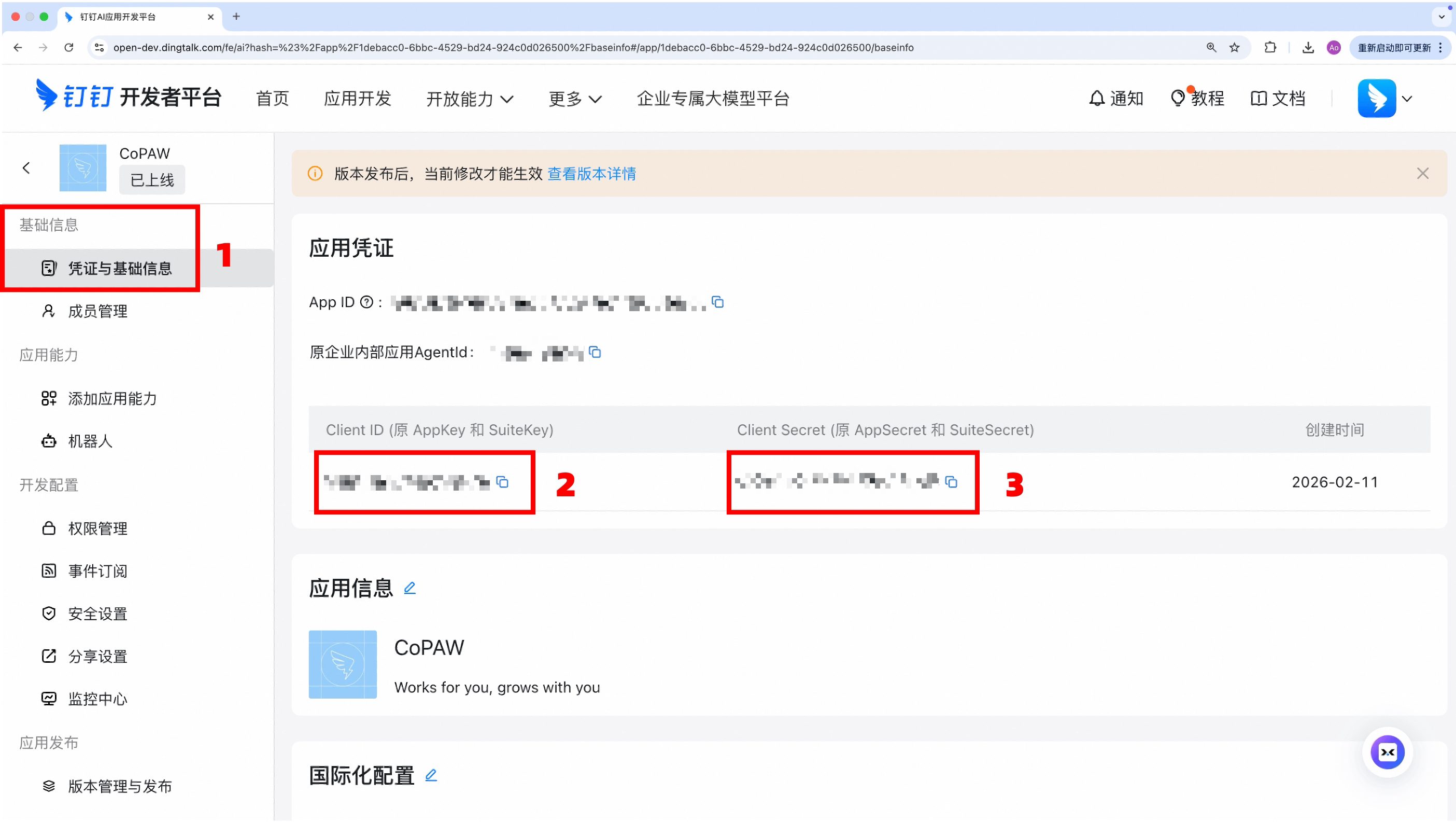
6. In the app details, copy:
- **Client ID** (AppKey)
- **Client Secret** (AppSecret)
7. (Optional) **Add your server's IP to the whitelist** — this is required for features that call the DingTalk Open API (e.g. downloading images and files sent by users). Go to **"Security & Compliance → IP Whitelist"** in your app settings and add the public IP of the machine running QwenPaw. You can find your public IP by running `curl ifconfig.me` in a terminal. If the IP is not whitelisted, image and file downloads will fail with a `Forbidden.AccessDenied.IpNotInWhiteList` error.
### Link the app
You can configure it either in the Console frontend or by editing the agent workspace `agent.json`.
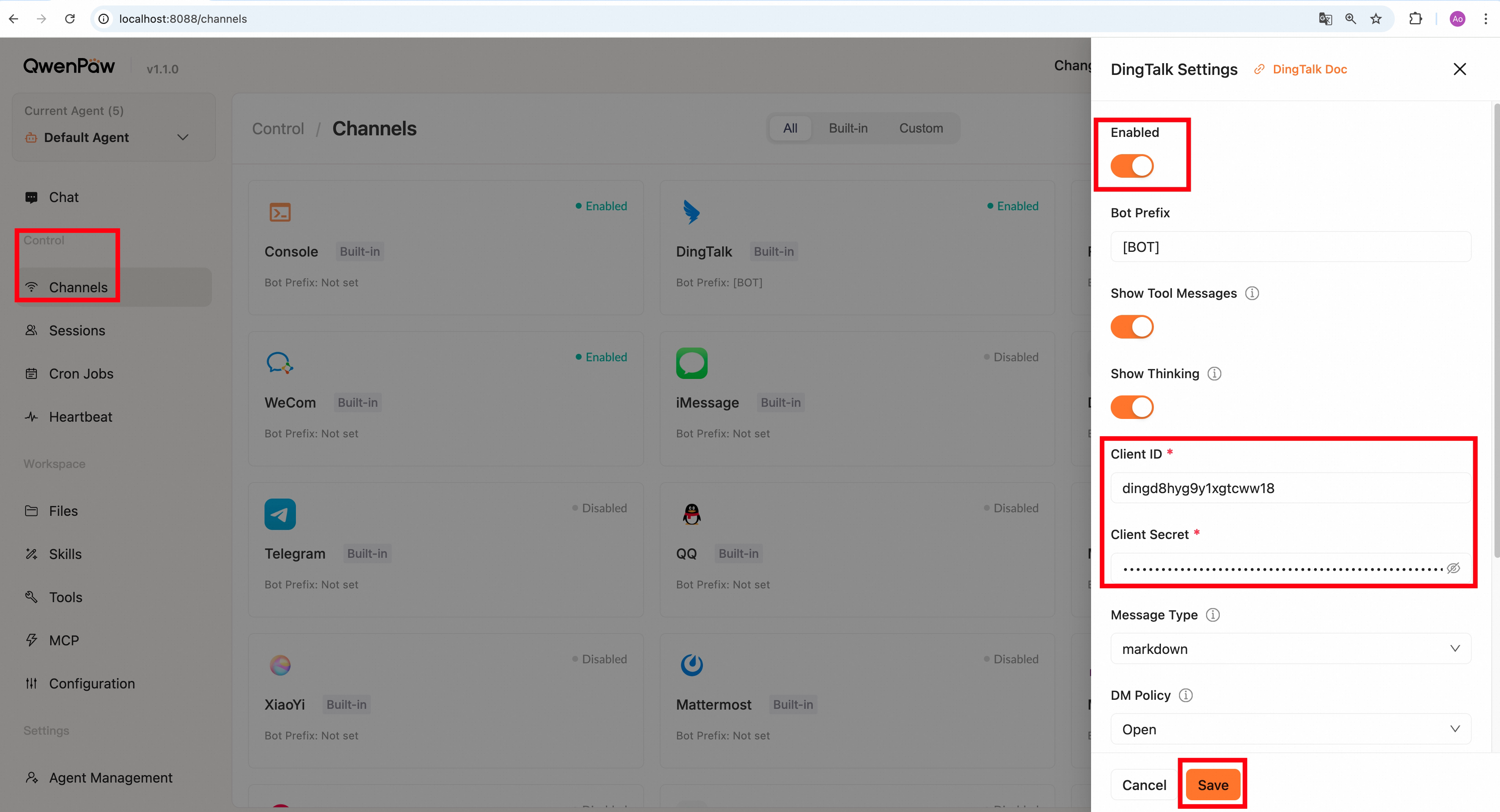
**Method 1**: Configure in the Console frontend
Go to "Control→Channels", find **DingTalk**, click it, and enter the **Client ID** and **Client Secret** you just obtained.
**Method 2**: Edit agent workspace `agent.json`
In your agent's `agent.json` (e.g., `~/.qwenpaw/workspaces/default/agent.json`), find `channels.dingtalk` and fill in the corresponding information, for example:
```json
"dingtalk": {
"enabled": true,
"bot_prefix": "[BOT]",
"client_id": "your Client ID",
"client_secret": "your Client Secret",
"message_type": "markdown",
"card_template_id": "",
"card_template_key": "content",
"robot_code": "",
"show_tool_calls": true,
"show_tool_results": true,
"show_thinking": true,
"tool_call_max_length": 200,
"tool_result_max_length": 500
}
```
**DingTalk-specific fields:**
| Field | Type | Default | Description |
| ------------------- | ------ | --------------- | ---------------------------------------------------------------------------------------------------------------- |
| `client_id` | string | `""` (required) | DingTalk app Client ID (AppKey) |
| `client_secret` | string | `""` (required) | DingTalk app Client Secret (AppSecret) |
| `message_type` | string | `"markdown"` | Message mode: `"markdown"` (default) or `"card"` (AI interactive card) |
| `card_template_id` | string | `""` | DingTalk AI Card template ID (required when `message_type` is `card`) |
| `card_template_key` | string | `"content"` | AI Card variable key; must exactly match your template variable name |
| `robot_code` | string | `""` | Robot code (recommended explicit config for group card delivery scenarios; falls back to `client_id` when empty) |
| `media_dir` | string | `null` | Media file download directory (leave empty to not save) |
> **Tips:**
>
> - Tool calls and results can be shown independently. Set a maximum length to `0` to disable truncation.
> - AI Card mode: set `message_type` to `card`, then configure `card_template_id`; keep `card_template_key` consistent with your DingTalk template variable (default `content`).
> - `robot_code` is recommended in group scenarios; if empty, QwenPaw falls back to `client_id`.
Save the file; if the app is already running, the channel will reload. Otherwise run `qwenpaw app`.
### Find the created app
Video tutorial:

Step-by-step:
1. In DingTalk, tap the **search box** in the **[Messages]** tab
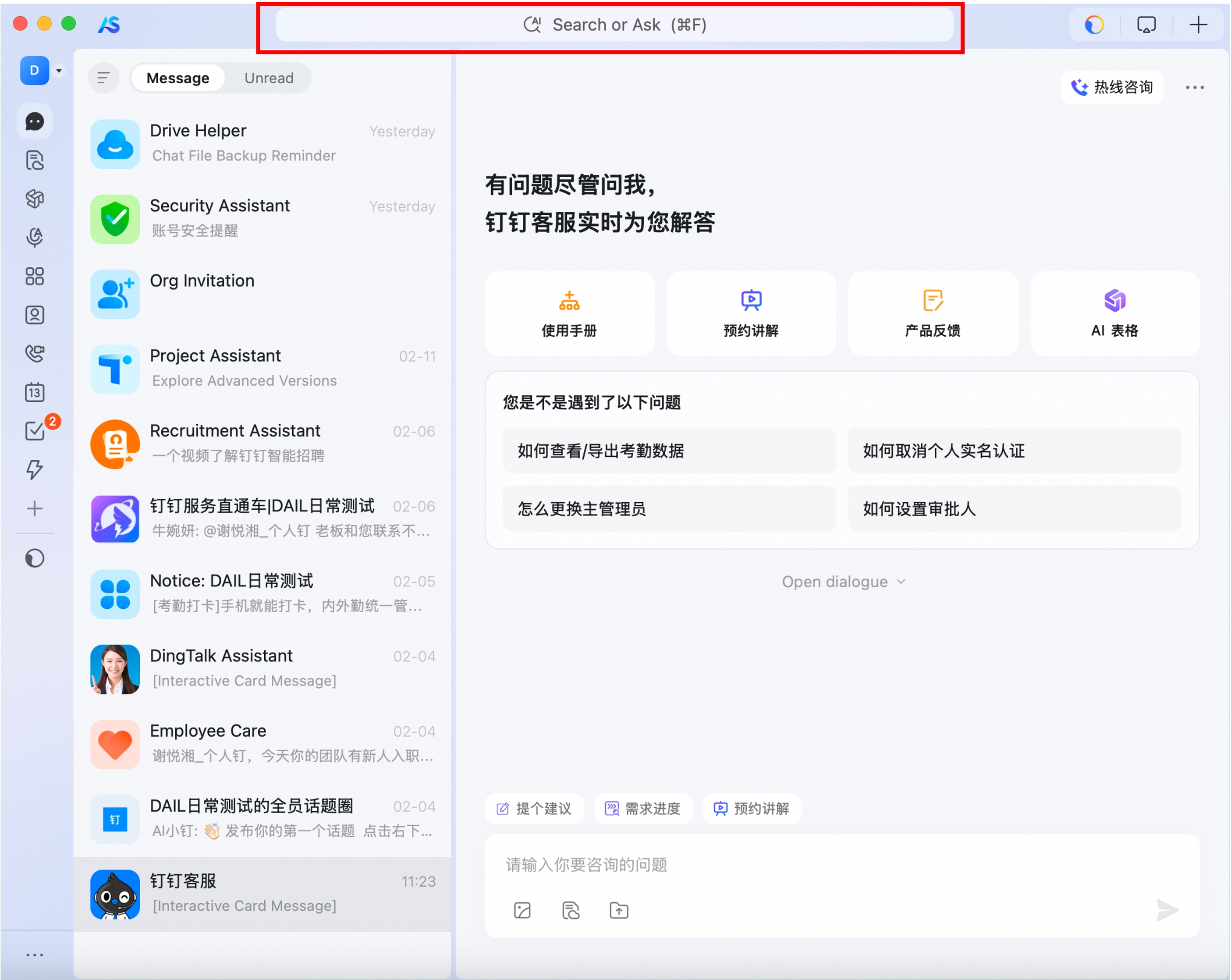
2. Search for the **bot name** you just created; find the bot under **[Functions]**
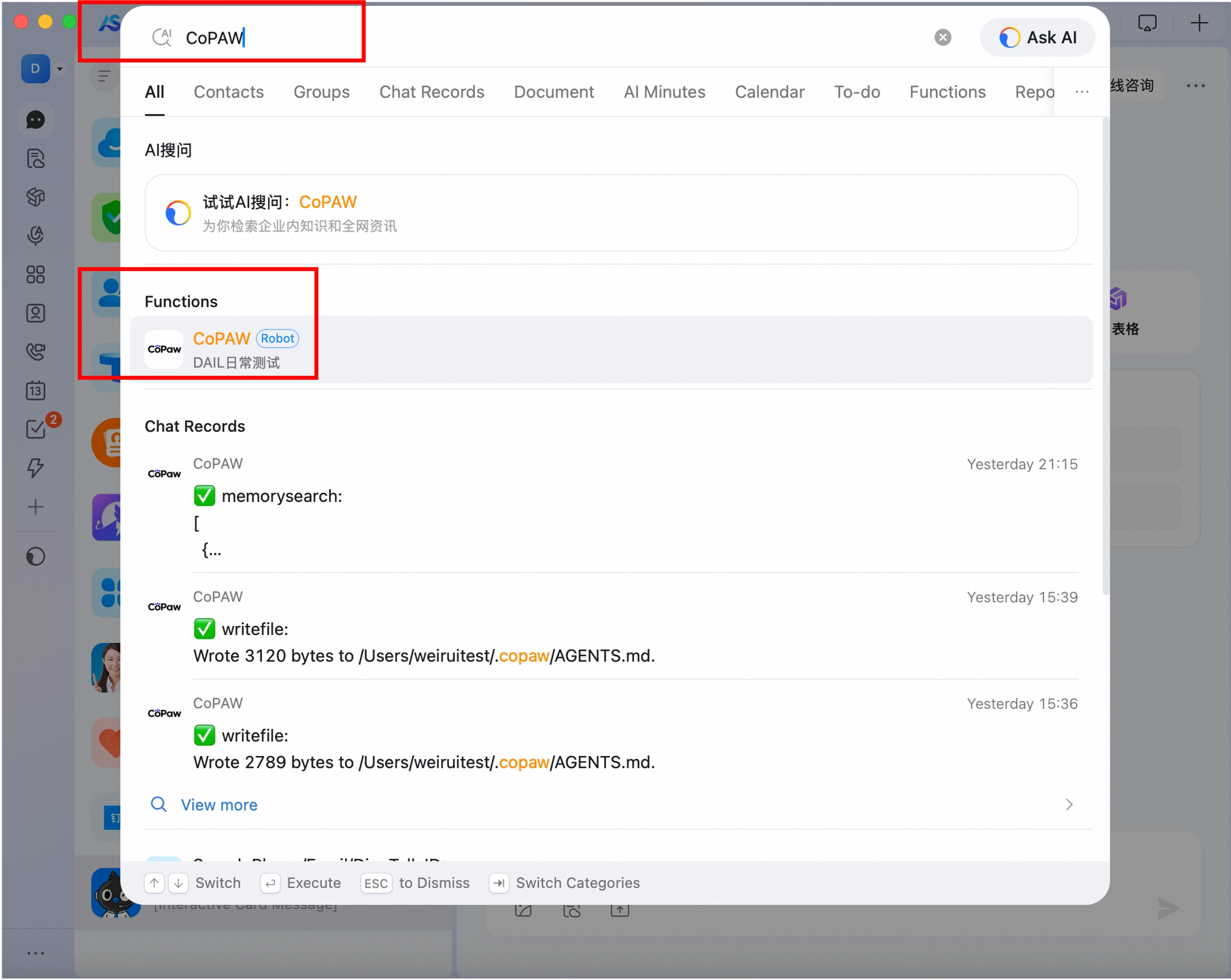
3. Tap to open the chat
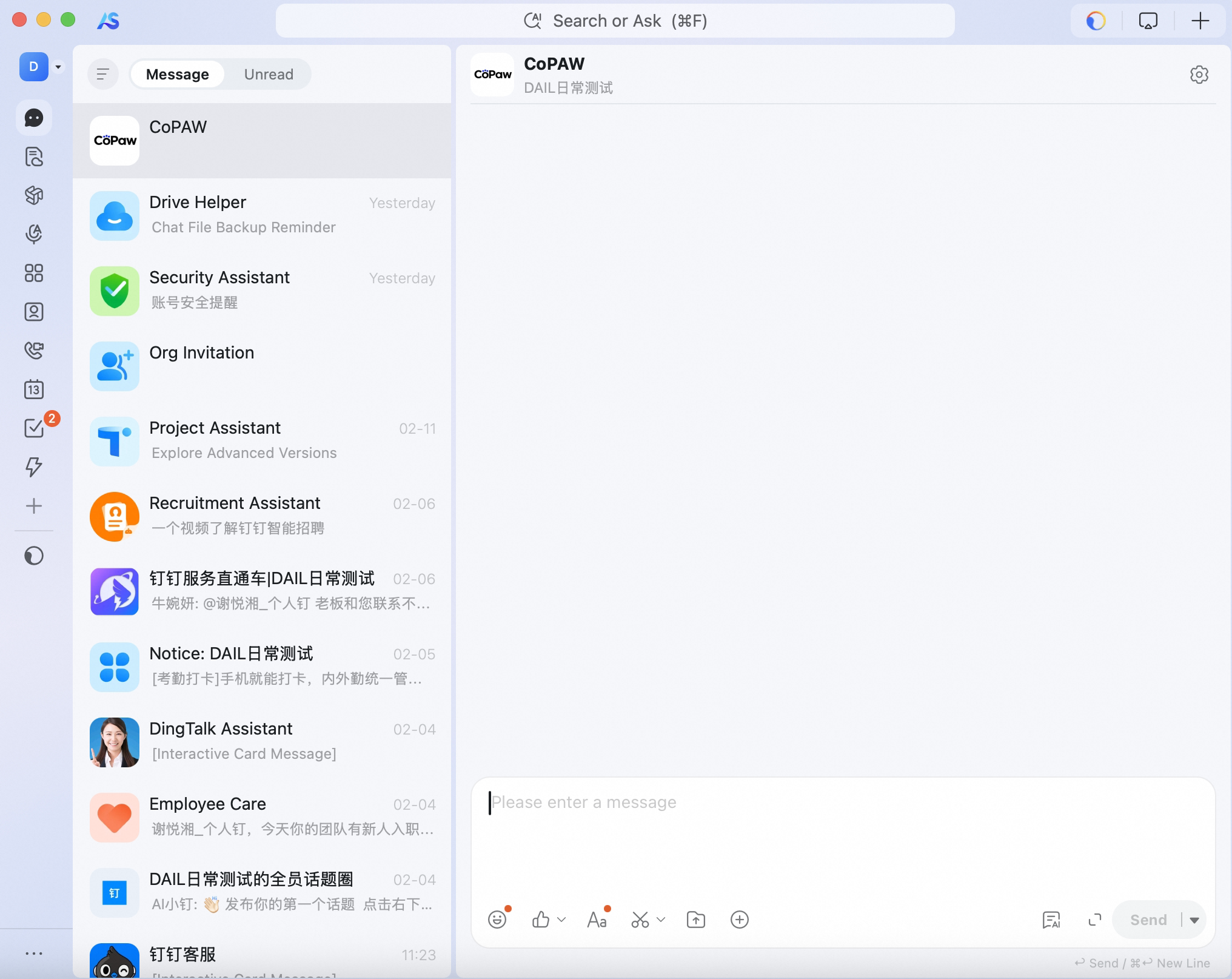
> You can add the bot to a group chat via **Group Settings → Bots → Add a robot in DingTalk**. If you create a group chat from your one-on-one chat with the bot, the bot’s replies will not be triggered.
---
## Feishu (Lark)
The Feishu channel receives messages via **WebSocket long connection** (no public IP or webhook). Sending uses the Feishu Open API. It supports text, image, and file in both directions. For group chats, `chat_id` and `message_id` are included in the request message metadata for downstream deduplication and context.
### Create a Feishu app and get credentials
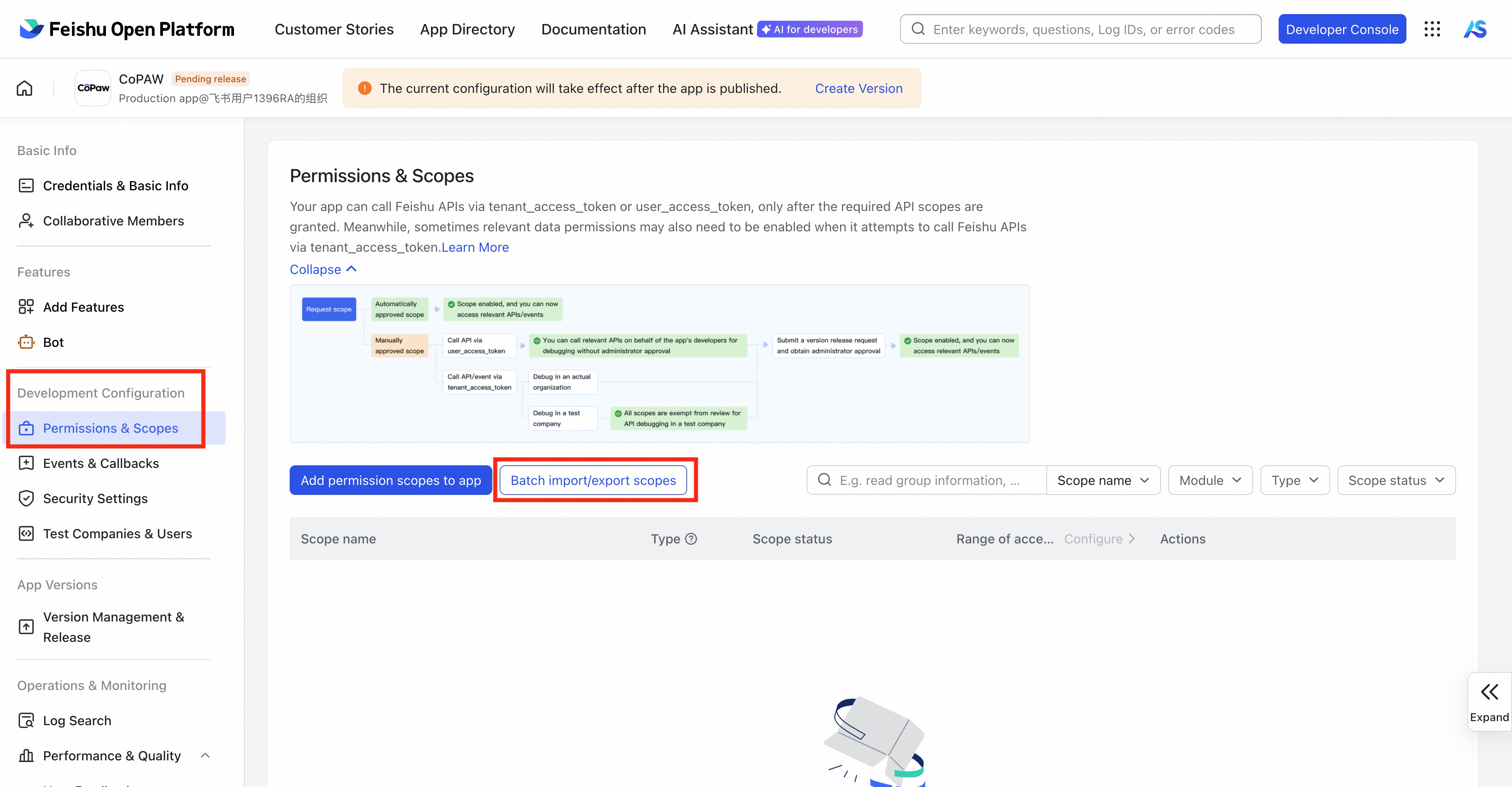
1. Open the [Feishu Open Platform](https://open.feishu.cn/app) and create an enterprise app
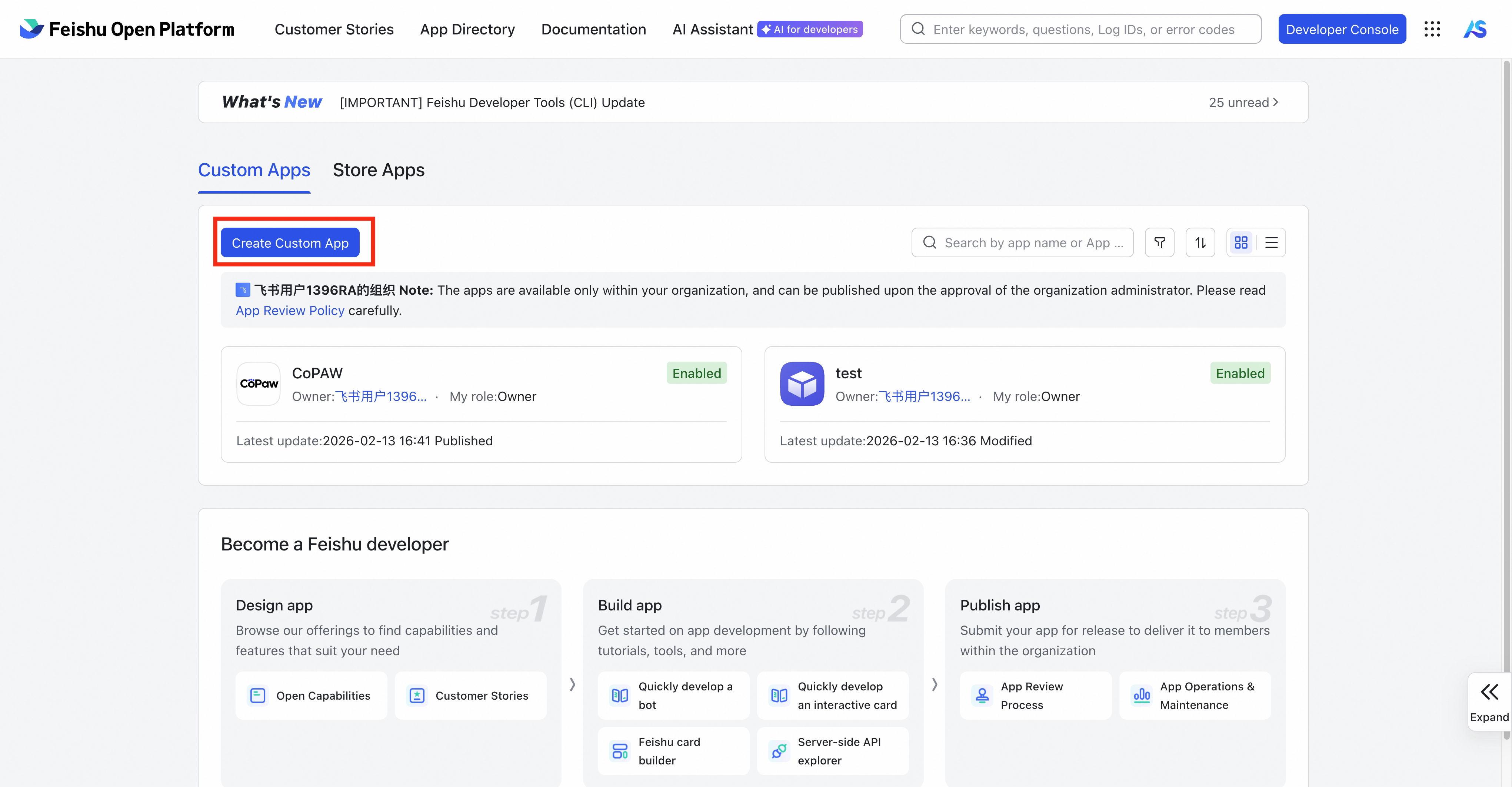
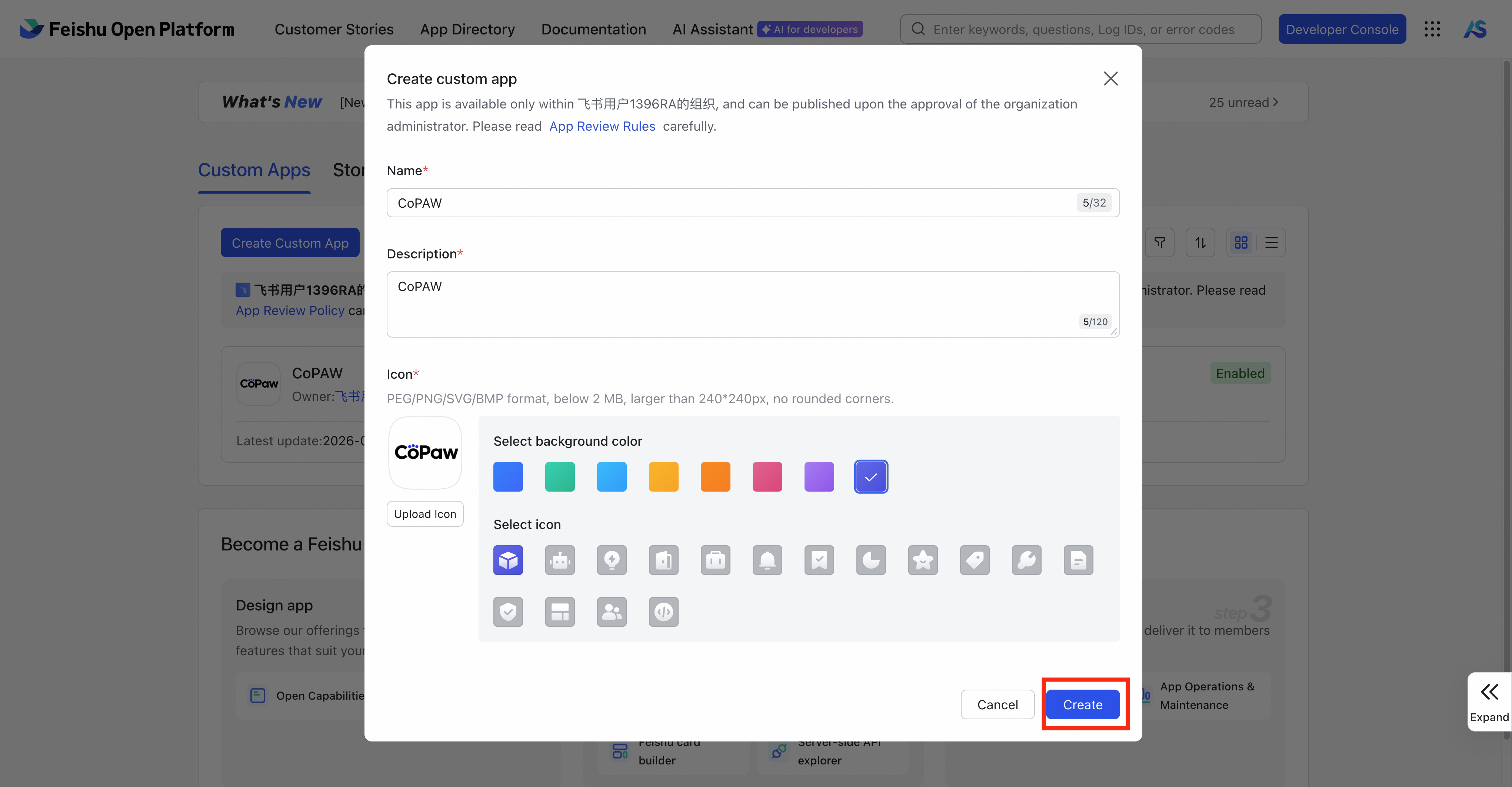
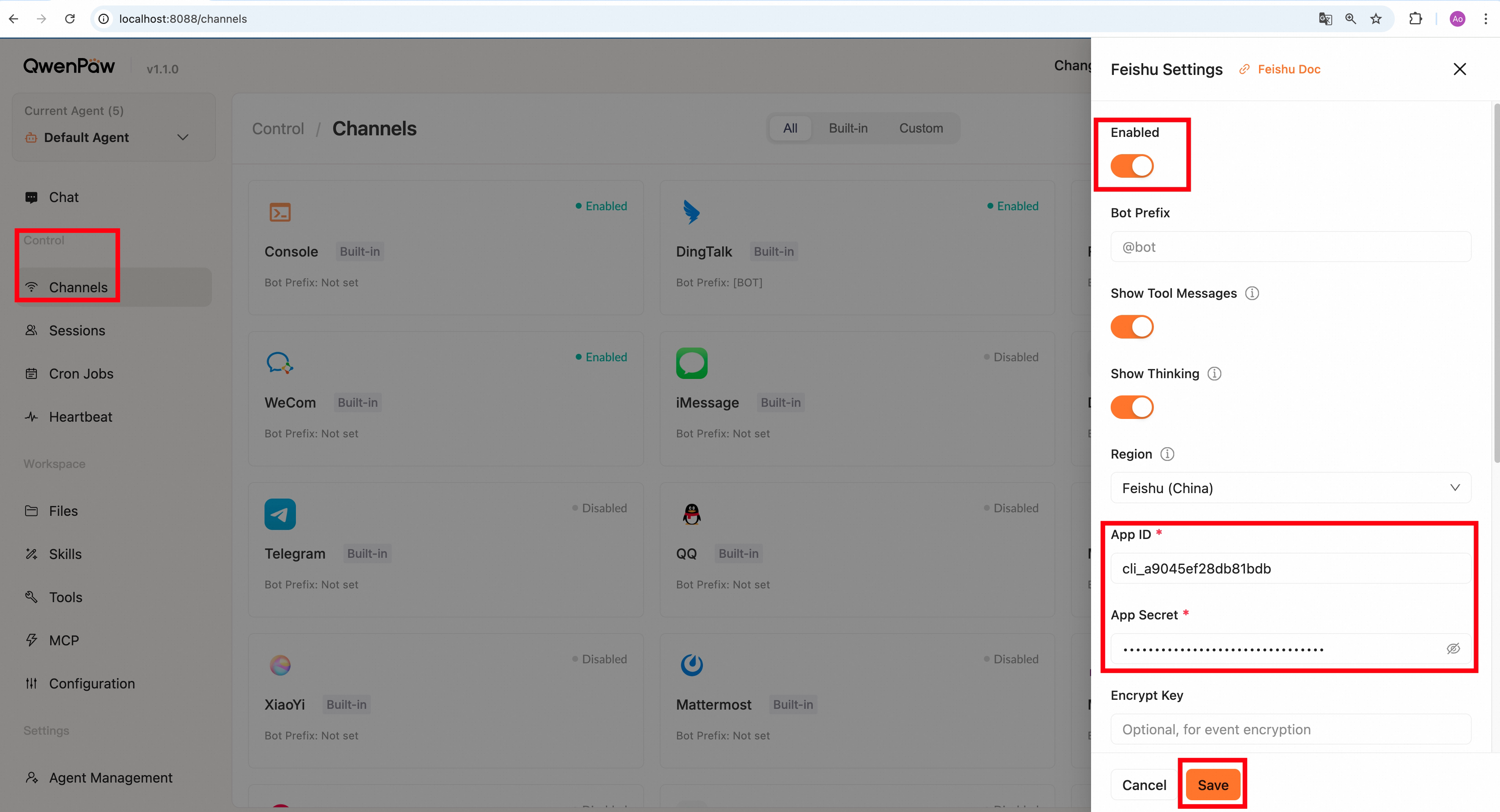
2. In **Credentials & Basic Info**, copy **App ID** and **App Secret**
3. Fill **App ID** and **App Secret** in `agent.json` (see "Fill agent.json" below) and save
4. Run **`qwenpaw app`** to start QwenPaw
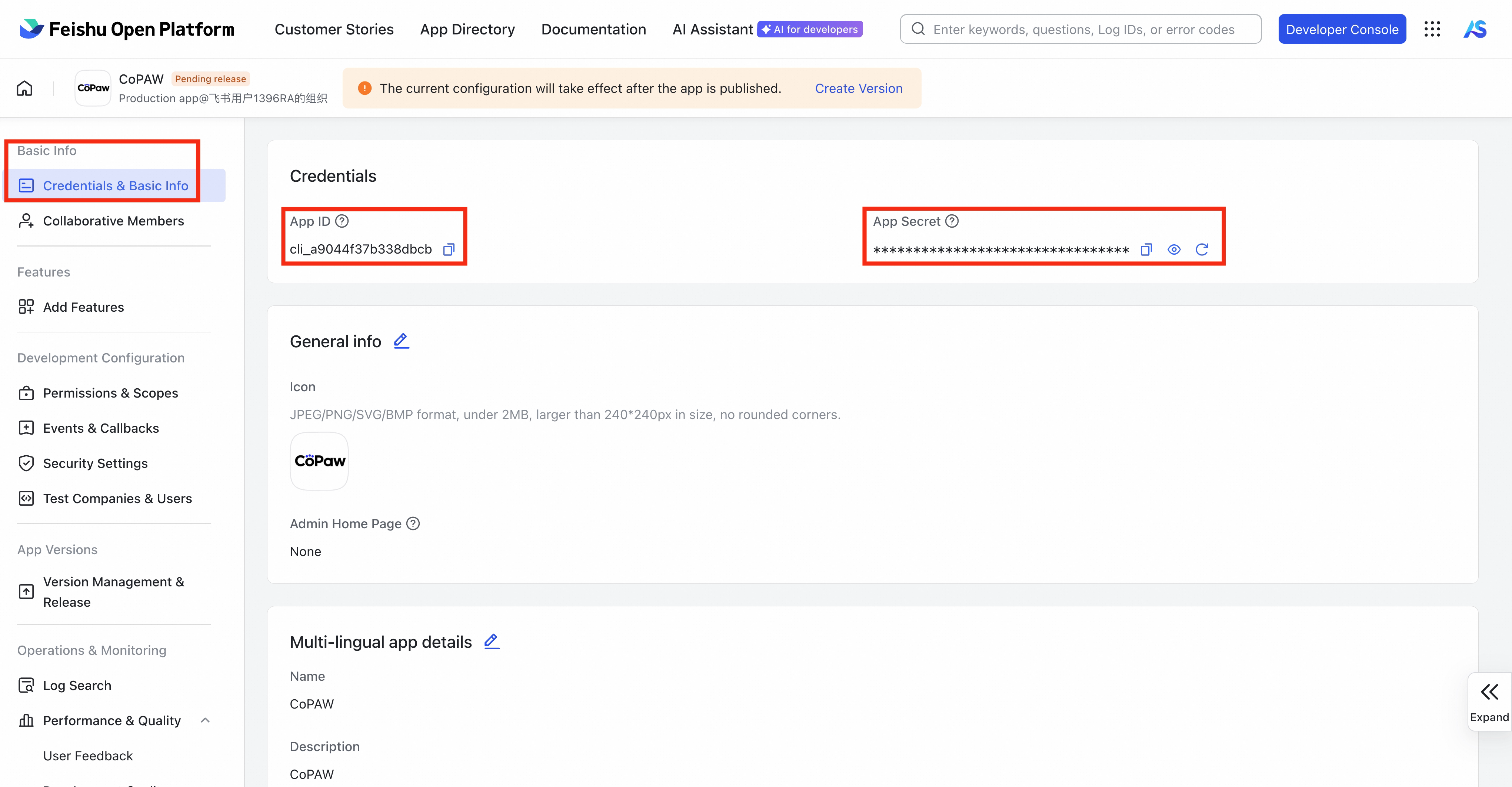
5. Back in the Feishu console, enable **Bot** under **Add Features**
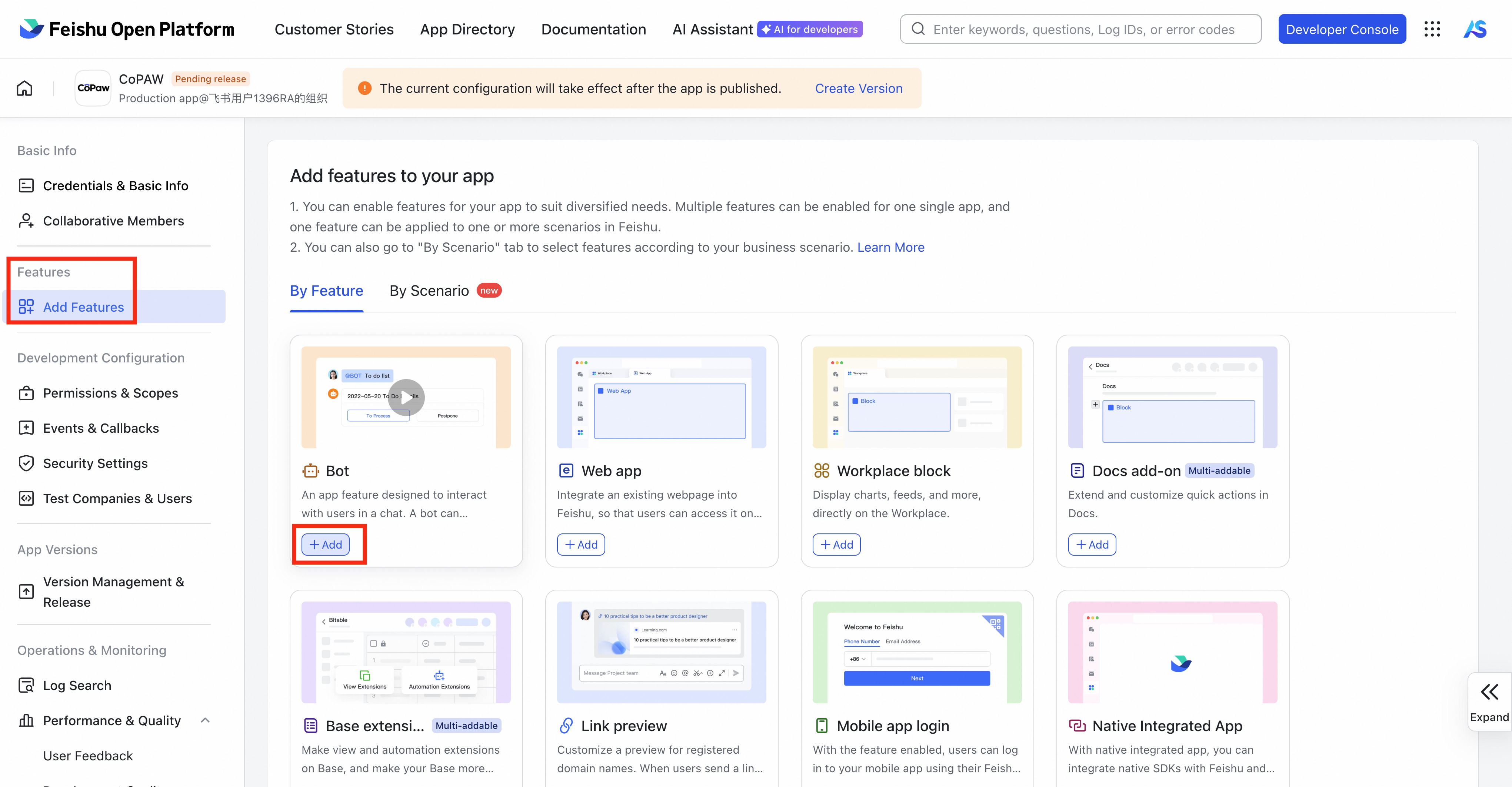
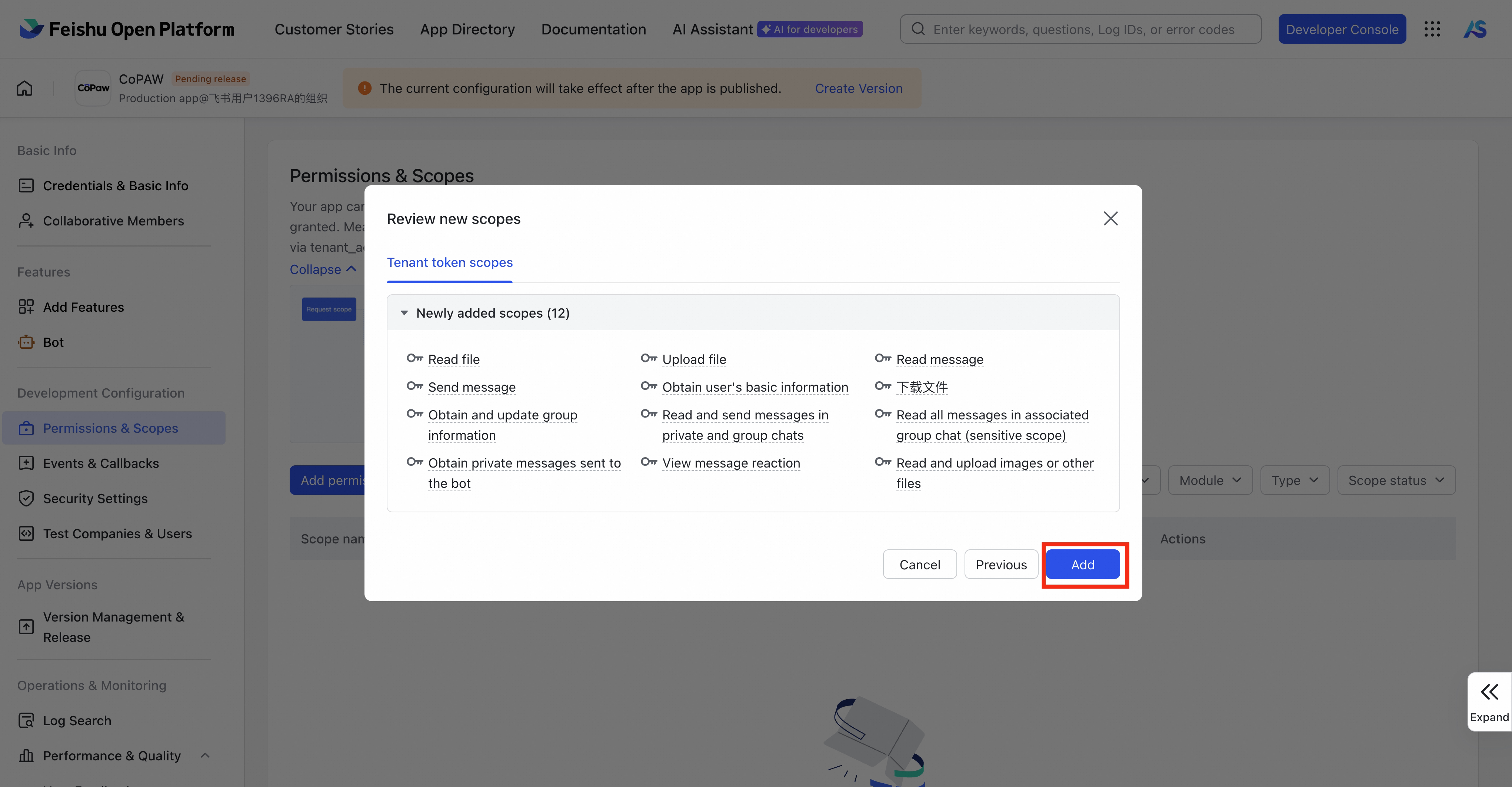
6. Under **Permissions & Scopes**, select **Batch import/export scopes** and paste the following JSON:
```json
{
"scopes": {
"tenant": [
"aily:file:read",
"aily:file:write",
"aily:message:read",
"aily:message:write",
"corehr:file:download",
"im:chat",
"im:message",
"im:message.group_msg",
"im:message.p2p_msg:readonly",
"im:message.reactions:read",
"im:resource",
"contact:user.base:readonly"
],
"user": []
}
}
```
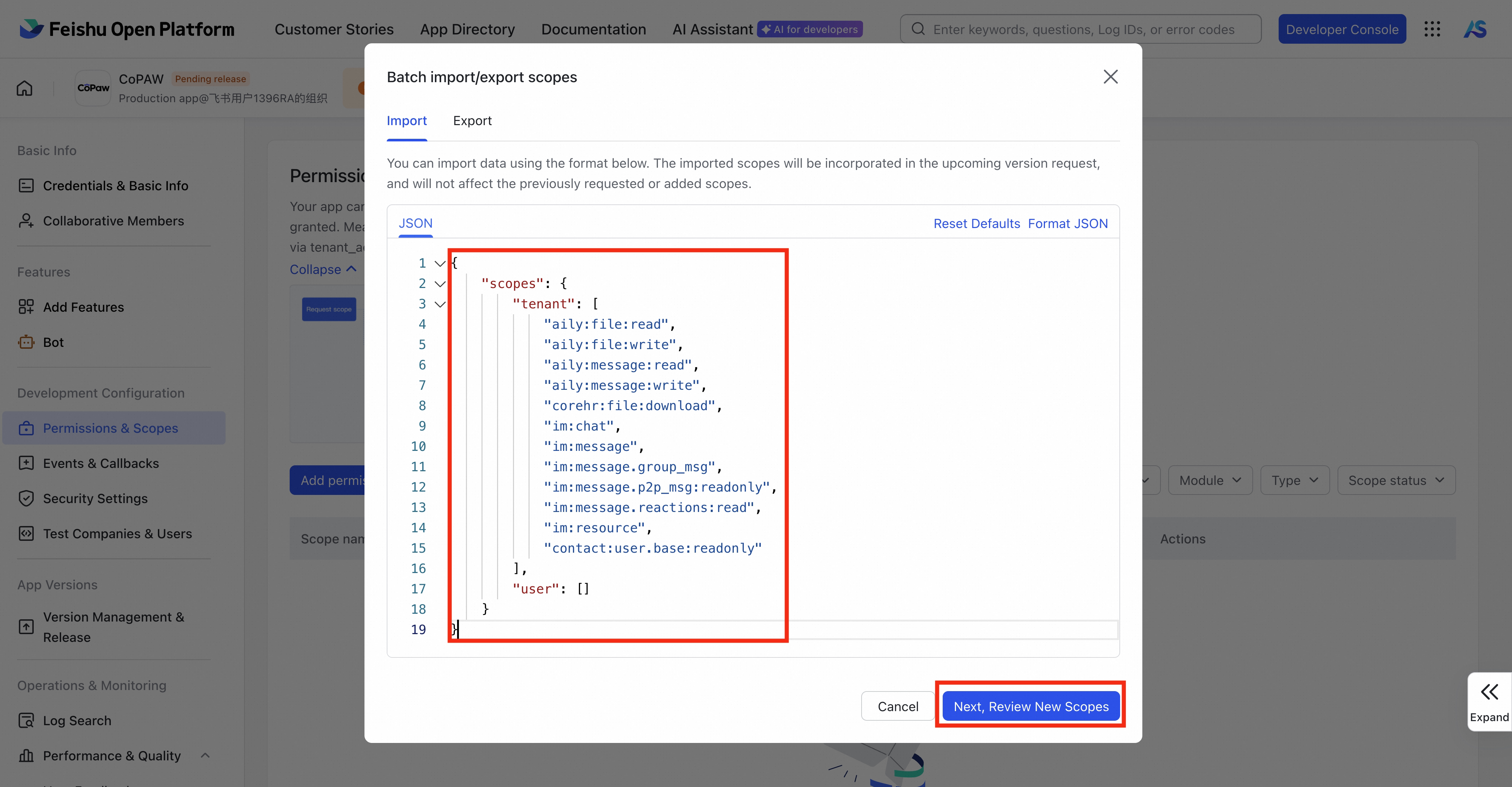
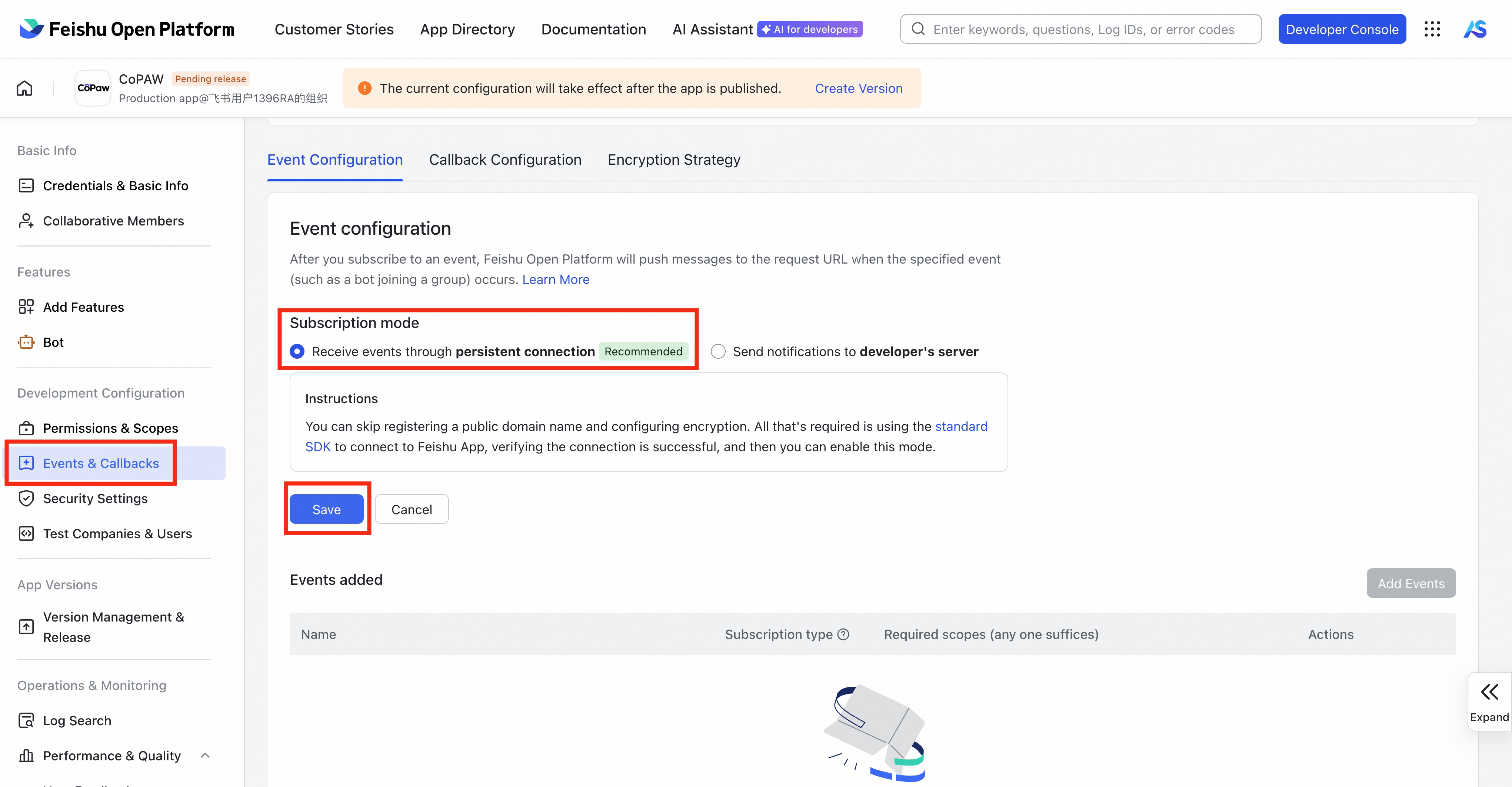
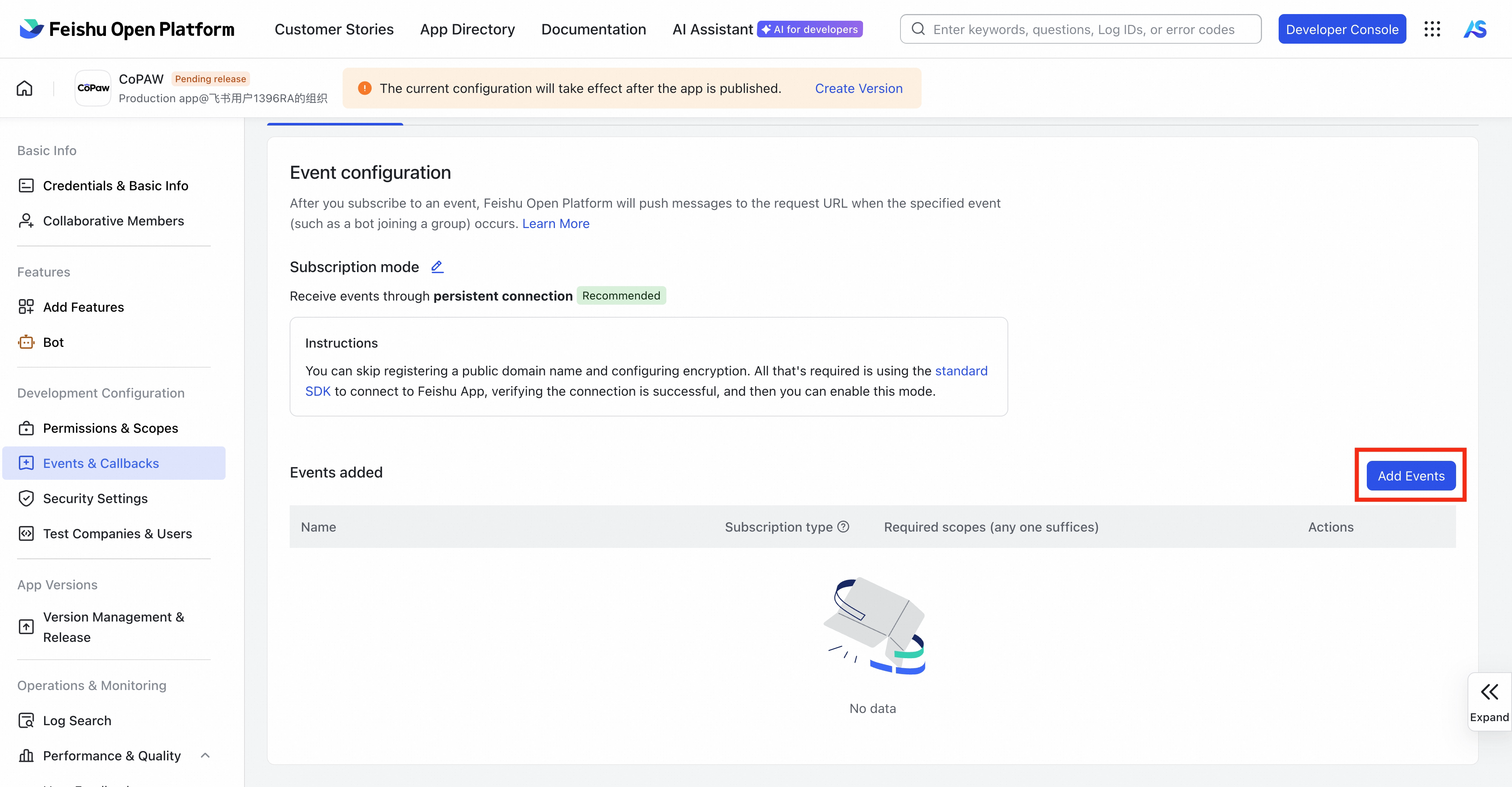
7. Under **Events & Callbacks**, click **Event configuration**, and choose **Receive events through persistent connection** as the subscription mode (no public IP needed)
> **Note:** Follow this order: Configure App ID/Secret → start `qwenpaw app` → then configure the long connection in the Feishu console. If errors persist, try stopping the qwenpaw service and restarting `qwenpaw app`.
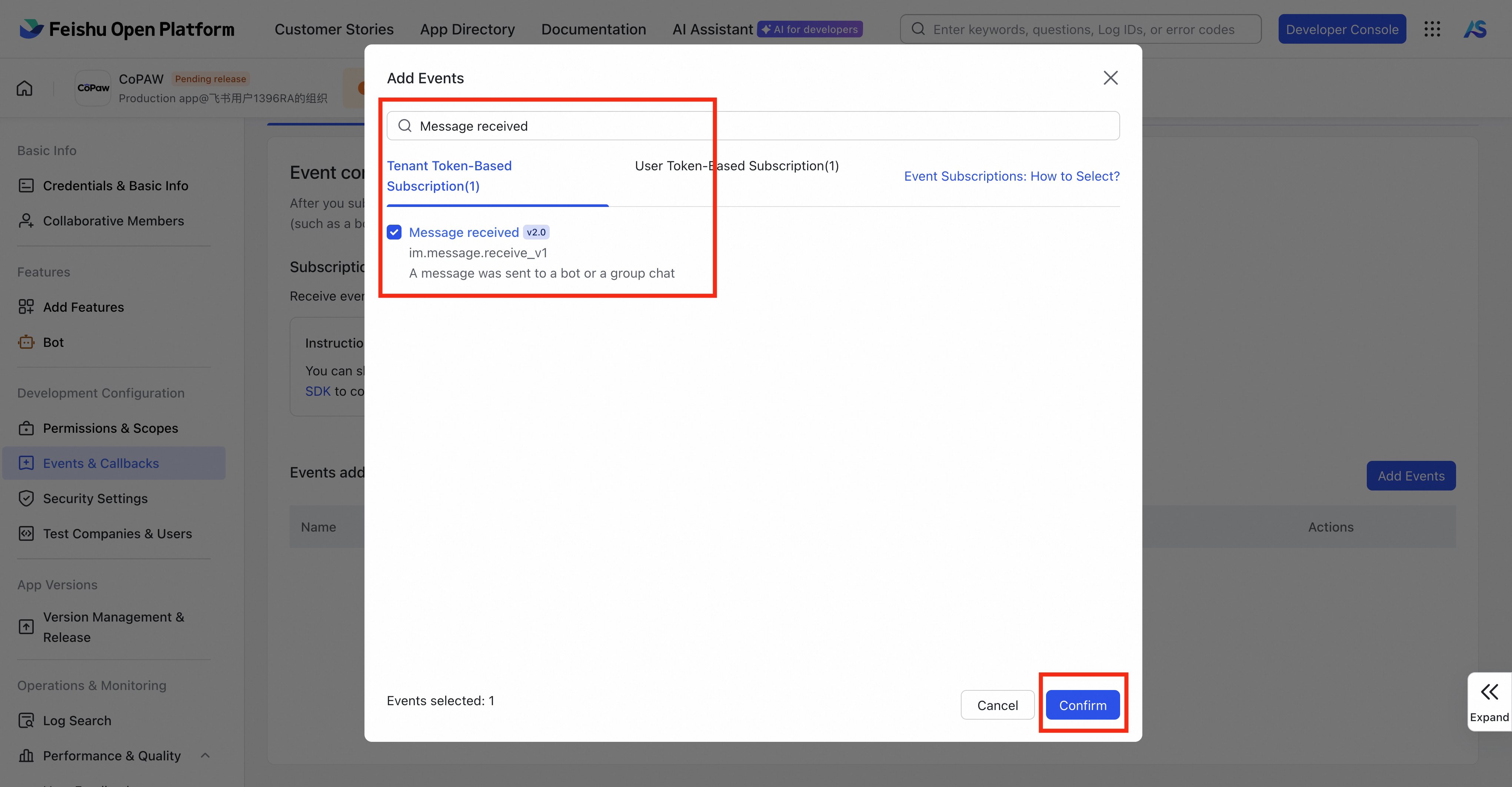
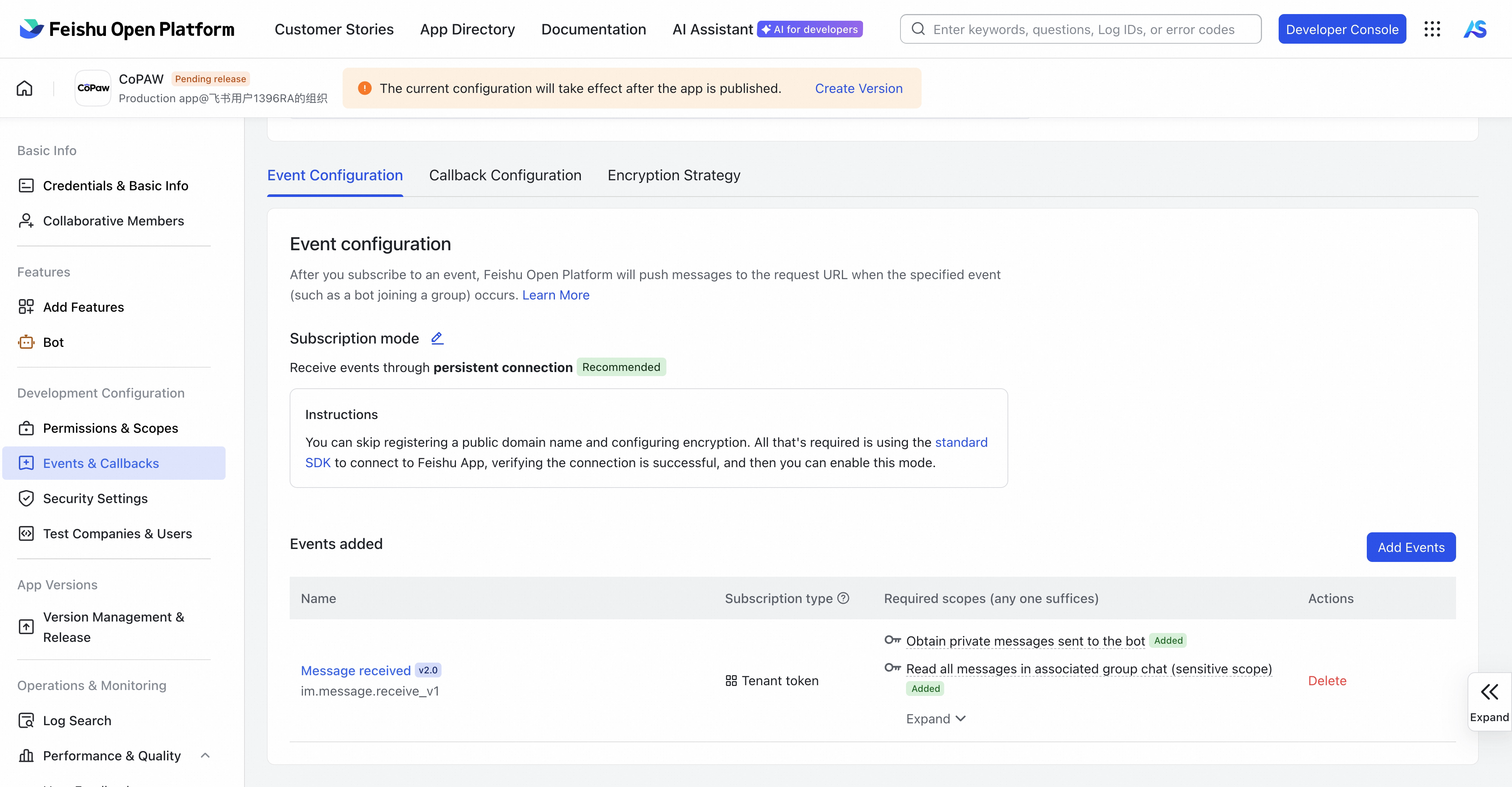
8. Select **Add Events**, search for **Message received**, and subscribe to **Message received v2.0**
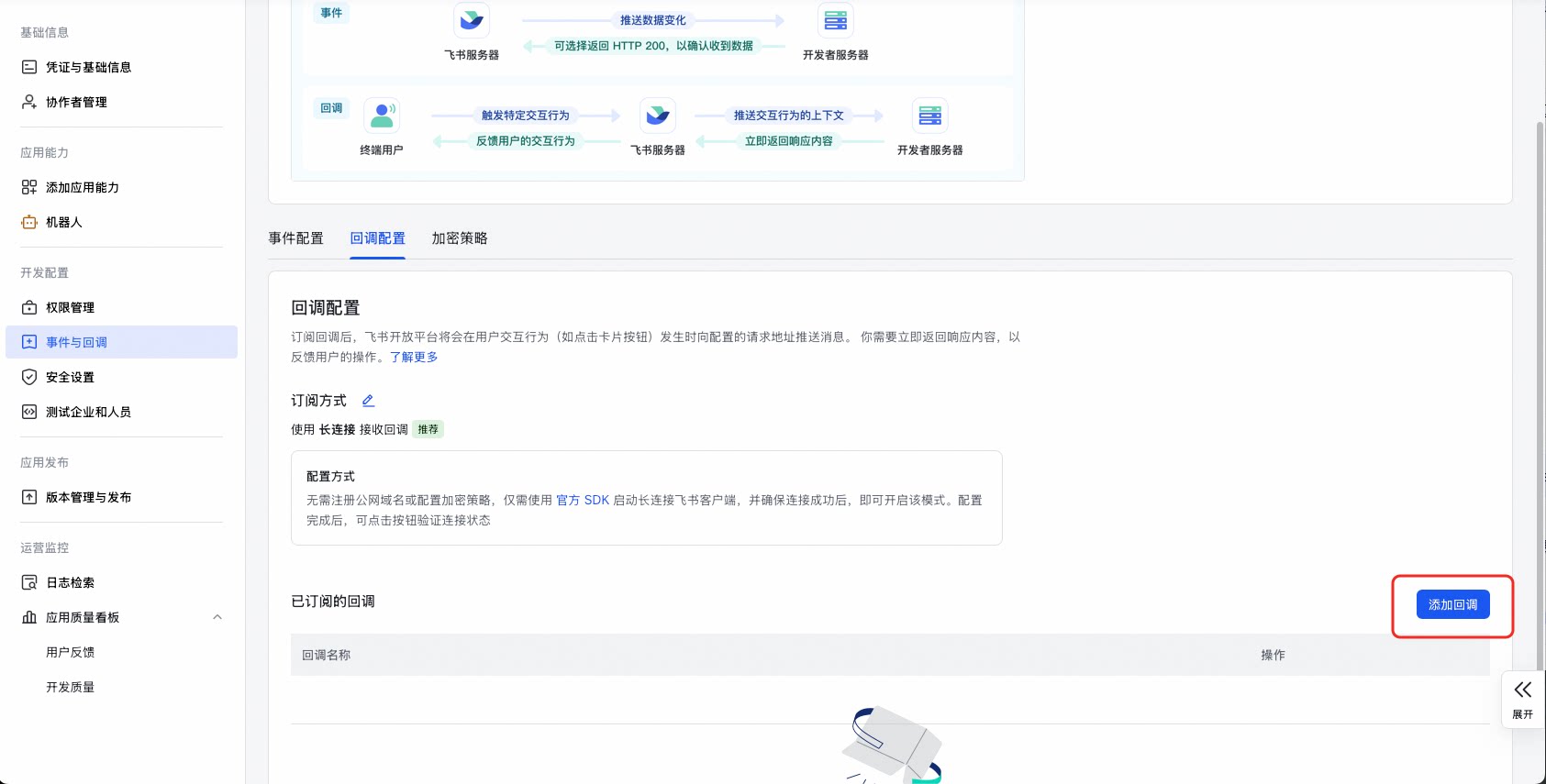
9. Under **Events & Callbacks**, click **Callback configuration**, and choose **Receive events through persistent connection** as the subscription mode (no public IP needed)
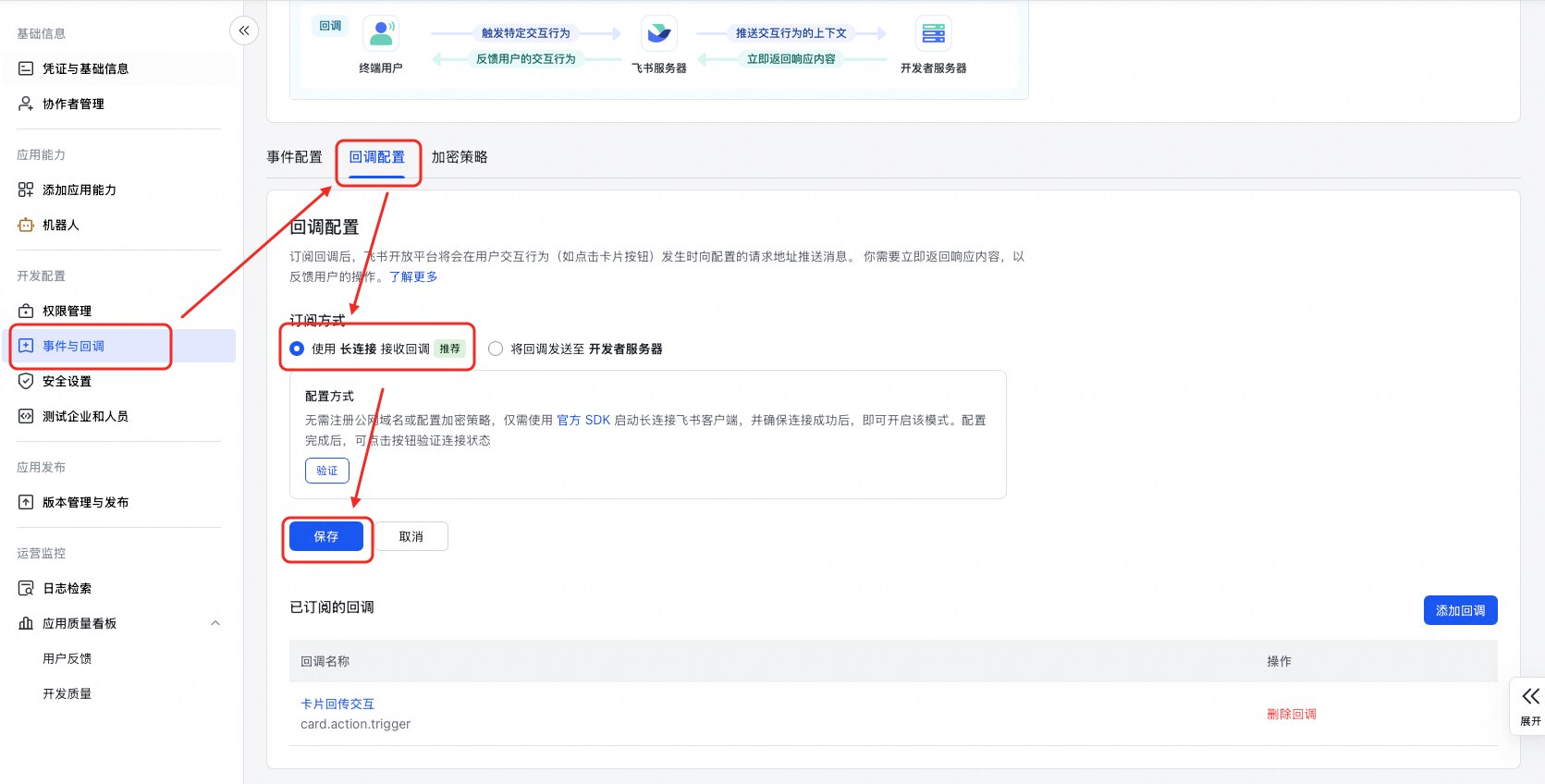
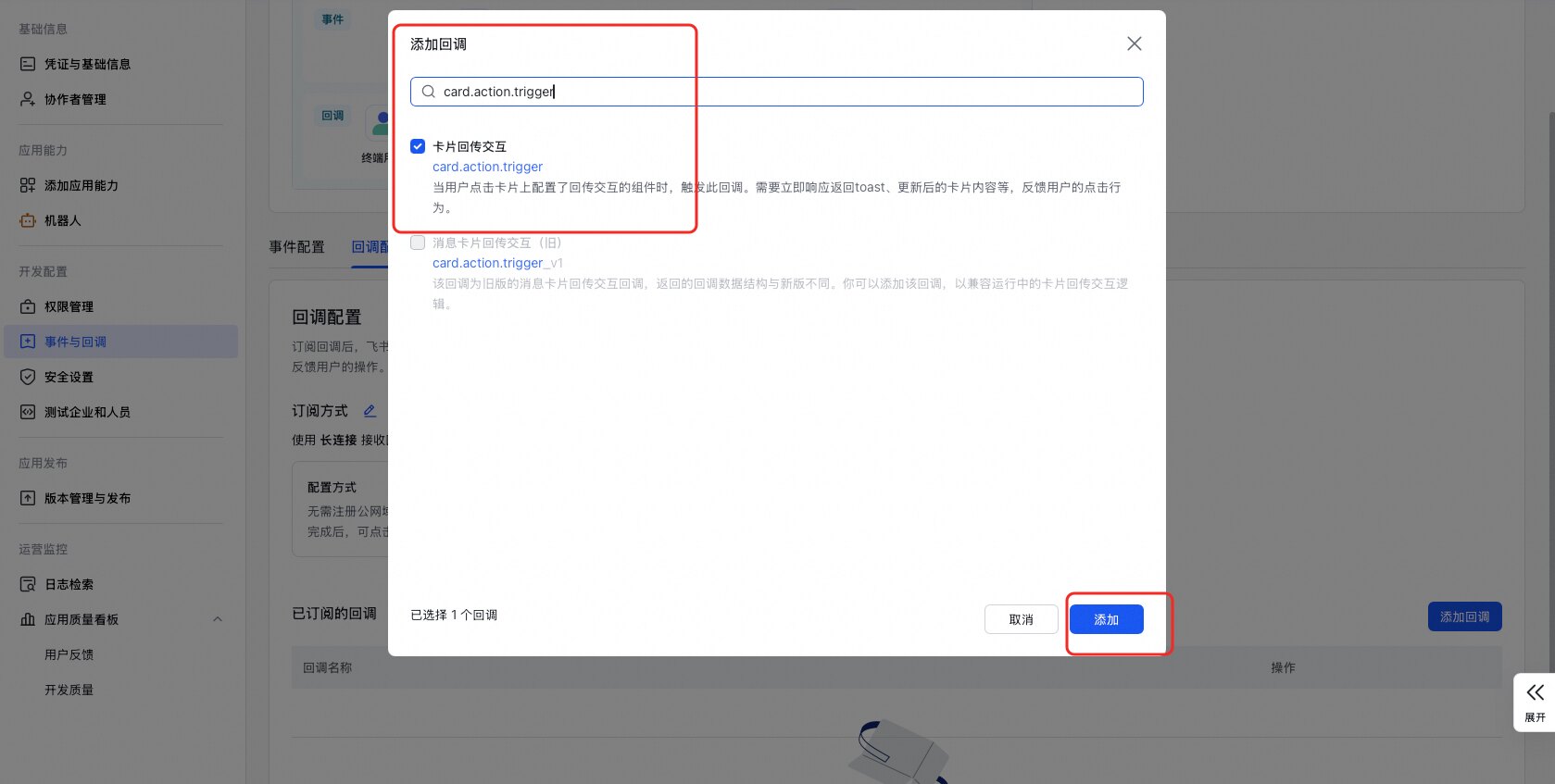
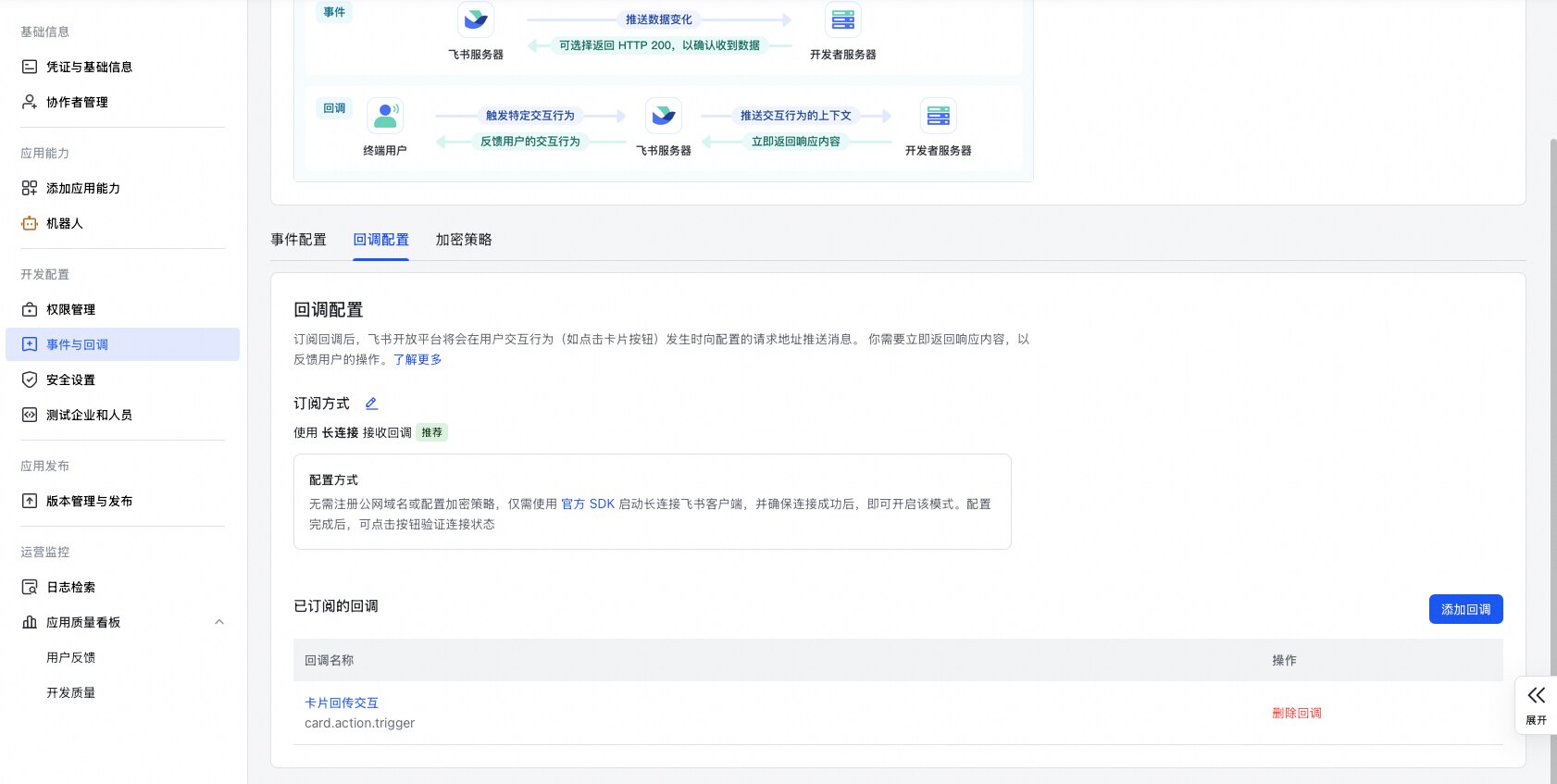
10. Select **Add Callback**, search for **Card callback interaction**, and subscribe to **Card callback interaction** (`card.action.trigger`)
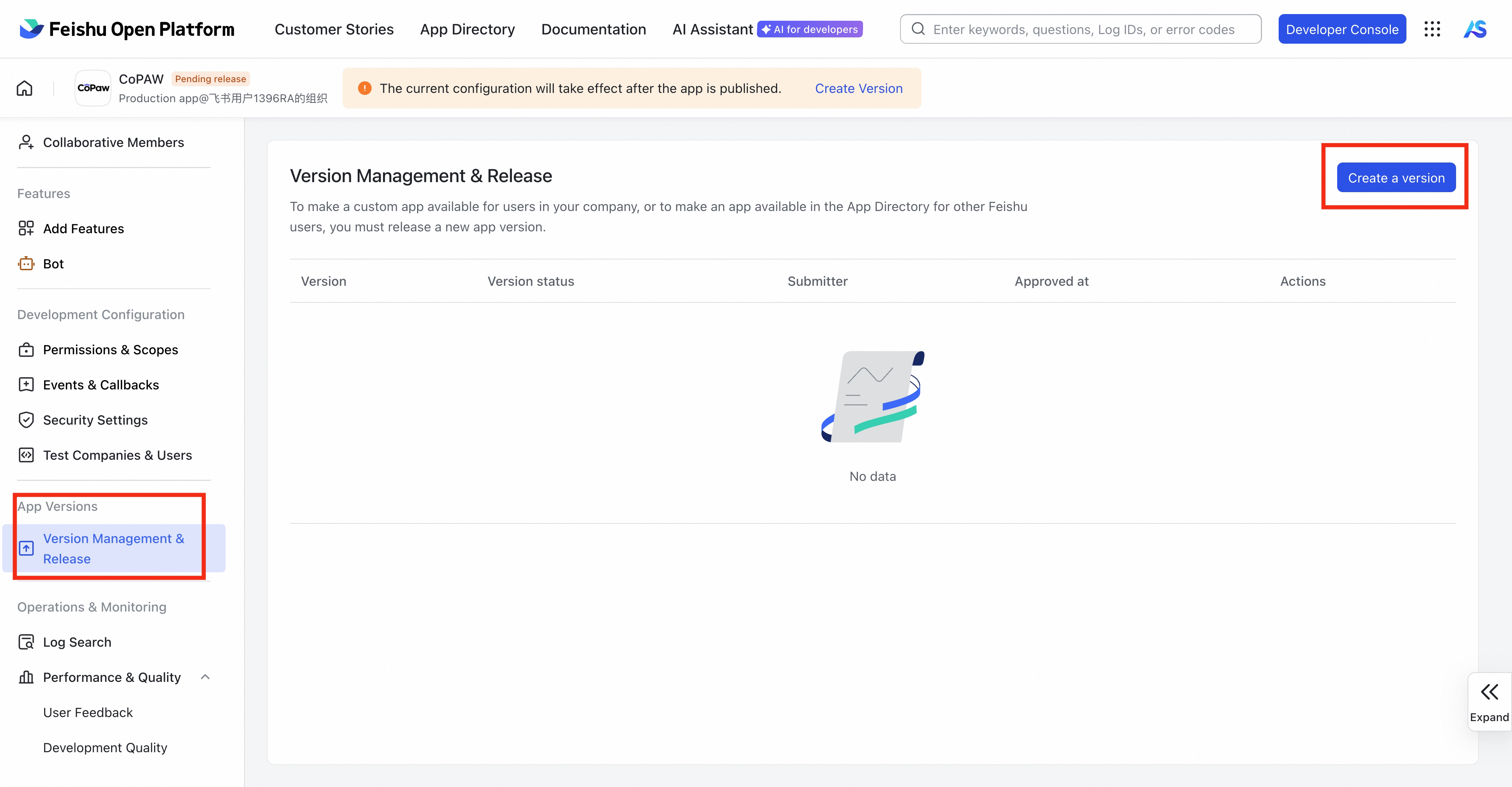
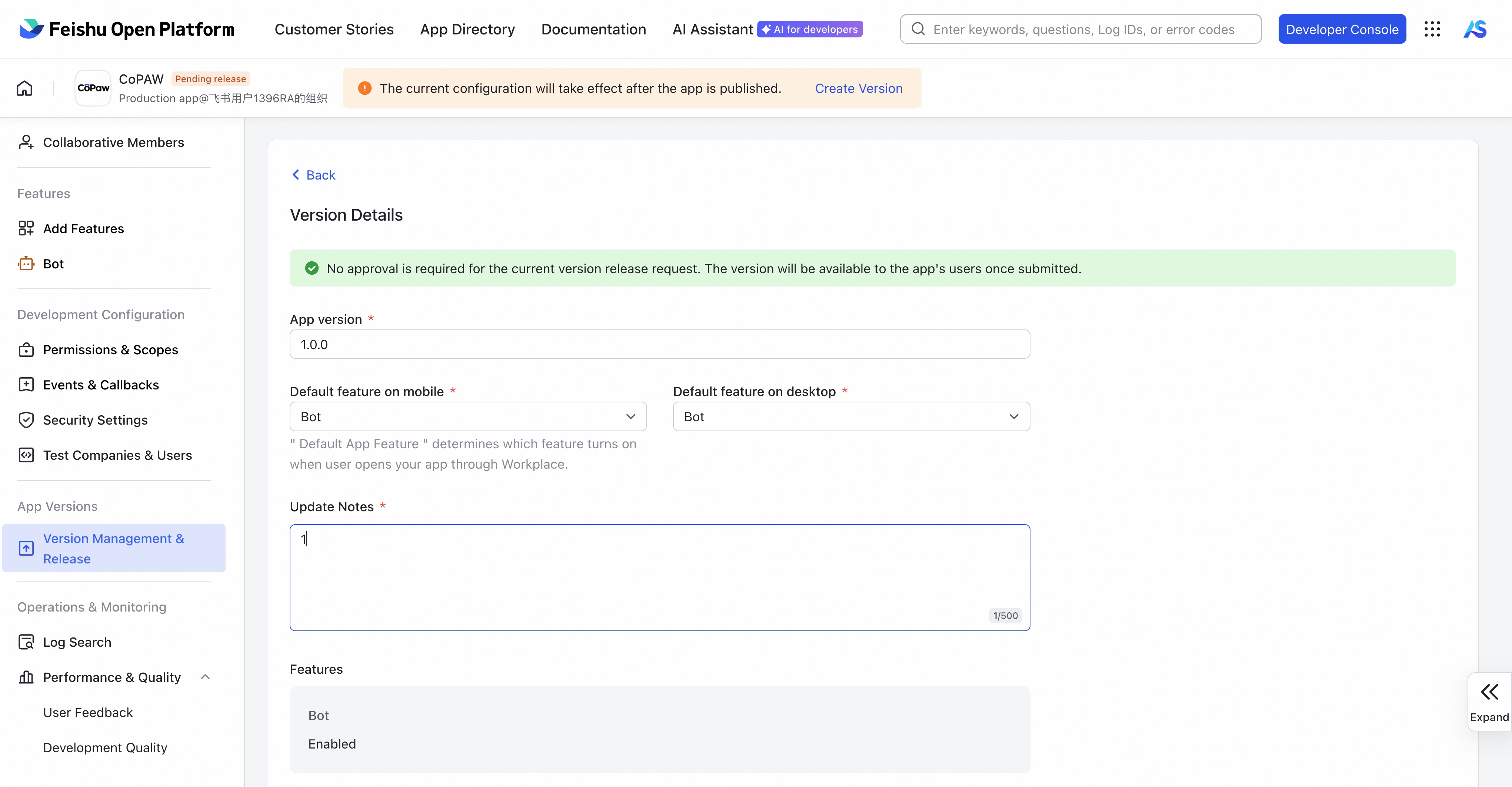
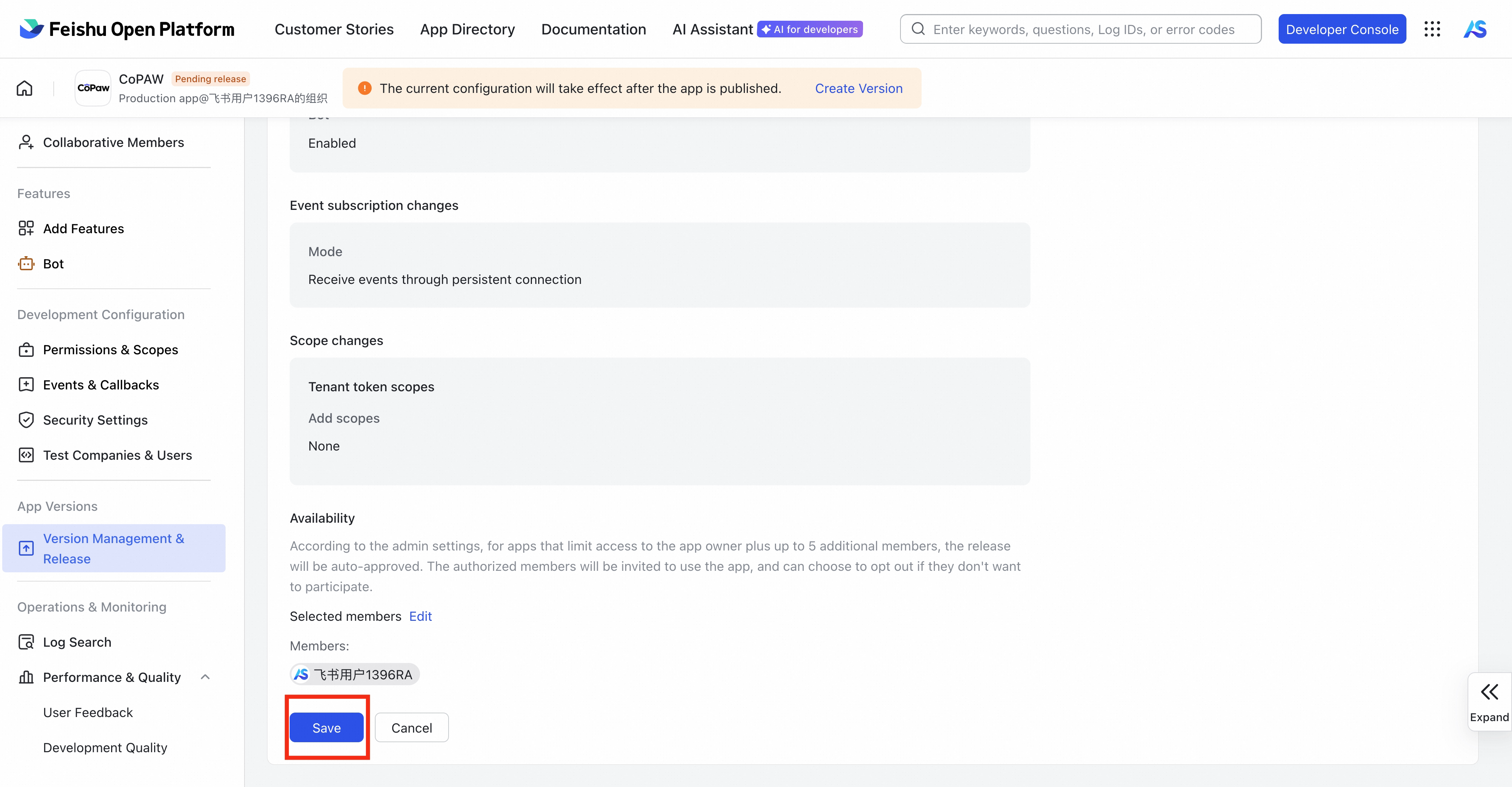
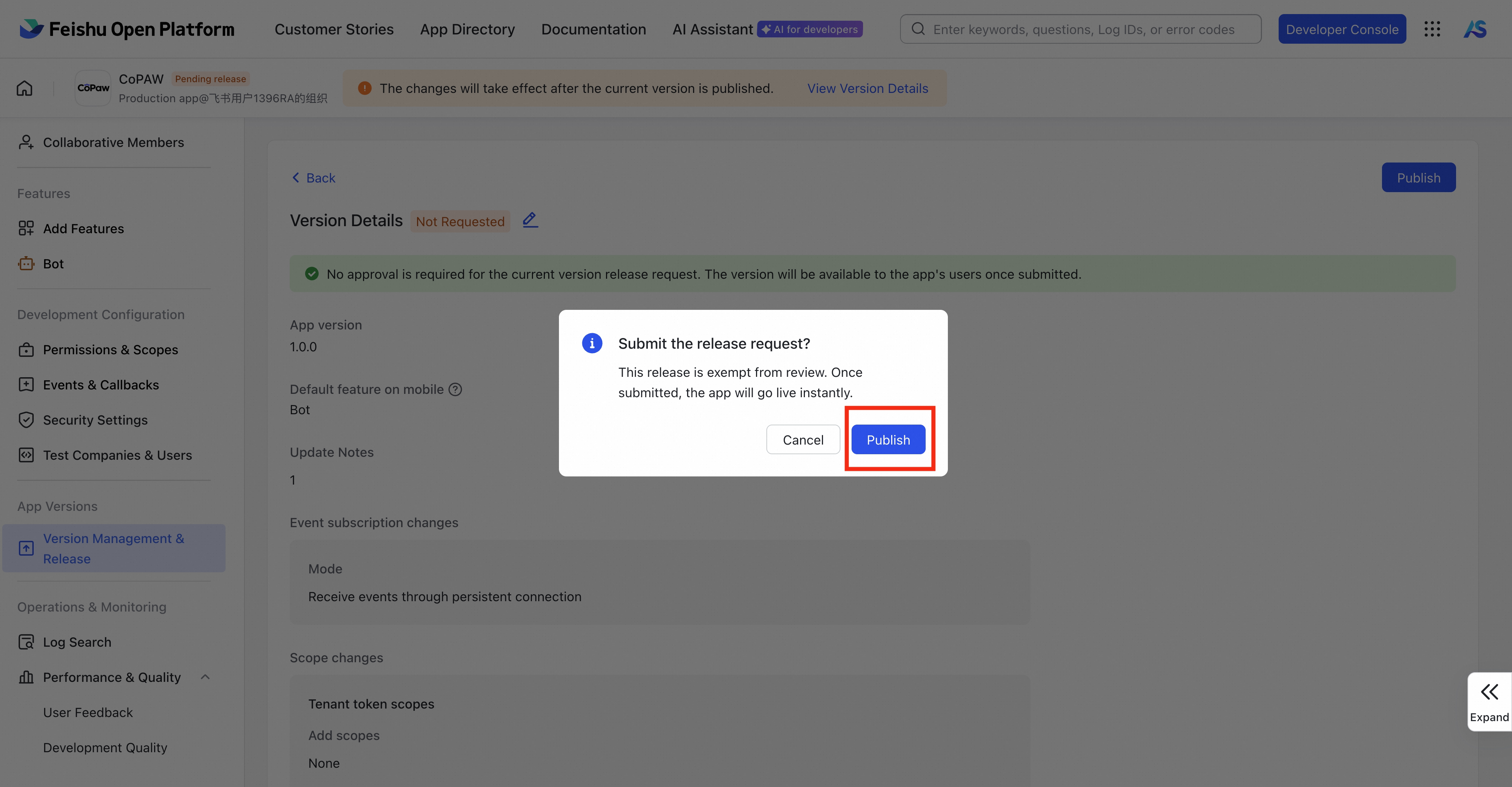
11. Under **App Versions** → **Version Management & Release**, **Create a version**, fill in basic info, **Save** and **Publish**
### Fill agent.json
Find `channels.feishu` in your agent's `agent.json` (e.g., `~/.qwenpaw/workspaces/default/agent.json`). Only **App ID** and **App Secret** are required (copy from the Feishu console under Credentials & basic info):
```json
"feishu": {
"enabled": true,
"bot_prefix": "[BOT]",
"app_id": "cli_xxxxx",
"app_secret": "your App Secret",
"domain": "feishu"
}
```
**Feishu-specific fields:**
| Field | Type | Default | Description |
| -------------------- | ------ | --------------- | ---------------------------------------------- |
| `app_id` | string | `""` (required) | Feishu App ID |
| `app_secret` | string | `""` (required) | Feishu App Secret |
| `domain` | string | `"feishu"` | `"feishu"` (China) or `"lark"` (International) |
| `encrypt_key` | string | `""` | Event encryption key (optional) |
| `verification_token` | string | `""` | Event verification token (optional) |
| `media_dir` | string | `null` | Directory for received media files |
> **Tip:** Other fields (encrypt_key, verification_token, media_dir) are optional; with WebSocket mode you can omit them (defaults apply).
**Dependencies:** `pip install lark-oapi`
If your environment uses a SOCKS proxy, also install `python-socks` (for example, `pip install python-socks`), otherwise you may see: `python-socks is required to use a SOCKS proxy`.
> **Note:** You can also fill in **App ID** and **App Secret** in the Console UI, but you must restart the qwenpaw service before continuing with the long-connection configuration.
> 
### Recommended bot permissions
The JSON in step 6 grants the following permissions (app identity) for messaging and files:
| Permission name | Permission ID | Type | Notes |
| ----------------------------------- | ------------------------------ | ------- | ------------- |
| Get file | aily:file:read | App | - |
| Upload file | aily:file:write | App | - |
| Get message | aily:message:read | App | - |
| Send message | aily:message:write | App | - |
| Download file | corehr:file:download | App | - |
| Get/update group info | im:chat | App | - |
| Get/send chat and group messages | im:message | App | - |
| Get all group messages (sensitive) | im:message.group_msg | App | - |
| Read user-to-bot DMs | im:message.p2p_msg:readonly | App | - |
| View message reactions | im:message.reactions:read | App | - |
| Get/upload image and file resources | im:resource | App | - |
| **Read contact as app** | **contact:user.base:readonly** | **App** | **See below** |
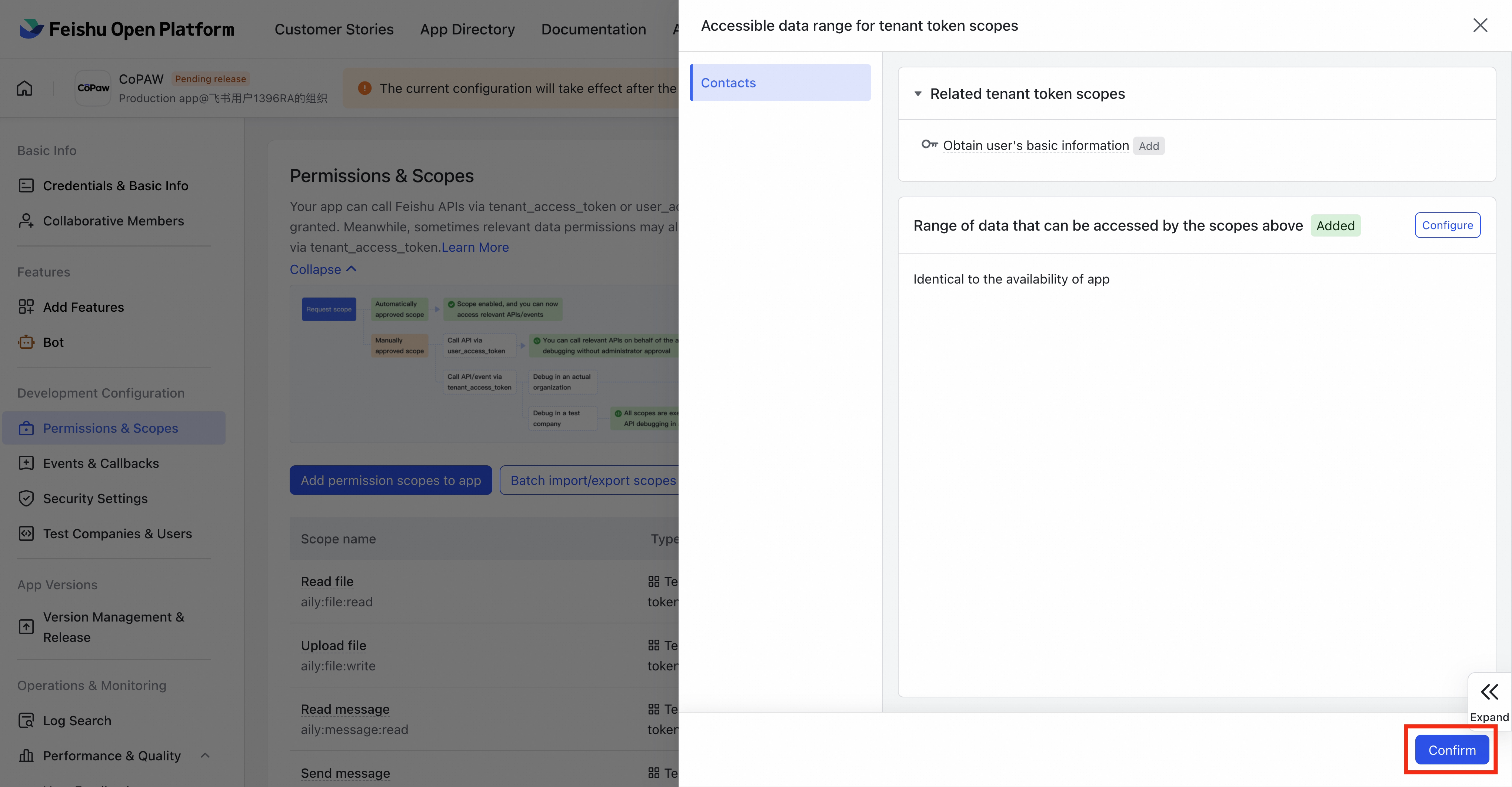
> **User display name (recommended):** To show **user nicknames** in sessions and logs (e.g. "张三#1d1a" instead of "unknown#1d1a"), enable the contact read permission **Read contact as app** (`contact:user.base:readonly`). Without it, Feishu only returns identity fields (e.g. open_id) and not the user's name, so QwenPaw cannot resolve nicknames. After enabling, publish or update the app version so the permission takes effect.
### Add the bot to favorites
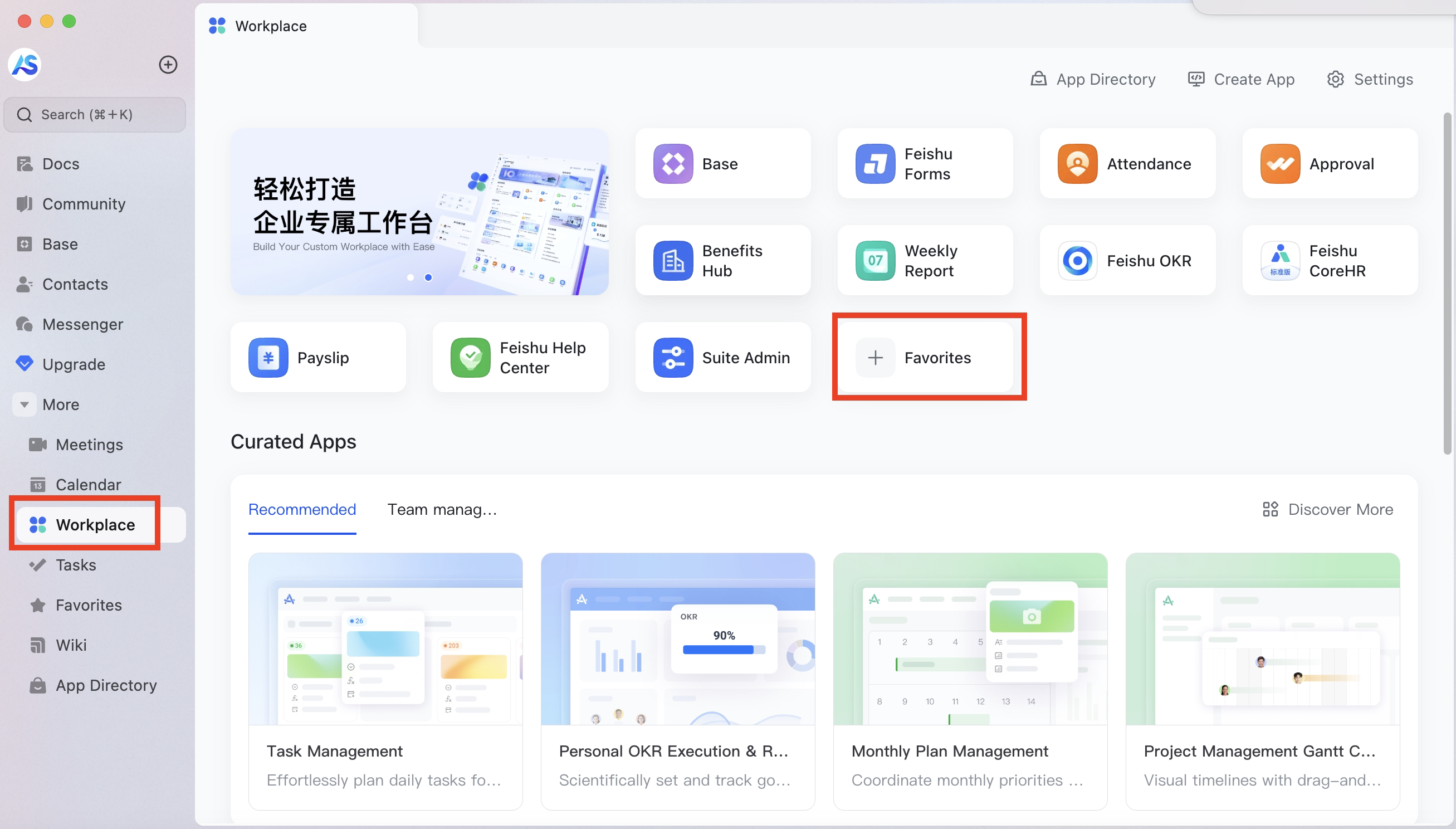
1. In the **Workplace**, tap add **Favorites**
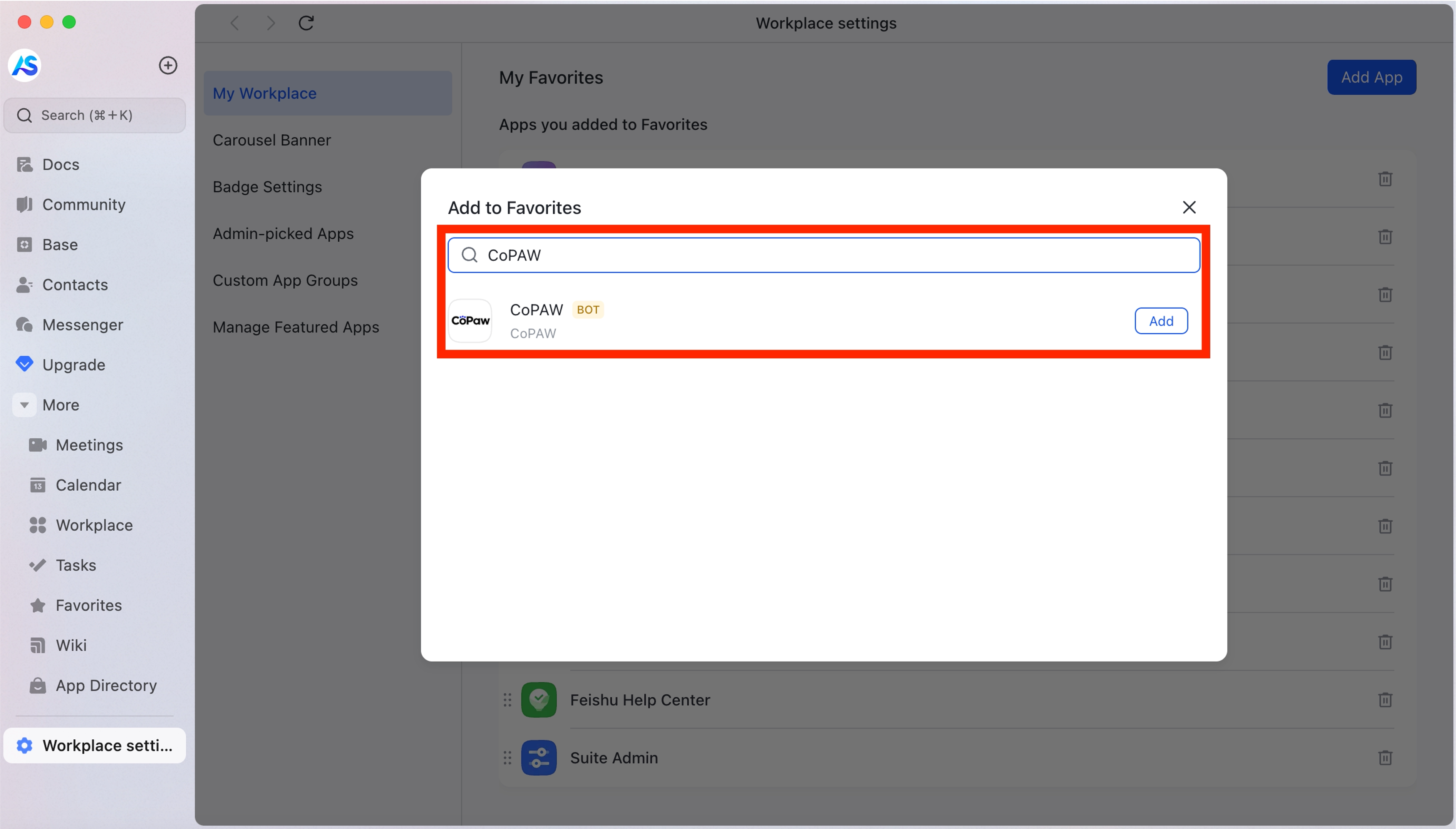
2. Search for the bot name you created and tap **Add**
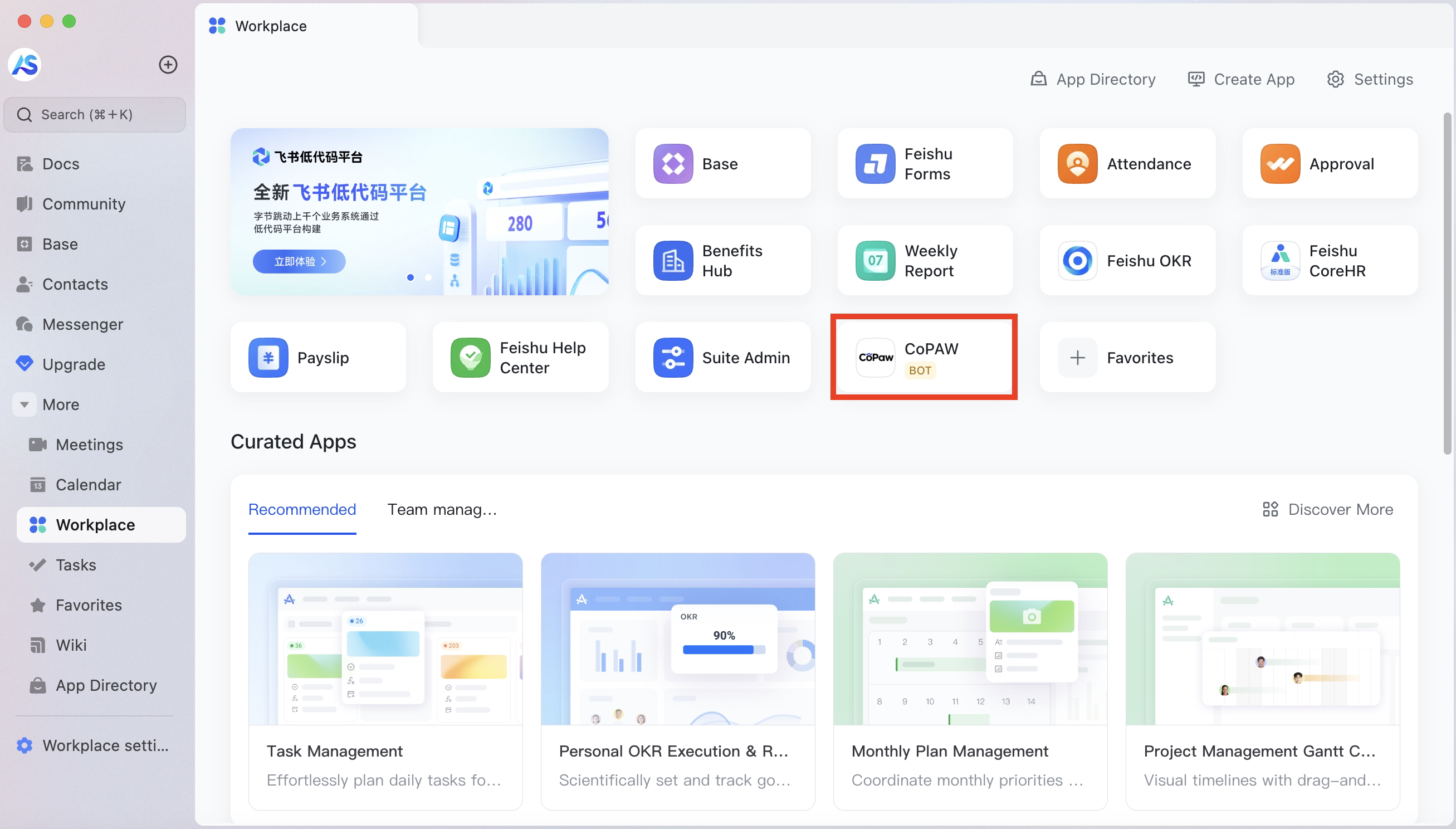
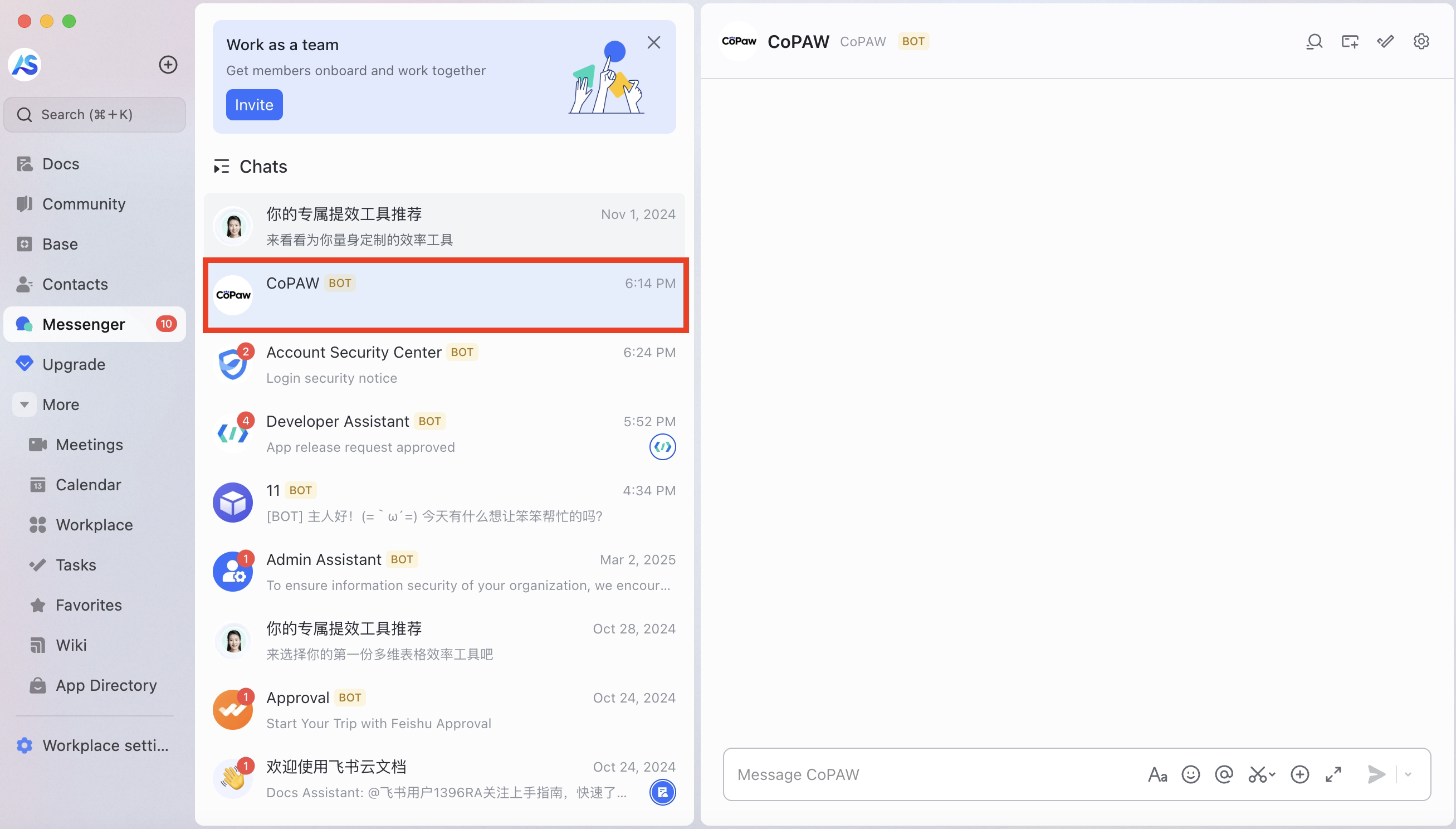
3. The bot will appear in your favorites; tap it to open the chat
---
## iMessage (macOS only)
> ⚠️ The iMessage channel is **macOS only**. It relies on the local Messages app and the iMessage database, so it cannot run on Linux or Windows.
The app polls the local iMessage database for new messages and sends replies on your behalf.
1. Ensure **Messages** is signed in on this Mac (open the Messages app and sign in with your Apple ID in System Settings).
2. Install **imsg** (used to access the iMessage database):
```bash
brew install steipete/tap/imsg
```
> If installation fails on Intel Mac, clone the repo and build from source:
>
> ```bash
> git clone https://github.com/steipete/imsg.git
> cd imsg
> make build
> sudo cp build/Release/imsg /usr/local/bin/
> cp ./bin/imsg /usr/local/bin/
> ```
3. For QwenPaw to read iMessage data, **Terminal** (or the app you use to run `qwenpaw app`) and **Messages** need **Full Disk Access** (System Settings → Privacy & Security → Full Disk Access).
4. Set the iMessage database path. The default is `~/Library/Messages/chat.db`; use this unless you've moved the database. You can configure it in either of these ways:
- In **Console → Channels**, click the **iMessage** card, turn **Enable** on, enter the path in **DB Path**, and click **Save**.
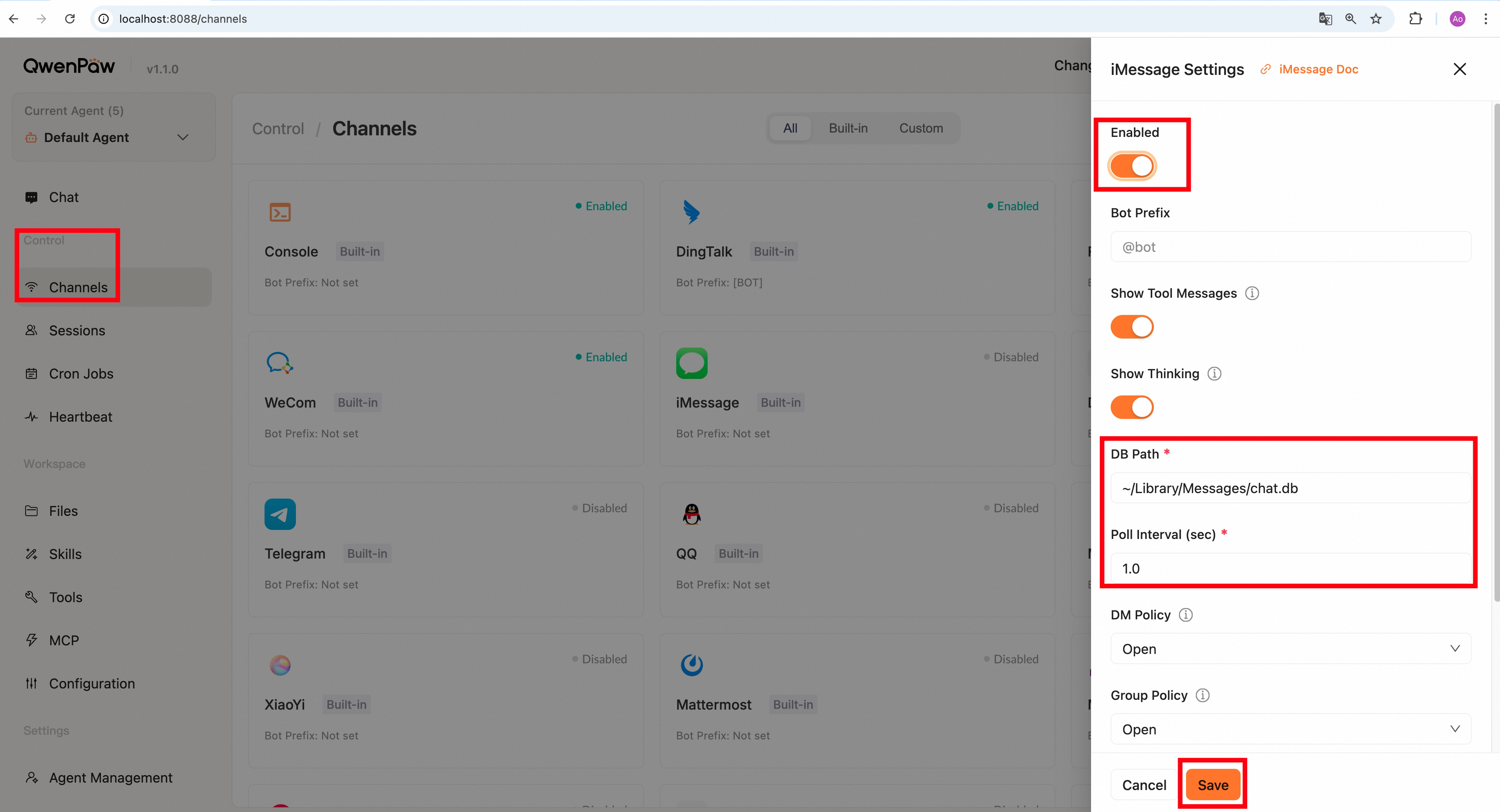
- Or edit the agent workspace `agent.json` (usually at `~/.qwenpaw/workspaces/default/agent.json`):
```json
"imessage": {
"enabled": true,
"bot_prefix": "[BOT]",
"db_path": "~/Library/Messages/chat.db",
"poll_sec": 1.0
}
```
**iMessage-specific fields:**
| Field | Type | Default | Description |
| ---------- | ------ | ---------------------------- | -------------------------- |
| `db_path` | string | `~/Library/Messages/chat.db` | iMessage database path |
| `poll_sec` | float | `1.0` | Polling interval (seconds) |
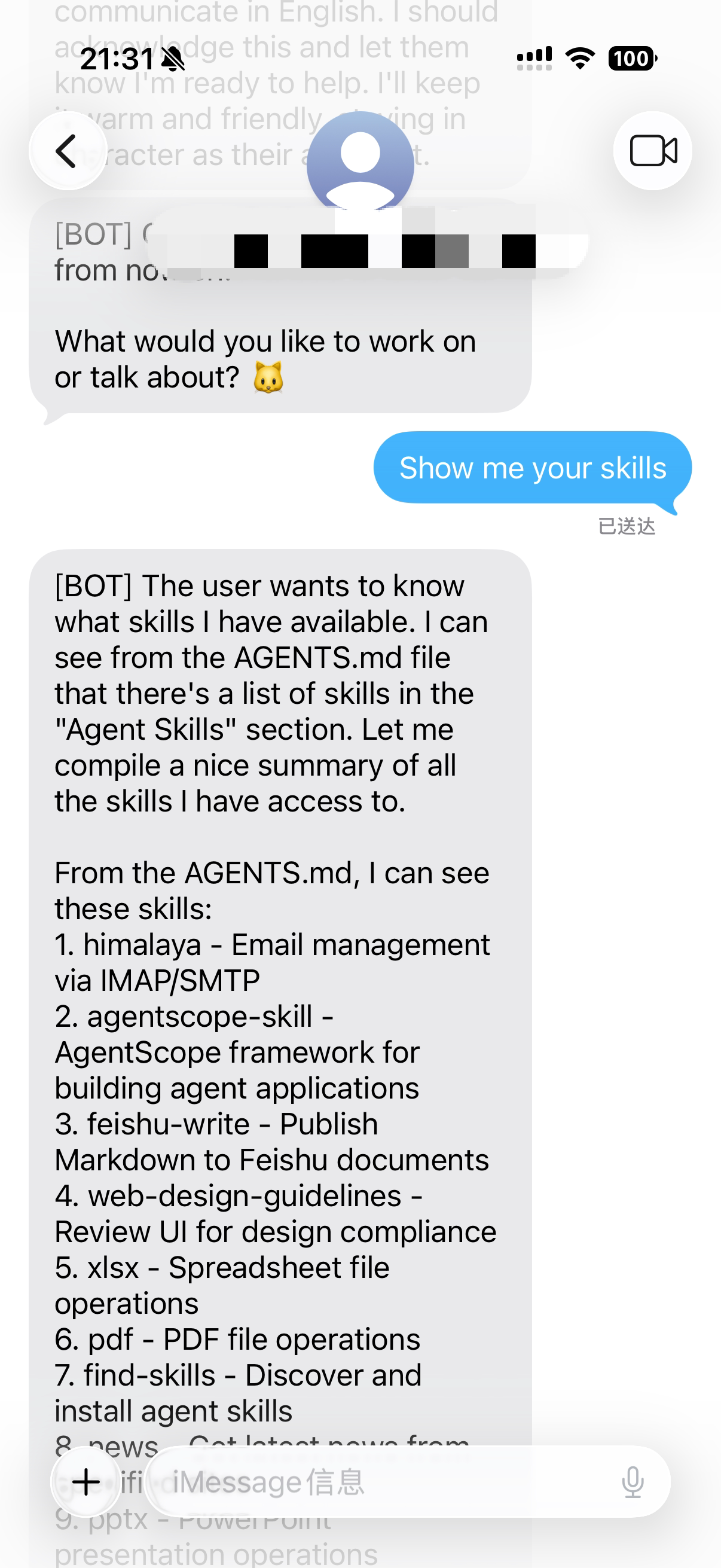
5. After saving, send any message from your phone to the iMessage account signed in on this Mac (same Apple ID). You should see a reply.
---
## Discord
### Get a Bot Token
1. Open the [Discord Developer Portal](https://discord.com/developers/applications)
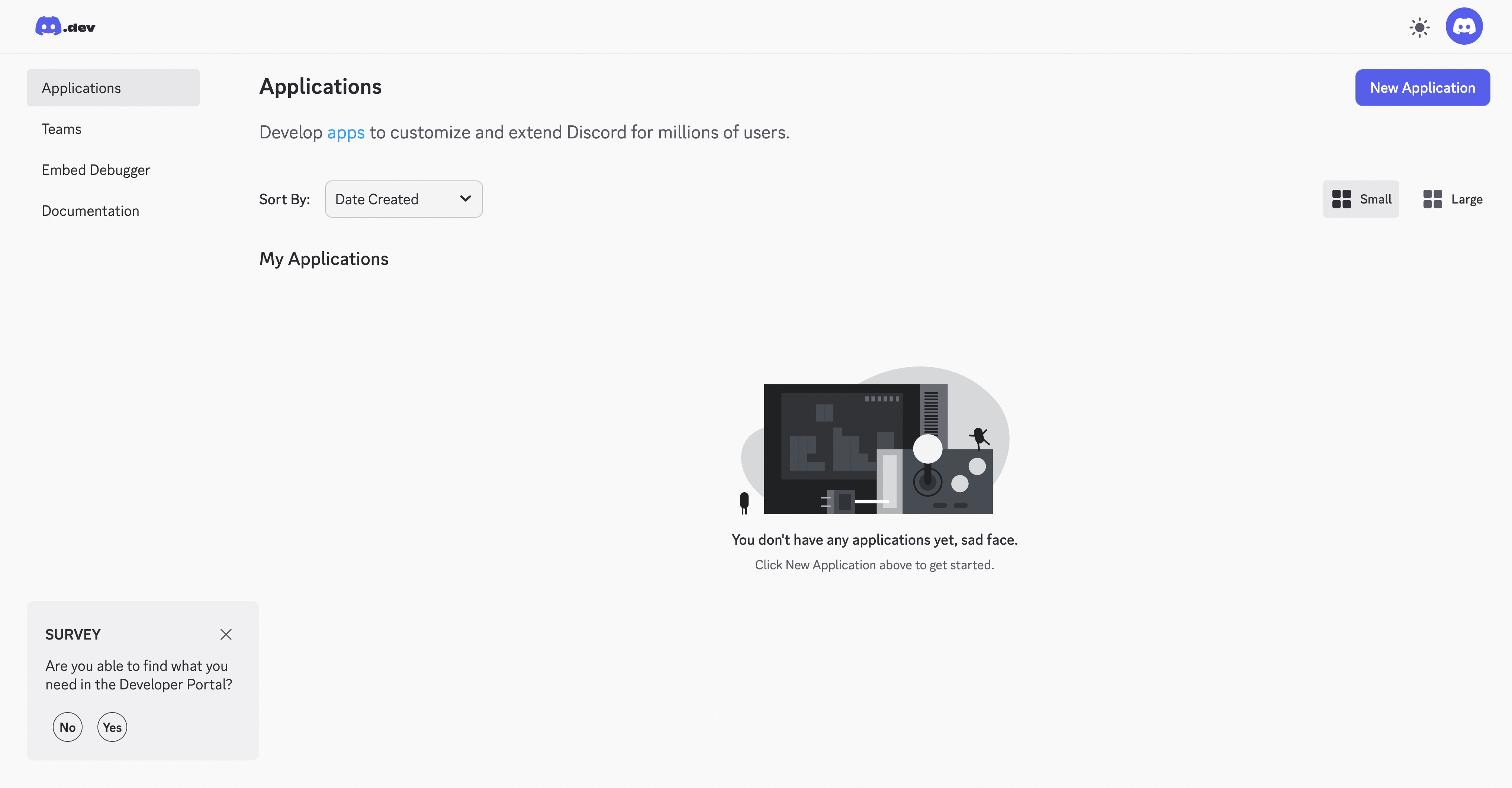
2. Create a new application (or select an existing one)
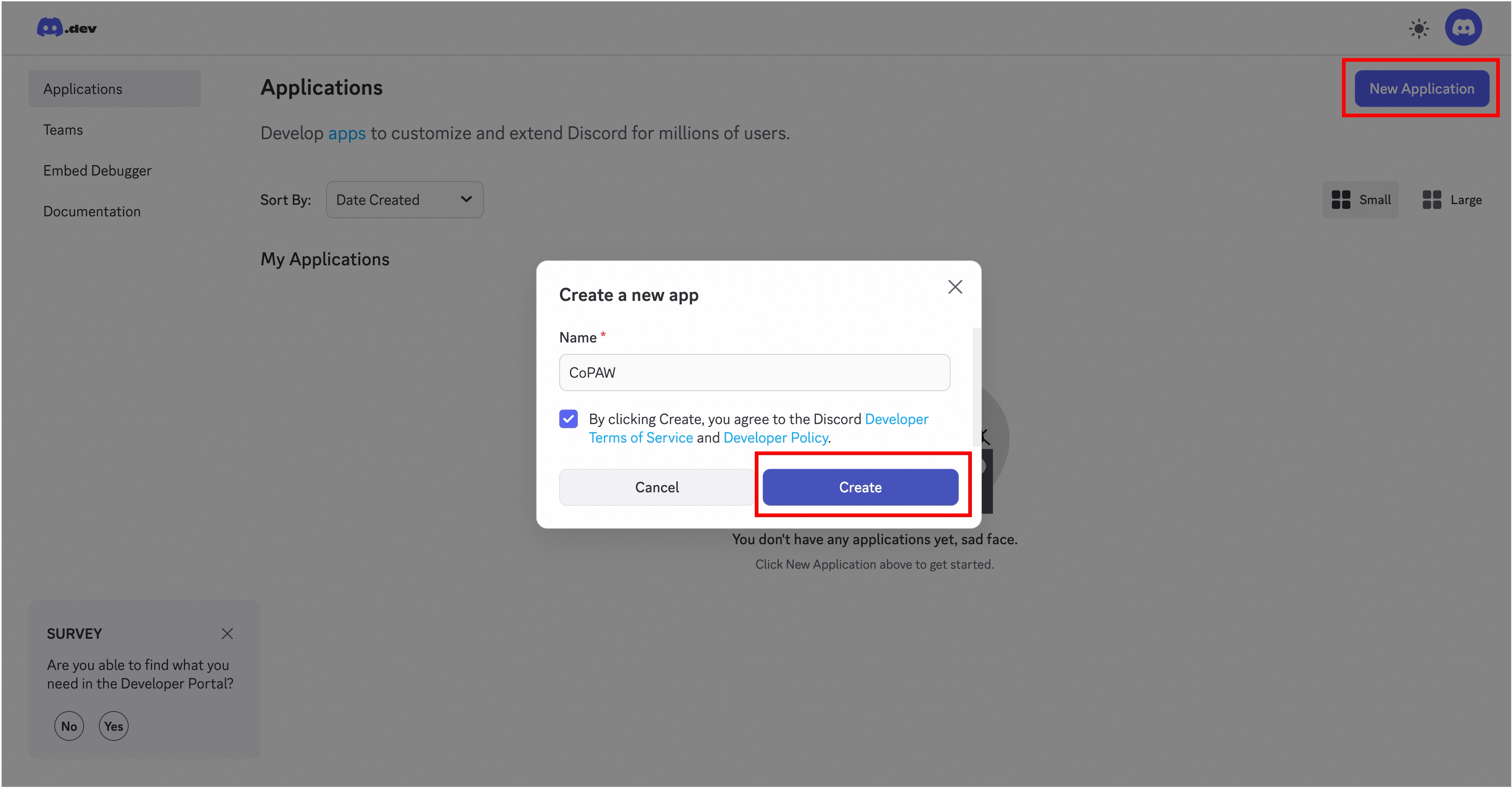
3. Go to **Bot** in the left sidebar, create a bot, and copy the **Token**
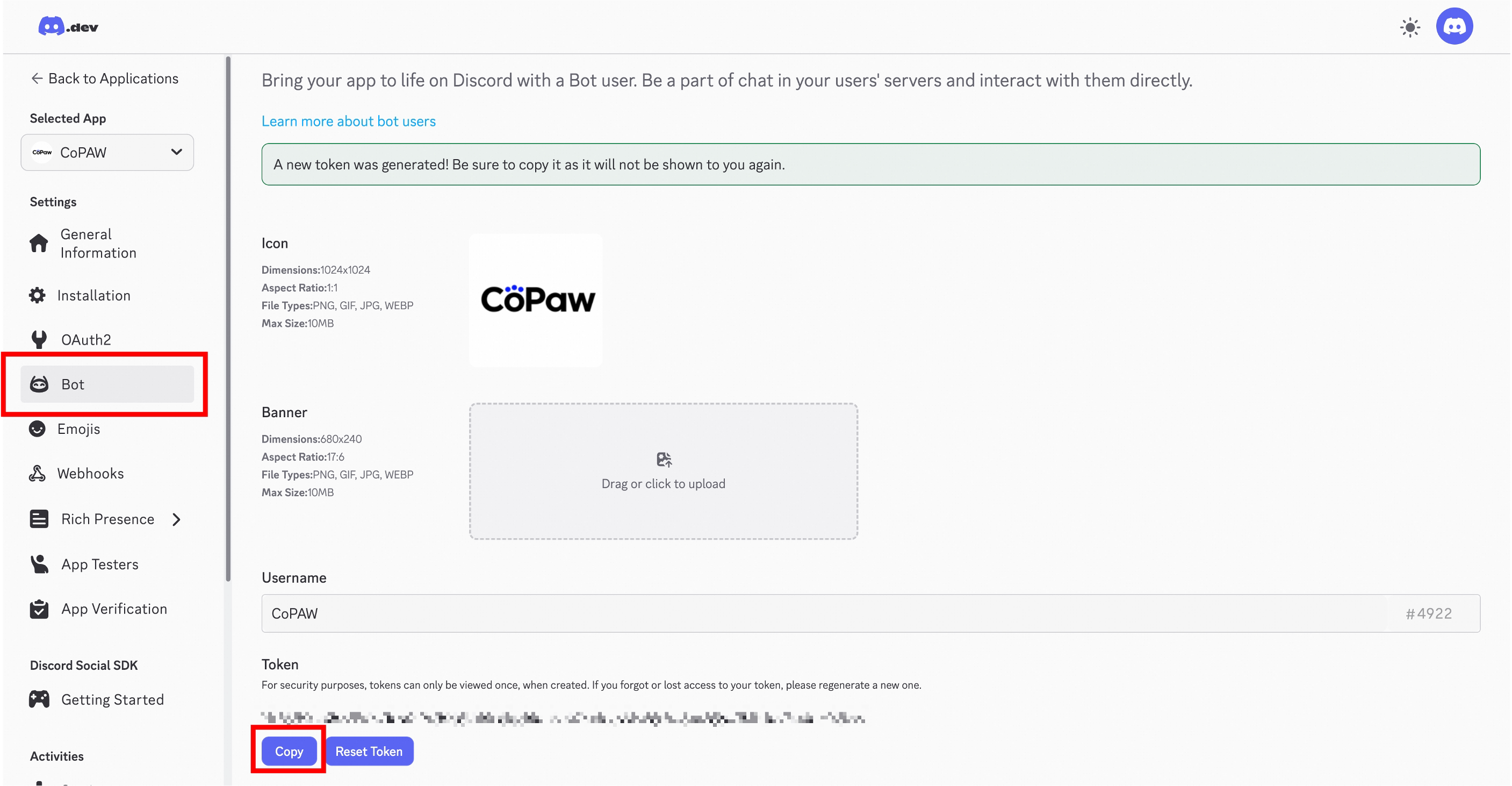
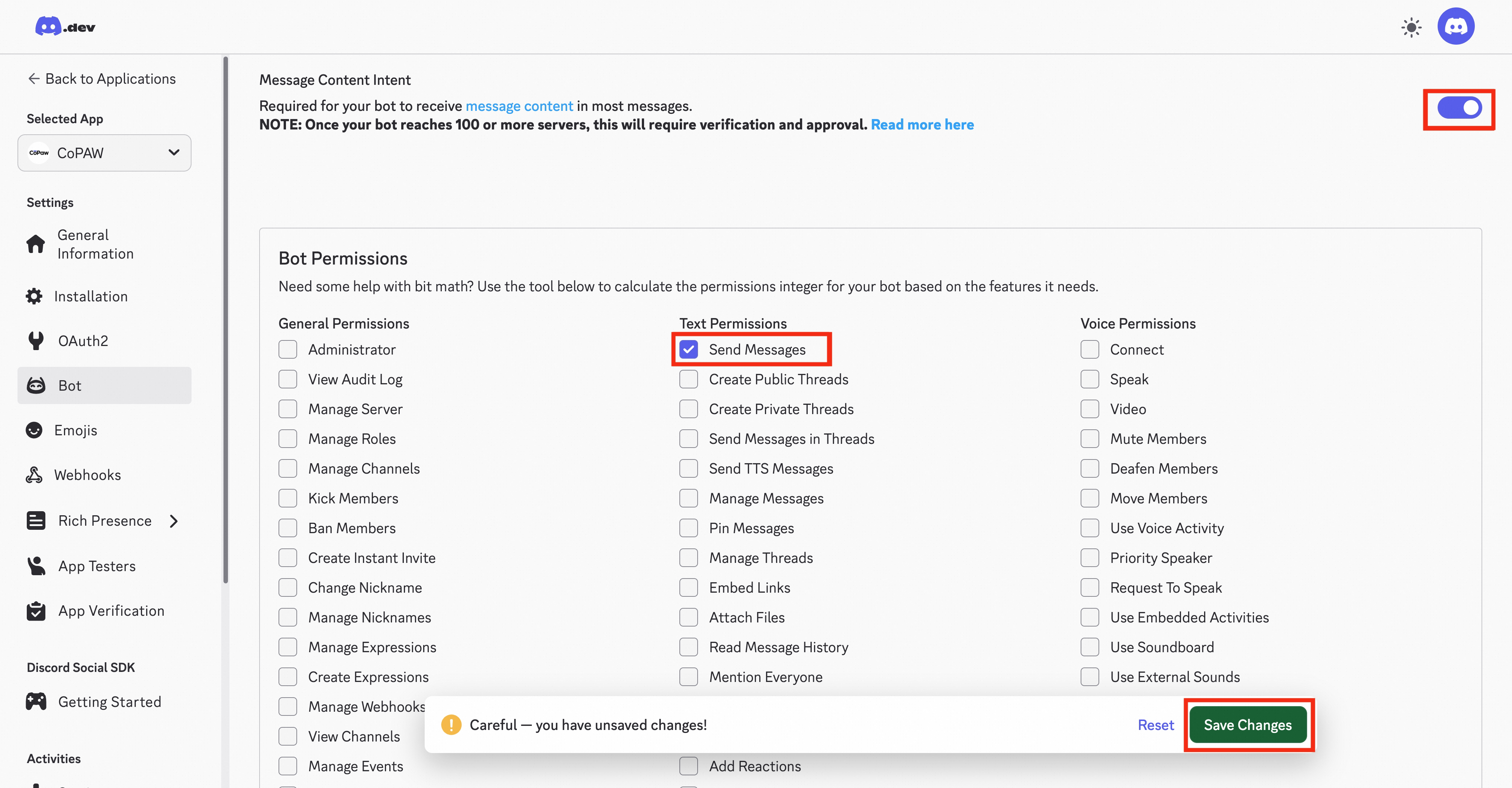
4. Scroll down, enable **Message Content Intent** and **Send Messages** for the bot, then save
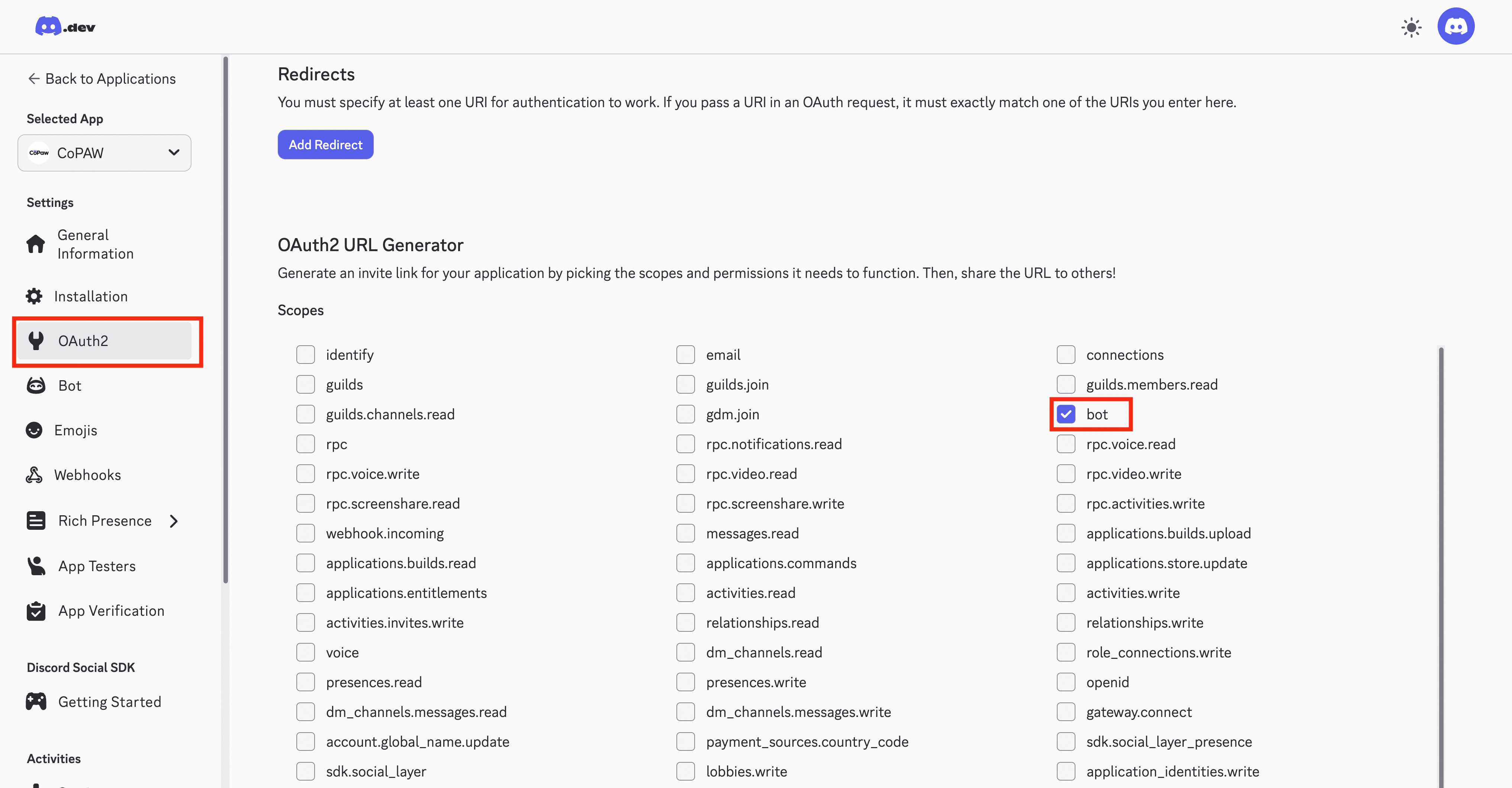
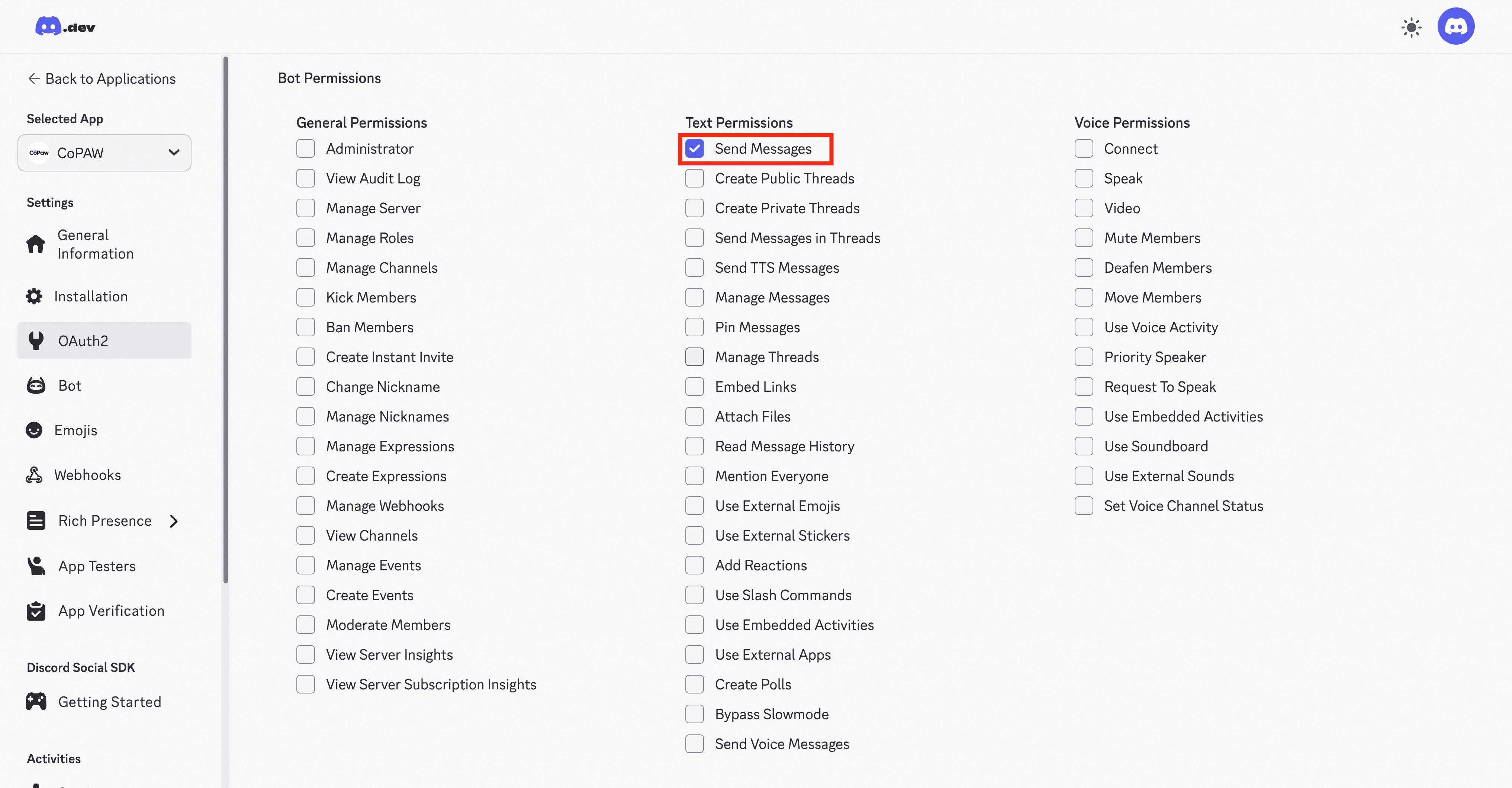
5. In **OAuth2 → URL Generator**, enable `bot`, grant **Send Messages**, and generate the invite link
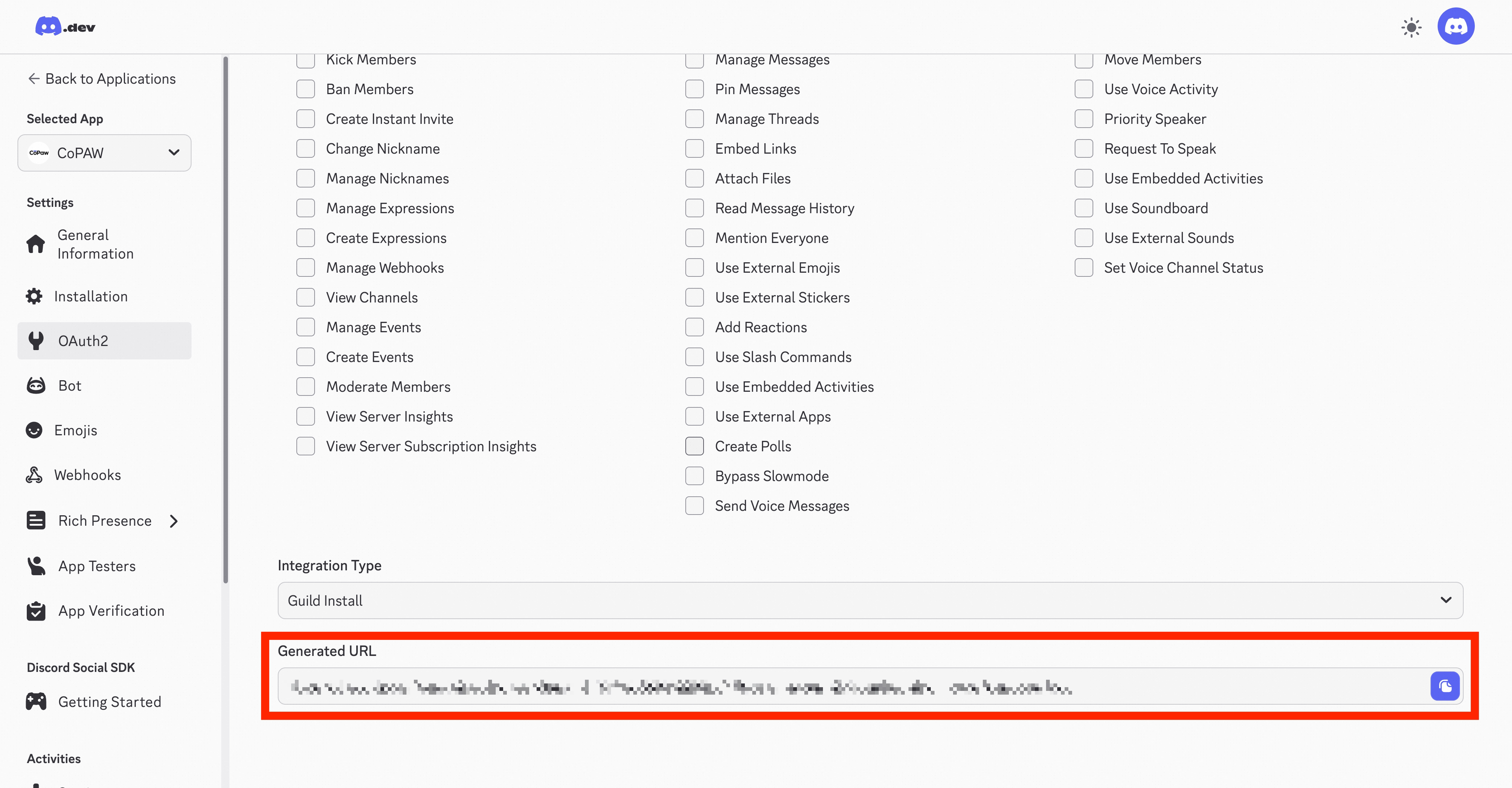
6. Open the link in your browser; it will redirect to Discord. Add the bot to your server
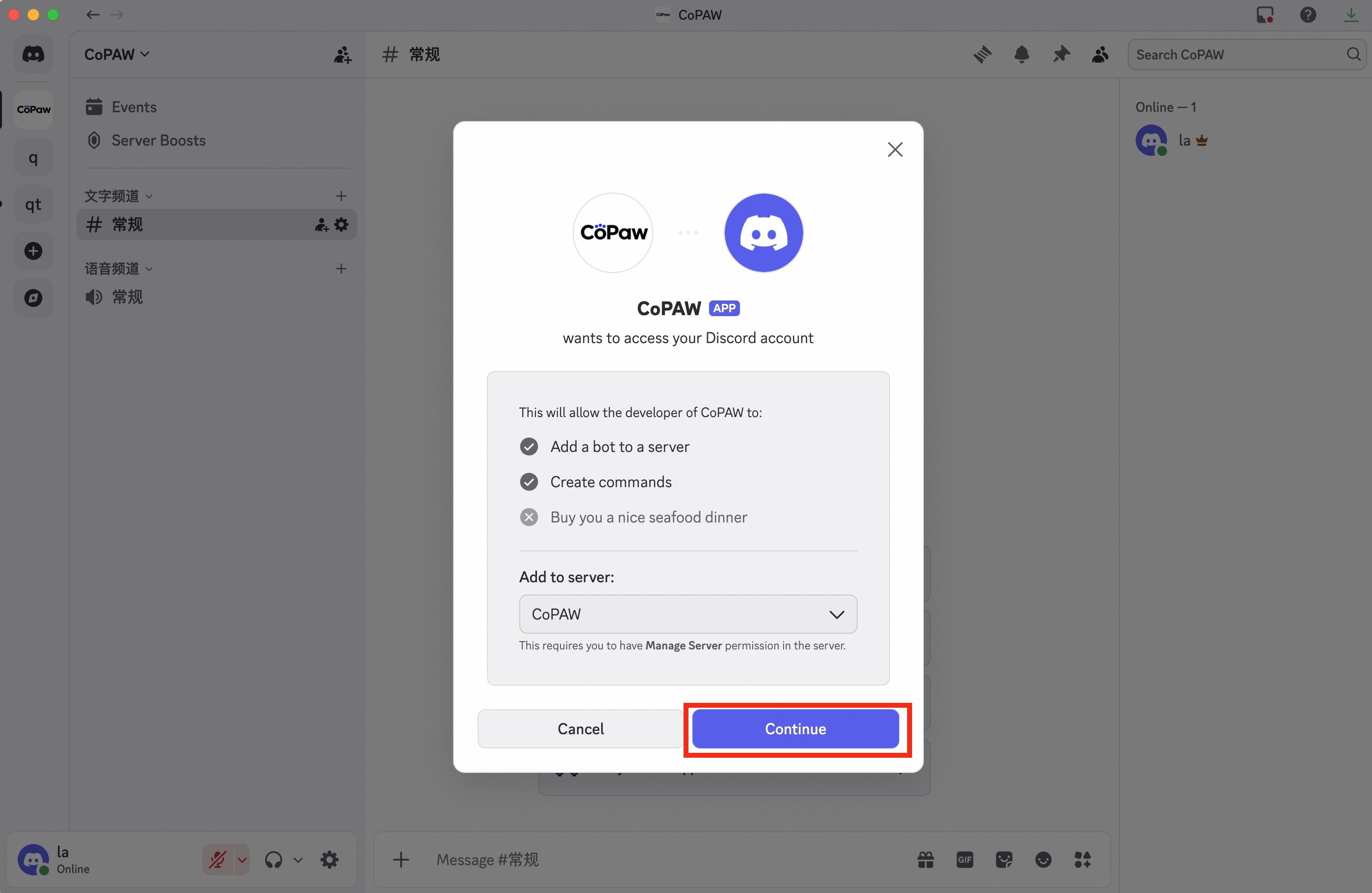
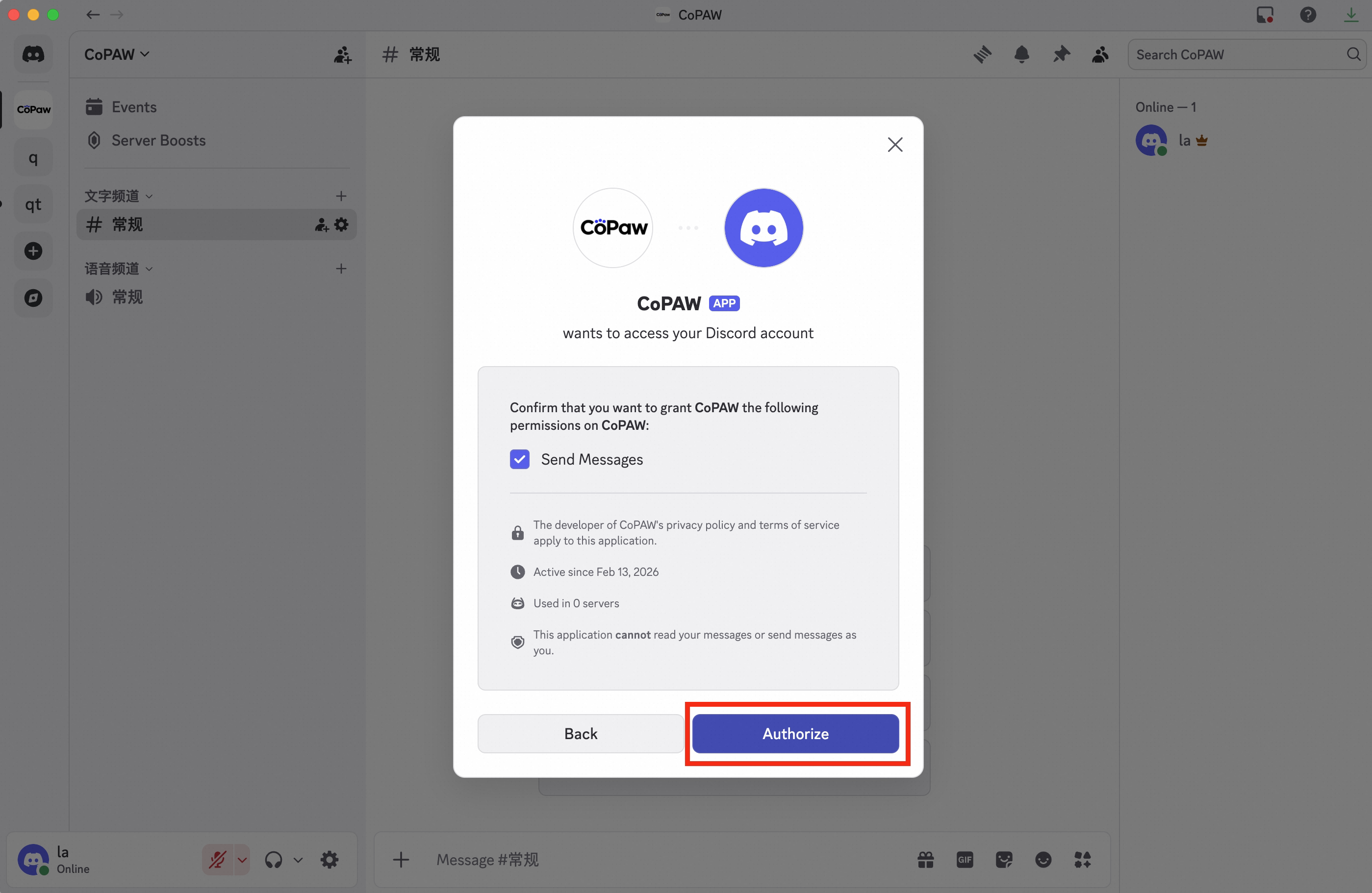
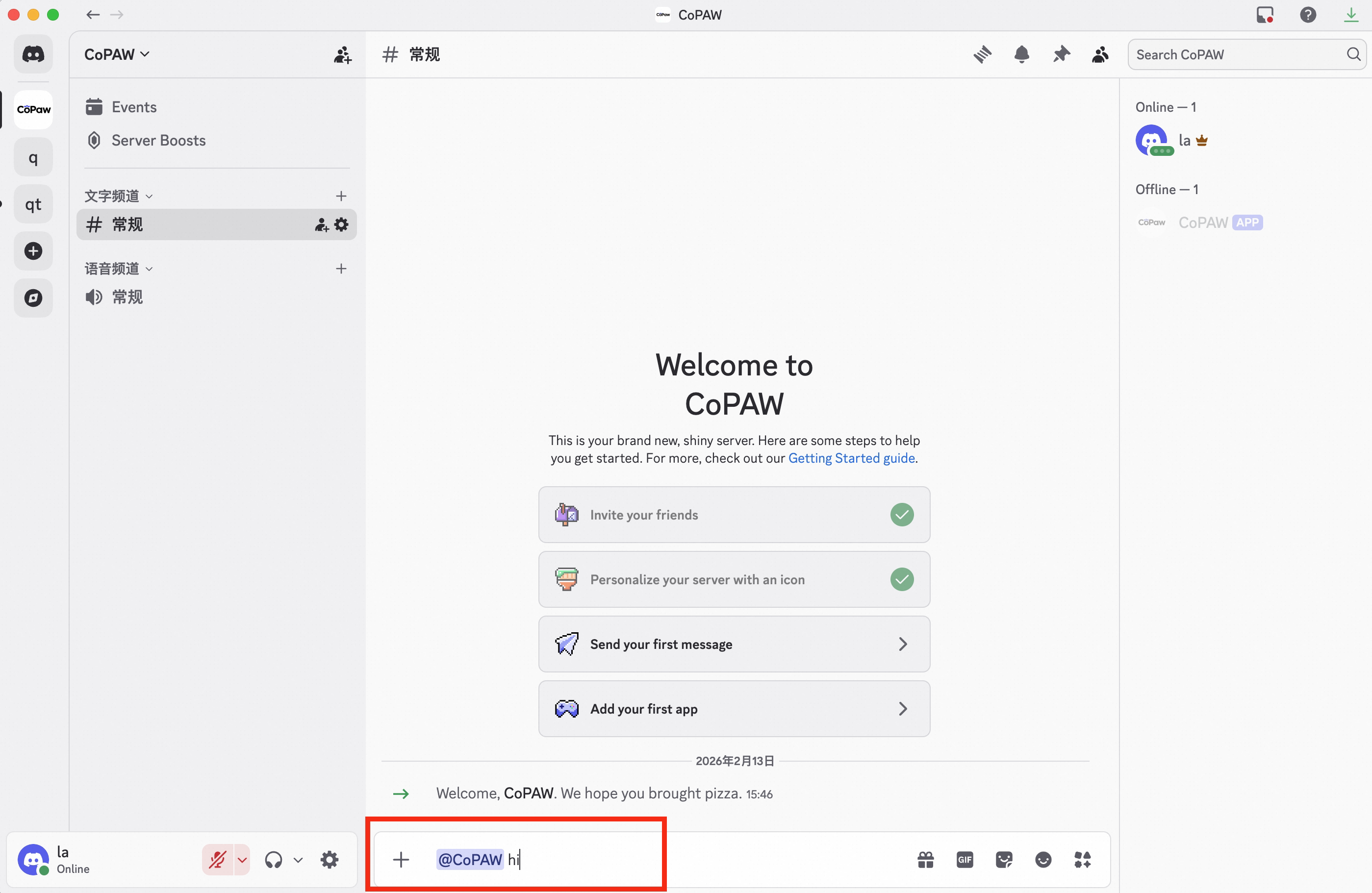
7. You can see the bot is now in your server
### Configure the Bot
You can configure via the Console UI or by editing the agent workspace `agent.json`.
**Method 1:** Configure in the Console
Go to **Control → Channels**, click **Discord**, and enter the **Bot Token** you obtained.
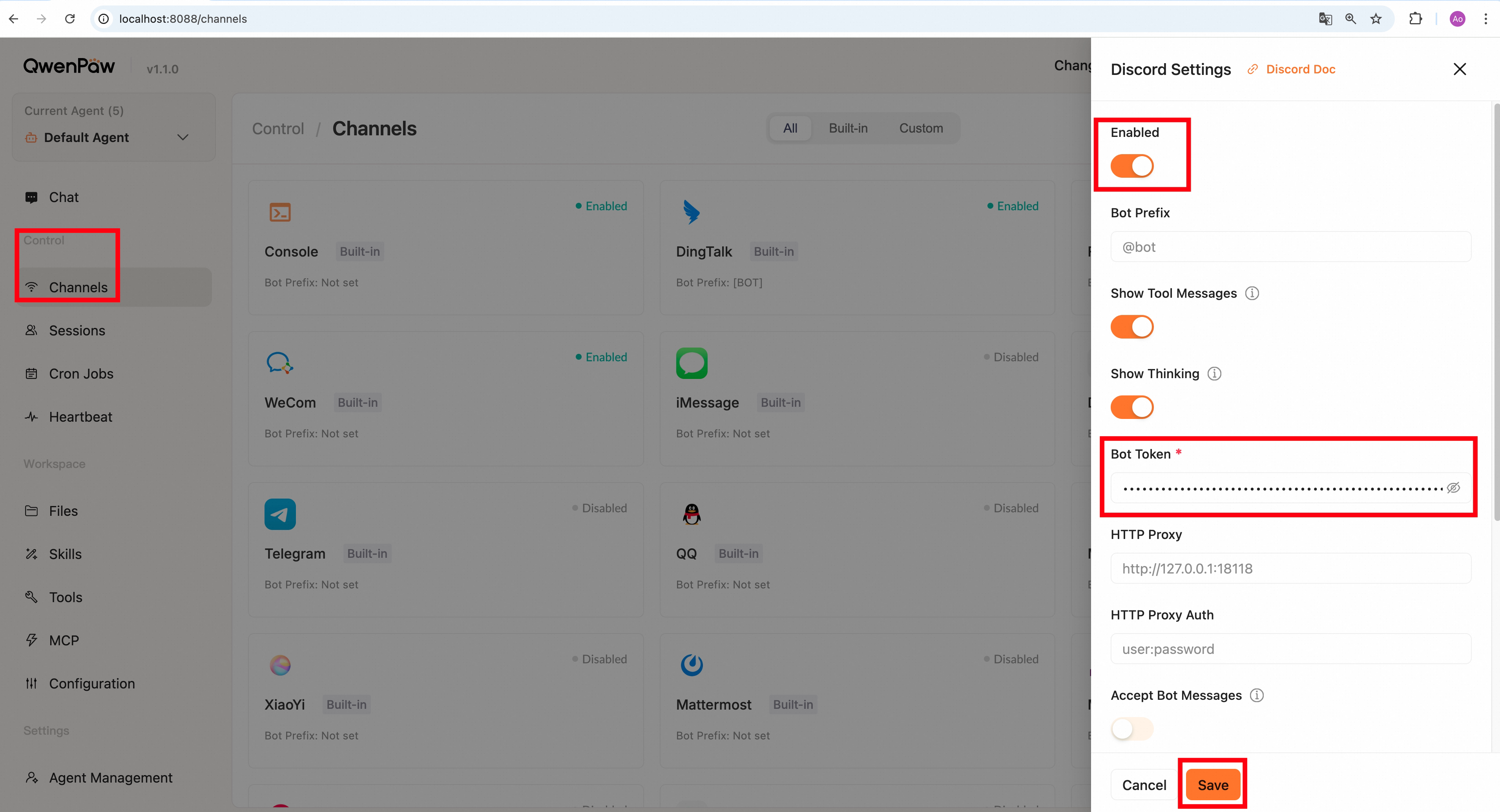
**Method 2:** Edit agent workspace `agent.json`
Find `channels.discord` in your agent's `agent.json` (e.g., `~/.qwenpaw/workspaces/default/agent.json`) and fill in the fields, for example:
```json
"discord": {
"enabled": true,
"bot_prefix": "[BOT]",
"bot_token": "your Bot Token",
"http_proxy": "",
"http_proxy_auth": ""
}
```
**Discord-specific fields:**
| Field | Type | Default | Description |
| ----------------- | ------ | --------------- | -------------------------------------------------------------------------------------- |
| `bot_token` | string | `""` (required) | Discord bot token |
| `http_proxy` | string | `""` | HTTP proxy URL (useful in China) |
| `http_proxy_auth` | string | `""` | Proxy authentication string (format: `username:password`, leave empty if not required) |
> **Tip:** Accessing the Discord API from China may require a proxy.
---
## QQ
### Get QQ bot credentials
1. Open the [QQ Developer Platform](https://q.qq.com/)
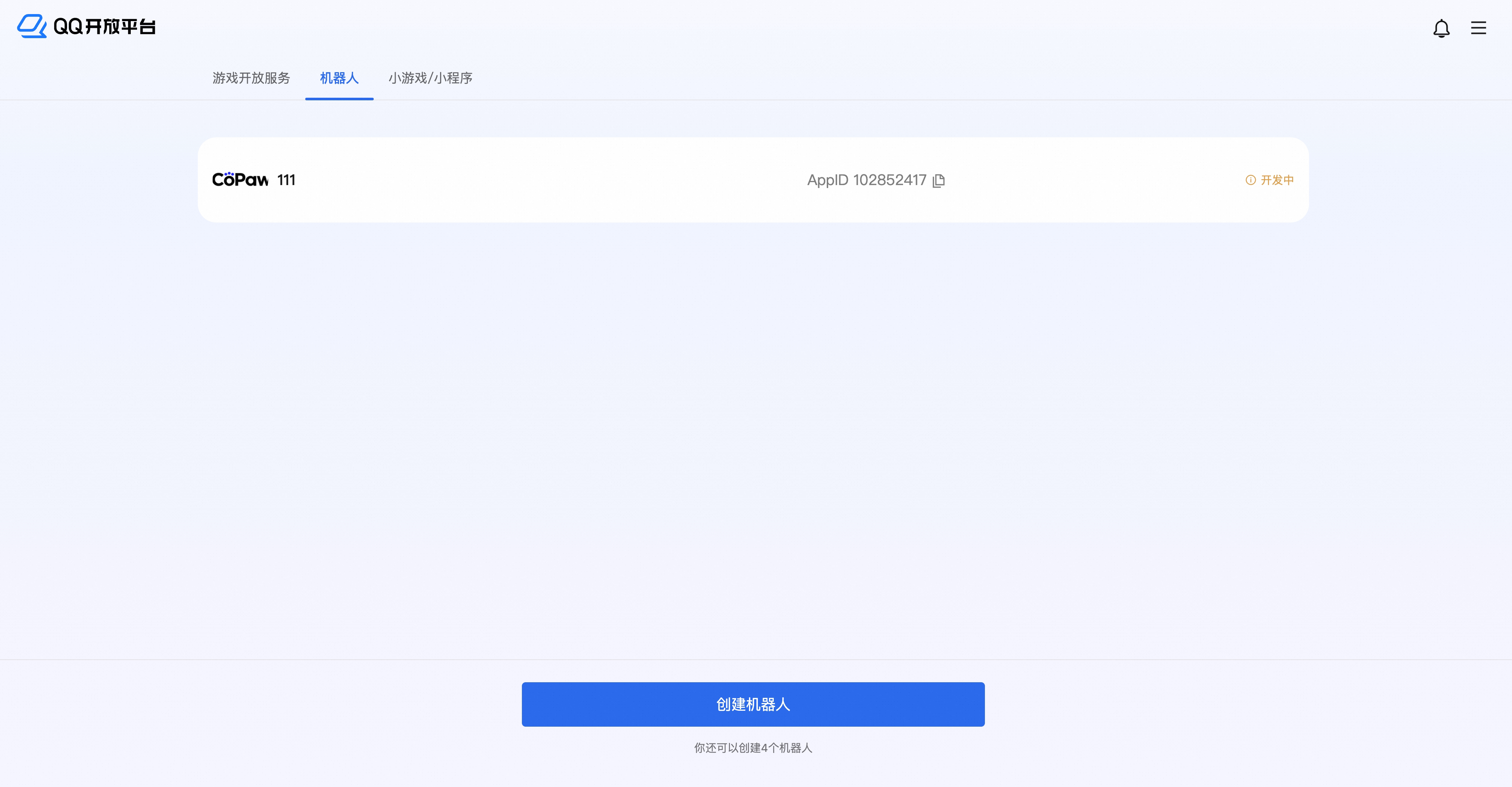
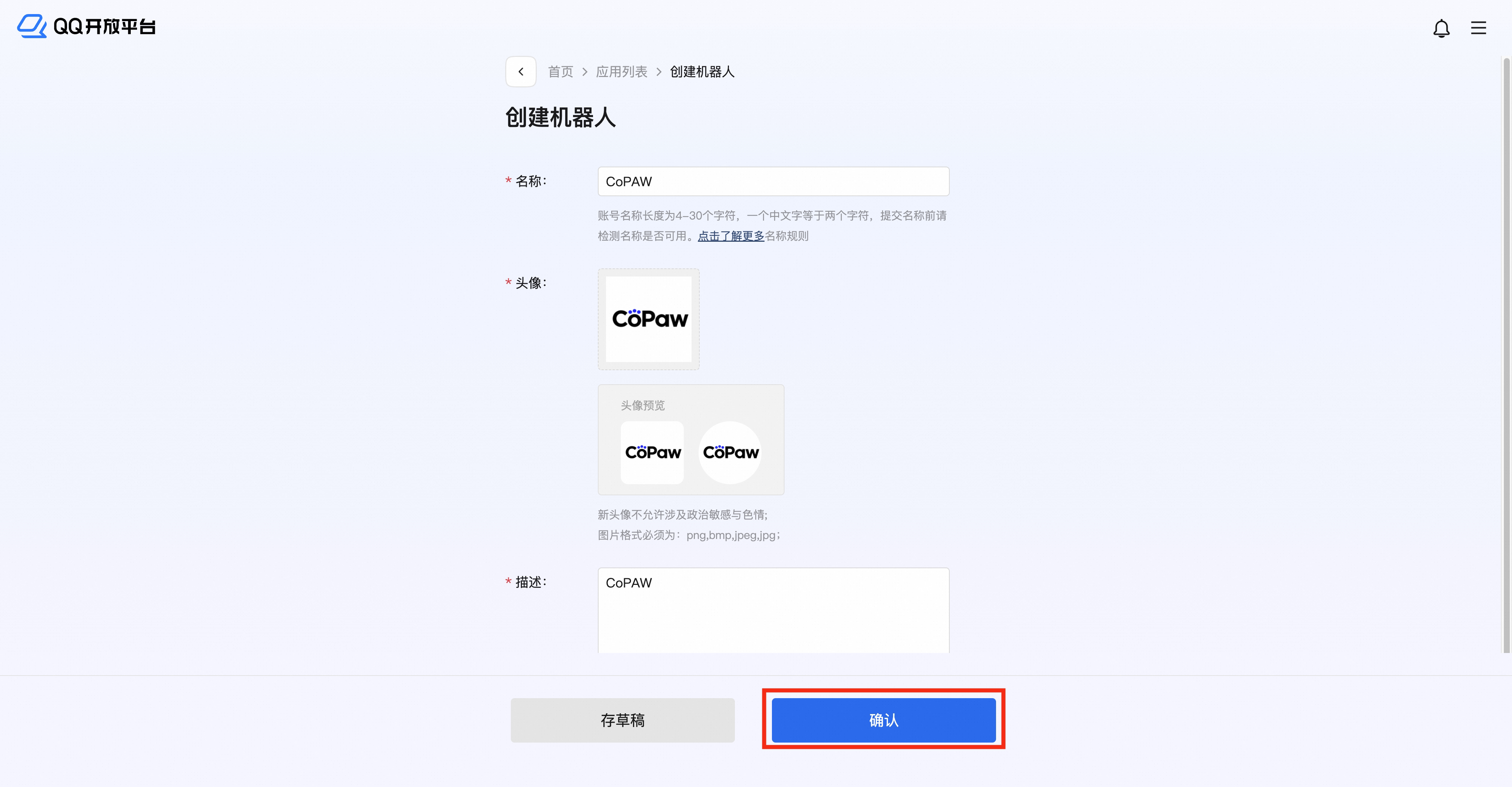
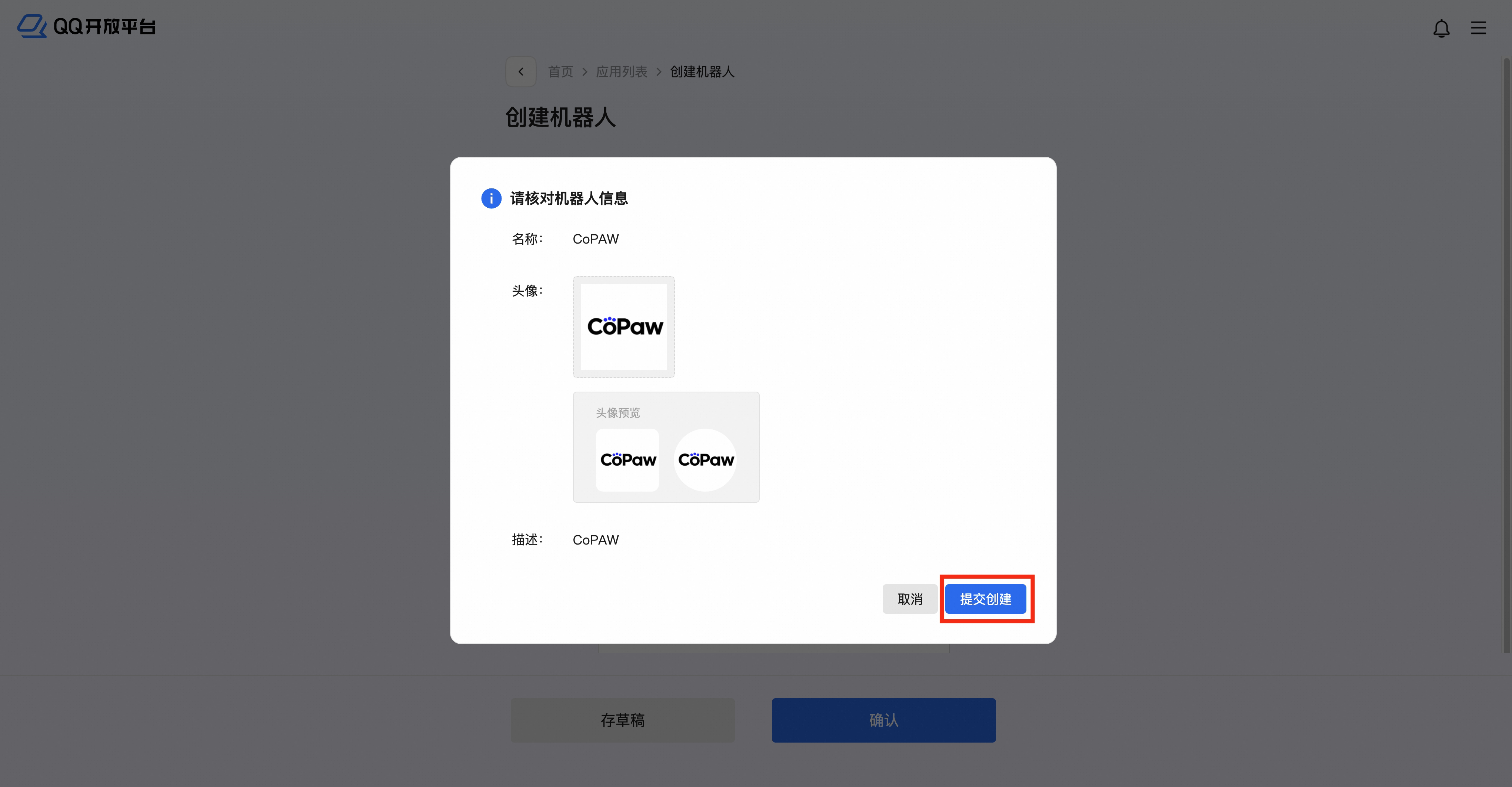
2. Create a **bot application** and click to open the edit page
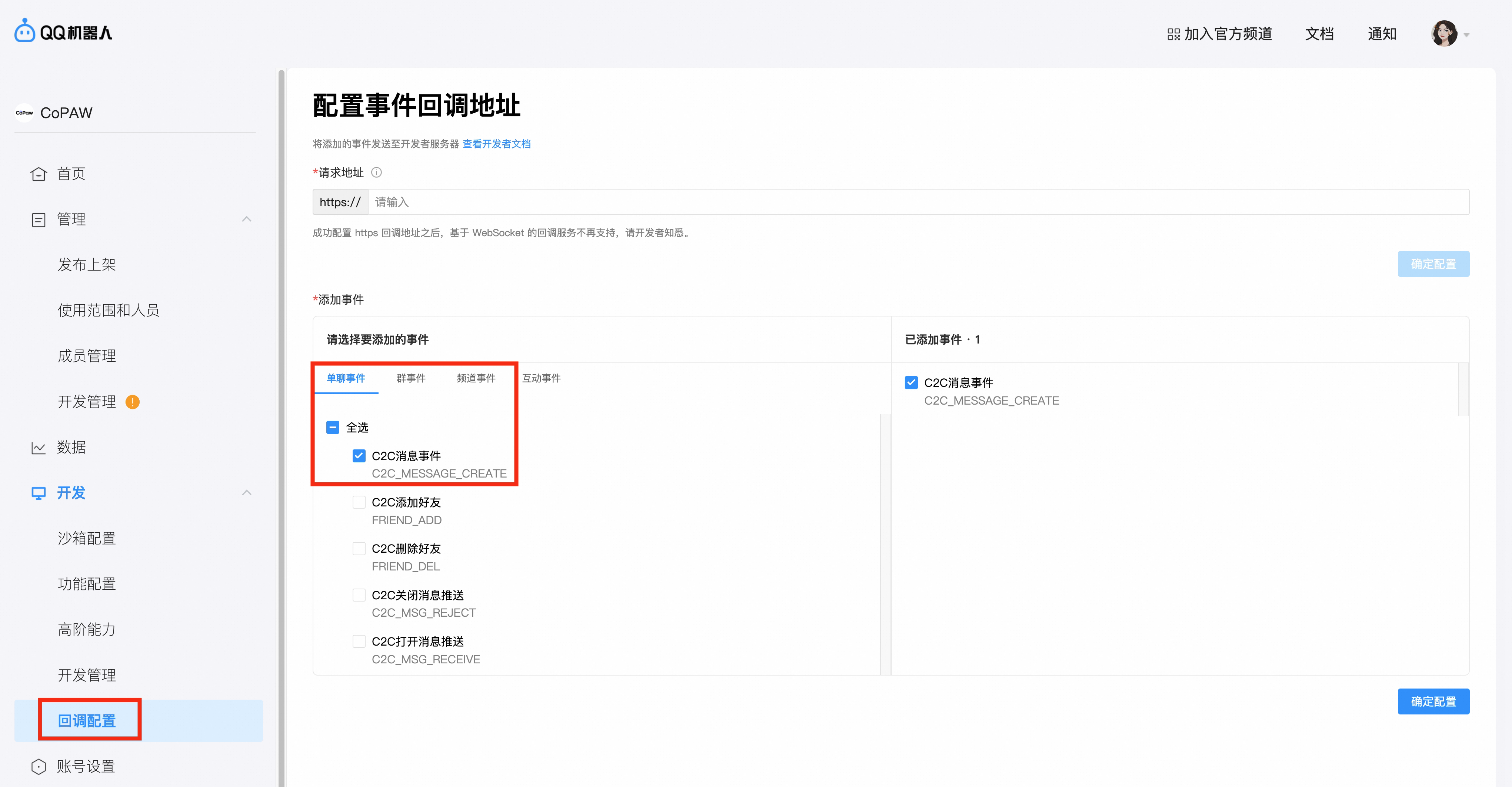
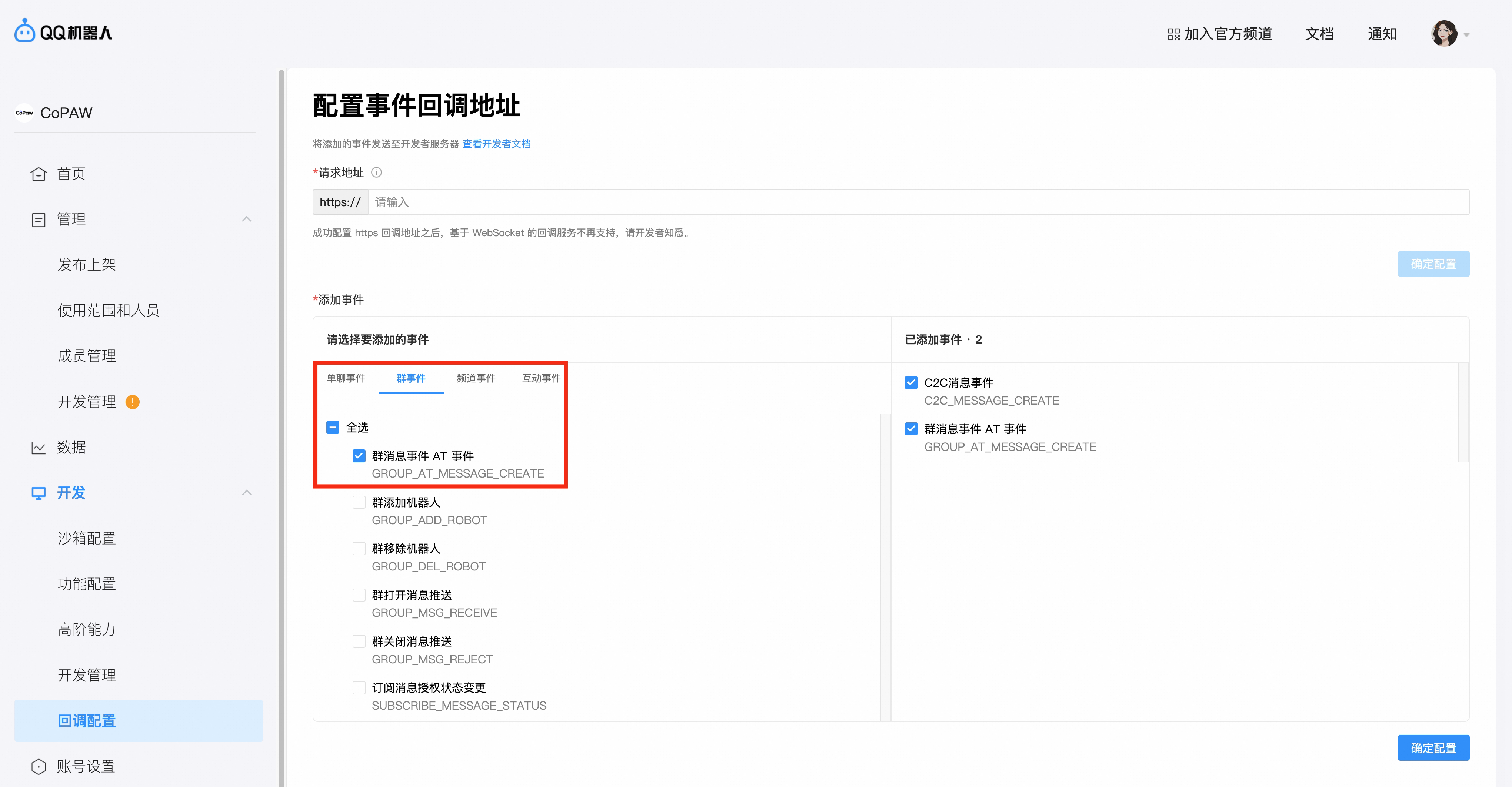
3. Go to **Callback config** → enable **C2C message events** under **Direct message events**, and **At-event for group messages** under **Group events**, then confirm
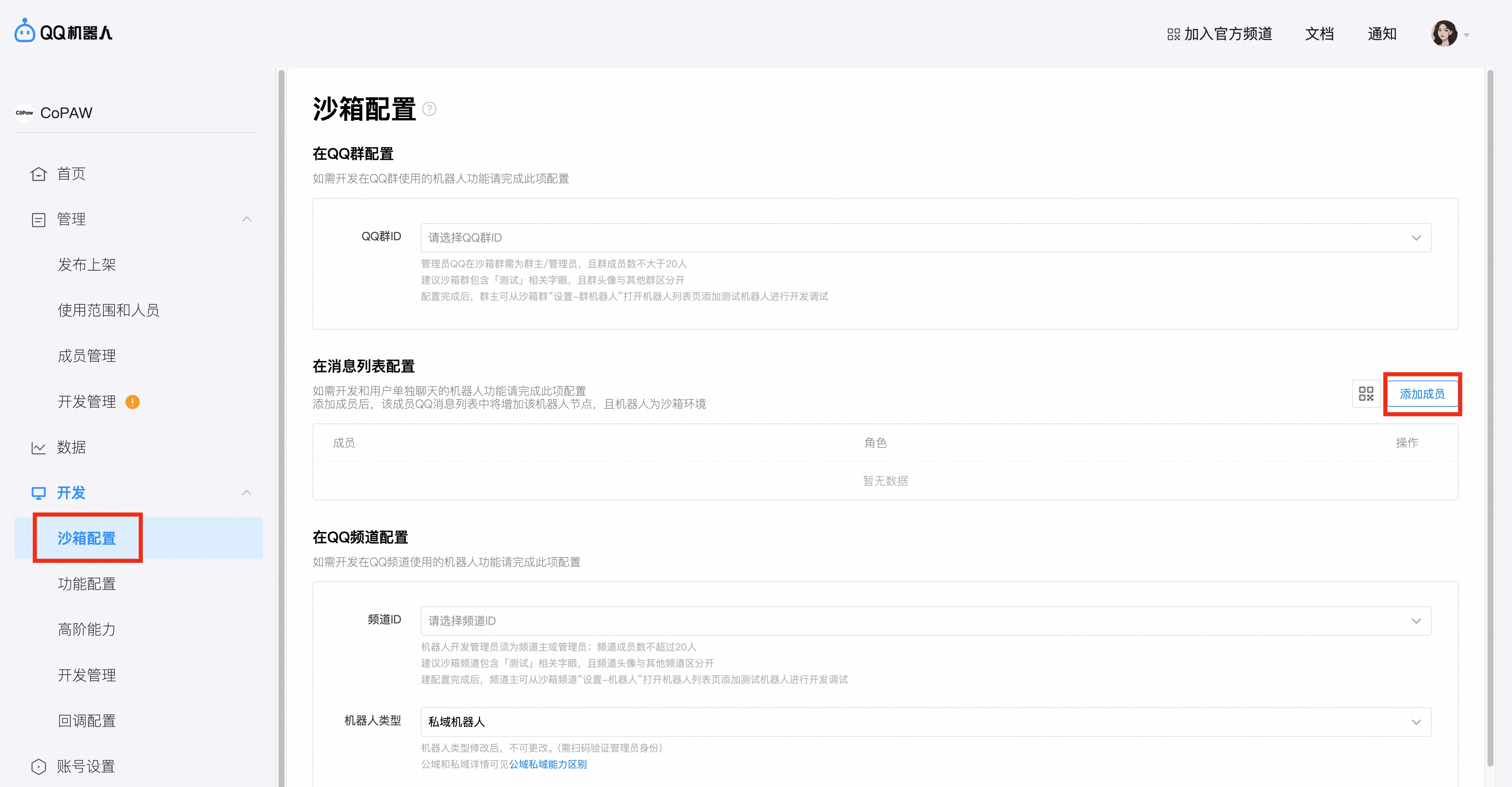
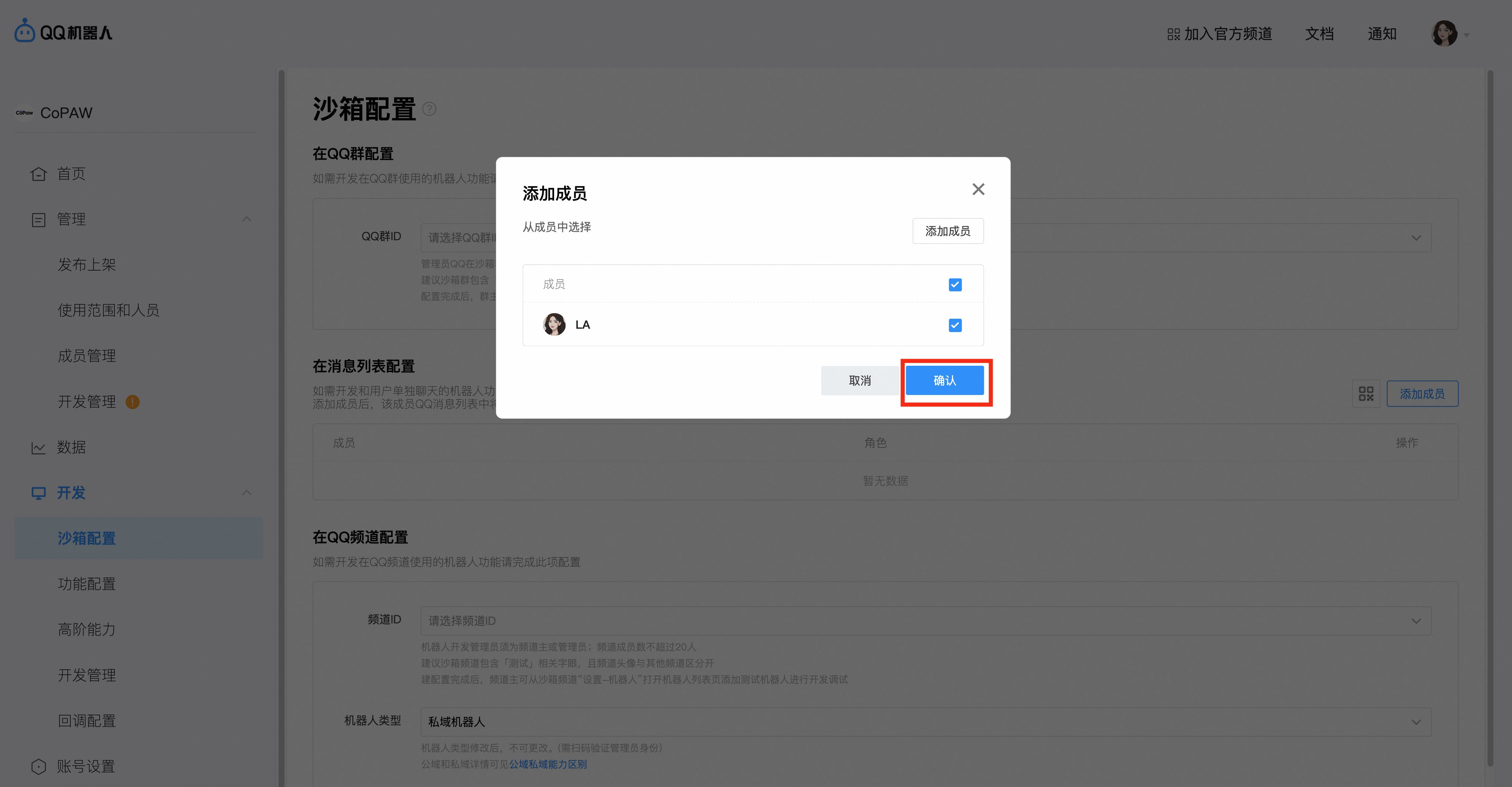
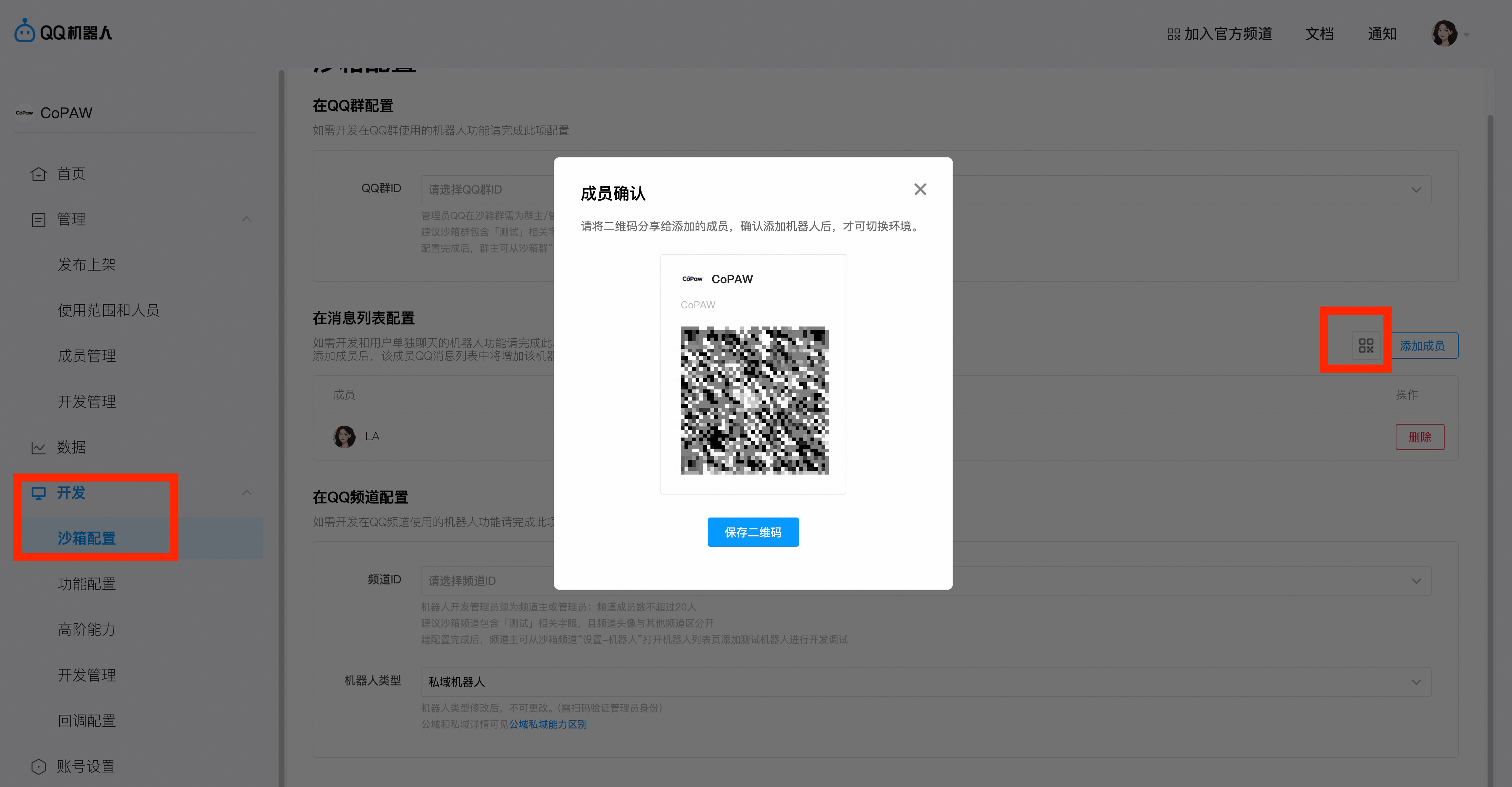
4. In **Sandbox config** → **Message list**, click **Add member** and add **yourself**
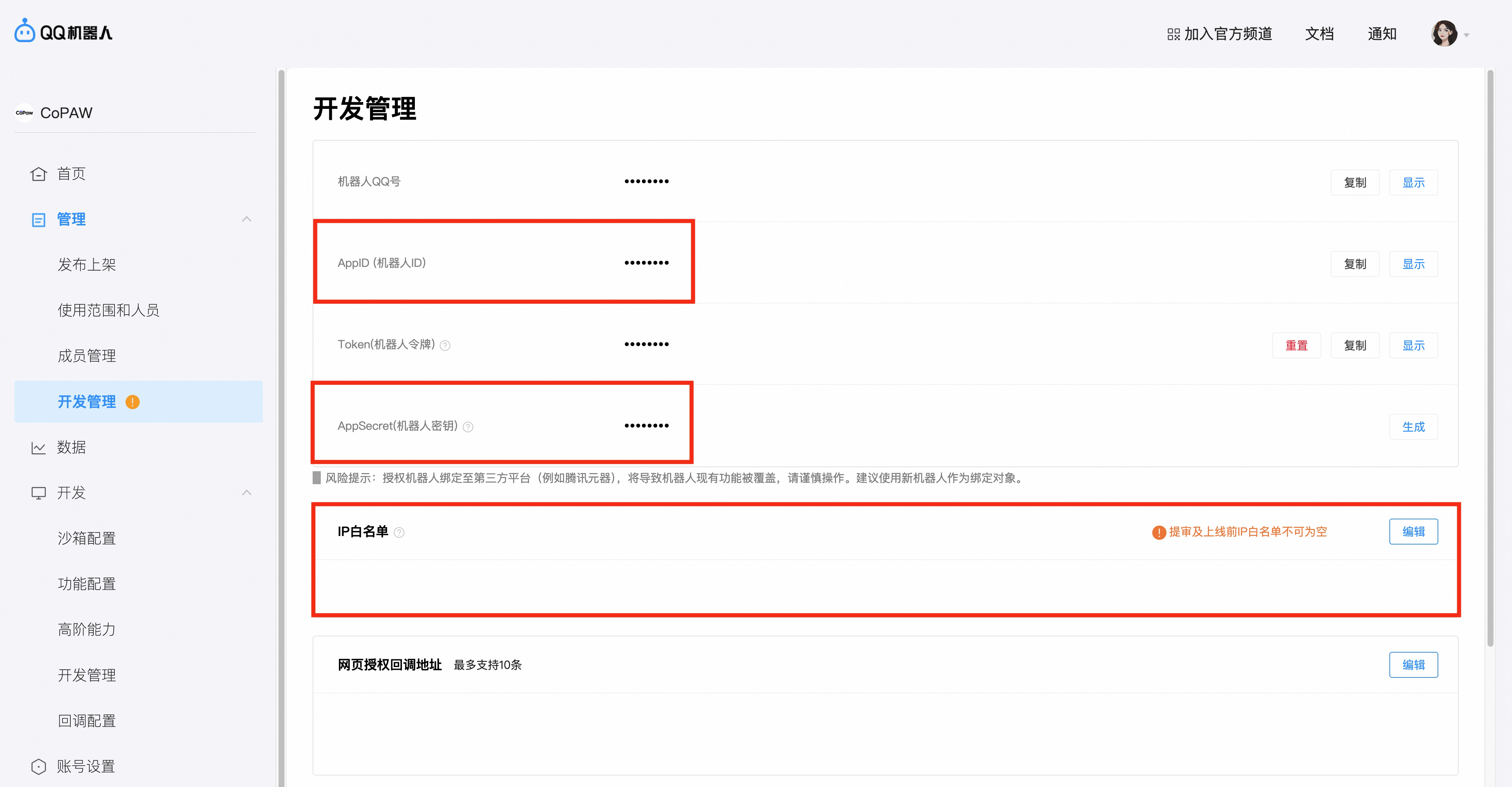
5. In **Developer settings**, get **AppID** and **AppSecret** (ClientSecret) and fill them into config (see below). Add your server’s **IP to the whitelist** — only whitelisted IPs can call the Open API outside sandbox.
> **Tip:** If you are using ModelScope Creative Space to deploy QwenPaw, the IP whitelist for QQ channel should be: `47.92.200.108`
6. In sandbox config, scan the QR code with QQ to add the bot to your message list
### Fill agent.json
In your agent's `agent.json` (e.g., `~/.qwenpaw/workspaces/default/agent.json`), find `channels.qq` and set `app_id` and `client_secret` to the values above:
```json
"qq": {
"enabled": true,
"bot_prefix": "[BOT]",
"app_id": "your AppID",
"client_secret": "your AppSecret"
}
```
**QQ-specific fields:**
| Field | Type | Default | Description |
| ------------------------ | ------ | --------------- | ------------------------------------------------------------------------ |
| `app_id` | string | `""` (required) | QQ bot App ID |
| `client_secret` | string | `""` (required) | QQ bot Client Secret (AppSecret) |
| `markdown_enabled` | bool | `false` | Whether to enable Markdown messages (requires QQ platform authorization) |
| `max_reconnect_attempts` | int | `-1` | WebSocket max reconnect attempts (`-1` = unlimited) |
> **Note:** Fill in **AppID** and **AppSecret** as two separate fields; do not concatenate them into a single token.
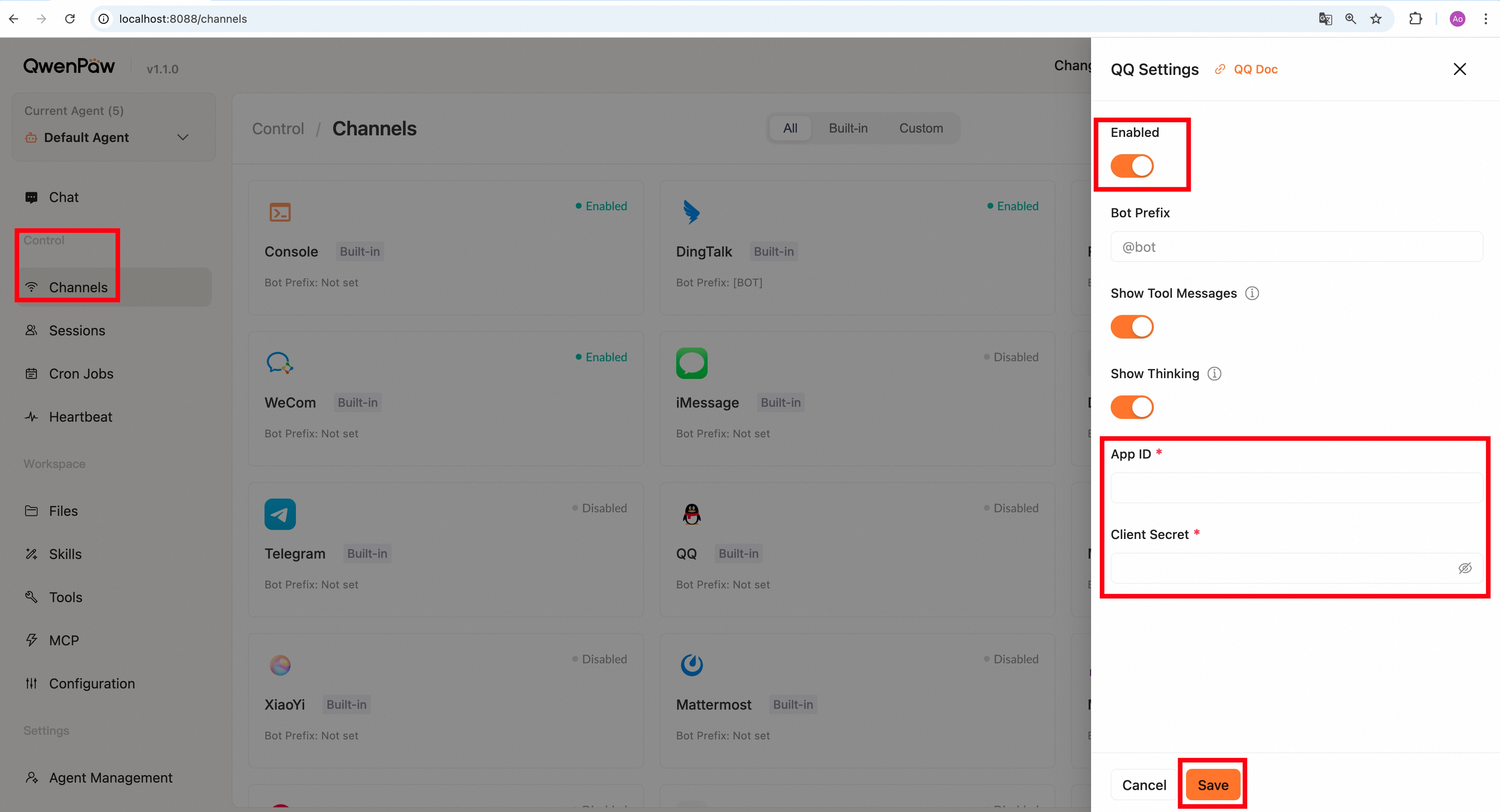
You can also fill them in the Console UI.
---
## OneBot v11 (NapCat / QQ full protocol)
The **OneBot** channel connects QwenPaw to [NapCat](https://github.com/NapNeko/NapCatQQ), [go-cqhttp](https://github.com/Mrs4s/go-cqhttp), [Lagrange](https://github.com/LagrangeDev/Lagrange.Core), or any other [OneBot v11](https://github.com/botuniverse/onebot-11) compatible implementation via **reverse WebSocket**.
Unlike the built-in QQ channel (which uses the official QQ Bot API with limited features), OneBot v11 provides **full QQ protocol** support: personal accounts, group messages without @mention, rich media, and more.
### How it works
QwenPaw starts a WebSocket server; the OneBot implementation (e.g. NapCat) connects to it as a client:
```
NapCat ──reverse WS──▶ QwenPaw (:6199/ws)
```
### Setup NapCat
1. Run NapCat via Docker:
```bash
docker run -d \
--name napcat \
-e ACCOUNT= \
-p 6099:6099 \
mlikiowa/napcat-docker:latest
```
2. Open NapCat WebUI at `http://localhost:6099`, scan the QR code with QQ to log in.
3. Go to **Network Config** → **New** → **WebSocket Client** (reverse WS):
- URL: `ws://:6199/ws`
- Access Token: same as `access_token` in QwenPaw config (optional)
### Fill agent.json
```json
"onebot": {
"enabled": true,
"ws_host": "0.0.0.0",
"ws_port": 6199,
"access_token": "",
"share_session_in_group": false
}
```
**OneBot-specific fields:**
| Field | Type | Default | Description |
| ------------------------ | ------ | --------- | -------------------------------------------------------------------------------------------------------- |
| `ws_host` | string | `0.0.0.0` | WebSocket server listen address |
| `ws_port` | int | `6199` | WebSocket server listen port |
| `access_token` | string | `""` | Optional token for authentication (must match NapCat config) |
| `share_session_in_group` | bool | `false` | If `true`, all members in a group share one session; if `false`, each member gets an independent session |
> **Docker Compose tip:** When running QwenPaw and NapCat in Docker Compose, set the NapCat reverse WS URL to `ws://qwenpaw:6199/ws` (using the service name).
**Multimodal support:**
| Type | Receive | Send |
| ----- | ------- | ---- |
| Text | ✓ | ✓ |
| Image | ✓ | ✓ |
| Audio | 🚧 | ✓ |
| Video | 🚧 | ✓ |
| File | ✓ | ✓ |
> **Note:** Audio and video are received at the channel level, but require QwenPaw's transcription provider (`transcription_provider_type`) to be configured for the LLM to process them. Without transcription, voice messages are shown as placeholders.
---
## WeCom (WeChat Work)
### Create a new enterprise
Individual users can visit the [WeCom official website](https://work.weixin.qq.com) to register an account, create a new enterprise, and become an enterprise administrator.
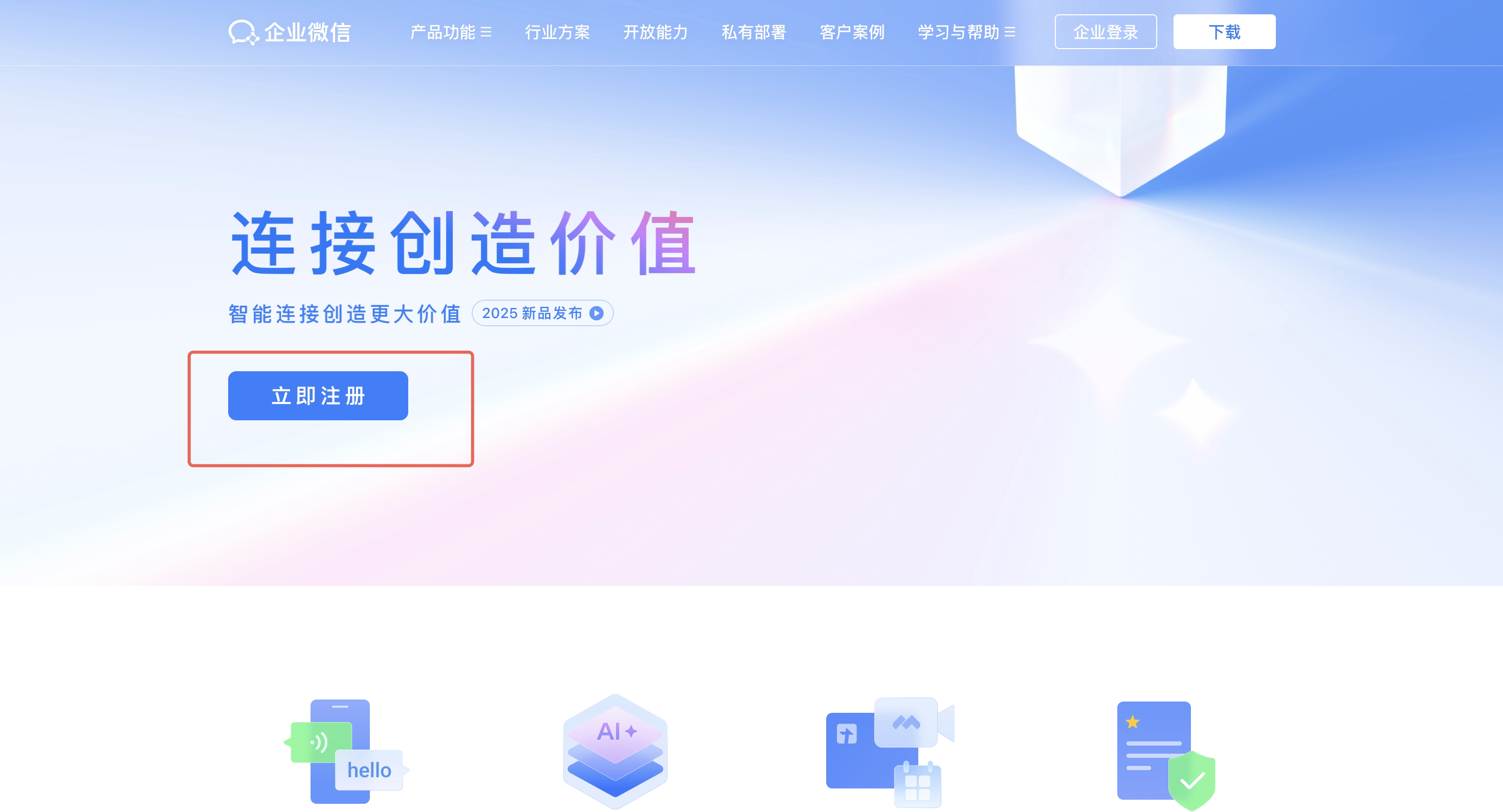
Fill in the enterprise information and administrator information, and bind your WeChat account.
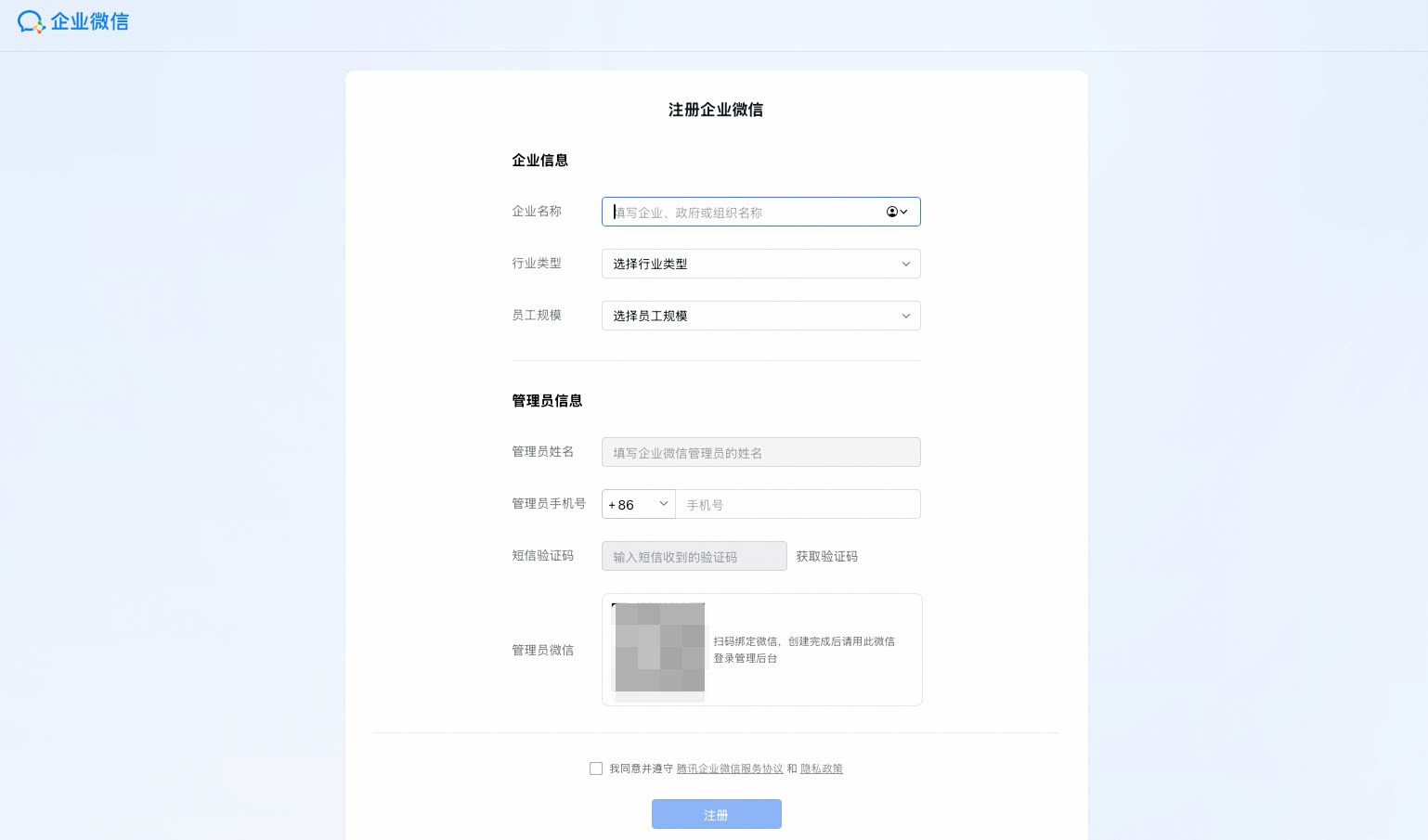
Once registered, you can log in to WeCom and start using it.
If you already have a WeCom account or are a regular employee of an enterprise, you can directly create an API-mode robot in your current enterprise.
### Create a bot
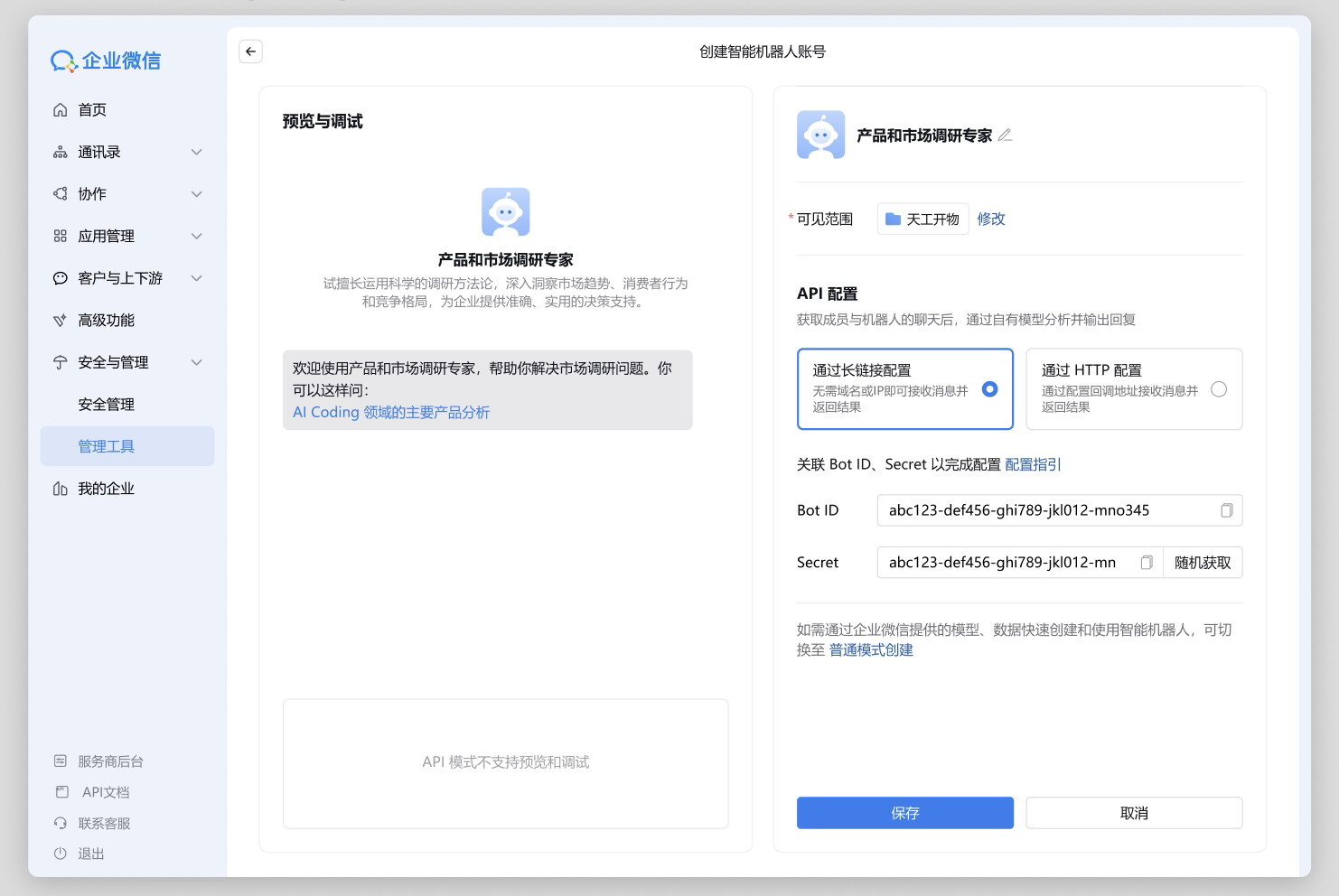
In the Workplace, click Smart Robot → Create Robot, select API Mode → Configure via Long Connection.
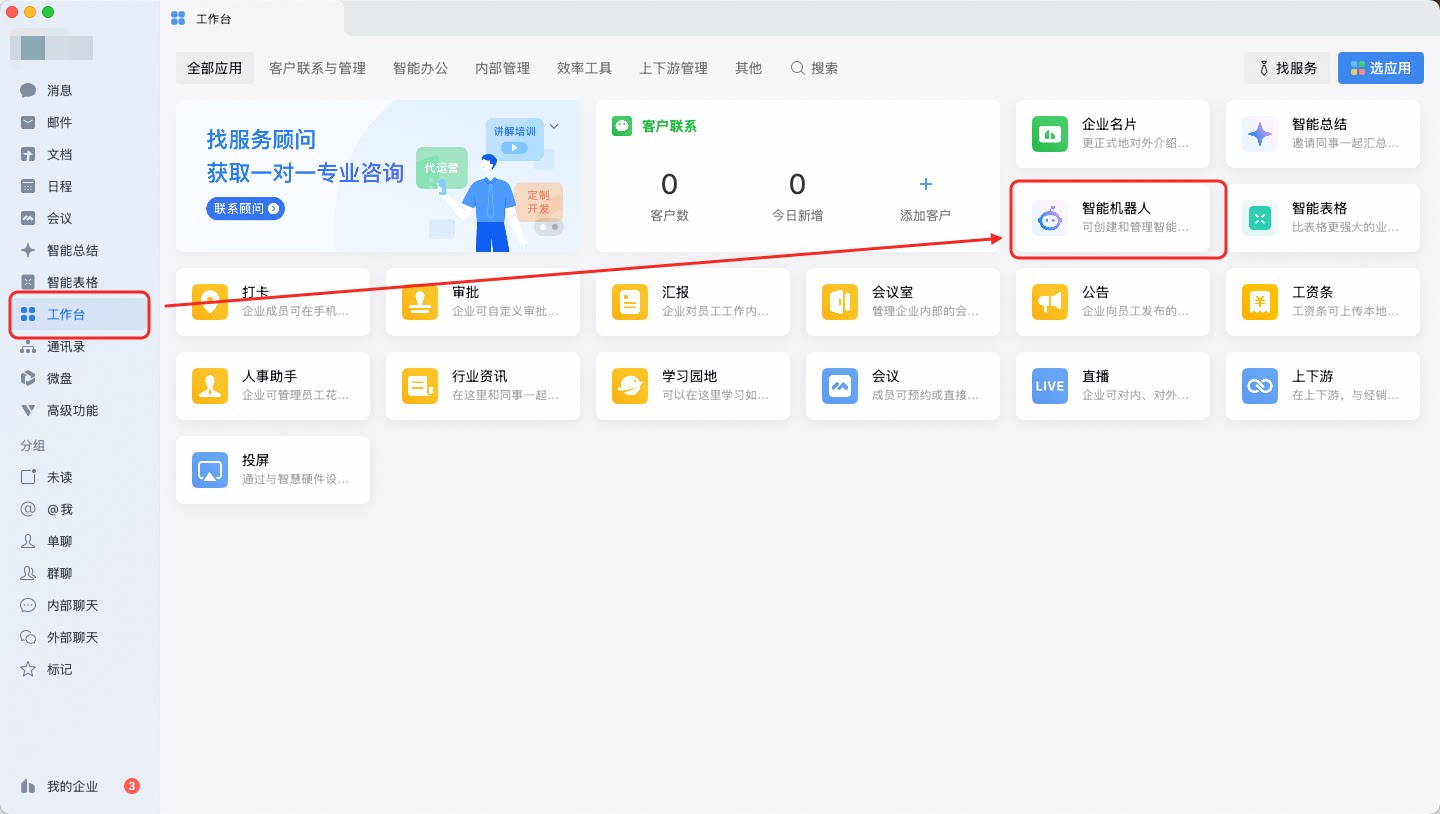
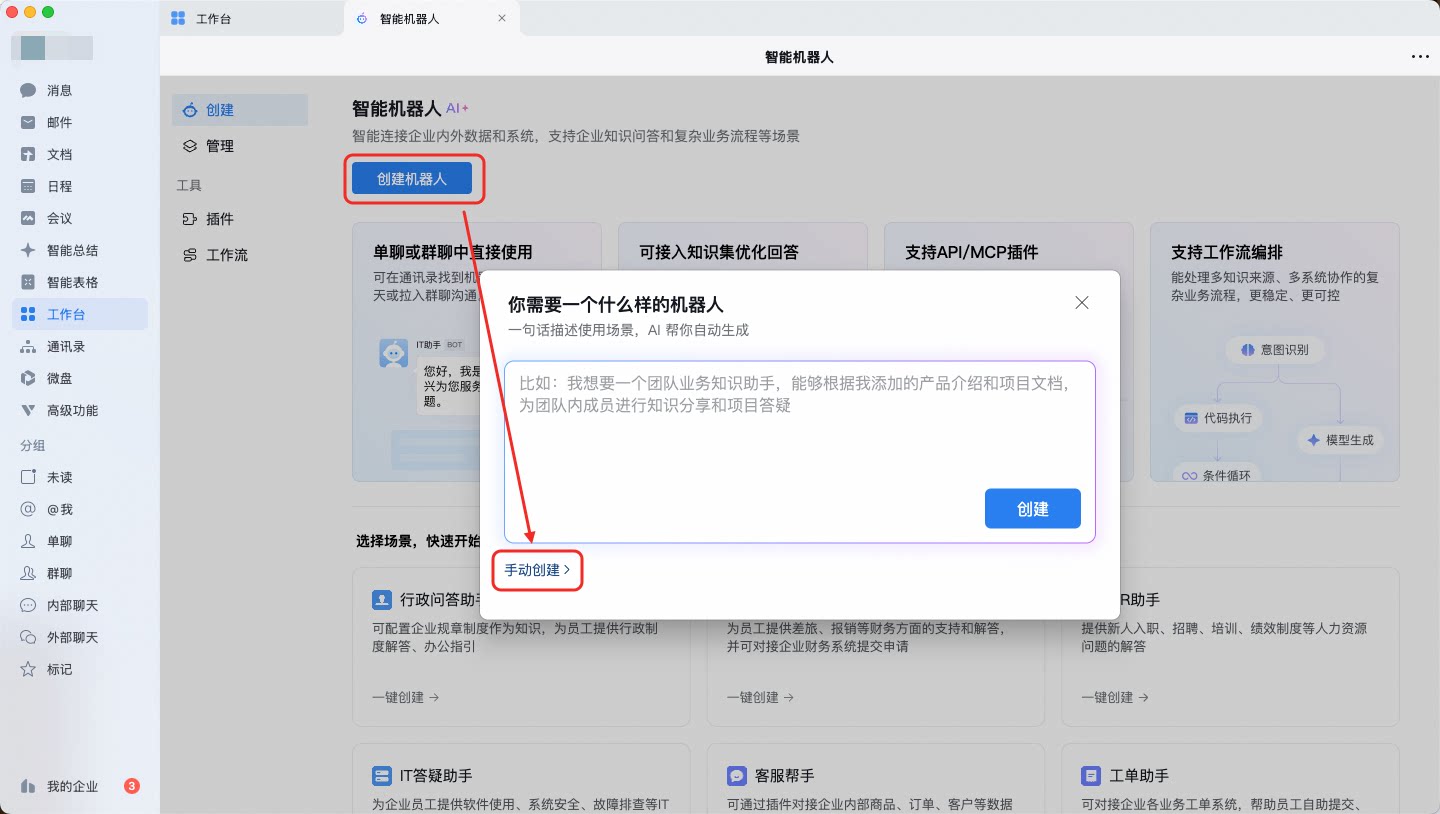
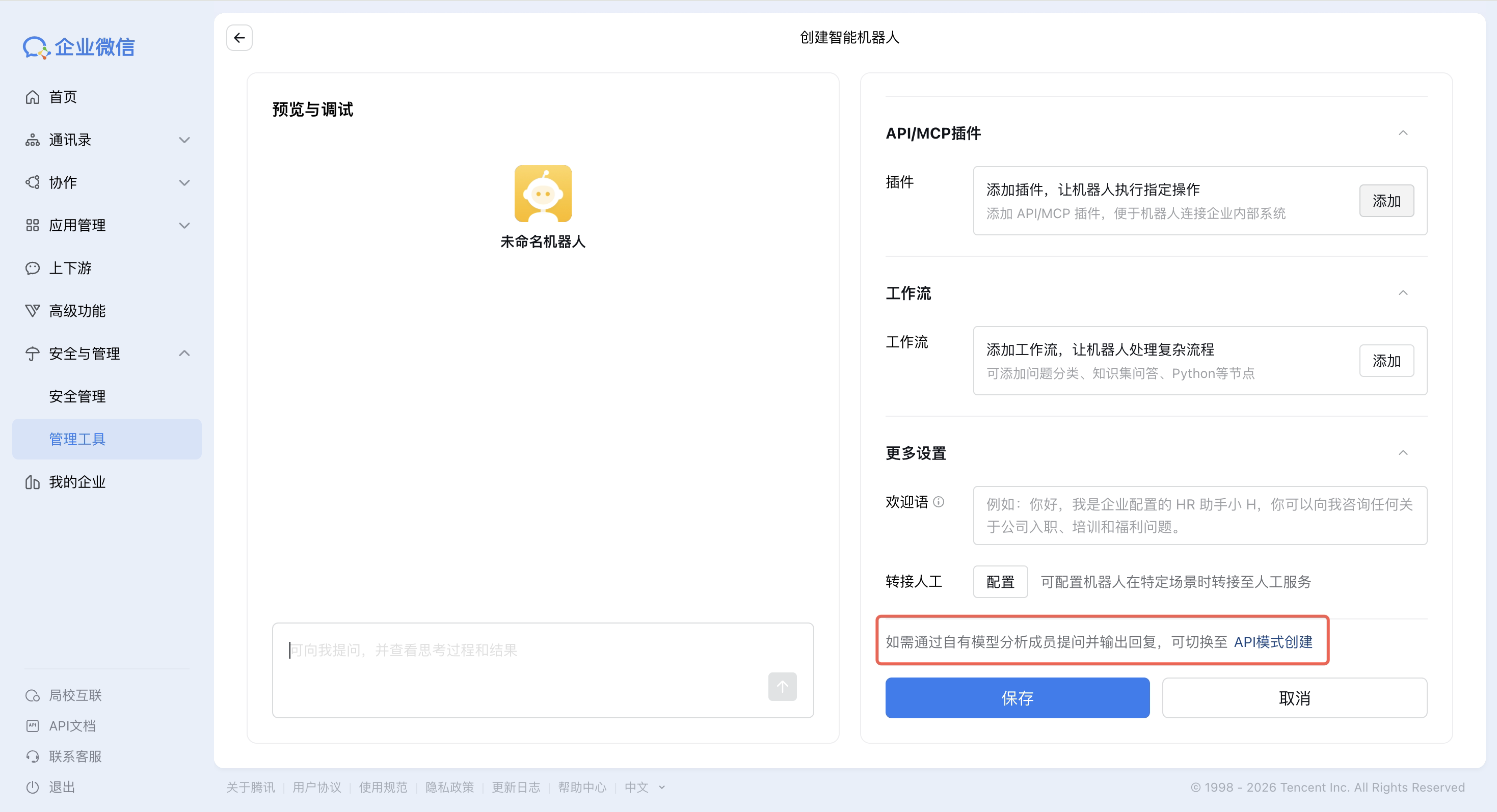
Obtain the `Bot ID` and `Secret`.
### Bind the bot
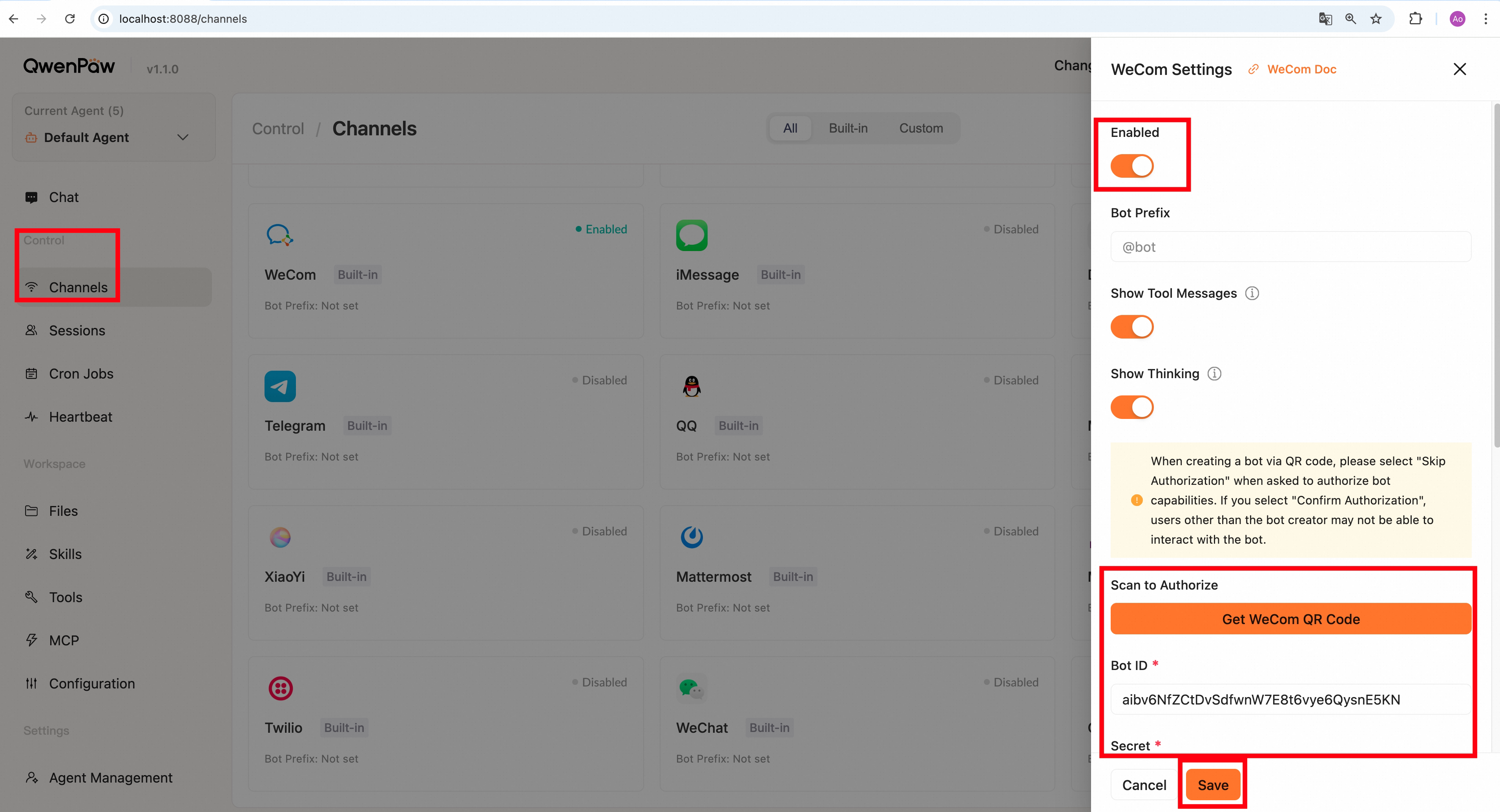
You can bind the bot by filling in the Bot ID and Secret in the Console or `agent.json`.
**Method 1:** Fill in the Console
**Method 2:** Fill in `agent.json` (e.g., `~/.qwenpaw/workspaces/default/agent.json`)
Find `wecom` and fill in the corresponding information, for example:
```json
"wecom": {
"enabled": true,
"bot_prefix": "[BOT]",
"dm_policy": "open",
"group_policy": "open",
"bot_id": "your bot_id",
"secret": "your secret",
"media_dir": "~/.qwenpaw/media",
"max_reconnect_attempts": -1
}
```
**WeCom-specific fields:**
| Field | Type | Default | Description |
| ------------------------ | ------ | ------------------ | ---------------------------------------------------- |
| `bot_id` | string | `""` (required) | WeCom bot ID |
| `secret` | string | `""` (required) | WeCom bot secret |
| `media_dir` | string | `~/.qwenpaw/media` | Media files (images, files, etc.) download directory |
| `max_reconnect_attempts` | int | `-1` | WebSocket max reconnect attempts (`-1` = unlimited) |
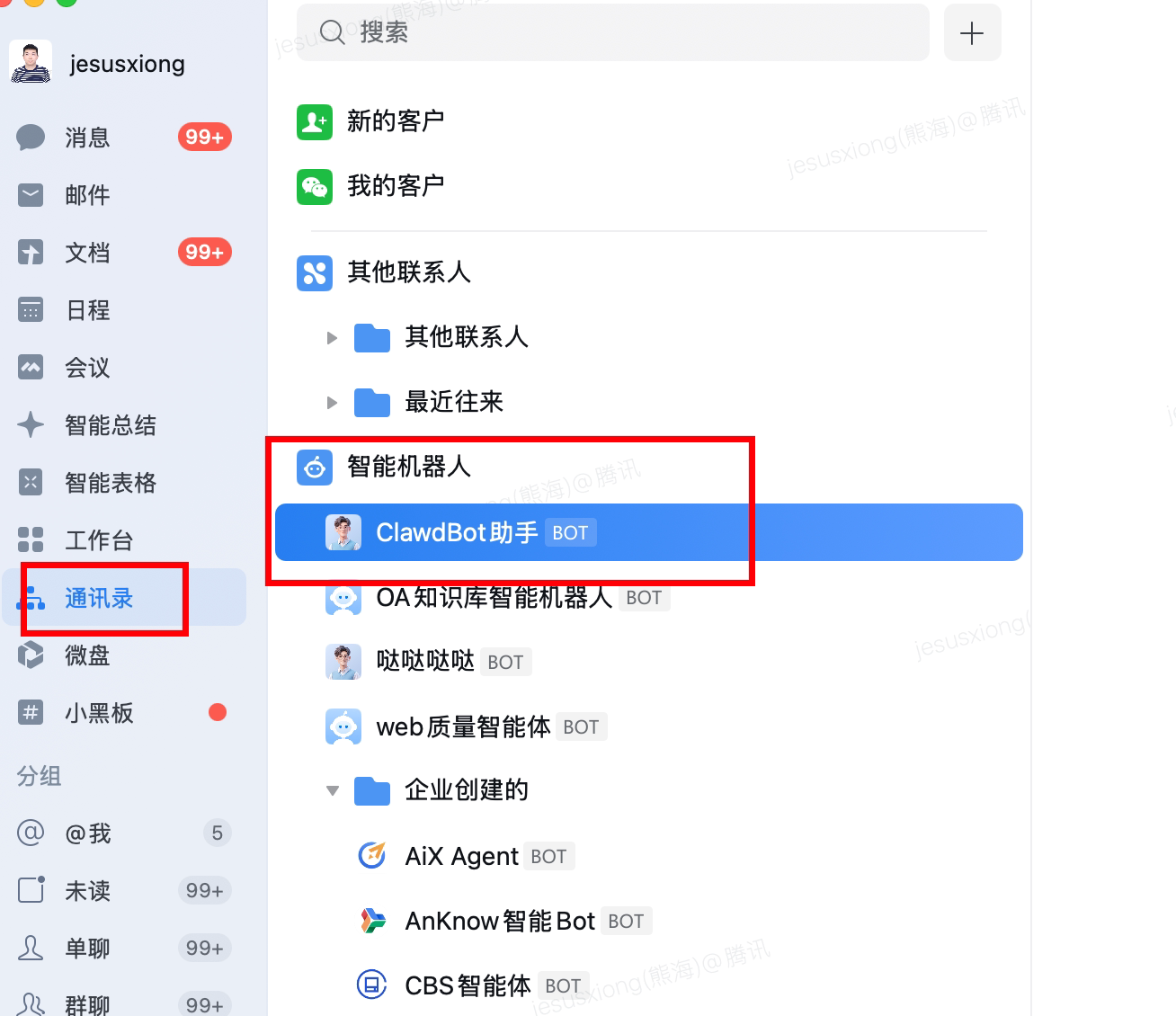
### Start chatting with the bot in WeCom
---
## WeChat Personal (iLink)
The WeChat iLink Bot channel lets you run an AI bot via a **personal WeChat account** — no enterprise account required — using the official [iLink Bot HTTP API](https://weixin.qq.com/cgi-bin/readtemplate?t=ilink/chatbot) protocol.
> **Note**: WeChat personal bots (iLink protocol) are currently in limited beta. You need to apply for access before using this feature.
### How it works
- **Authentication**: On first use, scan a QR code to authorize. The token is automatically persisted to a local file (default `~/.qwenpaw/wechat_bot_token`), so you won't need to scan again on subsequent starts.
- **Receiving messages**: Uses HTTP long-polling (`getupdates`) to continuously fetch new messages. Supports text, images, voice (ASR transcription), files, and videos.
- **Sending messages**: Replies via `sendmessage`. Currently only text is supported (iLink API limitation).
### QR code login (recommended via Console)
1. Open the QwenPaw Web Console and go to **Settings → Channels → WeChat Personal (iLink)**.
2. Click **Get Login QR Code** and wait for the QR code to appear.
3. Scan the QR code with your WeChat mobile app and confirm authorization.
4. Once confirmed, the Bot Token is automatically filled in the form — click **Save**.
### Configure via config file
You can also configure directly in the agent workspace `agent.json` (e.g., `~/.qwenpaw/workspaces/default/agent.json`):
```json
"wechat": {
"enabled": true,
"bot_token": "your_bot_token",
"bot_token_file": "~/.qwenpaw/wechat_bot_token",
"base_url": "",
"media_dir": "~/.qwenpaw/media",
"dm_policy": "open",
"group_policy": "open"
}
```
**WeChat Personal-specific fields:**
| Field | Type | Default | Description |
| ---------------- | ------ | ----------------------------- | ------------------------------------------------------------------------------------- |
| `bot_token` | string | `""` | Bearer token obtained after QR code login; leave empty to trigger QR login on startup |
| `bot_token_file` | string | `~/.qwenpaw/wechat_bot_token` | Path to persist the token for future runs |
| `base_url` | string | official default | iLink API base URL; leave empty to use the official default |
| `media_dir` | string | `~/.qwenpaw/media` | Directory to save received images and files |
### Configure via environment variables
```bash
WECHAT_CHANNEL_ENABLED=1
WECHAT_BOT_TOKEN=your_bot_token
WECHAT_BOT_TOKEN_FILE=~/.qwenpaw/wechat_bot_token
WECHAT_MEDIA_DIR=~/.qwenpaw/media
WECHAT_DM_POLICY=open
WECHAT_GROUP_POLICY=open
```
---
## Telegram
### Get Telegram bot credentials
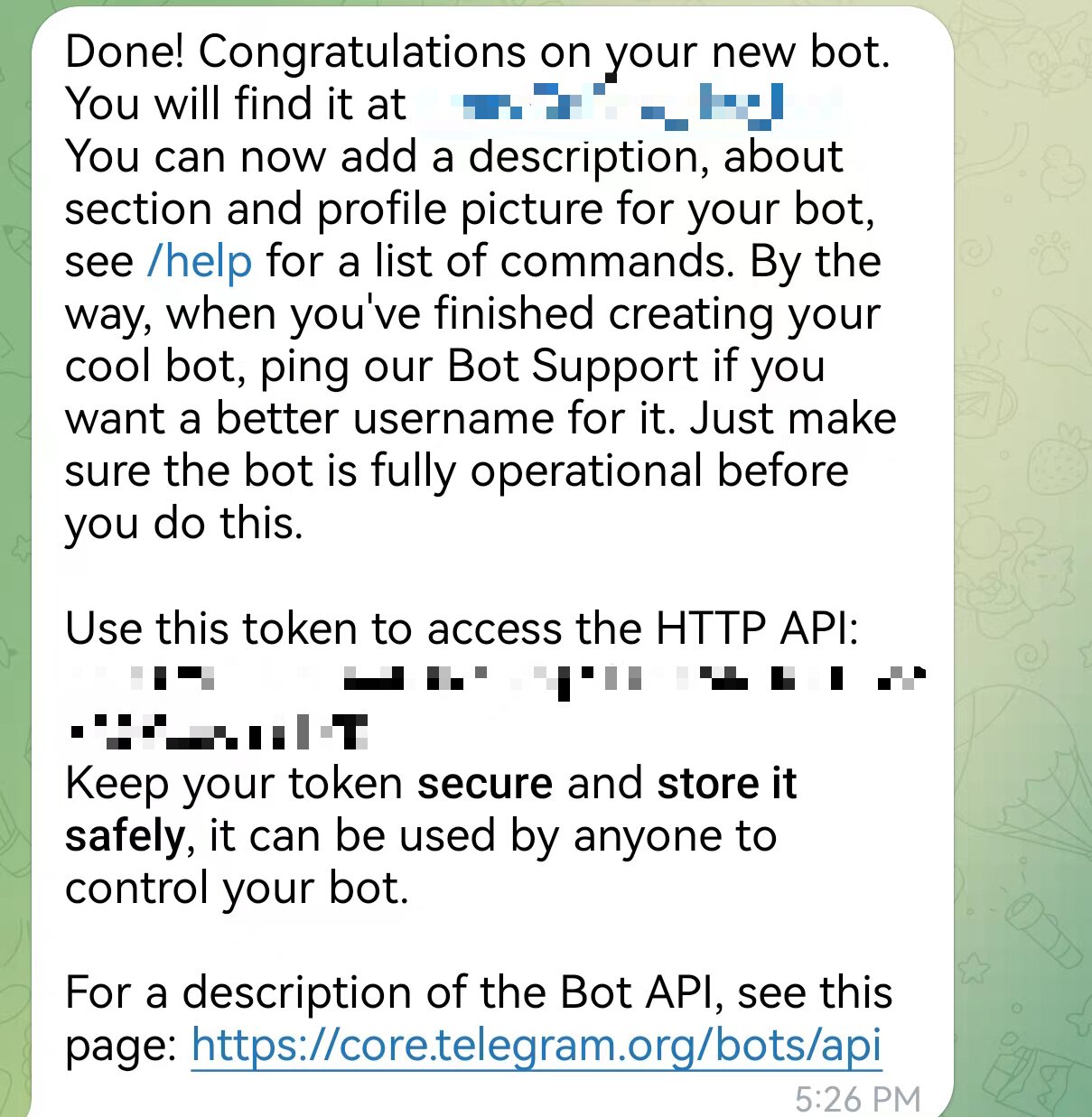
1. Open Telegram and search for `@BotFather` to add a Bot (make sure it is the official @BotFather with a blue verified badge).
2. Open the chat with @BotFather and follow the instructions to create a new bot
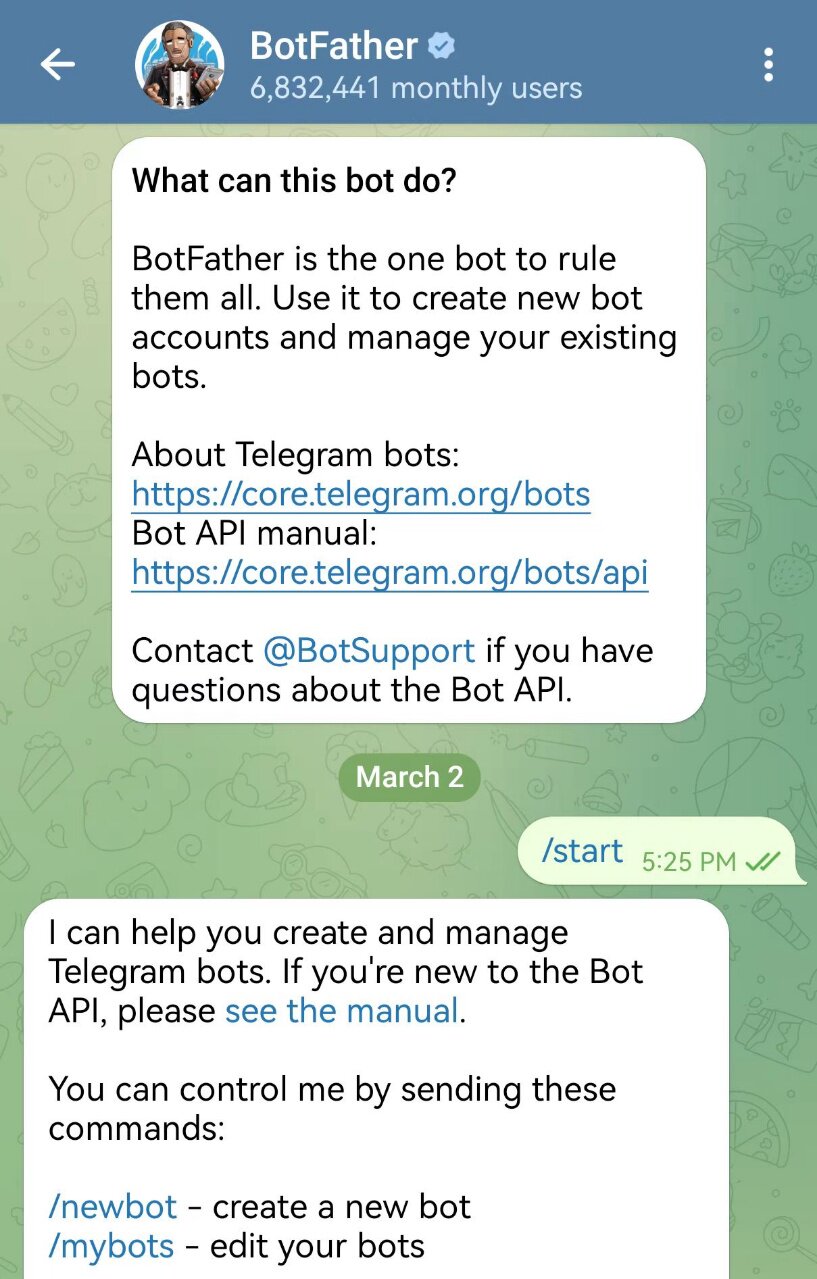
3. Create the bot name in the dialog and copy the bot_token
### Configure the Bot
You can configure via the Console UI or by editing the agent workspace `agent.json`.
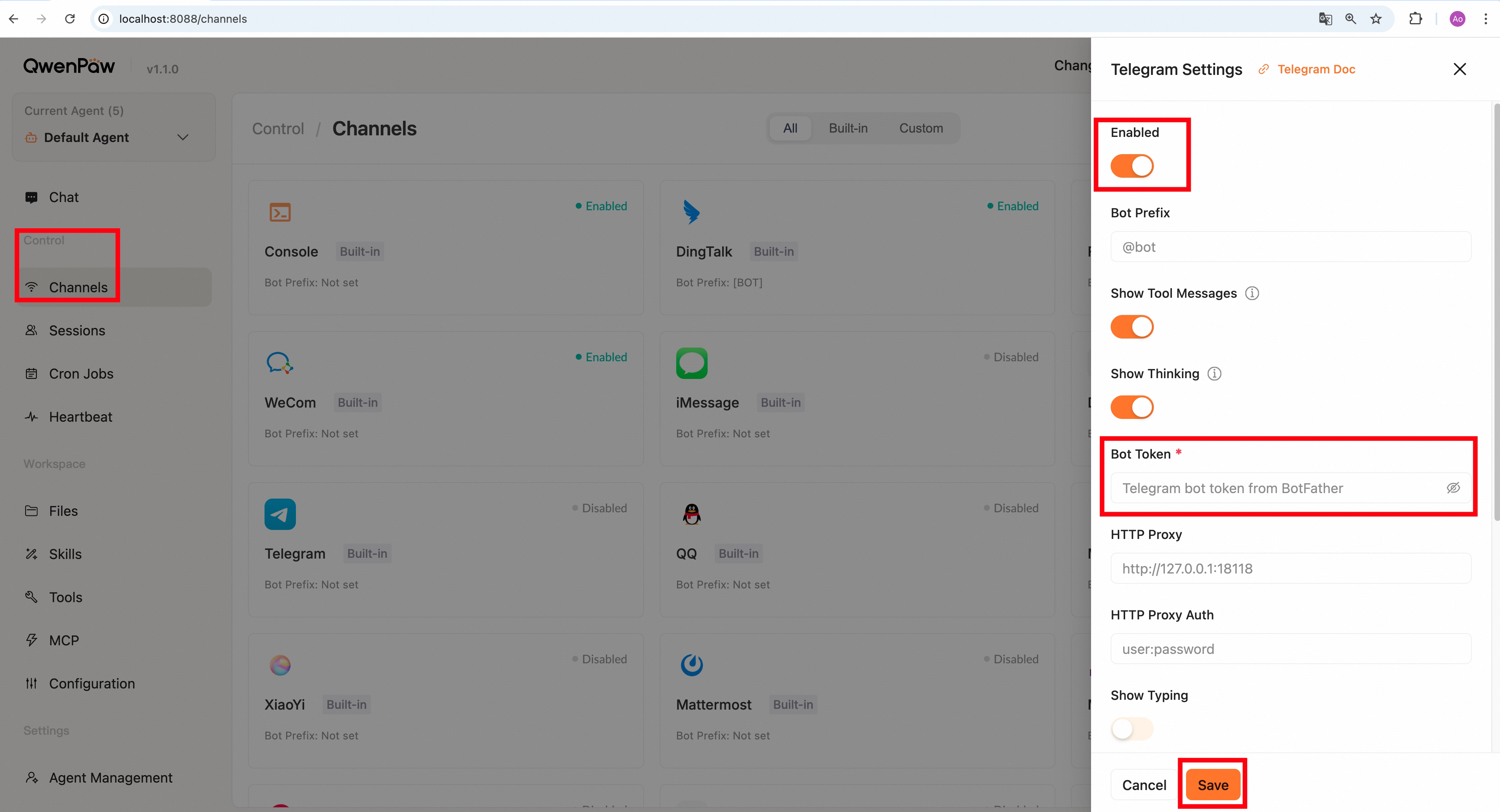
**Method 1:** Configure in the Console
Go to **Control → Channels**, click **Telegram**, and enter the **Bot Token** you obtained.
**Method 2:** Edit agent workspace `agent.json`
Find `channels.telegram` in your agent's `agent.json` (e.g., `~/.qwenpaw/workspaces/default/agent.json`) and fill in the fields, for example:
```json
"telegram": {
"enabled": true,
"bot_prefix": "[BOT]",
"bot_token": "your Bot Token",
"http_proxy": "",
"http_proxy_auth": ""
}
```
**Telegram-specific fields:**
| Field | Type | Default | Description |
| ----------------- | ------ | --------------- | ------------------------------------------------------------------------------- |
| `bot_token` | string | `""` (required) | Telegram Bot Token |
| `http_proxy` | string | `""` | Proxy address (e.g., `http://127.0.0.1:7890`) |
| `http_proxy_auth` | string | `""` | Proxy authentication (format: `username:password`, leave empty if not required) |
> **Tip:** Accessing the Telegram API from China may require a proxy.
### Notes
To control who can interact with the bot, use the common access control fields (`dm_policy`, `group_policy`, `allow_from`, `deny_message`, `require_mention`) described at the top of this page. It is still recommended to avoid exposing your bot username publicly.
It is recommended to configure the following in `@BotFather`:
```
/setprivacy -> ENABLED # Restrict bot reply permissions
/setjoingroups -> DISABLED # Block group invitations
```
---
## Mattermost
The Mattermost channel uses WebSockets for real-time monitoring and REST APIs for replies. It supports both direct messages and group chats, using **Threads** to isolate conversation contexts in channels.
### Get credentials
1. Create a **Bot Account** in Mattermost (System Console → Integrations → Bot Accounts).
2. Grant necessary permissions (e.g., `Post all`) and obtain the **Access Token**.
3. Configure the **URL** and **Token** in the Console or `config.json`.
### Core Config
**Mattermost-specific fields:**
| Field | Type | Default | Description |
| ------------------------------- | ------ | --------------- | ------------------------------------------------------------------------- |
| `url` | string | `""` (required) | Full URL of your Mattermost instance |
| `bot_token` | string | `""` (required) | Bot Access Token |
| `show_typing` | bool | `true` | Whether to show the "typing..." indicator |
| `thread_follow_without_mention` | bool | `false` | Whether to respond without @mention in threads the bot has already joined |
> **Note**: The `session_id` for Mattermost is fixed as `mattermost_dm:{mm_channel_id}` for DMs and isolated by Thread ID for group chats. Recent history is automatically fetched as context supplement only upon the first trigger of a session.
---
## MQTT
### About
Currently, only text and JSON format messages are supported.
JSON message format
```
{
"text": "...",
"redirect_client_id": "..."
}
```
### Basic Configuration
| Description | Field | Required field | Example |
| --------------- | --------------- | -------------- | ----------------------- |
| MQTT Host | host | Y | 127.0.0.1 |
| MQTT Port | port | Y | 1883 |
| Transport | transport | Y | tcp |
| Clean Session | clean_session | Y | true |
| QoS | qos | Y | 2 |
| MQTT Username | username | N | |
| MQTT Password | password | N | |
| Subscribe Topic | subscribe_topic | Y | server/+/up |
| Publish Topic | publish_topic | Y | client/{client_id}/down |
| TLS Enabled | tls_enabled | N | false |
| TLS CA Certs | tls_ca_certs | N | /tsl/ca.pem |
| TLS Certfile | tls_certfile | N | /tsl/client.pem |
| TLS Keyfile | tls_keyfile | N | /tsl/client.key |
### Topic
1. Simple subscription and push
| subscribe_topic | publish_topic |
| --------------- | ------------- |
| server | client |
2. Fuzzy match subscription and automatic push
Subscribe to the wildcard topic `/server/+/up`. Messages will be automatically pushed to the corresponding topic based on the client's `client_id`. For example, after a client pushes a message to `/server/client_a/up`, QwenPaw will push the message to `/client/client_b/down` after processing.
| subscribe_topic | publish_topic |
| --------------- | ----------------------- |
| server/+/up | client/{client_id}/down |
3. Redirected topic push
The message sent is in JSON format. The subscription topic is `server/client_a/up`, and the push topic is `client/client_a/down`.
```json
{
"text": "Tell me a joke, return the result in plain text",
"redirect_client_id": "client_b"
}
```
Messages will be pushed to `client/client_b/down` based on the `redirect_client_id` attribute, enabling cross-topic push. In IoT scenarios, with QwenPaw as the core, autonomous message pushing between multiple devices can be achieved according to individual requirements.
---
## Matrix
The Matrix channel connects QwenPaw to any Matrix homeserver using the [matrix-nio](https://github.com/poljar/matrix-nio) library. It supports text messaging in both direct messages and group rooms.
### Create a Matrix bot account and get an access token
1. Create a bot account on any Matrix homeserver (e.g. [matrix.org](https://matrix.org) — register at [app.element.io](https://app.element.io/#/register)).
2. Get the bot's **access token**. The easiest way is via Element:
- Log in as the bot account at [app.element.io](https://app.element.io)
- Go to **Settings → Help & About → Advanced → Access Token**
- Copy the token (it starts with `syt_...`)
Alternatively, use the Matrix Client-Server API directly:
```bash
curl -X POST "https://matrix.org/_matrix/client/v3/login" \
-H "Content-Type: application/json" \
-d '{"type":"m.login.password","user":"@yourbot:matrix.org","password":"yourpassword"}'
```
The response includes `access_token`.
3. Note your bot's **User ID** (format: `@username:homeserver`, e.g. `@mybot:matrix.org`) and the **Homeserver URL** (e.g. `https://matrix.org`).
### Configure the channel
**Method 1:** Configure in the Console
Go to **Control → Channels**, click **Matrix**, enable it, and fill in:
- **Homeserver URL** — e.g. `https://matrix.org`
- **User ID** — e.g. `@mybot:matrix.org`
- **Access Token** — the token you copied above (shown as a password field)
**Method 2:** Edit agent workspace `agent.json`
Find `channels.matrix` in your agent's `agent.json` (e.g., `~/.qwenpaw/workspaces/default/agent.json`):
```json
"matrix": {
"enabled": true,
"bot_prefix": "[BOT]",
"homeserver": "https://matrix.org",
"user_id": "@mybot:matrix.org",
"access_token": "syt_..."
}
```
**Matrix-specific fields:**
| Field | Type | Default | Description |
| -------------- | ------ | --------------- | -------------------------------------------------- |
| `homeserver` | string | `""` (required) | Matrix server address (e.g., `https://matrix.org`) |
| `user_id` | string | `""` (required) | Bot User ID (e.g., `@mybot:matrix.org`) |
| `access_token` | string | `""` (required) | Bot access token (starts with `syt_`) |
Save the file; the channel will reload automatically if QwenPaw is already running.
### Chat with the bot
Invite the bot to a room or send it a direct message from any Matrix client (e.g. Element). The bot listens for messages in all rooms it has joined.
### Notes
- Matrix supports multimodal messages (text, images, videos, audio, and files). Attachments are received via `mxc://` media URLs and uploaded to the homeserver, then sent as native Matrix media messages (`m.image`, `m.video`, `m.audio`, `m.file`).
- Only rooms the bot has already joined are monitored. Invite the bot to a room before sending messages.
- For self-hosted homeservers, set `homeserver` to your server's base URL (e.g. `https://matrix.example.com`).
---
## Yuanbao
The Yuanbao channel connects QwenPaw to Tencent's Yuanbao AI assistant platform via protobuf WebSocket, supporting C2C (direct) and group chat with image/file sending.
### Create a bot
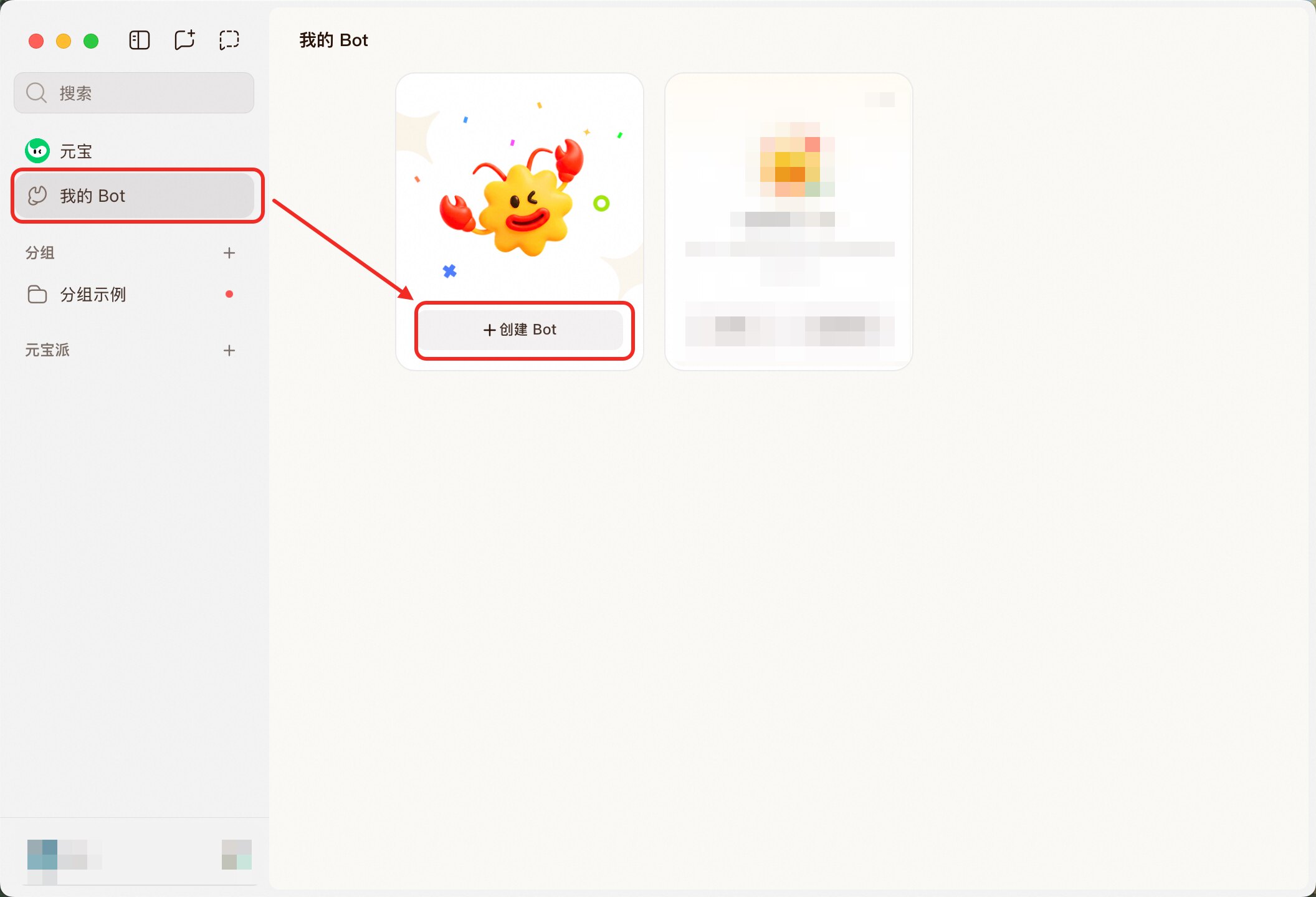
1. Open Tencent Yuanbao, go to **My Bots** and click **Create Bot**.
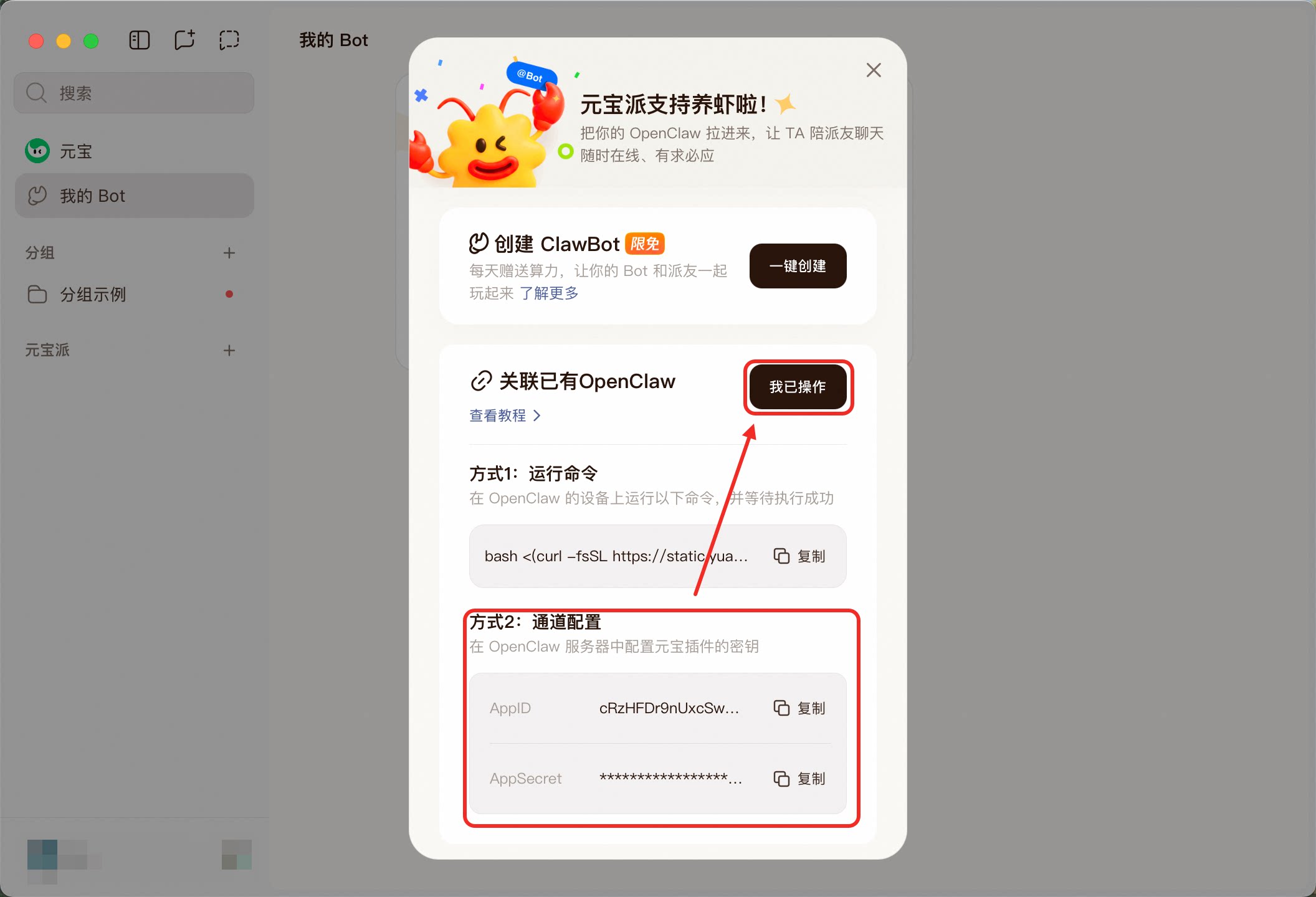
2. In the bot settings, find **Method 2** to get the **App ID** and **App Secret**, then fill them into QwenPaw's channel settings and click **Done**.
### Core Config
**Yuanbao-specific fields:**
| Field | Type | Default | Description |
| ------------ | ------ | ------------------------- | ---------------------------------- |
| `app_id` | string | `""` (required) | App ID from Yuanbao platform |
| `app_secret` | string | `""` (required) | App Secret from Yuanbao platform |
| `api_domain` | string | `bot.yuanbao.tencent.com` | REST API domain for authentication |
---
## XiaoYi
The XiaoYi channel connects QwenPaw via **A2A (Agent-to-Agent) protocol** over WebSocket to Huawei's AI assistant platform.
### Get credentials
1. Create an agent in the XiaoYi Open Platform.
2. Obtain **AK** (Access Key), **SK** (Secret Key), and **Agent ID**.
### Core Config
**XiaoYi-specific fields:**
| Field | Type | Default | Description |
| ---------- | ------ | ------------------------------------------------ | ----------------------- |
| `ak` | string | `""` (required) | Access Key |
| `sk` | string | `""` (required) | Secret Key |
| `agent_id` | string | `""` (required) | Agent unique identifier |
| `ws_url` | string | `wss://hag.cloud.huawei.com/openclaw/v1/ws/link` | WebSocket URL |
### Supported File Types
**Images**: JPEG, JPG, PNG, BMP, WEBP
**Files**: PDF, DOC, DOCX, PPT, PPTX, XLS, XLSX, TXT
> Note: Video and audio files are not supported by the XiaoYi platform.
---
## Voice
The Voice channel enables phone call interactions with QwenPaw via Twilio ConversationRelay, supporting Speech-to-Text (STT) and Text-to-Speech (TTS) for voice-based conversations.
### Prerequisites
1. **Twilio Account**: Register at [Twilio](https://www.twilio.com/) and obtain credentials
2. **Cloudflare Tunnel** (or similar): Expose your local QwenPaw service to the public internet for Twilio webhook callbacks
### Create Twilio account and get credentials
1. Visit the [Twilio Console](https://console.twilio.com/) and register an account
2. From the Dashboard, obtain:
- **Account SID** (account identifier)
- **Auth Token** (authentication token)
3. Purchase a phone number:
- Go to **Phone Numbers → Buy a Number**
- Select a number that supports voice calls
- Note the **Phone Number** (e.g., `+1234567890`) and **Phone Number SID**
### Configure Cloudflare Tunnel
Twilio needs to reach QwenPaw's webhook endpoint via the public internet, so you need to expose your local service.
1. Install Cloudflare Tunnel client:
```bash
# macOS
brew install cloudflare/cloudflare/cloudflared
# Linux
wget https://github.com/cloudflare/cloudflared/releases/latest/download/cloudflared-linux-amd64
sudo mv cloudflared-linux-amd64 /usr/local/bin/cloudflared
sudo chmod +x /usr/local/bin/cloudflared
```
2. Start the tunnel to expose local port 8088:
```bash
cloudflared tunnel --url http://localhost:8088
```
3. The terminal will output a public URL, e.g., `https://abc-def-ghi.trycloudflare.com`
### Configure Voice channel
**Method 1:** Configure in the Console
Go to **Control → Channels**, click **Voice**, enable it, and fill in:
- **Twilio Account SID**: From Twilio Dashboard
- **Twilio Auth Token**: From Twilio Dashboard
- **Phone Number**: Your purchased phone number (e.g., `+1234567890`)
- **Phone Number SID**: The phone number's SID
Advanced options:
- **TTS Provider**: Text-to-speech provider (default `google`)
- **TTS Voice**: Voice model (default `en-US-Journey-D`)
- **STT Provider**: Speech-to-text provider (default `deepgram`)
- **Language**: Language code (default `en-US`)
- **Welcome Greeting**: Initial greeting when the call connects
**Method 2:** Edit `agent.json` manually
```json
{
"channels": {
"voice": {
"enabled": true,
"twilio_account_sid": "ACxxxxxxxxxxxxxxxxxxxxxxxxxx",
"twilio_auth_token": "your_auth_token",
"phone_number": "+1234567890",
"phone_number_sid": "PNxxxxxxxxxxxxxxxxxxxxxxxxxx",
"tts_provider": "google",
"tts_voice": "en-US-Journey-D",
"stt_provider": "deepgram",
"language": "en-US",
"welcome_greeting": "Hi! This is QwenPaw. How can I help you?"
}
}
}
```
### Configure Twilio Webhook
Configure your phone number's webhook in the Twilio Console:
1. Go to **Phone Numbers → Manage → Active Numbers**
2. Click your phone number
3. In the **Voice Configuration** section:
- **A Call Comes In**: Select **Webhook**
- **URL**: Enter `https://your-cloudflare-url.trycloudflare.com/api/voice/callback`
- **HTTP Method**: Select **POST**
4. Save the configuration
### Usage
After configuration, simply call your Twilio phone number to have a voice conversation with QwenPaw:
1. Dial the phone number
2. After hearing the welcome greeting, start speaking
3. QwenPaw converts speech to text and processes it through the Agent
4. The Agent's response is converted to speech and played back to you
**Voice channel-specific fields:**
| Field | Type | Default | Description |
| -------------------- | ------ | -------------------------------------------- | -------------------------------------------- |
| `twilio_account_sid` | string | `""` (required) | Twilio Account SID |
| `twilio_auth_token` | string | `""` (required) | Twilio Auth Token |
| `phone_number` | string | `""` (required) | Purchased phone number (e.g., `+1234567890`) |
| `phone_number_sid` | string | `""` (required) | Phone number SID |
| `tts_provider` | string | `"google"` | Text-to-speech provider |
| `tts_voice` | string | `"en-US-Journey-D"` | TTS voice model |
| `stt_provider` | string | `"deepgram"` | Speech-to-text provider |
| `language` | string | `"en-US"` | Language code |
| `welcome_greeting` | string | `"Hi! This is QwenPaw. How can I help you?"` | Welcome message when call connects |
> **Note**: The Voice channel requires a continuous network connection and a running tunnel solution. For production use, consider stable tunneling options (like Cloudflare Tunnel, ngrok paid plans, etc.).
---
## SIP
The SIP channel enables voice conversations with QwenPaw via standard SIP phones and softphones (e.g., Linphone, MicroSIP, IP desk phones). It works entirely on your local network or private infrastructure — no cloud account or public URL required.
Two backend modes are available:
| Mode | Best for | External infra needed? |
| ----------- | --------------------------------- | --------------------------------- |
| **Dev** | Local development, PoC, debugging | None — built-in SIP registrar |
| **LiveKit** | Production, high quality | LiveKit Server (or LiveKit Cloud) |
### Quick try: Dev mode (3 minutes, zero external infra)
The fastest way to try SIP. QwenPaw starts a built-in SIP registrar automatically — no Asterisk, FreeSWITCH, or any external server needed.
1. Install:
```bash
pip install "qwenpaw[sip]"
```
2. Start QwenPaw and configure in Console:
```bash
qwenpaw init --defaults
qwenpaw app
```
Open **http://127.0.0.1:8088/** → **Settings → Models**: configure a model provider and API key. Then go to **Control → Channels → SIP**: enable it, fill in your DashScope API Key, and click **Save**. All other fields can be left at their defaults — when `sip_server` is empty, QwenPaw automatically starts a built-in registrar, uses `aliyun` for STT/TTS, and picks a default voice.
QwenPaw will restart the SIP channel automatically. You'll see in the terminal:
```
[SIP] Built-in SIP registrar started on 0.0.0.0:5060
[SIP] Quickstart: register your softphone to :5060
[SIP] Dial 'sip:agent@:5060' to talk with QwenPaw!
```
3. Open [Linphone](https://www.linphone.org/linphone) (or any SIP softphone) and configure:
- Go to **Preferences → SIP Accounts → Add**
- Username: any name (e.g., `caller`)
- SIP Domain: `127.0.0.1` (use IP address, **not** `localhost`, to avoid IPv6 issues)
- Transport: **UDP**
- No password needed — the built-in registrar accepts all registrations
- Dial: `sip:agent@127.0.0.1:5060`
You should hear the welcome greeting, then speak — QwenPaw will reply!
**Alternative: pjsua (CLI, uses system microphone/speaker)**
```bash
pjsua --local-port=5062 \
--bound-addr=127.0.0.1 \
--no-tcp \
--id='sip:caller@127.0.0.1:5062' \
--registrar='sip:127.0.0.1:5060' \
--realm='*' --username=caller --password=pass
```
Once registered, press `m` to make a call, enter `sip:agent@127.0.0.1:5060`, and talk through your microphone. Press `h` to hang up.
> **Note**: The built-in registrar is for quick testing only. For production use, see [Production deployment](#production-deployment) below.
### Quick try: LiveKit mode via browser (3 minutes, no SIP phone needed)
You can test the full LiveKit audio pipeline directly from your browser using WebRTC — no SIP Trunk, Docker, or Redis required.
1. Sign up for [LiveKit Cloud](https://cloud.livekit.io/) (free tier available) and create a project. Note your project URL (from **Settings → Project**), and API Key / API Secret (from **Settings → API keys**).
2. Install, start QwenPaw, and configure in Console:
```bash
pip install "qwenpaw[sip,sip-livekit]"
qwenpaw init --defaults
qwenpaw app
```
Open **http://127.0.0.1:8088/** → **Settings → Models**: configure a model provider and API key. Then go to **Control → Channels → SIP**: enable it, set SIP Mode to **Production (LiveKit)**, and fill in these 4 fields:
- **LiveKit URL** (e.g., `wss://.livekit.cloud`)
- **LiveKit API Key**
- **LiveKit API Secret**
- **DashScope API Key**
All other fields can be left empty. Click **Save**.
You'll see in the terminal: `Connected to room: sip-inbound, waiting...`
3. Generate a token and join via [LiveKit Meet](https://meet.livekit.io/):
```bash
# Install LiveKit CLI (one-time)
brew install livekit-cli
# Generate a token
lk token create \
--api-key \
--api-secret \
--join --room sip-inbound \
--identity test-user
```
- Open [meet.livekit.io](https://meet.livekit.io/) → click **"Custom"** at the bottom
- Enter your LiveKit Cloud URL (e.g., `wss://.livekit.cloud`)
- Paste the generated token and click **Connect**
- Allow microphone access, then speak — QwenPaw responds!
> **Note**: This browser-based test exercises the exact same audio pipeline (streaming STT, 24kHz TTS, barge-in) as a real SIP phone call. It's a fully valid test of LiveKit mode.
### Production deployment
For production use with real phone numbers and carrier-grade reliability, use one of these setups:
**Dev mode with external SIP server:**
Use Asterisk, FreeSWITCH, or any SIP PBX as the registrar. Set `sip_server` to your PBX address. QwenPaw registers as a SIP extension and receives calls routed by the PBX.
**LiveKit mode with SIP Trunk:**
For PSTN connectivity (real phone numbers), deploy LiveKit Server + LiveKit SIP with a SIP Trunk provider (e.g., Twilio, Telnyx, Vonage). See [LiveKit SIP docs](https://docs.livekit.io/sip/) for trunk and dispatch rule setup.
| Production setup | Supports PSTN? | Scalability | Complexity |
| --------------------------------- | ---------------- | ----------- | ---------- |
| Dev + Asterisk/FreeSWITCH | Yes (with trunk) | Single call | Low |
| LiveKit + Twilio/Telnyx SIP Trunk | Yes | High | Medium |
| LiveKit + self-hosted SIP | Depends | High | High |
### Dev mode configuration
Dev mode uses `pyVoIP` — a pure-Python SIP library.
**Method 1:** Configure in the Console
Go to **Control → Channels**, click **SIP**, select **Dev (pyVoIP)** mode. Leave `sip_server` empty to use the built-in registrar, or fill in your external SIP server address. Click **Save**.
**Method 2:** Edit agent workspace `agent.json`
```json
{
"channels": {
"sip": {
"enabled": true,
"sip_mode": "dev",
"sip_server": "",
"stt_provider": "aliyun",
"tts_provider": "aliyun",
"tts_voice": "longxiaochun",
"language": "zh-CN",
"welcome_greeting": "你好,我是QwenPaw"
}
}
}
```
When `sip_server` is empty, QwenPaw starts a built-in SIP registrar on port 5060 and the agent registers to it automatically. When `sip_server` is set (e.g., `"192.168.1.100:5060"`), QwenPaw registers to that external server instead.
### LiveKit mode configuration
Production mode delegates SIP/RTP to LiveKit SIP Server — a Go binary that handles NAT traversal, jitter buffering, and codec negotiation. QwenPaw joins LiveKit rooms as an AI participant.
1. Install extras:
```bash
pip install "qwenpaw[sip,sip-livekit]"
```
2. Configure the SIP channel in Console or `agent.json`:
```json
{
"channels": {
"sip": {
"enabled": true,
"sip_mode": "livekit",
"livekit_url": "wss://.livekit.cloud",
"livekit_api_key": "your-api-key",
"livekit_api_secret": "your-api-secret",
"stt_provider": "aliyun",
"tts_provider": "aliyun",
"tts_voice": "longxiaochun",
"language": "zh-CN",
"welcome_greeting": "你好,我是QwenPaw"
}
}
}
```
> **`livekit_url`**: Use `wss://.livekit.cloud` for LiveKit Cloud, or `ws://:` for a self-hosted LiveKit Server.
3. Start QwenPaw. For SIP phone calls, also set up LiveKit infrastructure with a SIP Trunk and Dispatch Rule (see [LiveKit SIP docs](https://docs.livekit.io/sip/)). For browser-based testing, see the [Quick try](#quick-try-livekit-mode-via-browser-3-minutes-no-sip-phone-needed) section above.
### Usage
After configuration, start a call from your SIP phone or browser:
1. The call connects and you hear the welcome greeting
2. Start speaking — QwenPaw converts speech to text via streaming STT
3. The Agent processes your message and generates a reply
4. The reply is converted to speech via TTS and played back to you
5. Continue the conversation naturally — multi-turn is fully supported
6. Barge-in supported: start speaking while the agent is talking to interrupt
### SIP channel fields
| Field | Type | Default | Description |
| -------------------- | ------ | -------------------------------------------- | ----------------------------------------------------------------------- |
| `sip_mode` | string | `"dev"` | Backend mode: `"dev"` (pyVoIP) or `"livekit"` |
| `sip_server` | string | `""` | SIP registrar address. Leave empty to use built-in registrar (dev mode) |
| `sip_username` | string | `""` | SIP account username (default: `agent` with built-in registrar) |
| `sip_password` | string | `""` | SIP account password |
| `sip_host` | string | `"0.0.0.0"` | Local bind address |
| `sip_port` | int | `5061` | Local SIP port (agent side) |
| `sip_transport` | string | `"UDP"` | SIP transport: `UDP`, `TCP`, or `TLS` |
| `rtp_port_low` | int | `10000` | RTP port range start (dev mode only) |
| `rtp_port_high` | int | `20000` | RTP port range end (dev mode only) |
| `livekit_url` | string | `""` | LiveKit Server WebSocket URL (production mode) |
| `livekit_api_key` | string | `""` | LiveKit API key (production mode) |
| `livekit_api_secret` | string | `""` | LiveKit API secret (production mode) |
| `tts_provider` | string | `"aliyun"` | TTS provider (currently supports `aliyun`) |
| `tts_voice` | string | `"longxiaochun"` | TTS voice model |
| `stt_provider` | string | `"aliyun"` | STT provider (currently supports `aliyun`) |
| `language` | string | `"zh-CN"` | Language code |
| `welcome_greeting` | string | `"Hi! This is QwenPaw. How can I help you?"` | Welcome message when call connects |
| `call_timeout` | float | `30.0` | Outbound call timeout in seconds |
---
## Azure Bot (Microsoft Bot Service)
The Azure Bot channel is built on the [Bot Framework](https://dev.botframework.com/) Webhook protocol, connecting QwenPaw to **Microsoft Teams**, **Web Chat**, **DirectLine**, and any other channel supported by Azure Bot Service.
Setup involves three phases: register an application in **Microsoft Entra ID** to obtain credentials, create an **Azure Bot** resource linked to that registration, then point the Messaging Endpoint at QwenPaw's Webhook and enable your target channel(s).
> **Note**: Azure Bot is a **plugin channel**, not a built-in one. Before configuring it, search for and install the `azure-bot` plugin from the **Plugin Marketplace** in the QwenPaw Console. The channel appears in the Channels settings only after installation.
### Step 1: Create an App Registration
This step yields the three required credentials: `app_id`, `tenant_id`, and `app_password`.
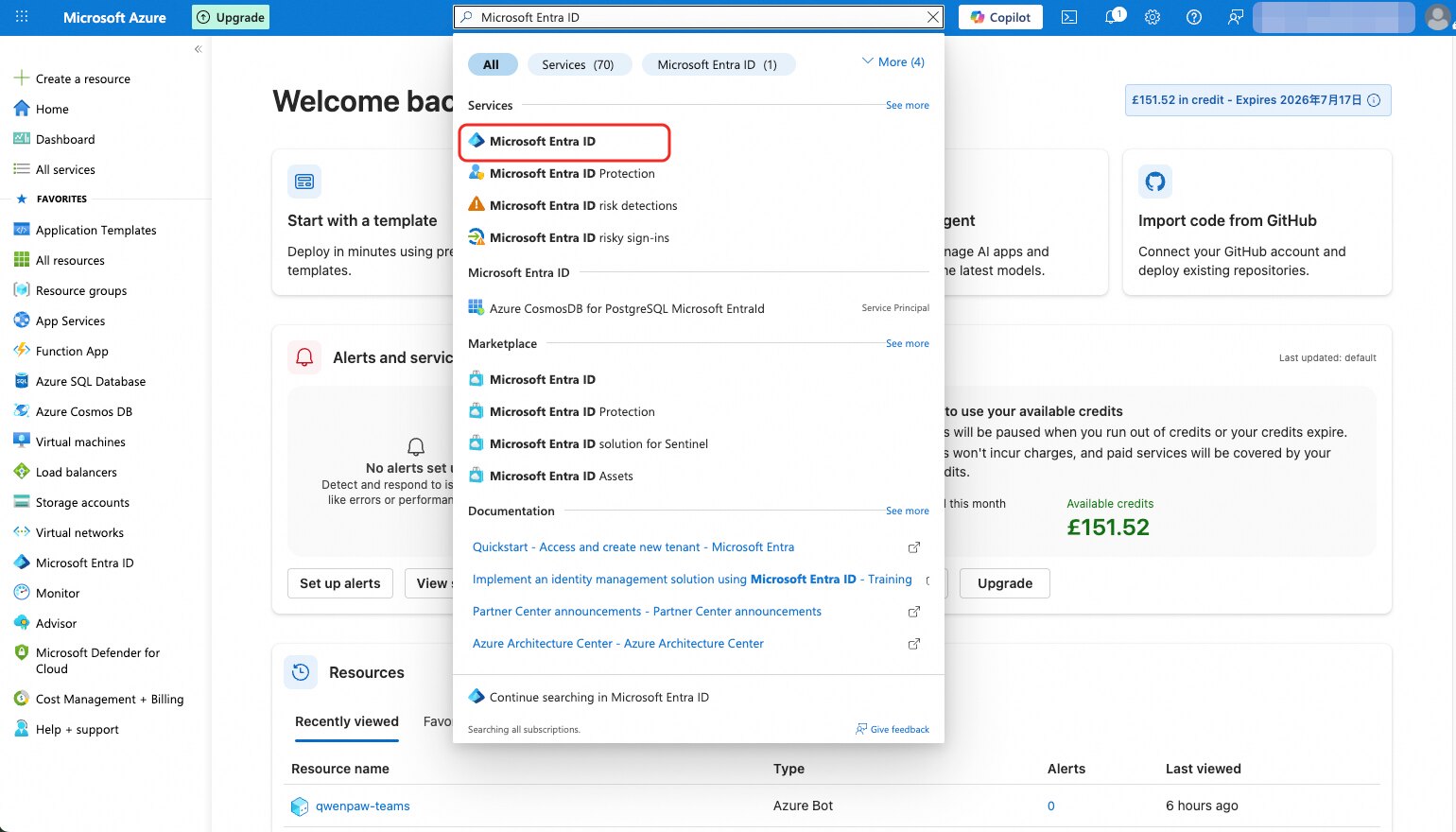
1. Open the [Azure Portal](https://portal.azure.com/), type `Microsoft Entra ID` in the top search bar, and click to enter.
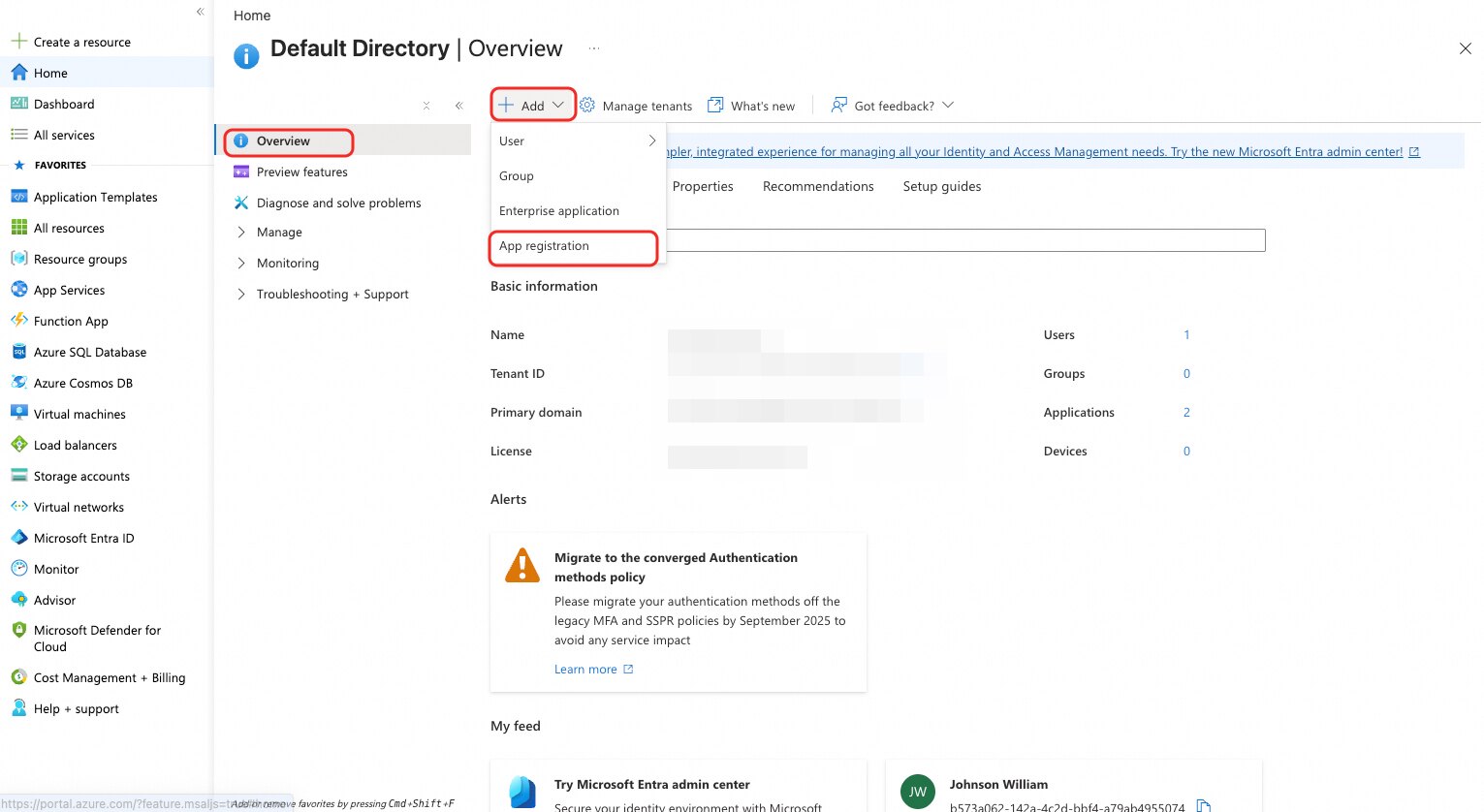
2. On the **Default Directory | Overview** page, click the **"+ Add"** button at the top and choose **"App registration"** from the dropdown.
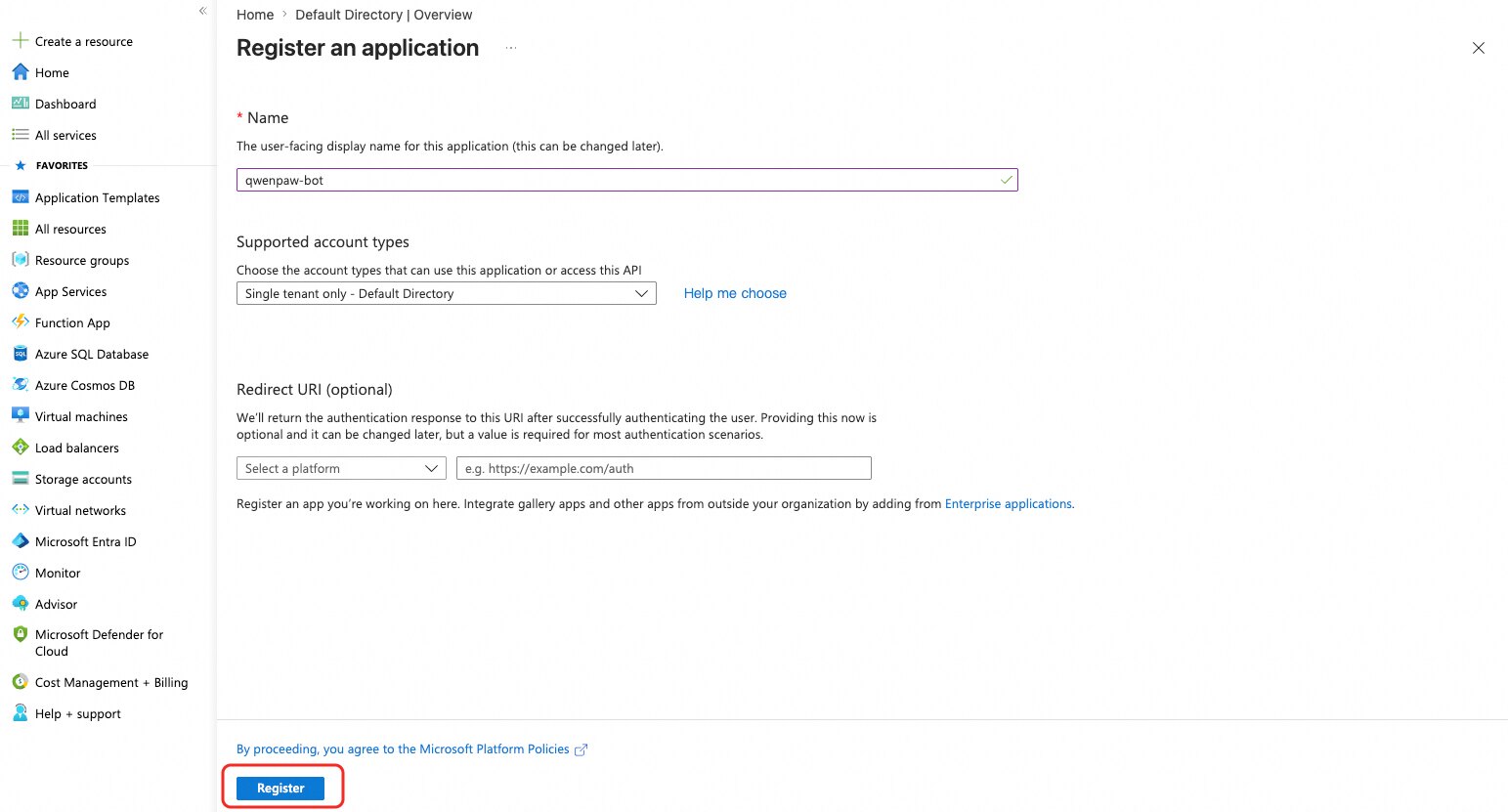
3. Fill in the registration form:
- **Name**: Any name, e.g. `QwenPaw-Bot`
- **Supported account types**: Select the first option — **"Accounts in this organizational directory only"** (Single tenant)
- **Redirect URI**: Leave blank
Click **"Register"**.
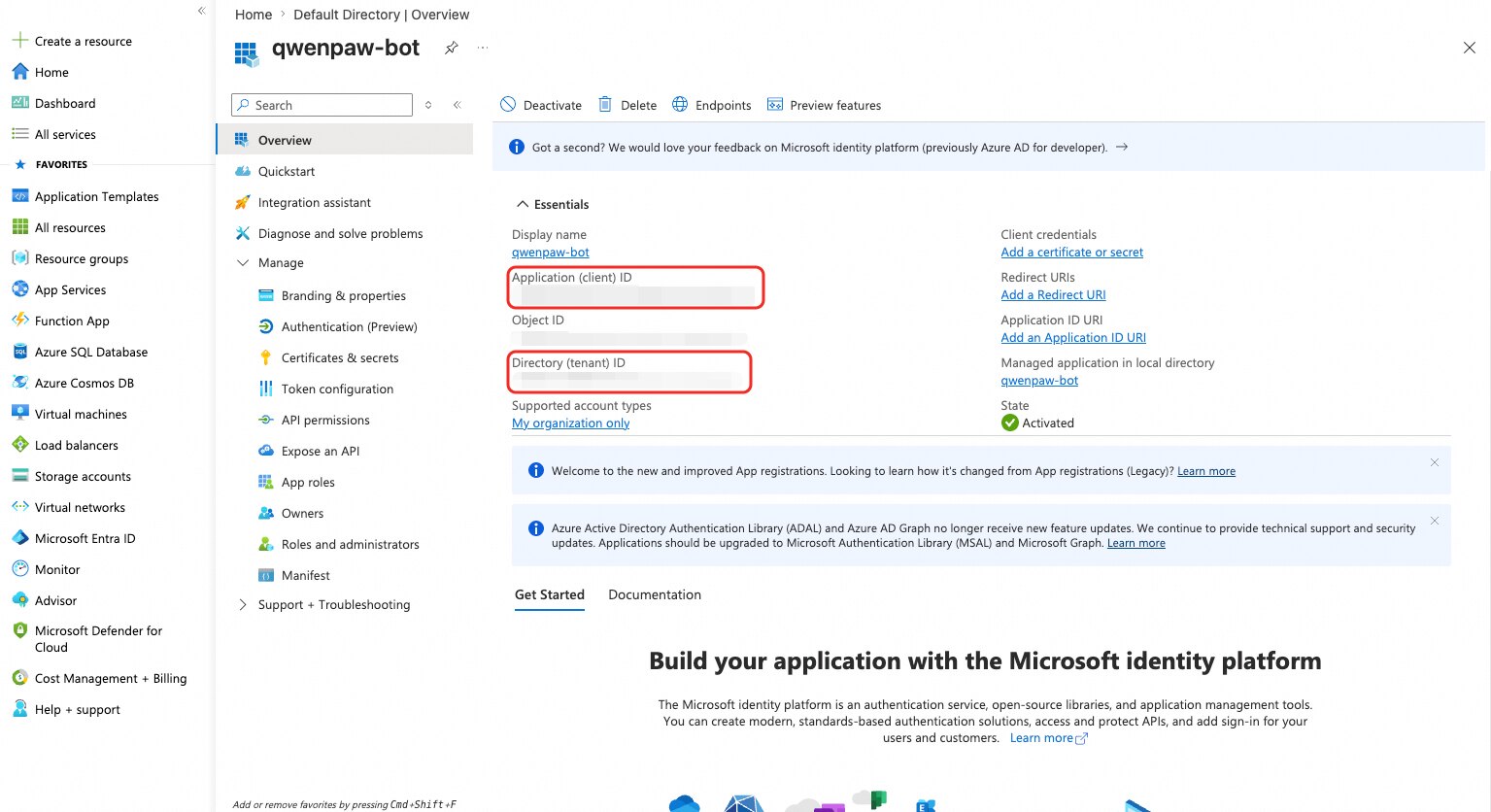
4. After registration, on the application Overview page, note the two IDs:
- **Application (client) ID** → `app_id`
- **Directory (tenant) ID** → `tenant_id`
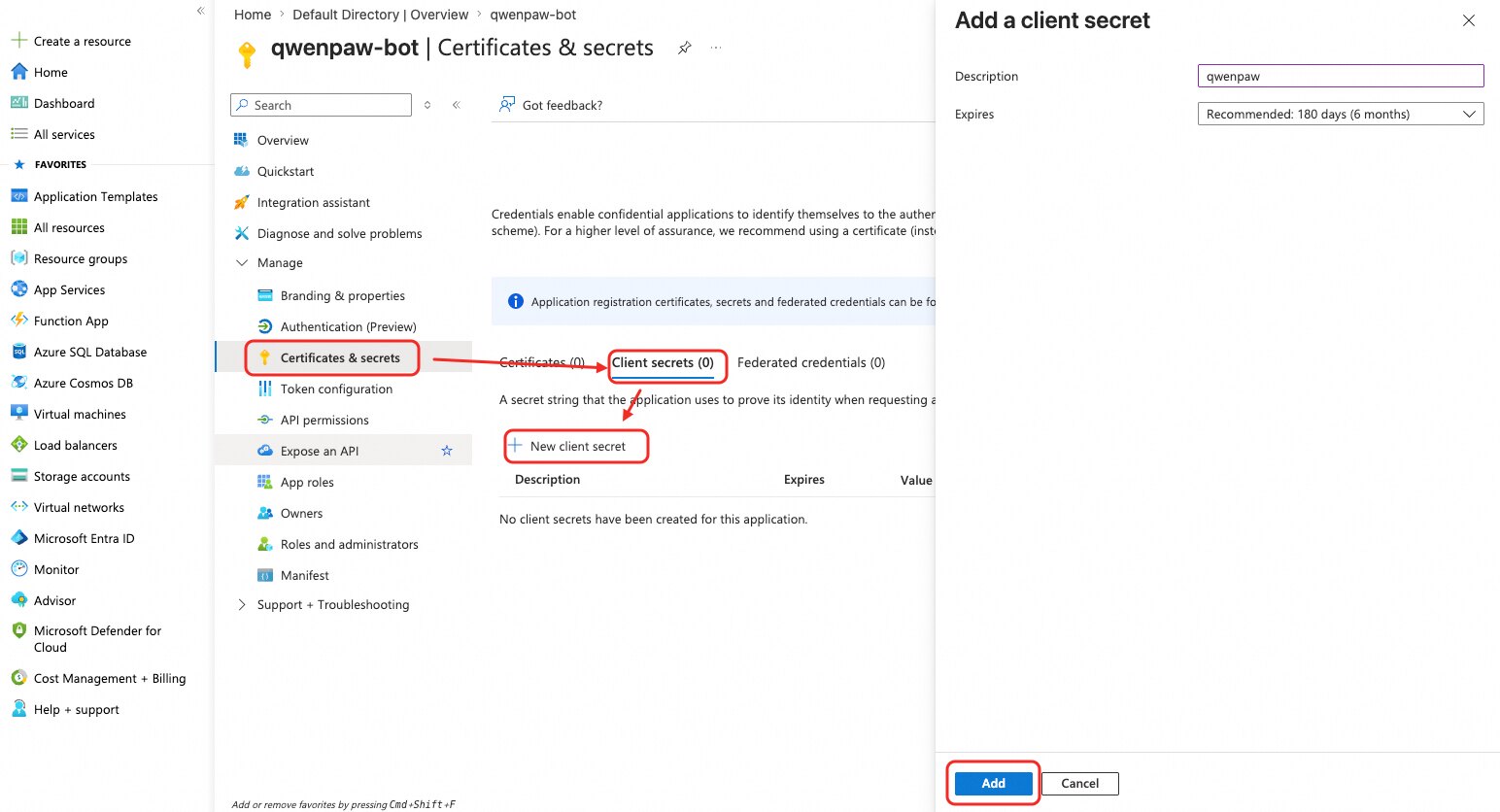
5. In the left menu, click **"Certificates & secrets"** → select the **"Client secrets"** tab → click **"New client secret"**.
Enter a description (e.g. `qwenpaw`), choose an expiry, and click **"Add"**.
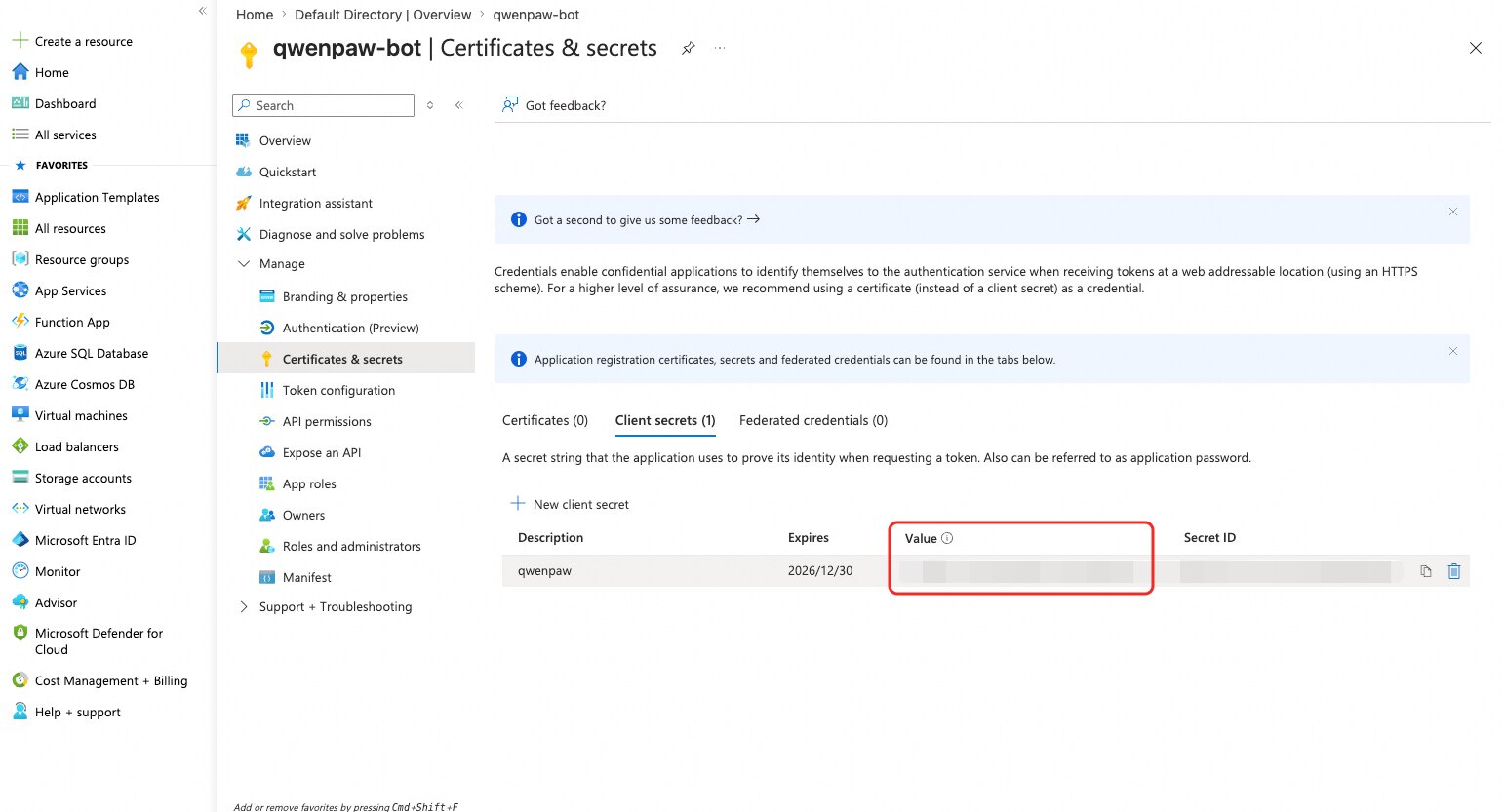
6. Once created, **immediately copy the "Value" column** → this is `app_password`.
> **Warning:** The Value is hidden permanently after you leave this page — save it now!
### Step 2: Create the Azure Bot Resource
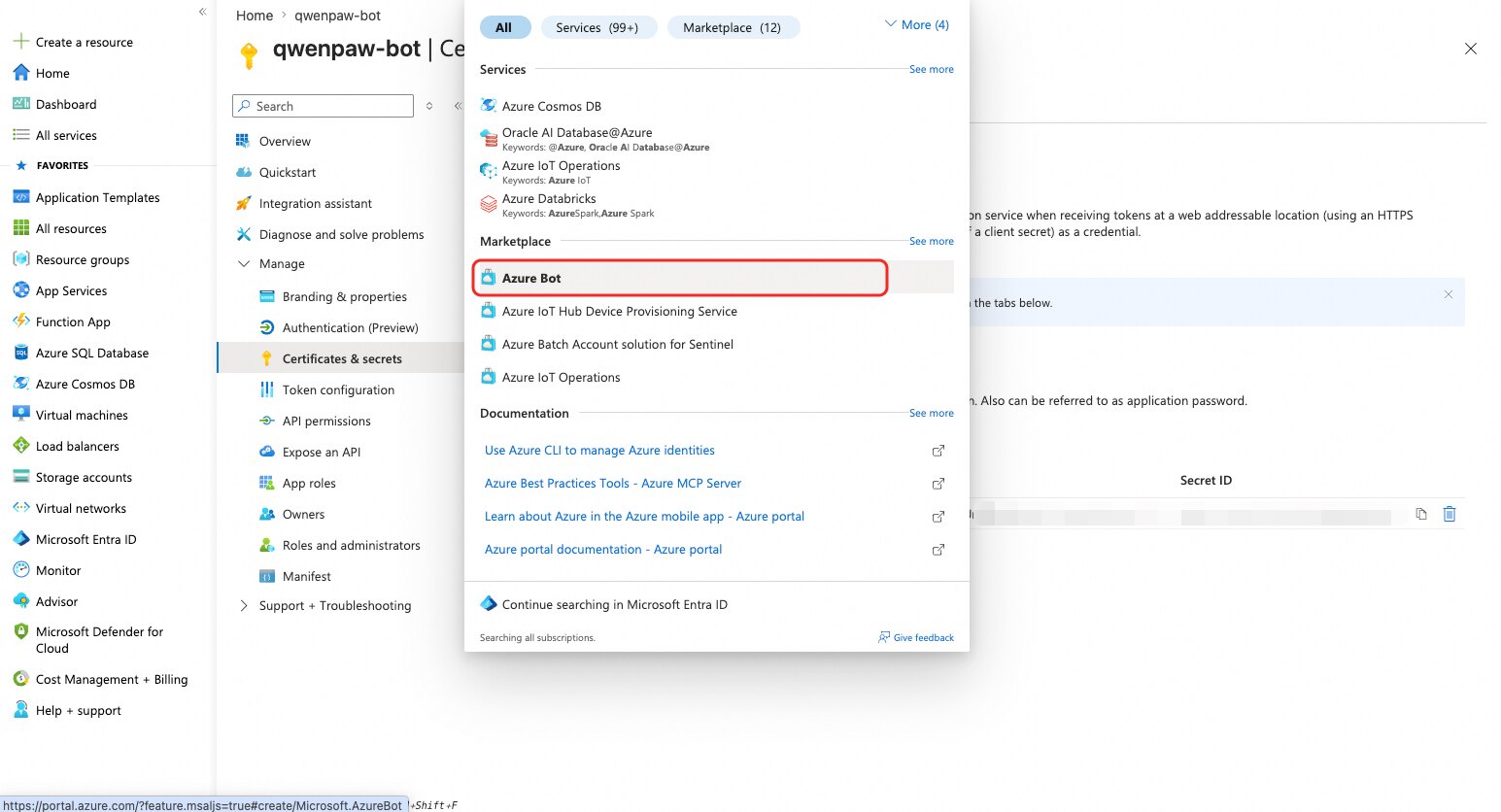
1. In the Azure Portal search bar, type `Azure Bot`, click the **Azure Bot** result, then click **"Create"**.
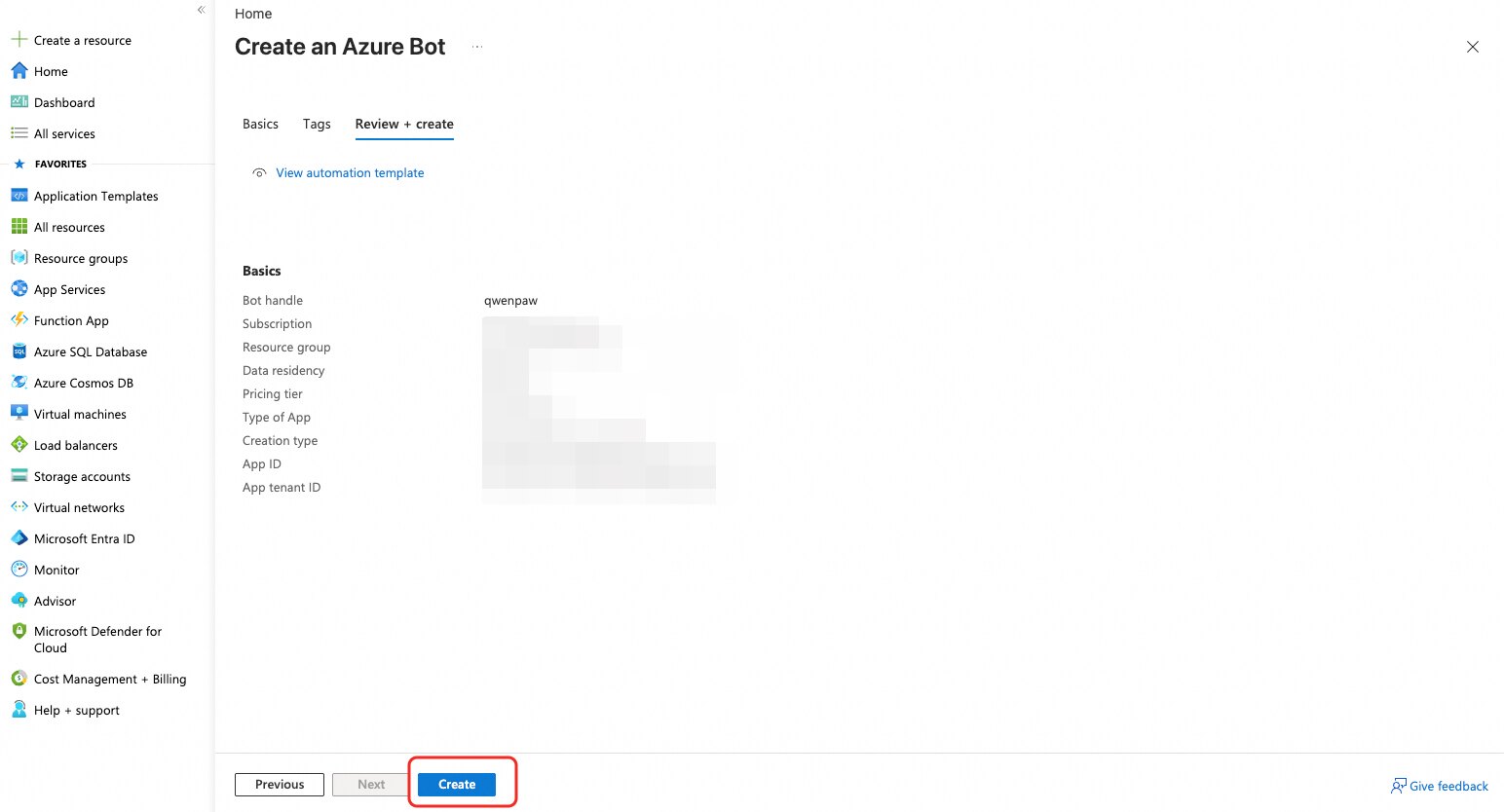
2. Fill in the details:
- **Bot handle**: Globally unique, e.g. `qwenpaw-bot`
- **Subscription**: Select your subscription
- **Resource group**: Select an existing group or create new
- **Pricing tier**: `F0 (Free)` is sufficient
- **Type of App**: **"Single Tenant"**
- **Creation type**: **"Use existing app registration"**
- **App ID**: Paste the `app_id` from Step 1
- **App tenant ID**: Paste the `tenant_id` from Step 1
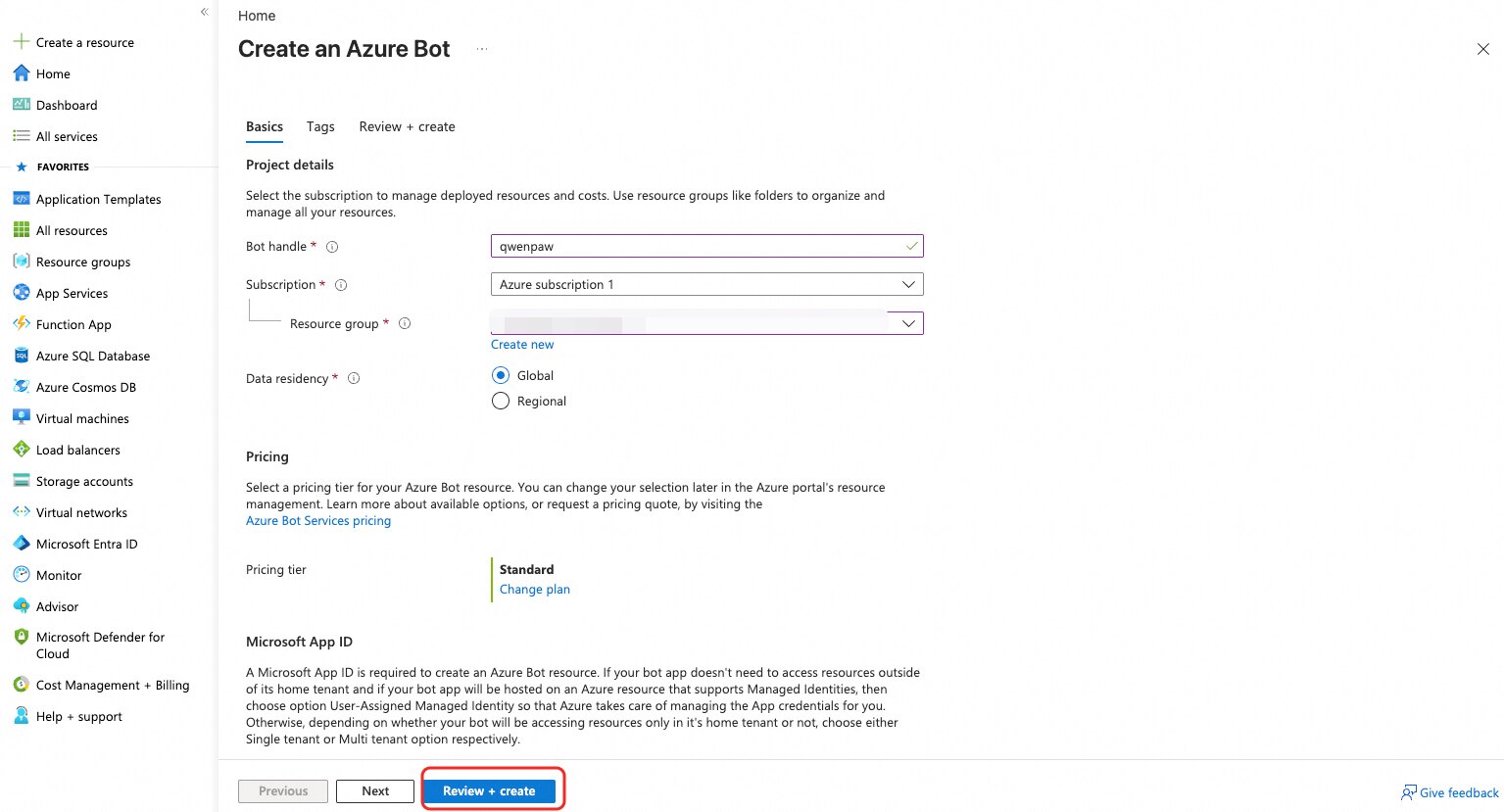
3. Click **"Review + create"**, then **"Create"** after validation passes. When deployment completes, click **"Go to resource"**.
### Step 3: Expose the Webhook Endpoint
QwenPaw starts a standalone HTTP server (default port `3978`) to receive messages forwarded by Azure. Azure Bot Service requires this endpoint to be **publicly reachable over HTTPS**.
**Option A: Fixed domain + reverse proxy (recommended for production)**
If QwenPaw runs on a server with a public IP, set up Nginx with an SSL certificate. The Webhook URL will look like:
```
https://your-domain.com/api/messages
```
**Option B: Local development — ngrok tunnel**
```bash
ngrok http 3978
```
ngrok outputs a temporary public URL. Your Webhook URL becomes:
```
https://xxxx.ngrok-free.app/api/messages
```
> **Note:** The free tier of ngrok generates a new URL on each restart — remember to update the Messaging Endpoint in Azure. Use a fixed domain for production.
### Step 4: Set the Messaging Endpoint
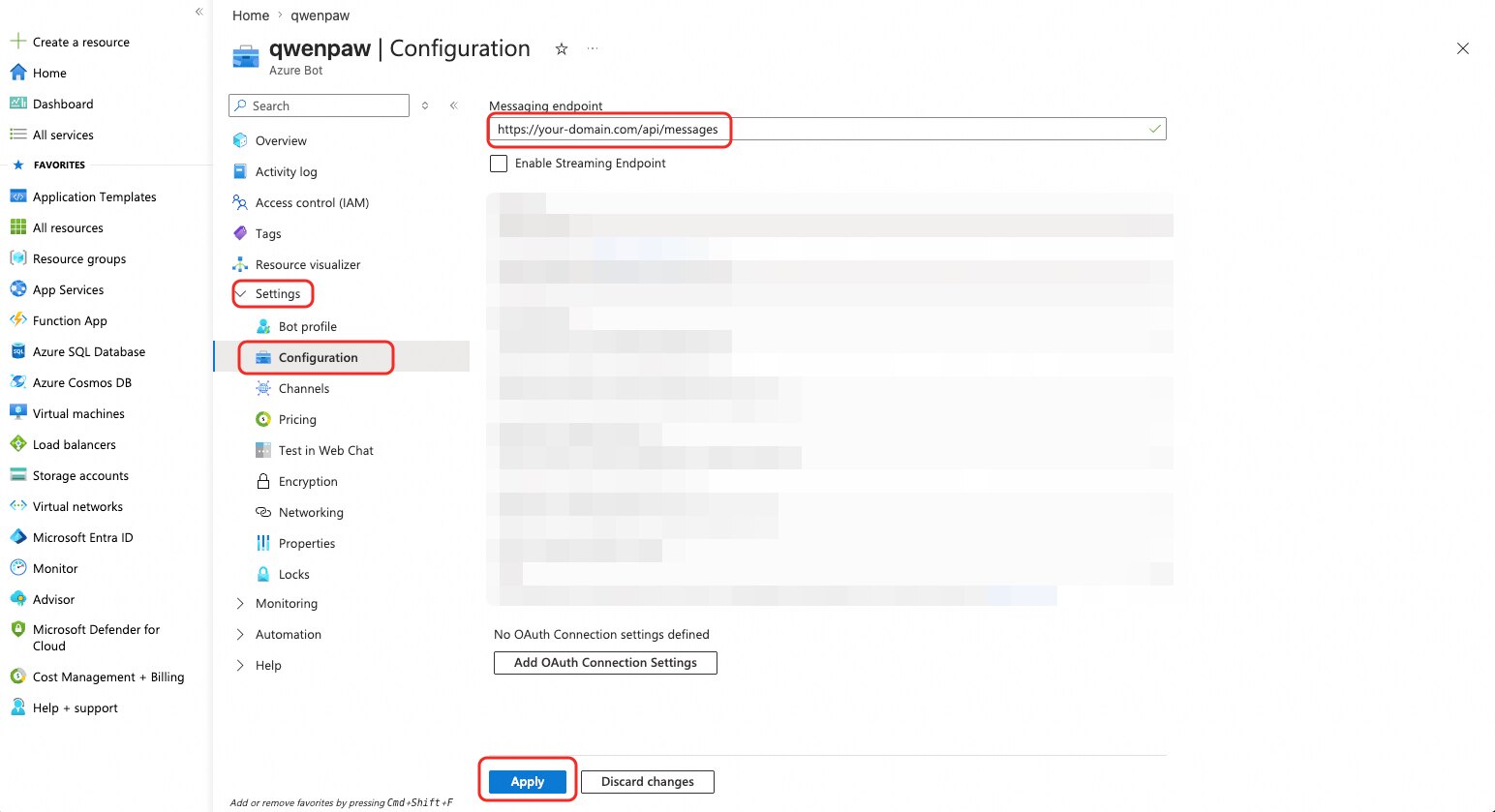
1. Open the Azure Bot resource you just created, and click **"Configuration"** in the left menu.
2. In the **Messaging endpoint** field, enter your public Webhook URL:
```
https:///api/messages
```
3. Click **"Apply"** to save.
### Step 5: Enable Channels (Optional)
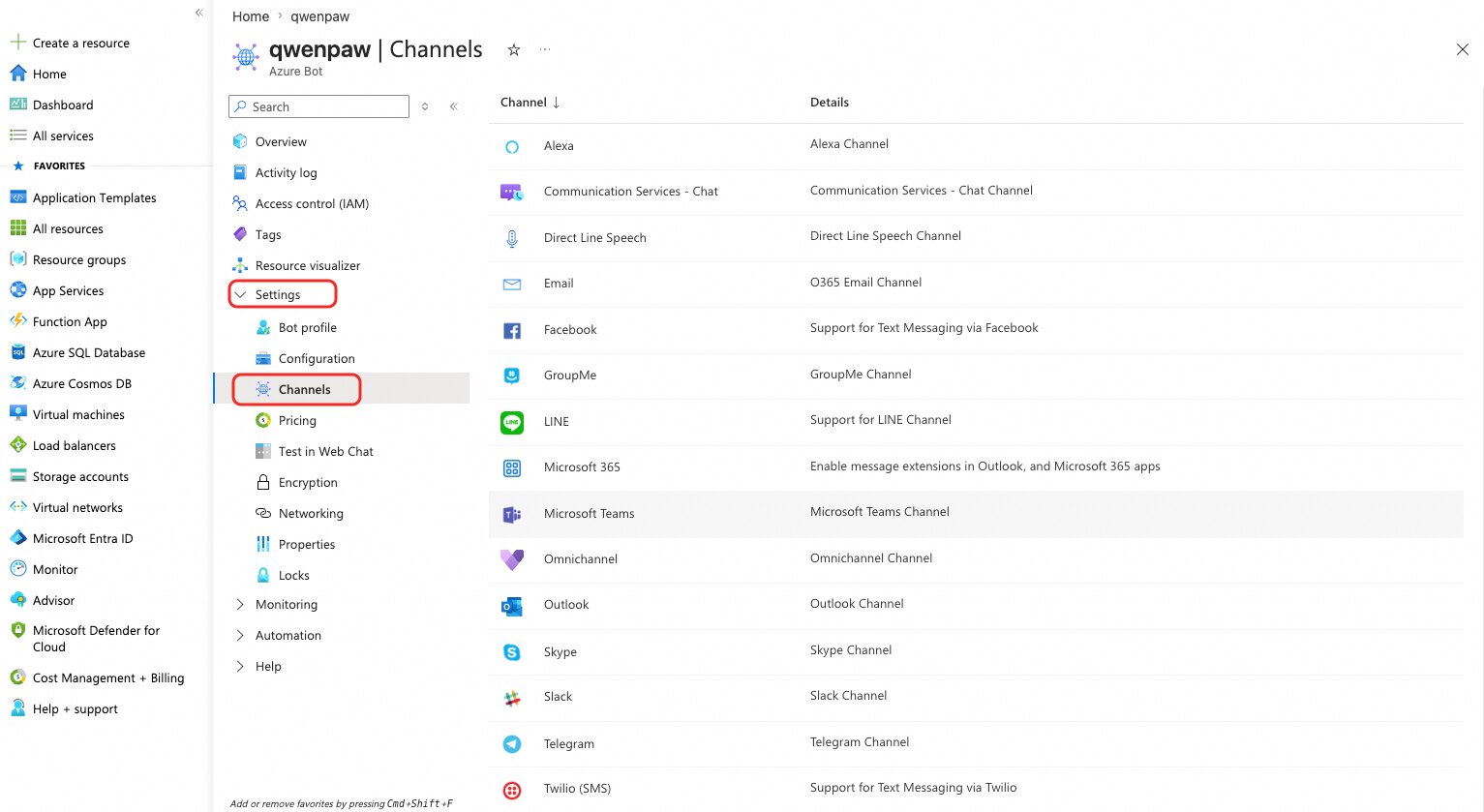
In the Azure Bot resource, click **"Channels"** in the left menu to see the full list of supported channels (Teams, Web Chat, Slack, etc.). Click the icon for the channel you want, follow the prompts to authorize, then click **"Apply"** to enable it.
### Step 6: Connect to QwenPaw
Configure via the Console UI or by editing `agent.json` directly.
**Method 1:** Configure in the Console
Go to **Control → Channels**, click **Azure Bot**, and fill in:
- **App ID**: Application (client) ID from Step 1
- **App Password**: Client Secret Value from Step 1
- **Tenant ID**: Directory (tenant) ID from Step 1

**Method 2:** Edit `agent.json`
Find `channels.azure_bot` in your agent's `agent.json` (e.g. `~/.qwenpaw/workspaces/default/agent.json`) and fill in:
```json
"azure_bot": {
"enabled": true,
"app_id": "Application (client) ID from Step 1",
"app_password": "Client Secret Value from Step 1",
"tenant_id": "Directory (tenant) ID from Step 1",
"http_port": 3978,
"share_session_in_group": false,
"require_mention": false
}
```
The config reloads automatically when the service is running; otherwise run `qwenpaw app` to start.
**Azure Bot-specific fields:**
| Field | Type | Default | Description |
| ------------------------ | ------ | --------------- | -------------------------------------------------------------------------------------------------------- |
| `app_id` | string | `""` (required) | Microsoft Application (client) ID |
| `app_password` | string | `""` (required) | Client Secret Value |
| `tenant_id` | string | `""` (required) | Azure AD Directory (tenant) ID — required for Single Tenant apps |
| `http_port` | int | `3978` | Webhook listening port; must match the port in the Messaging Endpoint URL |
| `http_host` | string | `"0.0.0.0"` | Webhook listening address; keep the default in most cases |
| `media_dir` | string | `null` | Directory for downloaded media files (defaults to the `media/` subdirectory of the workspace) |
| `share_session_in_group` | bool | `false` | If `true`, all group members share one session; if `false` (default), each member gets their own session |
### Notes
- **HTTPS required**: Azure Bot Service requires the Messaging Endpoint to use HTTPS. Use ngrok or an SSL-terminated reverse proxy for local development.
- **Firewall**: Make sure your server's security group / firewall allows inbound traffic on `http_port` (default 3978), or expose only the reverse proxy on port 443.
- **Group @mention**: In Teams group chats, setting `require_mention: true` is recommended to prevent the bot from responding to every group message; this does not affect direct messages.
- **Multi-channel**: A single Azure Bot resource can simultaneously connect to Teams, Web Chat, DirectLine, and more — QwenPaw automatically routes replies to the correct channel.
- **Session reference persistence**: QwenPaw stores per-user / per-group conversation references in `azure_bot_refs.json` in the workspace directory, enabling proactive outbound messages after restarts.
- **Client secret expiry**: Azure AD client secrets have a maximum lifetime of 2 years. Regenerate and update `app_password` before expiry.
---
## Slack
### Create the Slack App
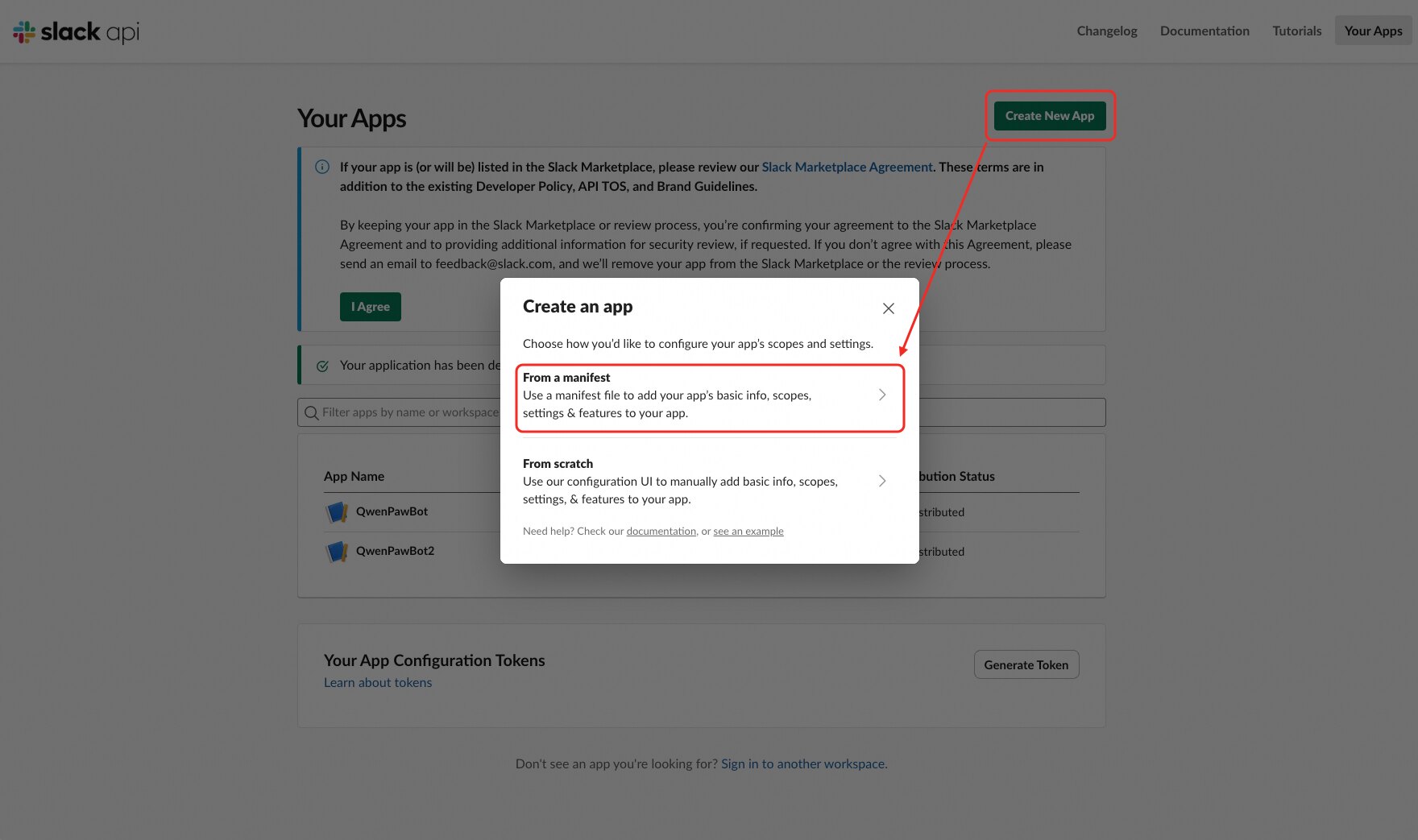
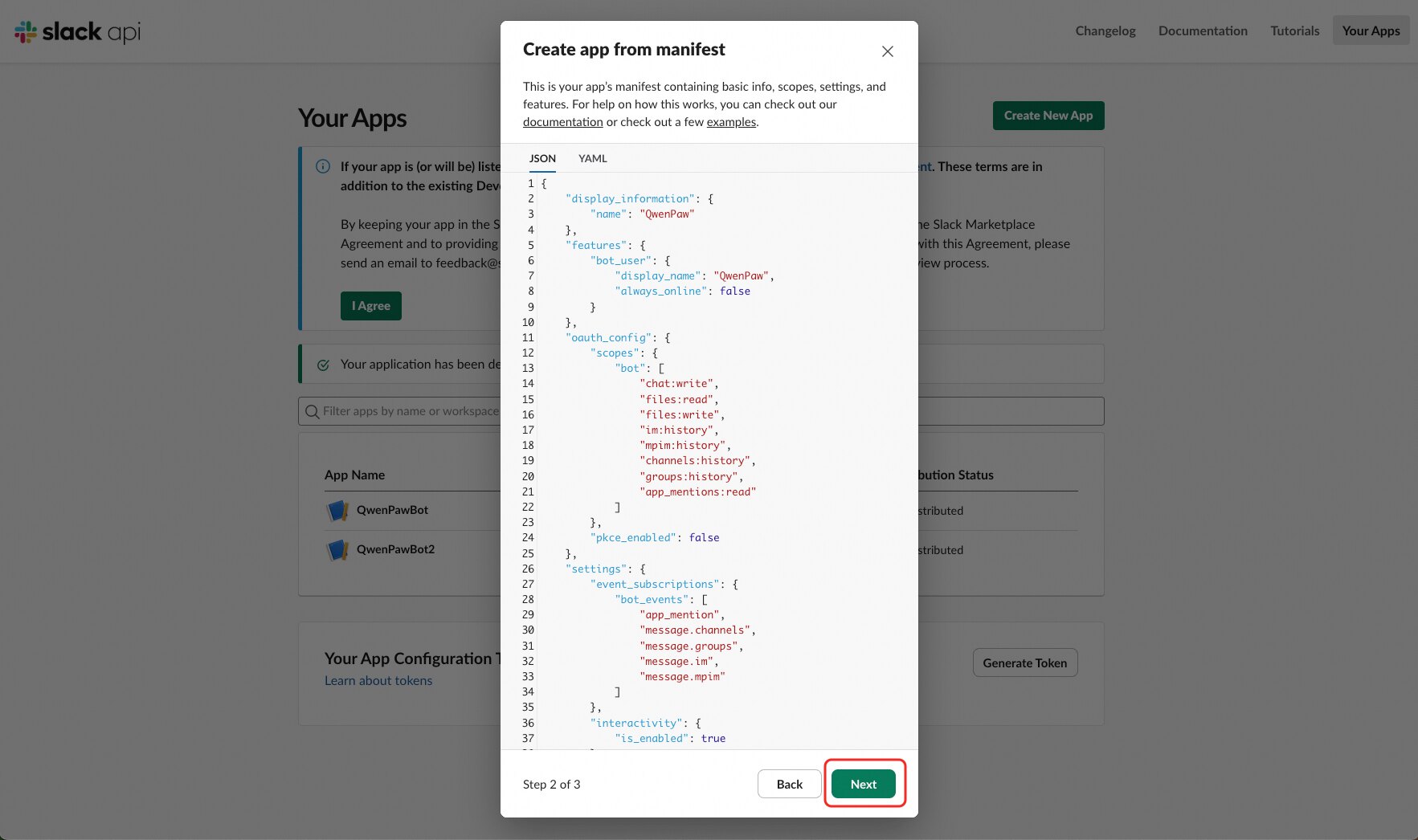
1. Go to [https://api.slack.com/apps](https://api.slack.com/apps), click **Create New App** → **From a manifest**.
2. Select the workspace you want to install the app to, then paste the following manifest (JSON format):
> **Tip:** You can change `name` and `display_name` to your preferred bot name before pasting.
```json
{
"display_information": {
"name": "Demo App"
},
"features": {
"bot_user": {
"display_name": "Demo App",
"always_online": false
}
},
"oauth_config": {
"scopes": {
"bot": [
"chat:write",
"files:read",
"files:write",
"im:history",
"mpim:history",
"channels:history",
"groups:history",
"app_mentions:read",
"users:read",
"commands"
]
}
},
"settings": {
"event_subscriptions": {
"bot_events": [
"app_mention",
"message.channels",
"message.groups",
"message.im",
"message.mpim"
]
},
"interactivity": {
"is_enabled": true
},
"org_deploy_enabled": false,
"socket_mode_enabled": true,
"token_rotation_enabled": false
}
}
```
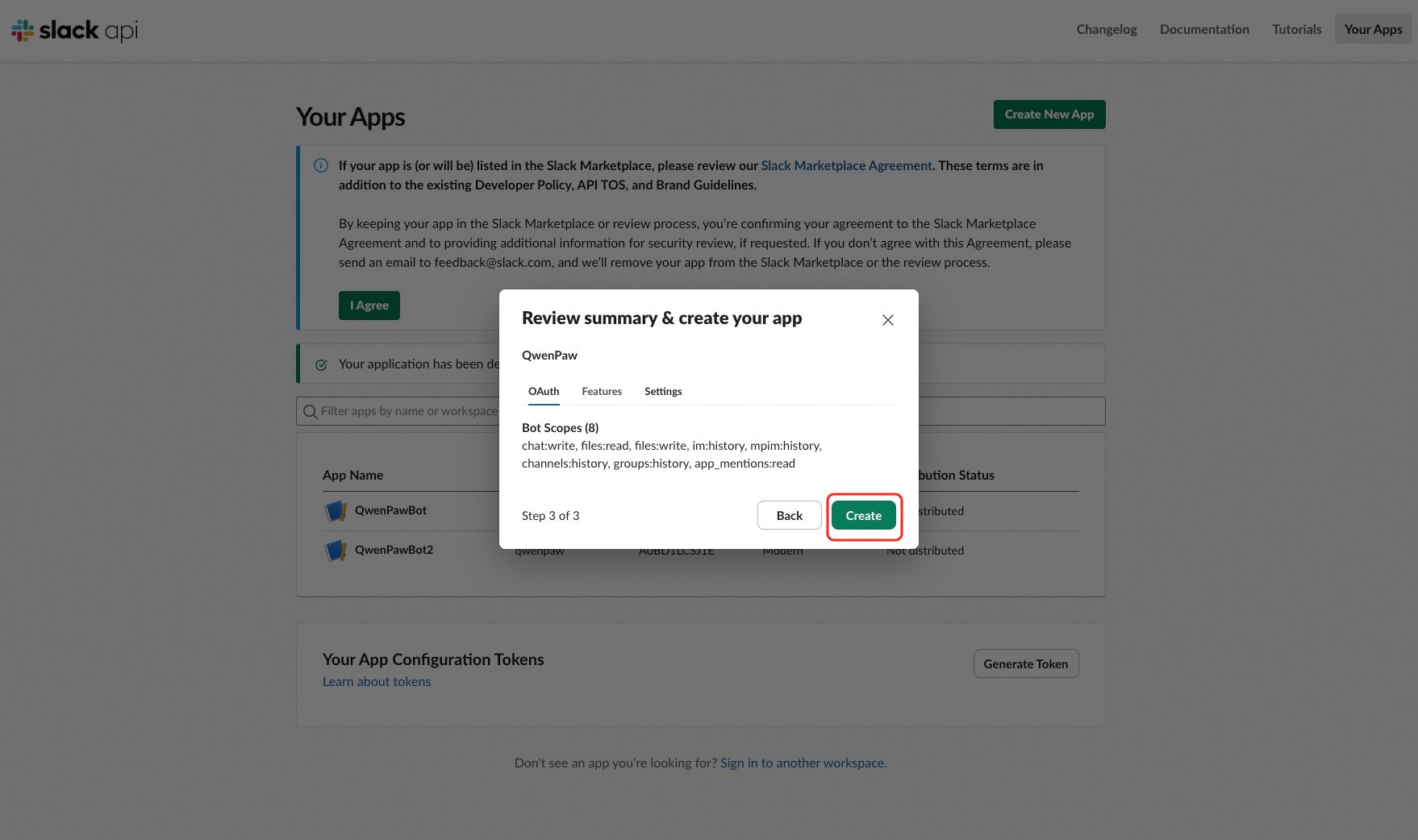
3. Review the summary and click **Create**.
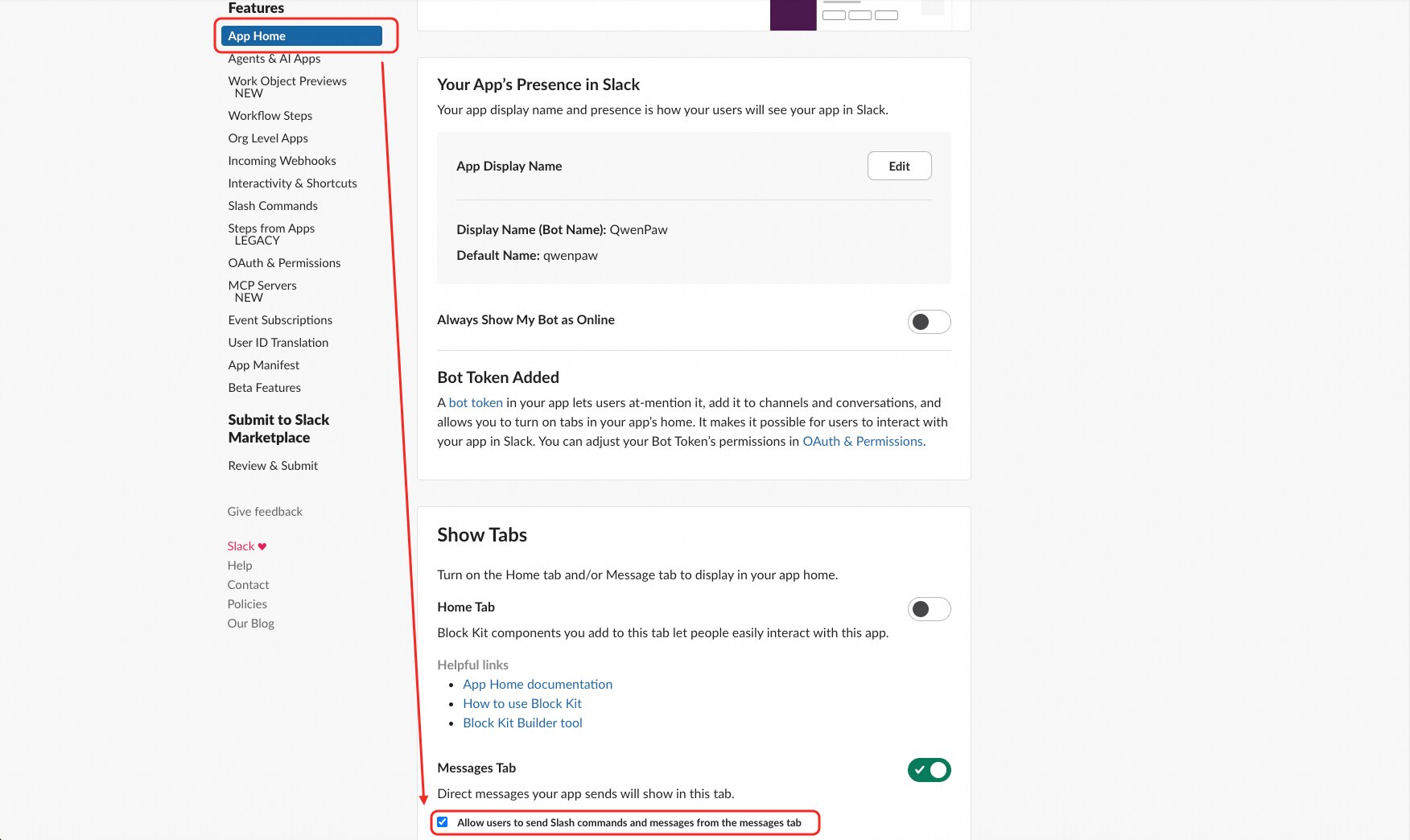
4. In **Features → App Home**, check **"Allow users to send Slash commands and messages from the messages tab"**.
### Get Tokens
After the app is created, you need two tokens:
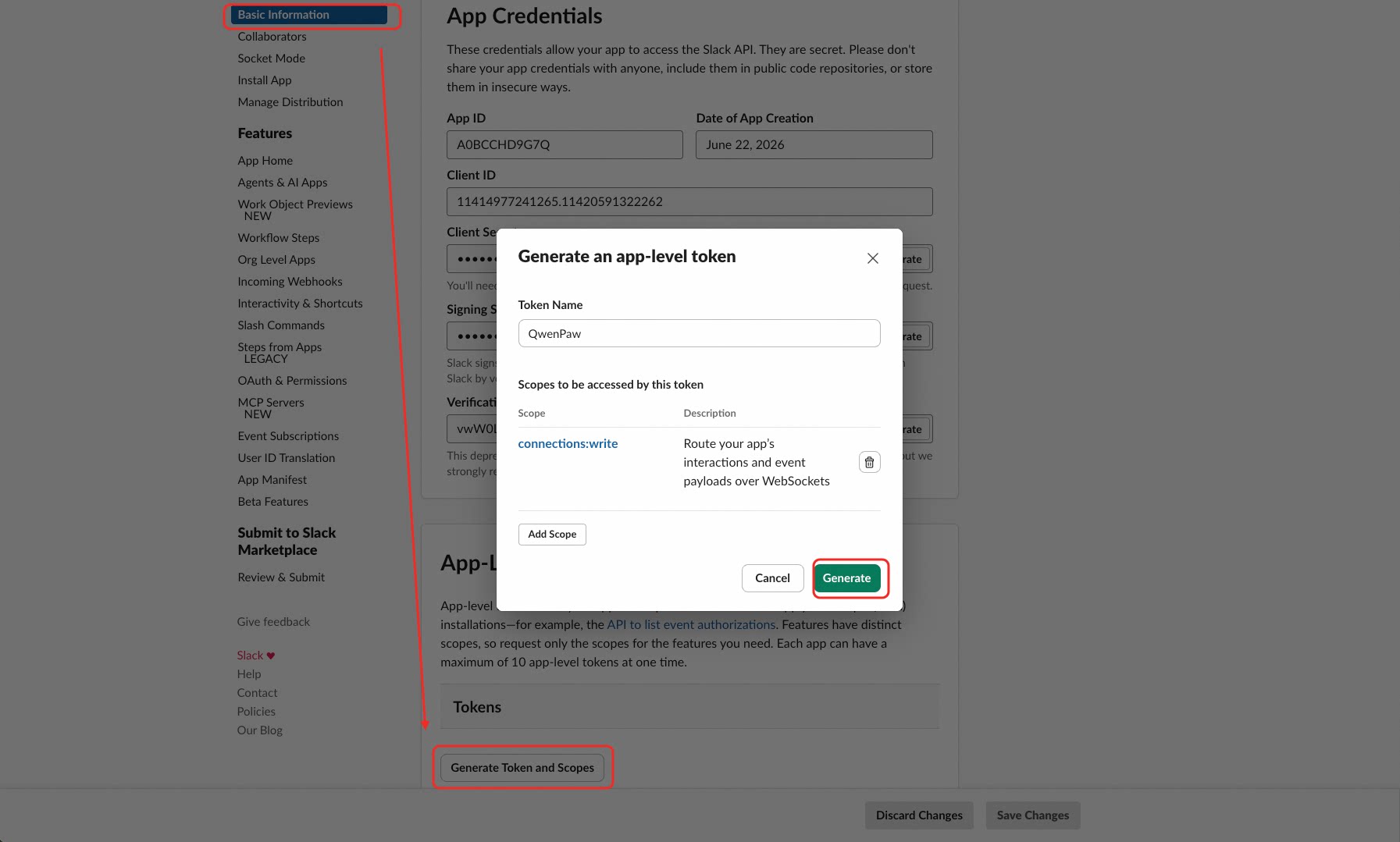
1. **App-Level Token** — In **Settings → Basic Information**, scroll to **App-Level Tokens**, click **Generate Token and Scopes**, add the `connections:write` scope, and copy the token (starts with `xapp-`).
2. **Bot Token** — In **Settings → Install App**, click **Install to Workspace**, authorize, then copy the **Bot User OAuth Token** (starts with `xoxb-`).
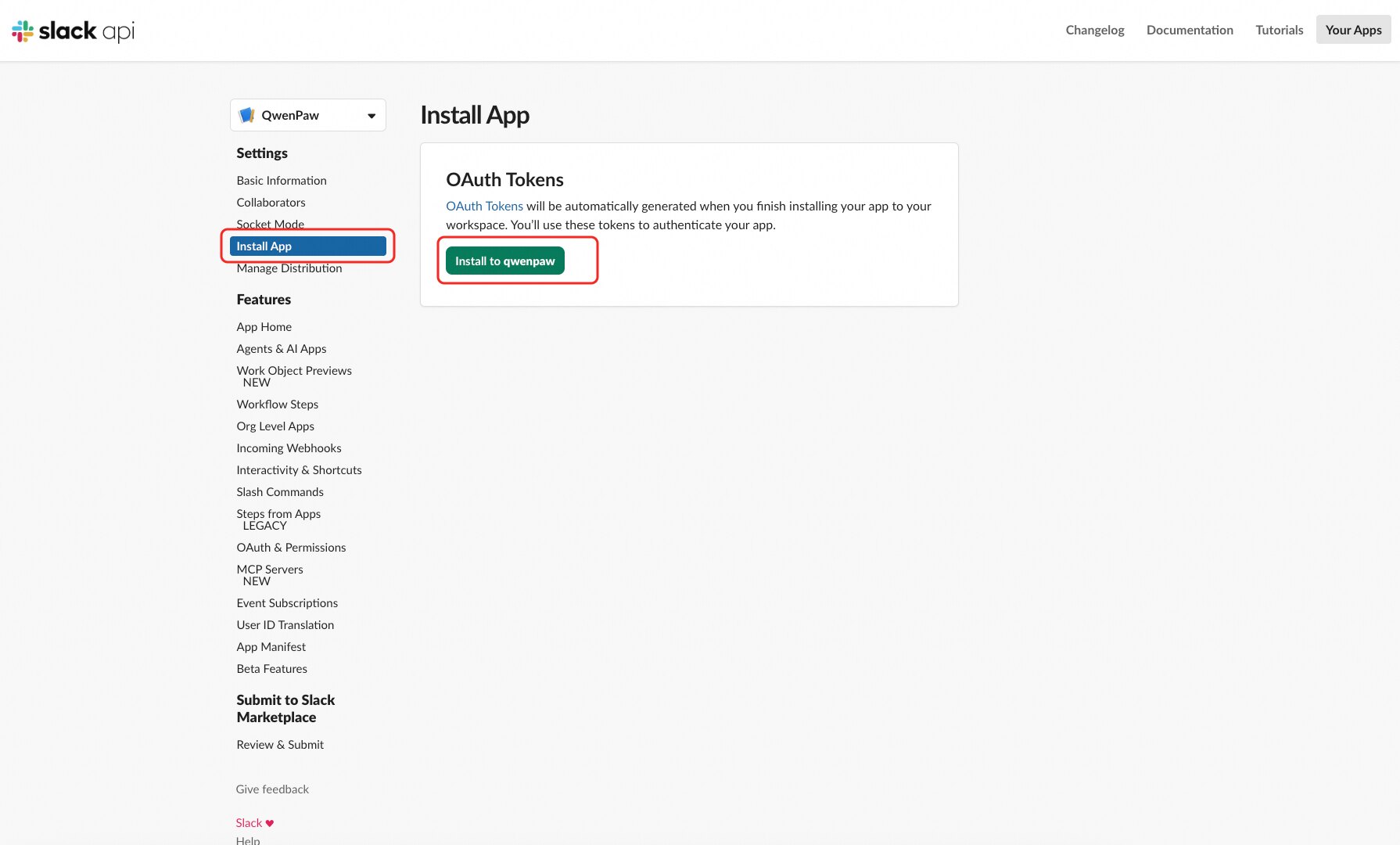
3. Invite the bot to each channel by typing `/invite @YourBotName` in Slack.
### Configure the Bot
You can configure via the Console UI or by editing the agent workspace `agent.json`.
**Method 1:** Configure in the Console
Go to **Control → Channels**, click **Slack**, and enter the **Bot Token** and **App Token** you obtained.
**Method 2:** Edit agent workspace `agent.json`
Find `channels.slack` in your agent's `agent.json` (e.g., `~/.qwenpaw/workspaces/default/agent.json`) and fill in the fields:
```json
"slack": {
"enabled": true,
"bot_token": "xoxb-your-bot-token-here",
"app_token": "xapp-your-app-token-here",
"proxy": "",
"streaming_enabled": false
}
```
**Slack-specific fields:**
| Field | Type | Default | Description |
| ------------------- | ------ | --------------- | --------------------------------------------------------------------------- |
| `bot_token` | string | `""` (required) | Slack Bot User OAuth Token, starts with `xoxb-` |
| `app_token` | string | `""` (required) | Slack App-Level Token for Socket Mode, starts with `xapp-` |
| `proxy` | string | `""` | HTTP proxy URL for connecting to Slack API (e.g., `http://127.0.0.1:18118`) |
| `streaming_enabled` | bool | `false` | Enable incremental message rendering via chat.update edits |
### Notes
- QwenPaw magic commands (e.g., `/stop`, `/model list`) can be sent as native Slack slash commands. You can also type them as plain messages — just prefix with a space (` /stop`) to bypass Slack's slash-command interception in threads.
- If you change scopes or event subscriptions later, you **must reinstall the app** for the changes to take effect.
- To control who can interact with the bot, use the access control fields (`access_control_dm`, `access_control_group`). Slack uses **Member IDs** (e.g., `U01ABC2DEF3`) for user identification — find them via profile → ⋮ → Copy member ID.
- You can add more slash commands in the manifest's `slash_commands` array to register additional magic commands (e.g., `/stop`, `/status`).
## Appendix
### Config overview
| Channel | Config key | Main fields |
| ---------- | ---------- | ---------------------------------------------------------------------------------------------------------- |
| DingTalk | dingtalk | client_id, client_secret, message_type, card_template_id, card_template_key, robot_code |
| Feishu | feishu | app_id, app_secret, domain; optional encrypt_key, verification_token, media_dir |
| iMessage | imessage | db_path, poll_sec (macOS only) |
| Discord | discord | bot_token; optional http_proxy, http_proxy_auth |
| QQ | qq | app_id, client_secret, markdown_enabled, max_reconnect_attempts |
| Telegram | telegram | bot_token; optional http_proxy, http_proxy_auth |
| Mattermost | mattermost | url, bot_token; optional show_typing, thread_follow_without_mention |
| Matrix | matrix | homeserver, user_id, access_token |
| Slack | slack | bot_token, app_token; optional proxy, streaming_enabled |
| WeCom | wecom | bot_id, secret; optional media_dir, max_reconnect_attempts |
| WeChat | wechat | bot_token (or QR login); optional bot_token_file, base_url, media_dir |
| XiaoYi | xiaoyi | ak, sk, agent_id; optional ws_url |
| Yuanbao | yuanbao | app_id, app_secret; optional api_domain, media_dir |
| Voice | voice | twilio_account_sid, twilio_auth_token, phone_number, phone_number_sid; optional tts_provider, stt_provider |
| Azure Bot | azure_bot | app_id, app_password, tenant_id; optional http_port, media_dir, share_session_in_group |
All channels also support the common access control fields (`dm_policy`, `group_policy`, `allow_from`, `deny_message`, `require_mention`) documented in the common fields section below.
Field details and structure are in the tables above and [Config & working dir](./config).
### Common fields
All channels support the following common fields:
| Field | Type | Default | Description |
| ------------------------ | -------- | -------- | ------------------------------------------------------------------------- |
| `enabled` | bool | `false` | Whether to enable this channel |
| `bot_prefix` | string | `""` | Bot reply prefix (e.g., `[BOT]`) |
| `show_tool_calls` | bool | `true` | Whether to show tool call information |
| `show_tool_results` | bool | `true` | Whether to show tool result text; result media is always sent |
| `tool_call_max_length` | int | `200` | Tool call preview length; `0` means unlimited |
| `tool_result_max_length` | int | `500` | Tool result preview length; `0` means unlimited |
| `show_thinking` | bool | `true` | Whether to show thinking/reasoning content |
| `dm_policy` | string | `"open"` | Direct message access policy: `"open"` (open) / `"allowlist"` (whitelist) |
| `group_policy` | string | `"open"` | Group chat access policy: `"open"` (open) / `"allowlist"` (whitelist) |
| `allow_from` | string[] | `[]` | Whitelist (effective when policy is `"allowlist"`) |
| `deny_message` | string | `""` | Denial message when access is denied |
| `require_mention` | bool | `false` | Whether @mention is required to respond |
### Multi-modal message support
Support for **receiving** (user → bot) and **sending** (bot → user) text, image,
video, audio, and file varies by channel.
**✓** = supported. **🚧** = under construction (implementable but not yet
done). **✗** = not supported (not possible on this channel).
| Channel | Recv text | Recv image | Recv video | Recv audio | Recv file | Send text | Send image | Send video | Send audio | Send file |
| ---------- | --------- | ---------- | ---------- | ---------- | --------- | --------- | ---------- | ---------- | ---------- | --------- |
| DingTalk | ✓ | ✓ | ✓ | ✓ | ✓ | ✓ | ✓ | ✓ | ✓ | ✓ |
| Feishu | ✓ | ✓ | ✓ | ✓ | ✓ | ✓ | ✓ | ✓ | ✓ | ✓ |
| Discord | ✓ | ✓ | ✓ | ✓ | ✓ | ✓ | ✓ | ✓ | ✓ | ✓ |
| Slack | ✓ | ✓ | ✓ | ✓ | ✓ | ✓ | ✓ | ✓ | ✓ | ✓ |
| iMessage | ✓ | ✗ | ✗ | ✗ | ✗ | ✓ | ✗ | ✗ | ✗ | ✗ |
| QQ | ✓ | ✓ | ✓ | ✓ | ✓ | ✓ | ✓ | ✓ | ✓ | ✓ |
| WeCom | ✓ | ✓ | ✓ | ✓ | ✓ | ✓ | ✓ | ✓ | ✓ | ✓ |
| WeChat | ✓ | ✓ | ✓ | ✓ | ✓ | ✓ | ✓ | ✓ | ✓ | ✓ |
| Telegram | ✓ | ✓ | ✓ | ✓ | ✓ | ✓ | ✓ | ✓ | ✓ | ✓ |
| Mattermost | ✓ | ✓ | 🚧 | 🚧 | ✓ | ✓ | ✓ | 🚧 | 🚧 | ✓ |
| Matrix | ✓ | ✓ | ✓ | ✓ | ✓ | ✓ | ✓ | ✓ | ✓ | ✓ |
| XiaoYi | ✓ | ✓ | ✗ | ✗ | ✓ | ✓ | 🚧 | 🚧 | 🚧 | 🚧 |
| Yuanbao | ✓ | ✓ | ✗ | ✓ | ✓ | ✓ | ✓ | ✓ | ✓ | ✓ |
| Voice | ✗ | ✗ | ✗ | ✓ | ✗ | ✗ | ✗ | ✗ | ✓ | ✗ |
| Azure Bot | ✓ | ✓ | ✓ | ✓ | ✓ | ✓ | ✓ | ✓ | ✓ | ✓ |
Notes:
- **DingTalk**: Receives rich text and single-file (downloadCode); sends
image / voice / video / file via session webhook.
- **Feishu**: WebSocket long connection for receiving; Open API for sending.
Text / image / file supported both ways; message metadata includes
`feishu_chat_id` and `feishu_message_id` for group context and dedup.
- **Discord**: Attachments are parsed as image / video / audio / file for the
agent; sending real media is 🚧 (currently link-only in reply).
- **Slack**: Supports all file types natively — images, audio, video, PDFs, and arbitrary files. Uploaded files are automatically downloaded and processed as multimodal input; sending supports all media types via `files.uploadV2`.
- **iMessage**: imsg + database polling; text only; attachments are ✗ (not
possible on this channel).
- **QQ**: Receiving attachments as multimodal and sending real media are 🚧;
currently text + link-only.
- **Telegram**: Attachments are parsed as files on receive and can be opened in the corresponding format (image / voice / video / file) within the Telegram chat interface.
- **WeCom**: WebSocket long connection for receiving; markdown/template_card for sending. Supports receiving and sending text, image, voice, video, and file.
- **WeChat Personal (iLink)**: HTTP long-polling for receiving. Supports text, images (AES-128-ECB decrypted), voice (ASR transcription), files, and videos. Sending supports text, images, files, and videos; audio files (e.g., MP3) are not supported due to iLink API limitations.
- **Matrix**: Receives image, video, audio, and file attachments via `mxc://` media URLs. Sends media by uploading to the homeserver and sending native Matrix media messages (`m.image`, `m.video`, `m.audio`, `m.file`).
- **XiaoYi**: Supports receiving text, images (JPEG/PNG/BMP/WEBP), and files (PDF/DOC/DOCX/PPT/PPTX/XLS/XLSX/TXT); video and audio are not supported by the platform.
- **Yuanbao**: Supports receiving text, images, and audio; sending supports text, images, video, audio, and files (via COS CDN upload); the platform does not forward video messages to bots.
- **Voice**: Phone call interaction via Twilio ConversationRelay. Receives audio (speech) and sends audio (TTS). All communication is voice-based; text/image/video/file are not supported over phone calls.
- **Azure Bot**: Supports receiving and sending text, image, video, audio, and file. Outbound attachments are sent via the Bot Framework Upload API; the per-file size limit is **180 KB** — files exceeding this limit are replaced with an error notification.
### Changing config via HTTP
With the app running you can read and update channel config; changes are written to
`agent.json` and applied automatically:
- `GET /config/channels` — List all channels
- `PUT /config/channels` — Replace all
- `GET /config/channels/{channel_name}` — Get one (e.g. `dingtalk`, `imessage`)
- `PUT /config/channels/{channel_name}` — Update one
---
## Extending channels
To add a new platform (e.g. WeCom, Slack), implement a subclass of **BaseChannel**; core code stays unchanged.
### Data flow and queue
- **ChannelManager** keeps one queue per channel that uses it. When a message arrives, the channel calls **`self._enqueue(payload)`** (injected by the manager at startup); the manager's consumer loop then calls **`channel.consume_one(payload)`**.
- The base class implements a **default `consume_one`**: turn payload into `AgentRequest`, run `_process`, call `send_message_content` for each completed message, and `_on_consume_error` on failure. Most channels only need to implement "incoming → request" and "response → outgoing"; they do not override `consume_one`.
### Subclass must implement
| Method | Purpose |
| ------------------------------------------------------- | ------------------------------------------------------------------------------------------------------------------------------------------------------------------ |
| `build_agent_request_from_native(self, native_payload)` | Convert the channel's native message to `AgentRequest` (using runtime `Message` / `TextContent` / `ImageContent` etc.) and set `request.channel_meta` for sending. |
| `from_env` / `from_config` | Build instance from environment or config. |
| `async start()` / `async stop()` | Lifecycle (connect, subscribe, cleanup). |
| `async send(self, to_handle, text, meta=None)` | Send one text (and optional attachments). |
### What the base class provides
- **Consume flow**: `_payload_to_request`, `get_to_handle_from_request` (default `user_id`), `get_on_reply_sent_args`, `_before_consume_process` (e.g. save receive_id), `_on_consume_error` (default: `send_content_parts`), and optional **`refresh_webhook_or_token`** (no-op; override when the channel needs to refresh tokens).
- **Helpers**: `resolve_session_id`, `build_agent_request_from_user_content`, `_message_to_content_parts`, `send_message_content`, `send_content_parts`, `to_handle_from_target`.
Override **`consume_one`** only when the flow differs (e.g. console printing, debounce). Override **`get_to_handle_from_request`** / **`get_on_reply_sent_args`** when the send target or callback args differ.
### Example: minimal channel (text only)
For text-only channels using the manager queue, you do not need to implement `consume_one`; the base default is enough:
```python
# my_channel.py
from agentscope_runtime.engine.schemas.agent_schemas import TextContent, ContentType
from qwenpaw.app.channels.base import BaseChannel
from qwenpaw.app.channels.renderer import ChannelDisplayConfig
from qwenpaw.app.channels.schema import ChannelType
class MyChannel(BaseChannel):
channel: ChannelType = "my_channel"
def __init__(self, process, enabled=True, bot_prefix="",
display_config=None, **kwargs):
super().__init__(
process,
on_reply_sent=kwargs.get("on_reply_sent"),
display_config=display_config,
)
self.enabled = enabled
self.bot_prefix = bot_prefix
@classmethod
def from_config(cls, process, config, on_reply_sent=None,
display_config=None, **kwargs):
return cls(
process=process,
enabled=getattr(config, "enabled", True),
bot_prefix=getattr(config, "bot_prefix", ""),
on_reply_sent=on_reply_sent,
display_config=display_config or ChannelDisplayConfig.from_config(config),
)
@classmethod
def from_env(cls, process, on_reply_sent=None):
return cls(process=process, on_reply_sent=on_reply_sent)
def build_agent_request_from_native(self, native_payload):
payload = native_payload if isinstance(native_payload, dict) else {}
channel_id = payload.get("channel_id") or self.channel
sender_id = payload.get("sender_id") or ""
meta = payload.get("meta") or {}
session_id = self.resolve_session_id(sender_id, meta)
text = payload.get("text", "")
content_parts = [TextContent(type=ContentType.TEXT, text=text)]
request = self.build_agent_request_from_user_content(
channel_id=channel_id, sender_id=sender_id, session_id=session_id,
content_parts=content_parts, channel_meta=meta,
)
request.channel_meta = meta
return request
async def start(self):
pass
async def stop(self):
pass
async def send(self, to_handle, text, meta=None):
# Call your HTTP API etc. to send
pass
```
When you receive a message, build a native dict and enqueue (`_enqueue` is injected by the manager):
```python
native = {
"channel_id": "my_channel",
"sender_id": "user_123",
"text": "Hello",
"meta": {},
}
self._enqueue(native)
```
### Example: multimodal (text + image / video / audio / file)
In `build_agent_request_from_native`, parse attachments into runtime content and call `build_agent_request_from_user_content`:
```python
from agentscope_runtime.engine.schemas.agent_schemas import (
TextContent, ImageContent, VideoContent, AudioContent, FileContent, ContentType,
)
def build_agent_request_from_native(self, native_payload):
payload = native_payload if isinstance(native_payload, dict) else {}
channel_id = payload.get("channel_id") or self.channel
sender_id = payload.get("sender_id") or ""
meta = payload.get("meta") or {}
session_id = self.resolve_session_id(sender_id, meta)
content_parts = []
if payload.get("text"):
content_parts.append(TextContent(type=ContentType.TEXT, text=payload["text"]))
for att in payload.get("attachments") or []:
t = (att.get("type") or "file").lower()
url = att.get("url") or ""
if not url:
continue
if t == "image":
content_parts.append(ImageContent(type=ContentType.IMAGE, image_url=url))
elif t == "video":
content_parts.append(VideoContent(type=ContentType.VIDEO, video_url=url))
elif t == "audio":
content_parts.append(AudioContent(type=ContentType.AUDIO, data=url))
else:
content_parts.append(FileContent(type=ContentType.FILE, file_url=url))
if not content_parts:
content_parts = [TextContent(type=ContentType.TEXT, text="")]
request = self.build_agent_request_from_user_content(
channel_id=channel_id, sender_id=sender_id, session_id=session_id,
content_parts=content_parts, channel_meta=meta,
)
request.channel_meta = meta
return request
```
### Adding custom channels via plugins
Custom channels are now registered through the **plugin system**. See the
[Plugin System — Example 10: Register a Custom Channel](./plugins#example-10-register-a-custom-channel) for a
complete tutorial.
To add a custom channel:
1. Create a plugin with `type: "channel"` in `plugin.json`
2. Implement a `BaseChannel` subclass with a unique `channel` class attribute
3. Call `api.register_channel(...)` in your plugin's `register()` method
4. Install with `qwenpaw plugin install `
Plugin channels appear in the Console UI alongside built-in channels, with
full support for enable/disable, config fields, and access control.
For channels that need webhook HTTP endpoints, use `api.register_http_router()`
in the same plugin to mount routes under `/api`.
> **Migration from `custom_channels/`**: The legacy `custom_channels/`
> directory and `qwenpaw channels install/add/remove` CLI commands have been
> removed. If you have existing custom channels under `custom_channels/`,
> migrate them to the plugin system:
>
> 1. Create a plugin directory with `plugin.json` (set `"type": "channel"`)
> 2. Move your `BaseChannel` subclass into the plugin directory
> 3. Create a `plugin.py` that calls `api.register_channel(...)` with your
> channel class and `config_fields`
> 4. If your channel used `register_app_routes(app)`, replace it with
> `api.register_http_router(router, prefix="/your-channel")` using a
> FastAPI `APIRouter`
> 5. Install the plugin: `qwenpaw plugin install `
> 6. Remove the old module from `custom_channels/`
---
## Related pages
- [Introduction](./intro) — What the project can do
- [Quick start](./quickstart) — Install and first run
- [Heartbeat](./heartbeat) — Scheduled check-in / digest
- [CLI](./cli) — init, app, cron, clean
- [Config & working dir](./config) — Configuration files and working directory