QwenPaw Creator is an agentic video creation platform: you set the goal, provide sources, and steer the direction; an Agent team handles planning, generation, editing, and composition, returning every important decision to you.
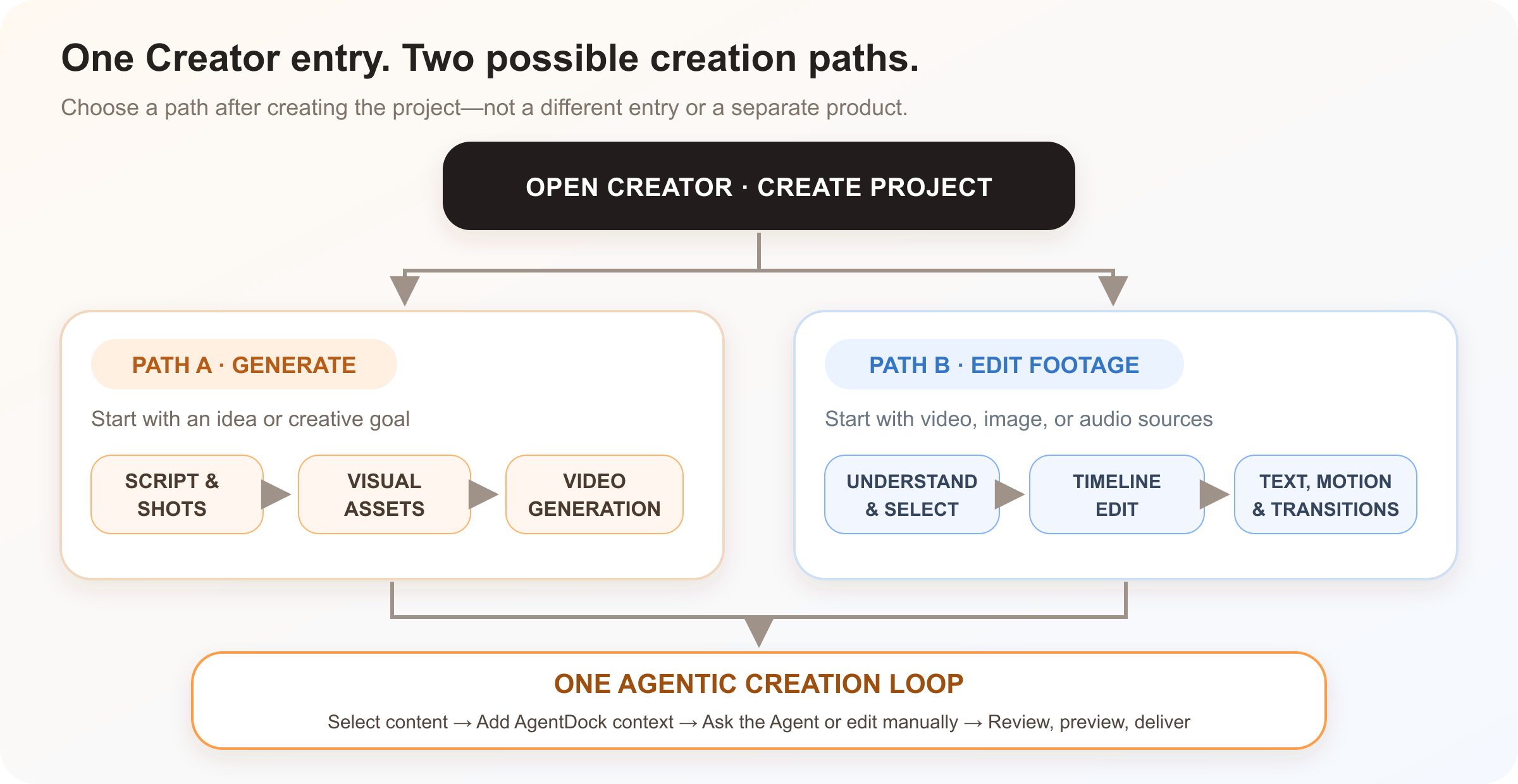
- **The Agent stays throughout the process**: screenwriting, directing, visual development, motion, and editing Specialists collaborate against live project state;
- **You remain in control**: redirect the work with a sentence or fine-tune an object directly on the timeline;
- **Start either way**: generate a short drama from an idea, or turn existing footage into a finished film.
Creator has one project entry. After entering, choose either “generate from an idea” or “edit existing footage,” then continue through one Agentic creation loop.
---
## Start your first project in three minutes
### 1. Open Creator
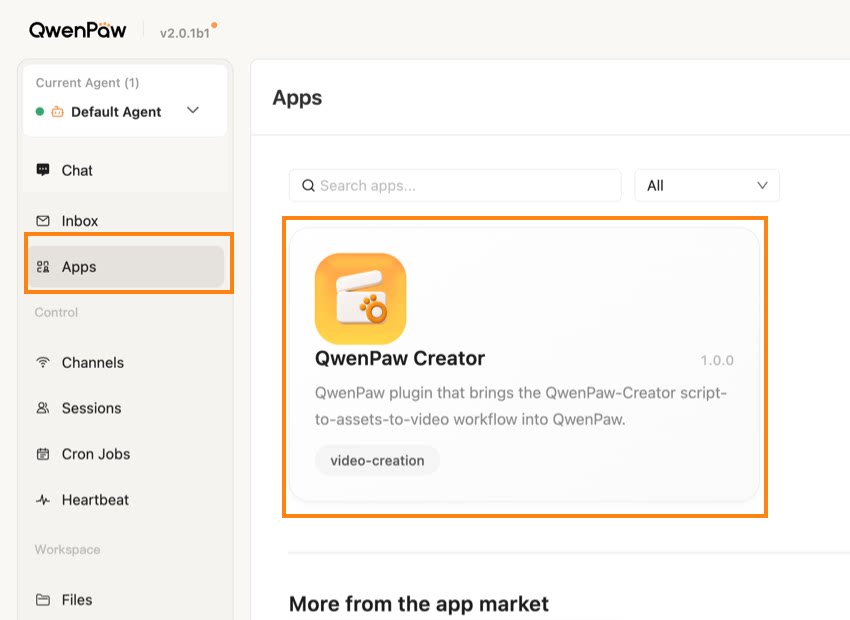
Creator is installed and opened from **Apps** in QwenPaw. Start QwenPaw and open the console (default `http://127.0.0.1:8088/`), select **Apps** in the left navigation, find **QwenPaw Creator**, and choose Install. After installation, open it from the same Apps page.
Find QwenPaw Creator in Apps, install it, and open it from the same page.
### 2. Configure models
Before your first project, open **Model Configuration** at the lower right of the home composer (or follow the first-run guide). Connect only the capabilities your scenario needs:
| How you create | Model capabilities you need |
| ----------------------------- | ----------------------------------------------------------------- |
| Every scenario | Large language model (LLM) |
| Generative work such as drama | Image generation, video generation, and vision-language (VLM) |
| Editing uploaded footage | VLM; add speech recognition (ASR) when the footage contains voice |
LLM / VLM connections include OpenAI-compatible APIs, Bailian, Claude, DeepSeek, Gemini, Qianfan, Volcano Engine, and custom providers. Available image, video, and ASR providers are grouped by capability in Model Configuration.
### 3. Hand the goal and sources to the Agent
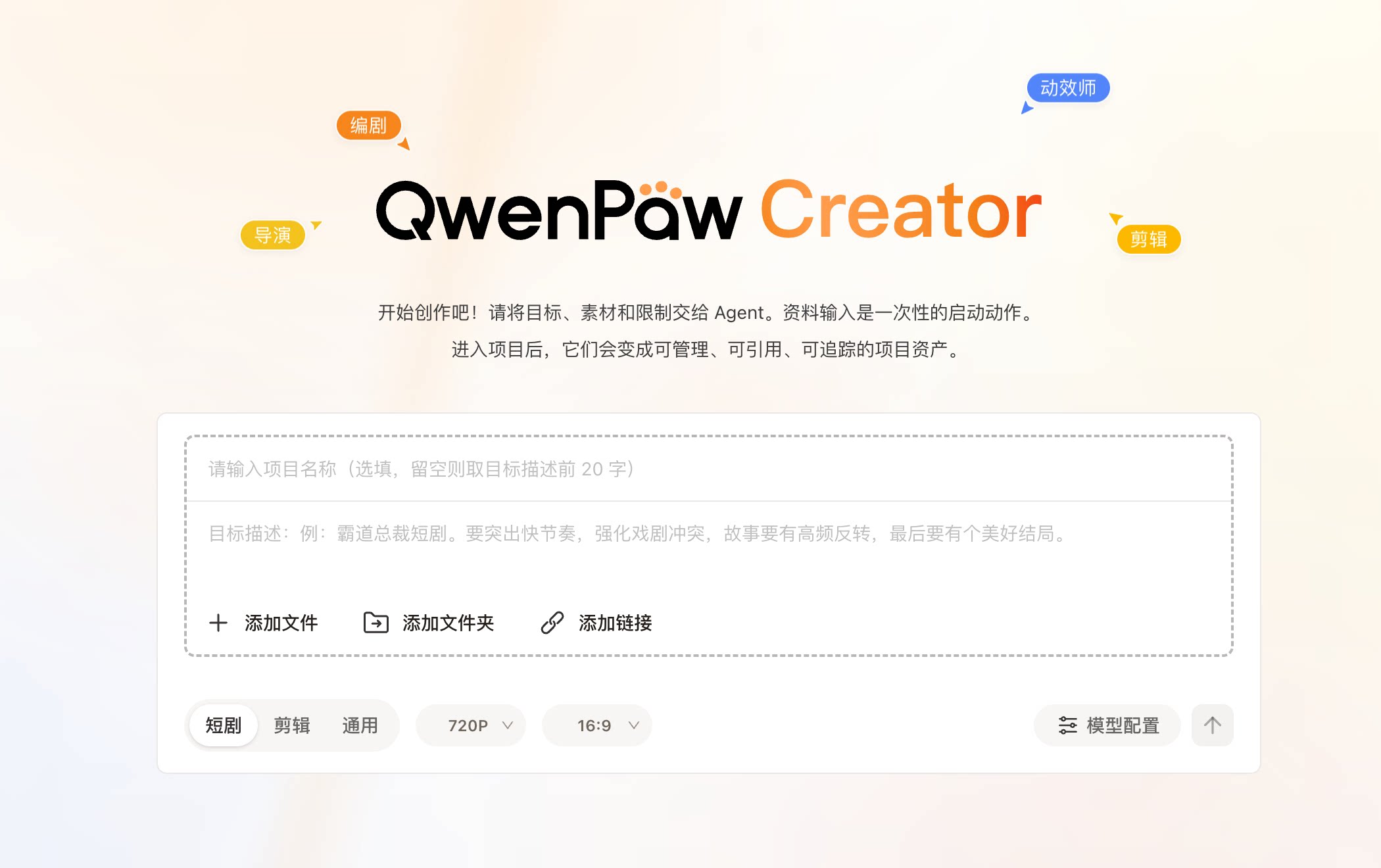
1. **Describe the goal**: for example, “Create a fast-paced short drama with strong conflict and a warm ending,” or “Turn these cat videos into a one-minute highlight reel”;
2. **Provide sources (optional)**: add files, folders, or links. Inside the project they become manageable, referenceable, and traceable assets;
3. **Choose the format**: Short Drama / Editing / General, plus resolution and aspect ratio;
4. Send the brief. The Agent starts planning and opens the workbench.
One composer holds the goal, sources, and constraints. It starts the project; the uploaded material then becomes structured project data.
---
## The workbench: selection becomes context, with manual control
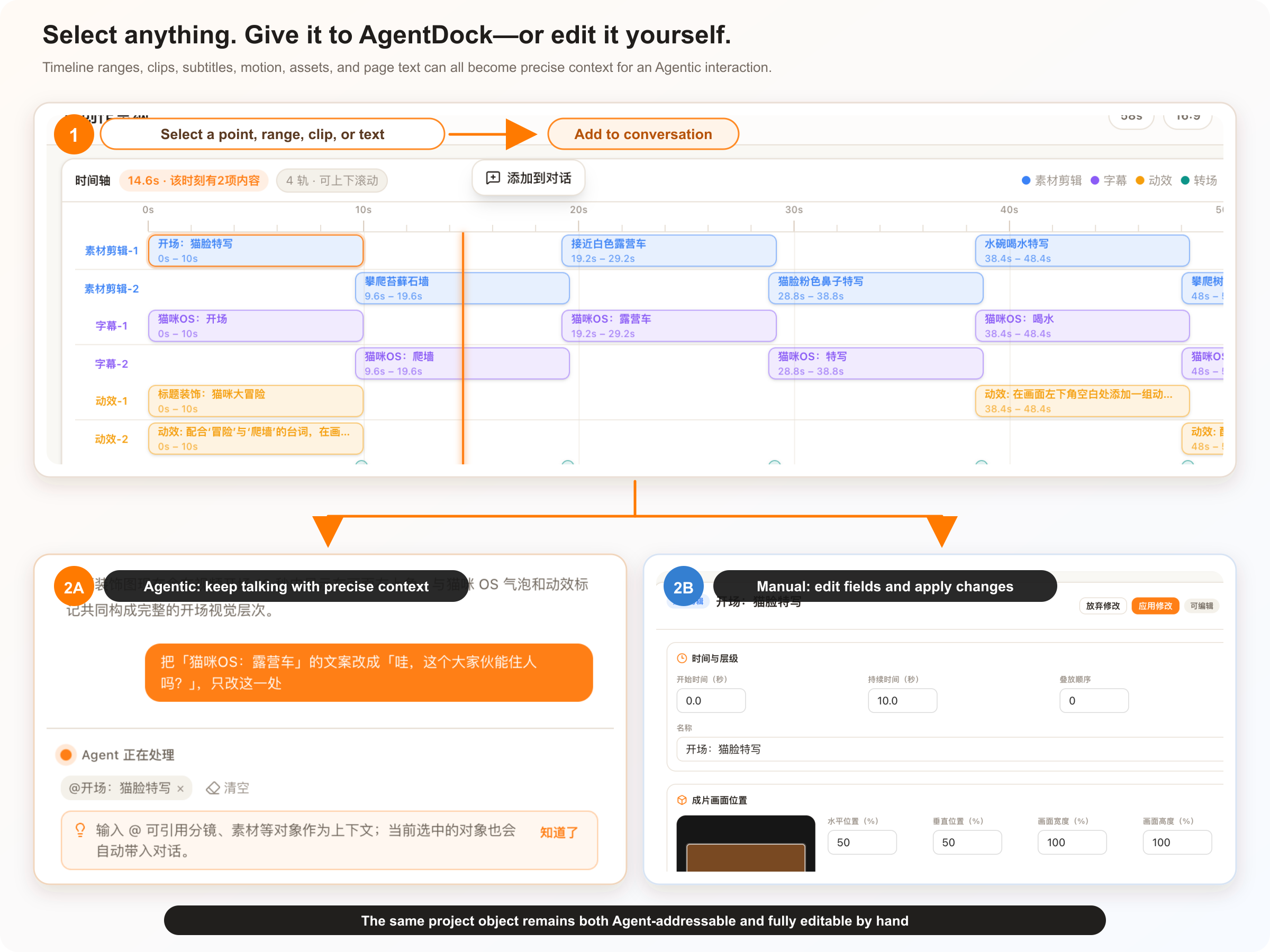
Creator’s Agentic layer is not merely a chat panel beside the editor: **the project content itself is addressable Agent context**. Select a timeline point, drag a time range, click a clip / subtitle / motion / transition / asset, or select page text, then choose **Add to conversation**. The selection appears as AgentDock context; describe the intended change and the Agent works against that exact object.
The same project object supports two parallel modes: add it to AgentDock context for a precise natural-language change, or open its details and edit the fields directly.
| What you select | How it becomes Agent context | What remains manually editable |
| -------------------------------------------------------- | ----------------------------------------------------------------------------------- | ---------------------------------------------------------------------------- |
| A timeline point or dragged time range | Use the floating **Add to conversation** action to send the exact span to AgentDock | Continue adjusting clip bounds, order, track relationships, and rhythm |
| A clip, subtitle, motion, transition, asset, or artifact | The selection is associated automatically; use `@` to reference it again | Open details to edit timing, stacking, position, opacity, or copy |
| A section of page text | Select the text and choose **Add to conversation** | Edit the source field directly, or ask the Agent to change only that passage |
Timeline content, project elements, assets, and text are therefore not static results that an Agent can only “see”; they are referenceable, locatable, editable, and reviewable project objects. Use **Asset Library** at the top to browse source material and generated outputs. **Video Preview / Download Film** checks and exports the current plan.
### Three practical Agent collaboration habits
- **Reference with `@`**: attach a shot, source, or other object as context; the selected object is also carried into the conversation automatically;
- **Intervene at any time**: ask for a targeted change such as “only rewrite the second caption” or a broader one such as “add a sunray motion treatment to the opening”;
- **Stop when needed**: interrupt an in-progress task immediately with the stop control.
---
## Two typical creation paths
### Short-drama generation: zero to film
1. **Script and shots**: screenwriting / directing Specialists turn the goal into scenes, characters, action, and dialogue;
2. **Consistency assets**: anchor images establish each character and scene;
3. **Storyboard and video**: frames use those assets as references, then reference-to-video (r2v) models generate clips;
4. **Composition**: ready clips enter the shared timeline and are composed into a complete film.
### Footage editing: sources to film
1. **Understand sources**: VLM analysis (plus ASR for speech) finds content and highlight moments;
2. **Build an edit plan**: the Agent selects clips, arranges the timeline, and adds subtitles, motion, and transitions;
3. **Human + Agent refinement**: adjust a segment directly or ask the Agent to do it;
4. **Preview and compose**: confirm the plan and render the film.
---
## Review: every Agent change has a clear decision
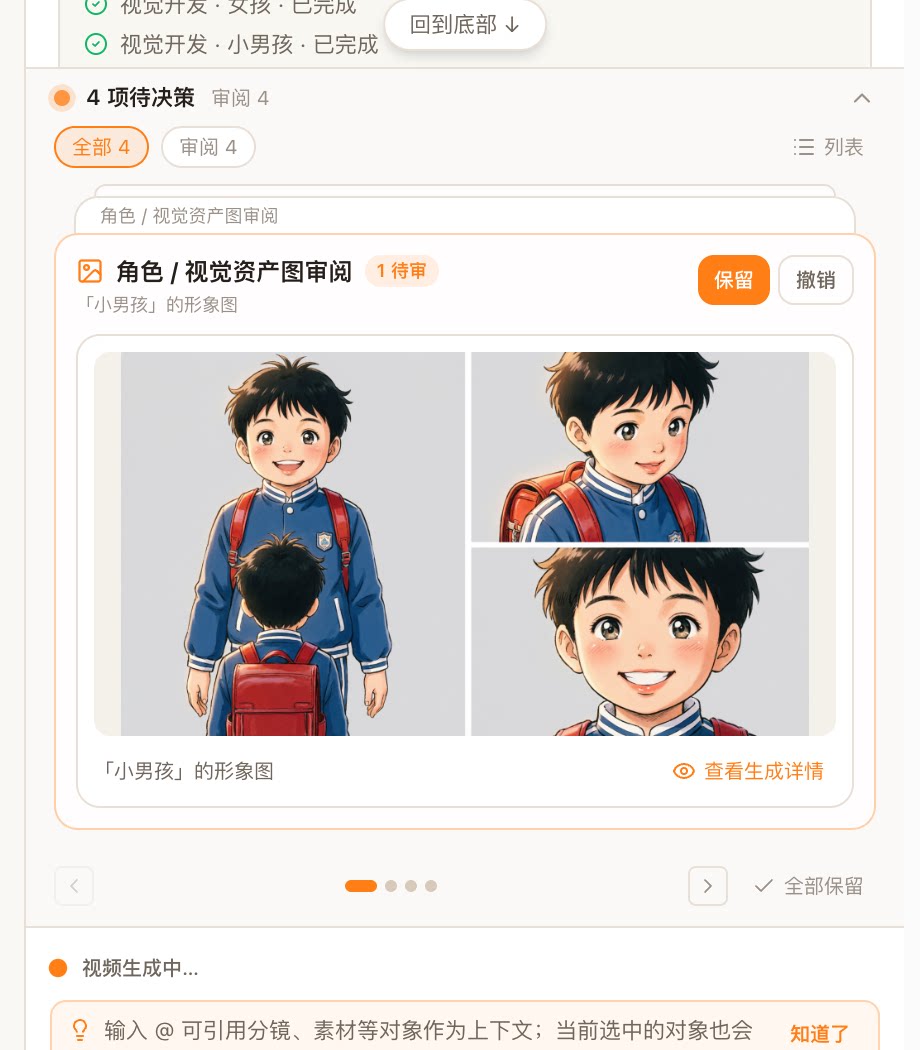
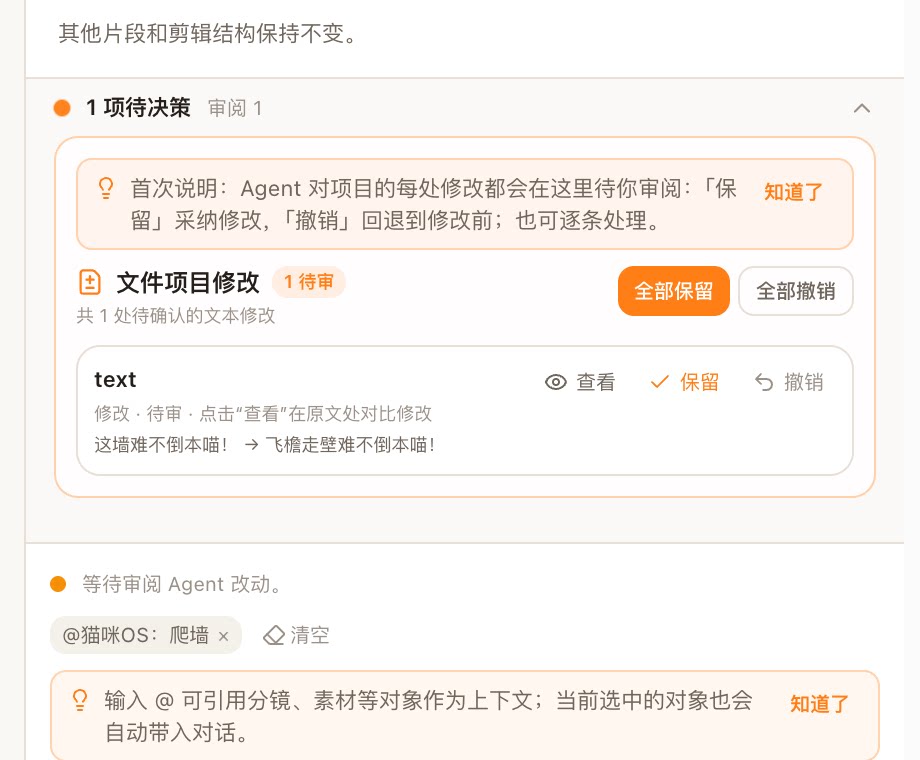
Generated media and Agent-authored text changes enter the decision tray. Content you edit manually applies directly and does not create another review item.
Media review: inspect the result and its details, then Keep or Undo it individually or in a batch.Text review: see the before / after change immediately, or open its original context.
Review items jump as close as possible to their generation context: character image → asset detail, storyboard frame → shot detail, and text change → original location.
### Production confirmation: see estimated cost before a paid call
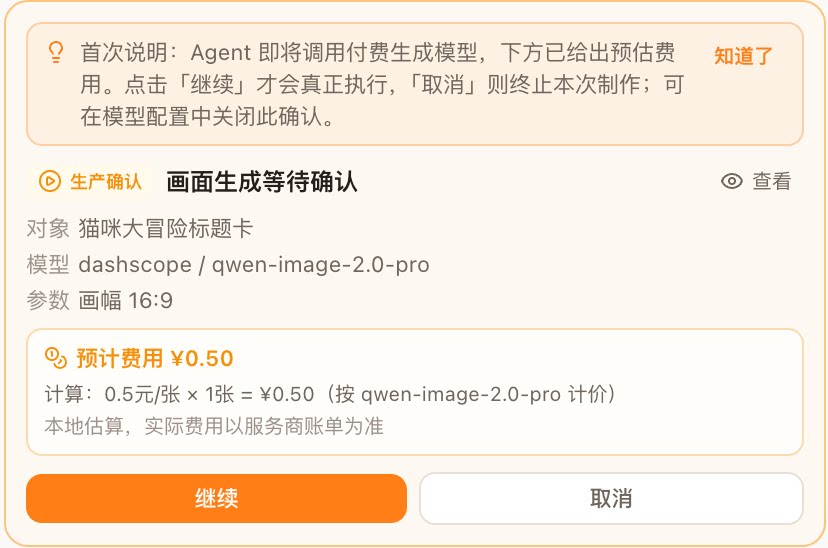
Before a paid image or video generation call, the Agent presents a **production confirmation card** with the target, model, parameters, and a locally estimated cost. The billable task is submitted only after you click **Continue**; **Cancel** ends that production request.
The confirmation card summarizes the target, model, parameters, and estimated cost; the paid task starts only after approval.
> 💰 The estimate is computed locally from published model pricing and is for reference only. Your provider’s bill is authoritative. This confirmation can be disabled in Model Configuration.
---
## Preview, manage, and export
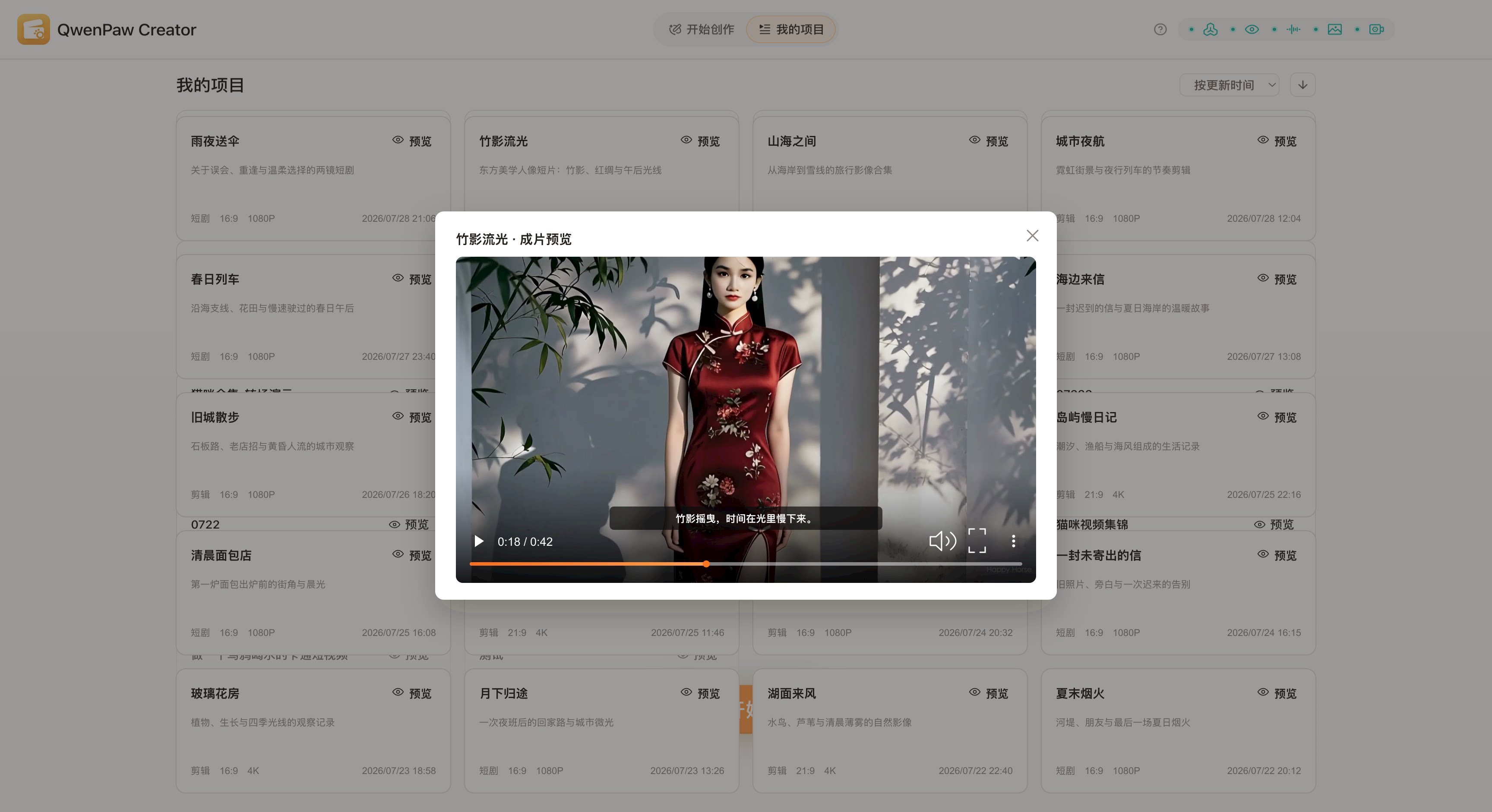
- **Preview the film**: use “Video Preview” in the workbench, or “Preview” on a card in My Projects;
- **Download**: use “Download Film” at the upper right of the workbench;
- **Manage projects**: My Projects shows creation type, aspect ratio, resolution, and update time, with sorting controls.
My Projects brings project status and creation settings together; open Preview to inspect the finished film in a complete dialog.
---
## Appendix: installation and runtime
Open **Apps** in the QwenPaw console, find **QwenPaw Creator**, and select Install. After installation, open Creator directly from Apps.
Creator uses a few local tools without changing your system installation: `ffmpeg` handles media processing and composition (set `CREATOR_FFMPEG_PATH`, otherwise it falls back to system `ffmpeg` or `imageio-ffmpeg`); `jq` supports structured Agent edits to project files (`CREATOR_JQ_PATH` or `PATH`). If a dependency is missing, Creator starts in degraded mode; inspect `GET /api/qwenpaw-creator/health` for details.