
25 KiB
Skills
Skills can come from packaged built-ins, the local skill pool, the Skill Market or URL imports, or files you add yourself.
Two ways to manage skills:
- Console: Use the Console under Workspace → Skills.
- Working directory: Edit skill files directly under
$QWENPAW_WORKING_DIR(default~/.qwenpaw), including$QWENPAW_WORKING_DIR/skill_pool/and each workspace's$QWENPAW_WORKING_DIR/workspaces/{agent_id}/skills/.
If you're new to channels, heartbeat, or cron, read Introduction first.
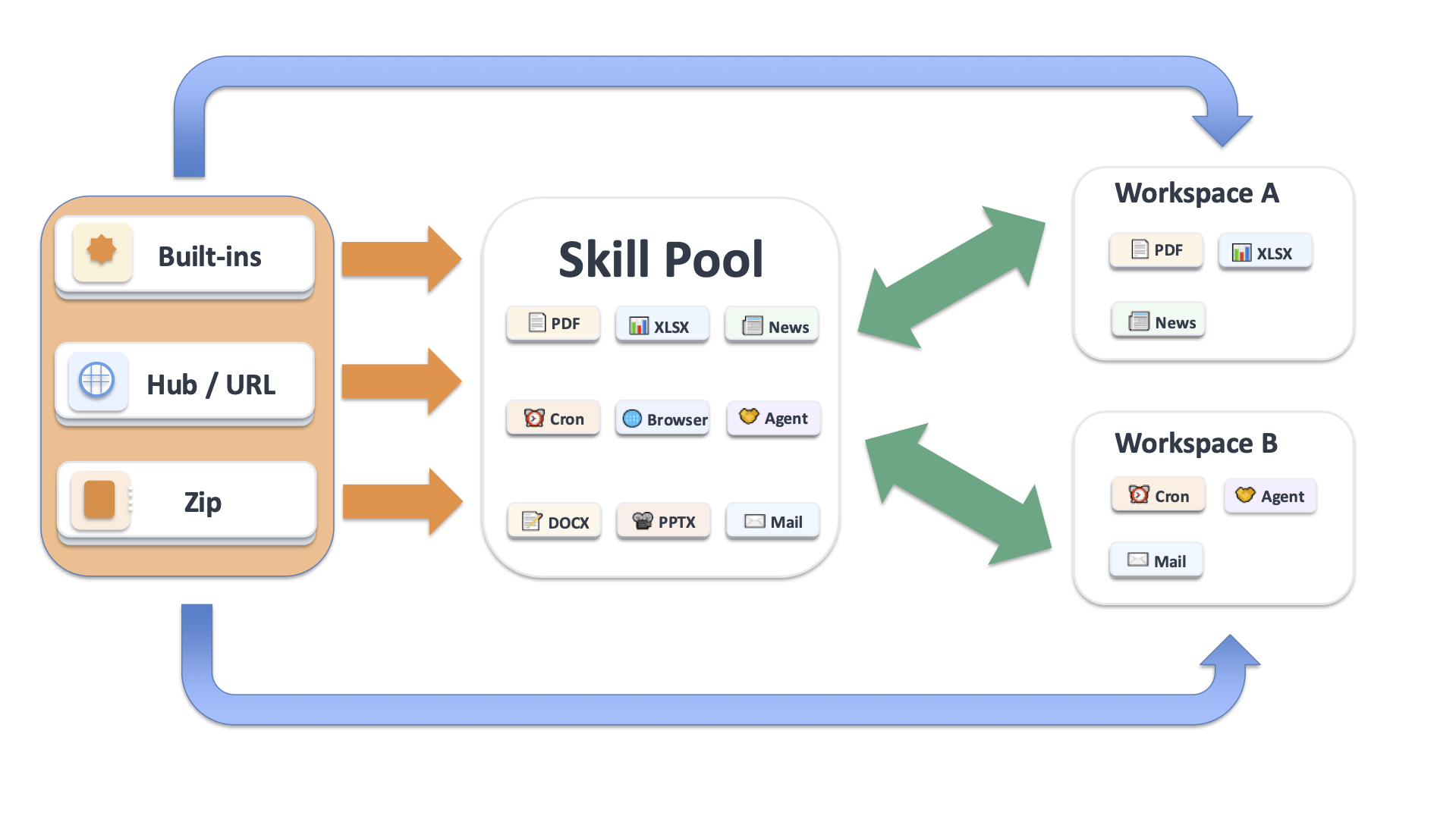
Skills are organized between the shared pool and each workspace's local runtime copies. The structure and creation paths are described below.
Skill Structure
QwenPaw skills are organized in two layers:
- Skill Pool: Shared local repository at
$QWENPAW_WORKING_DIR/skill_pool/(default~/.qwenpaw/skill_pool/). - Workspace Skills: The local runtime copy at
$QWENPAW_WORKING_DIR/workspaces/{agent_id}/skills/(default~/.qwenpaw/workspaces/{agent_id}/skills/).
$QWENPAW_WORKING_DIR/                      # Default ~/.qwenpaw
  skill_pool/                # Shared pool
    skill.json               # Pool manifest
    pdf/
      SKILL.md
    cron/
      SKILL.md
    my_shared_skill/
      SKILL.md
  workspaces/
    default/
      skill.json             # Workspace manifest
      skills/                # Runtime copies actually used by this workspace
        pdf/
          SKILL.md
        my_skill/
          SKILL.md
Skill Pool
The pool is where built-ins and reusable shared skills live. Pool entries are not executed directly by a workspace. To use one, you must broadcast it to a workspace first.
Pool-side operations:
- Broadcast: Copy a pool skill into one or more workspaces.
- Add to pool: The pool page has a unified Add Skill entry (Create Skill, Upload via Zip, Upload via URL, Browse Market). You can also import built-ins, upload from a workspace, or place files on disk manually.
- Edit / rename: Saving a normal shared skill under the same name edits that pool entry in place. Saving it under a new name creates a renamed entry. Builtin skills cannot be customized in place under the same name. To customize a builtin, save it under a new name and keep the builtin slot untouched.
- Conflict handling: If save, import, upload, or broadcast would land on a name that already exists, QwenPaw returns a conflict instead of silently overwriting. The UI/API includes a suggested renamed target so you can retry with that name.
- Auto sync: Once enabled for a skill, any change to its pool content is pushed to the relevant workspaces automatically (see Auto sync below).
Adding skills to the pool:
-
Import built-ins. Built-in skill IDs come from packaged skill directory names.
Skill ID Description Source browser Drive a live browser through the Unified Browser SDK with async Python and a perceive → act → verify workflow. Built-in channel_message Proactively send a one-way message to a session or channel after first locating the target session. Built-in QA_source_index Internal QwenPaw source/doc index skill for quickly mapping keywords to source paths and local docs. Built-in cron Scheduled jobs. Create, list, pause, resume, or delete jobs via qwenpaw cronor Console Control → Cron Jobs.Built-in dingtalk_channel Helps with DingTalk channel onboarding through a visible browser flow and required manual steps. Built-in docx Create, read, and edit Word documents (.docx), including TOC, headers/footers, tables, images, track changes, comments. https://github.com/anthropics/skills/tree/main/skills/docx file_reader Read and summarize text-based files (.txt, .md, .json, .csv, .log, .py, etc.). PDF and Office are handled by dedicated skills. Built-in guidance Answer QwenPaw installation and configuration questions by consulting local docs first. Built-in himalaya Manage emails via CLI (IMAP/SMTP). Use himalayato list, read, search, and organize emails from the terminal.https://github.com/openclaw/openclaw/tree/main/skills/himalaya multi_agent_collaboration Coordinate with another agent when the user explicitly asks for it or another agent's context is needed. Built-in news Fetch and summarize latest news from configured sites; categories include politics, finance, society, world, tech, sports, etc. Built-in pdf PDF operations: read, extract text/tables, merge/split, rotate, watermark, create, fill forms, encrypt/decrypt, OCR, etc. https://github.com/anthropics/skills/tree/main/skills/pdf pptx Create, read, and edit PowerPoint (.pptx), including templates, layouts, notes, and comments. https://github.com/anthropics/skills/tree/main/skills/pptx xlsx Read, edit, and create spreadsheets (.xlsx, .xlsm, .csv, .tsv), clean up formatting, formulas, and data analysis. https://github.com/anthropics/skills/tree/main/skills/xlsx In the pool UI, built-ins can show statuses such as up-to-date or out-of-date. Use Update Built-in Skills to add missing built-ins or refresh out-of-date ones from the packaged source.
The Cron built-in provides scheduled job management. Use the CLI (
qwenpaw cron) or Console Control → Cron Jobs:- Create:
qwenpaw cron create --type agent --name "xxx" --cron "0 9 * * *" ... - List:
qwenpaw cron list - Check state:
qwenpaw cron state <job_id>
- Create:
-
Through the unified "Add Skill" entry. The Add Skill dropdown at the top right of the pool page offers four ways:
- Create Skill: creates a shared pool skill without first creating it in a workspace.
- Upload via Zip: import one or more packaged skill folders.
- Upload via URL: import directly from supported Hub / GitHub URLs.
- Browse Market: switch to the embedded Skill Market; clicking Save on a card saves it into the pool (see Skill Market below).
-
Upload from a workspace. On Workspace → Skills, click Sync to Skill Pool to publish a workspace skill to the pool.
-
Manual filesystem changes. You can place folders directly under
$QWENPAW_WORKING_DIR/skill_pool/, but this is not recommended. Direct pool edits can be lost or overwritten more easily, especially for customized skills. Be careful and treat this as an advanced workflow.
External skill paths
By default the skill pool has a single root: the primary pool at
$QWENPAW_WORKING_DIR/skill_pool/. You can also register one or more external skill
roots in the config so QwenPaw reads the skills they contain into the same skill pool
view. This is useful for reusing skill collections already on your machine (a git repo,
a shared team folder) without copying them into the primary pool.
What external paths mean:
- One pool, multiple roots. Skills under an external directory are not copied into the primary pool; they are read in place and appear in the pool alongside the primary skills. On-disk changes are reflected on the next load.
- Order is priority. Scan order is the primary pool first, then each entry in
skill_pathsin order. If two roots contain a skill with the same name, the earlier one wins; the later duplicate is shadowed and skipped (a warning is logged). - What you can do with external skills. List, view, broadcast / download to a workspace, edit in place (save / rename writes back to the external directory), and delete (which physically removes the files under the external directory). In the Skill Pool UI, an external skill's installed-from field shows its external path so you can recognize it.
- No metadata written to external dirs. The pool's
skill.jsonindex lives only in the primary pool and is rebuilt from disk and self-heals; external directories are left untouched and never get a manifest written to them. - Uploads / imports always land in the primary pool. Sync from a workspace, import from zip, and import from URL all write to the primary pool, never to an external path.
How to configure
Edit $QWENPAW_WORKING_DIR/config.json and add the top-level skill_paths field:
{
  "skill_paths": ["~/my-skills", "/opt/team/shared-skills"]
}
Notes:
- The array is ordered; the order decides the conflict priority described above.
- Paths support
~expansion to the home directory. - Missing or invalid paths are silently skipped.
- After saving, external skills appear on the next skill pool load (a refresh, a restart, or any endpoint that triggers it).
$QWENPAW_WORKING_DIR defaults to ~/.qwenpaw and can be overridden with the
QWENPAW_WORKING_DIR environment variable. See Config for the full
configuration reference.
Workspace Skills
Every workspace runs from its own local copies under
$QWENPAW_WORKING_DIR/workspaces/{agent_id}/skills/. Those copies are what the agent
actually loads at runtime.
Workspace
The Add Skill dropdown at the top right of Console → Workspace → Skills is the unified entry; skills added through it are enabled by default:
- Load from Skill Pool: pick the skills to load and confirm. This is the preferred path for built-ins and shared reusable skills (the reverse direction also works: click Broadcast on a skill in Settings → Skill Pool). Name conflicts return an error with a suggested renamed target.
- Create Skill: enter a name and content; the new skill is written into
the workspace's
skills/directory andskill.json. The edit drawer also offers AI Optimize (beta) — it may help rewrite content but does not guarantee a working result; review before saving. - Upload via Zip: import one or more packaged skill folders.
- Upload via URL: import from supported Hub / GitHub URLs — see Import from URL below.
- Browse Market: switch to the embedded Skill Market and click Save on a card to install it into the current workspace — see Skill Market below.
Beyond that page, you can also write files manually or generate a skill from
the current session with /make-skill, described below.
Import from URL
The workspace skill page supports importing from the following URL sources:
https://skills.sh/...https://clawhub.ai/...https://skillsmp.com/...https://lobehub.com/...https://market.lobehub.com/...(LobeHub direct download endpoint)https://github.com/...https://modelscope.cn/skills/...
CLI supports the same URL-based import flow:
Workspace targeting: use --agent-id when targeting a single agent workspace; without it, install / uninstall act on the skill pool.
qwenpaw skills install <skill_url>
qwenpaw skills install <skill_url> --agent-id <agent_id>
CLI also supports uninstalling from the shared pool or one workspace:
qwenpaw skills uninstall <skill_name>
qwenpaw skills uninstall <skill_name> --agent-id <agent_id>
Steps
-
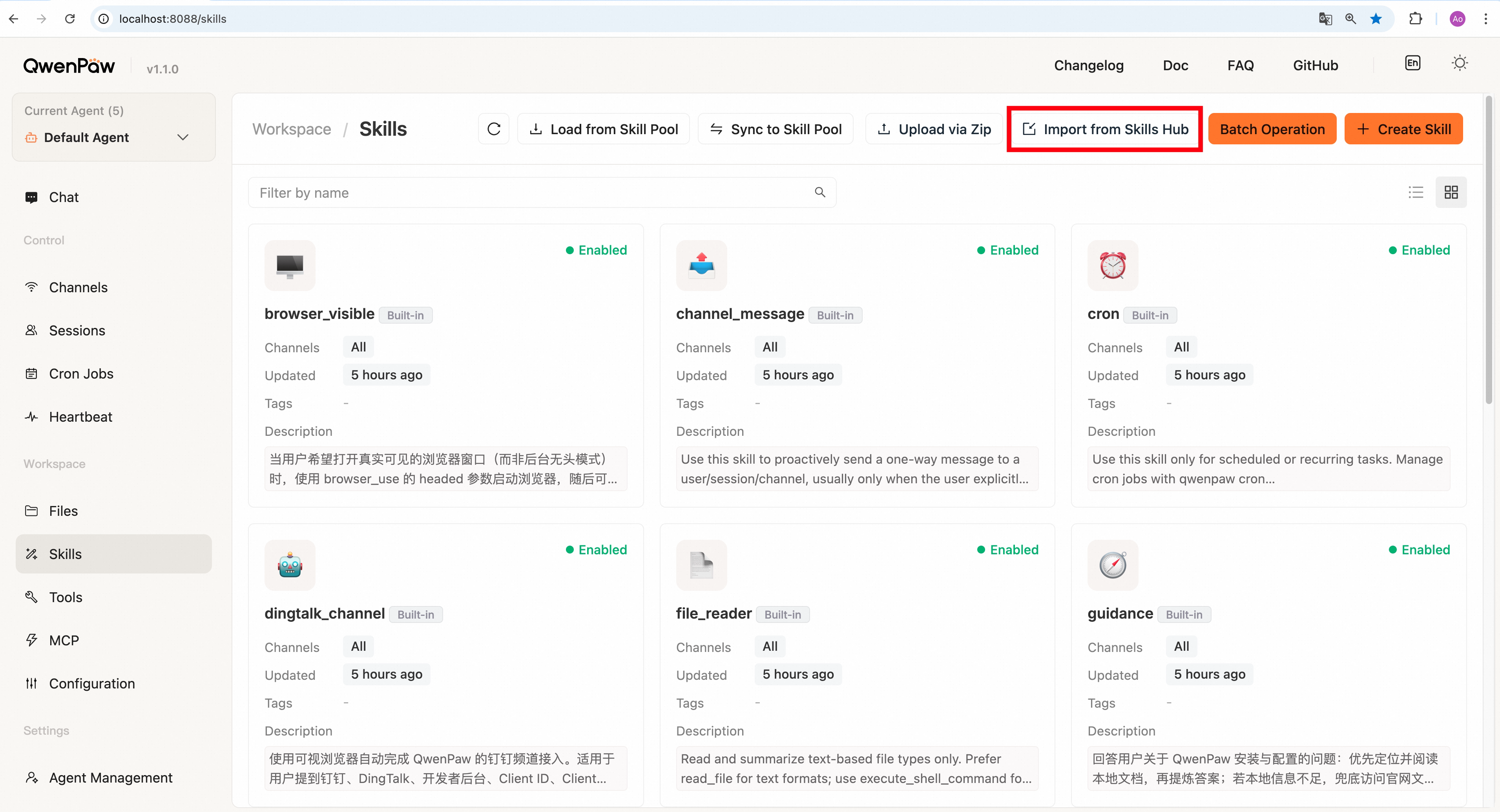
In Console → Workspace → Skills, click Add Skill → Upload via URL.
-
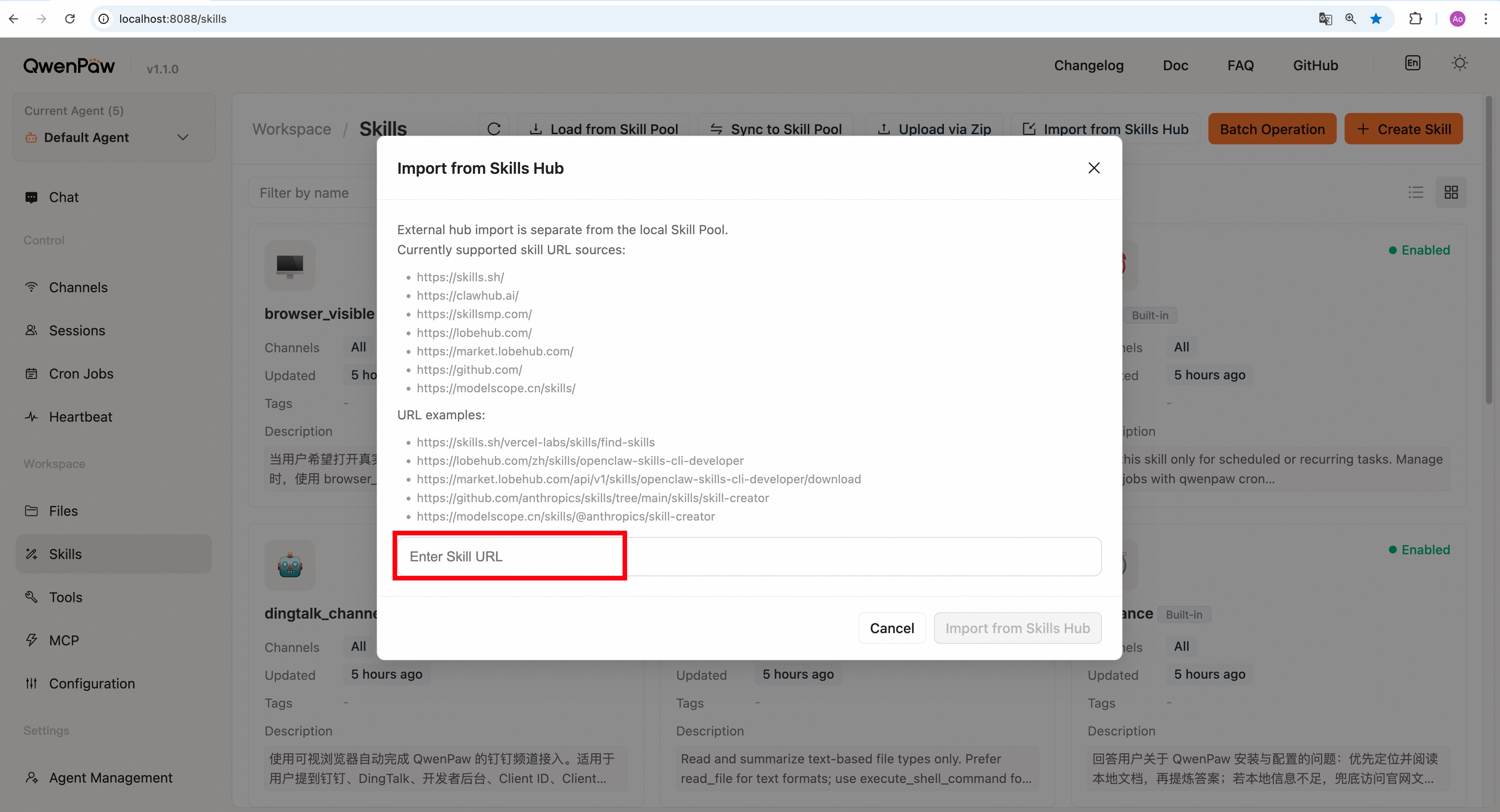
Paste a skill URL in the pop-up window (see URL acquisition example below). The dialog lists the supported sources with an example URL for each — click an example to fill it in.
-
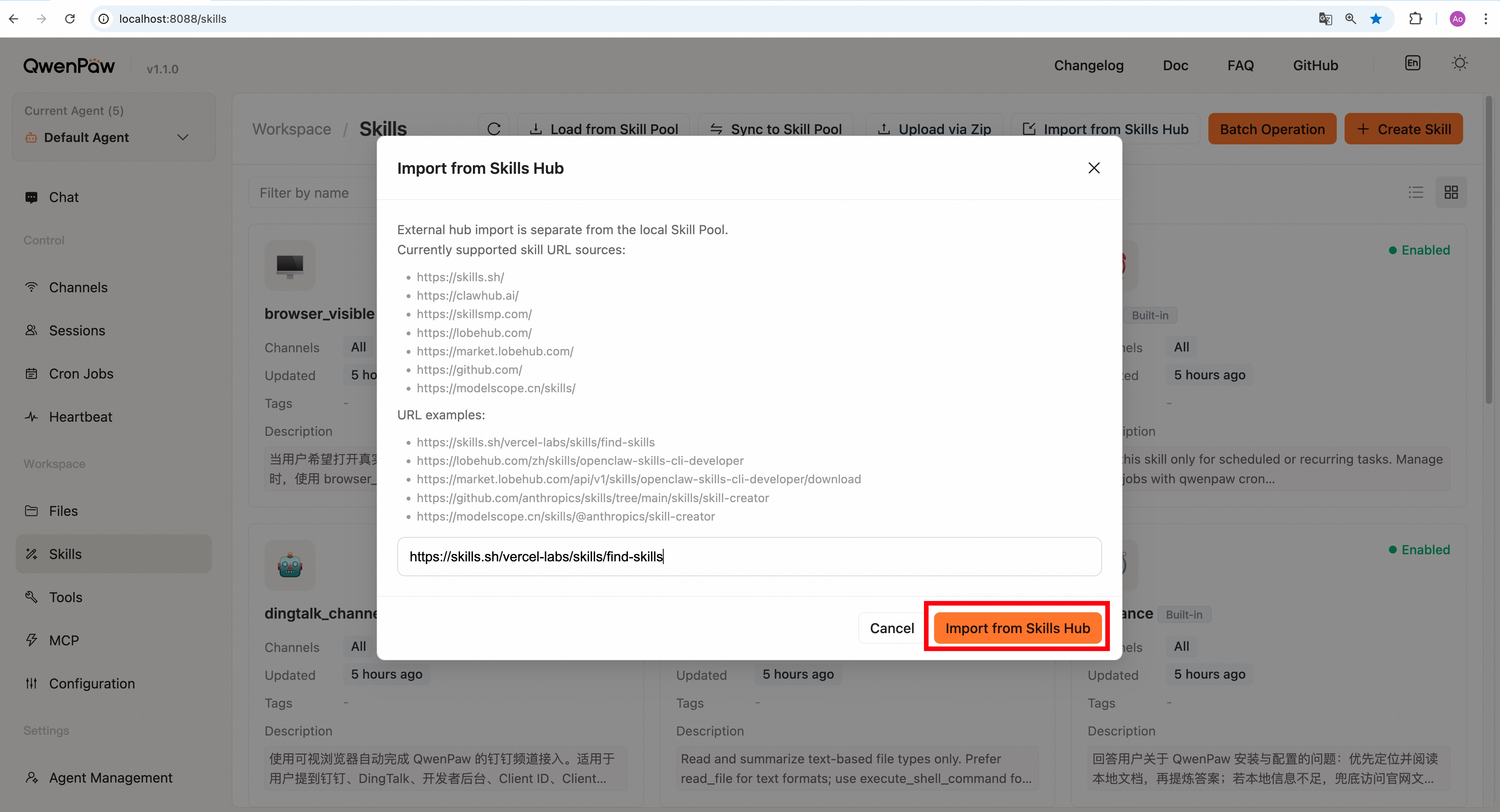
Click Confirm and wait for import to finish.
-
After a successful import, the skill appears in the skill list and is enabled by default.
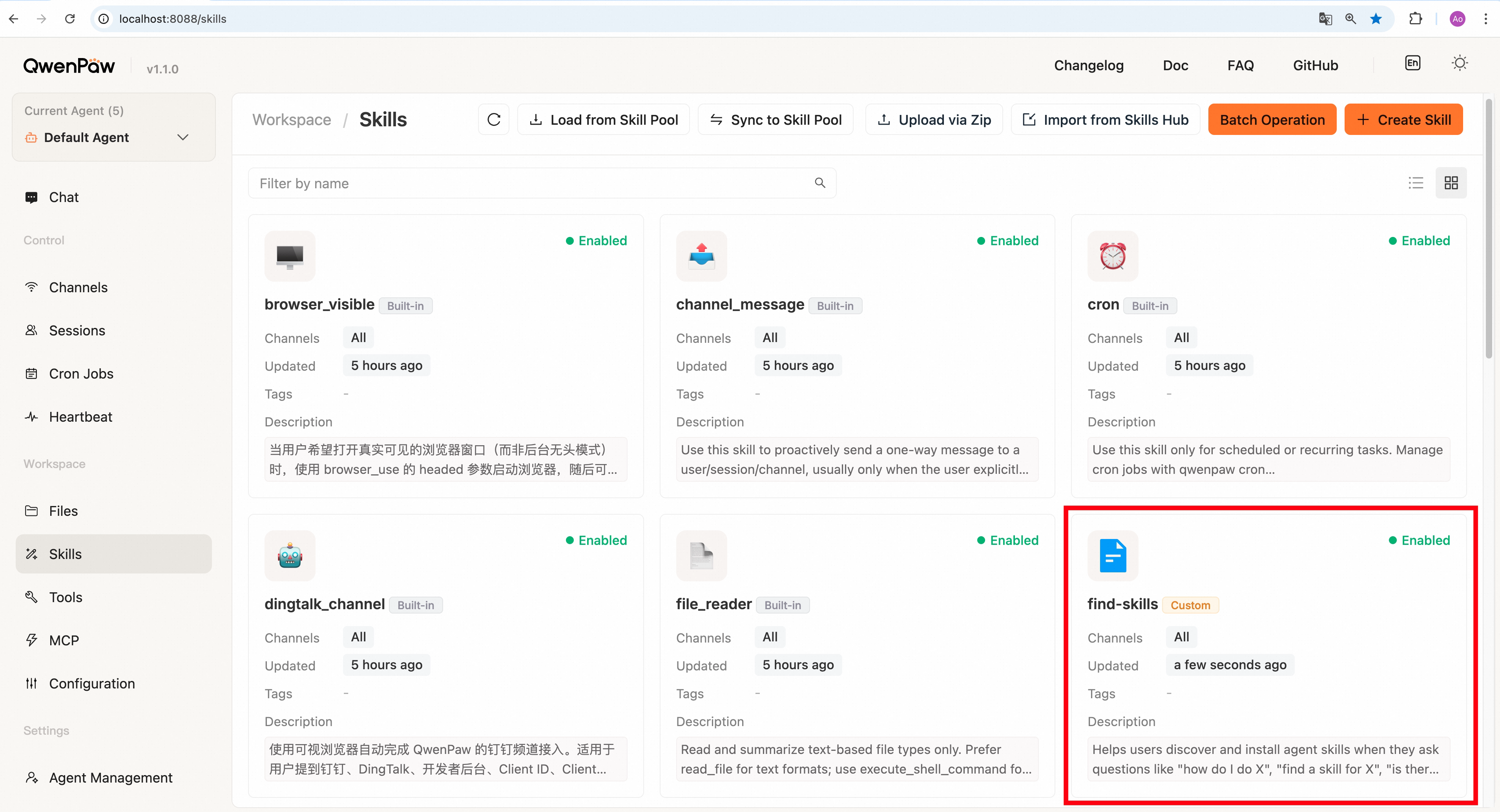
URL acquisition example
-
Open a supported marketplace page (e.g.
skills.sh; the same flow applies toclawhub.ai,skillsmp.com,lobehub.com,modelscope.cn). -
Pick the skill you need (e.g.
find-skills).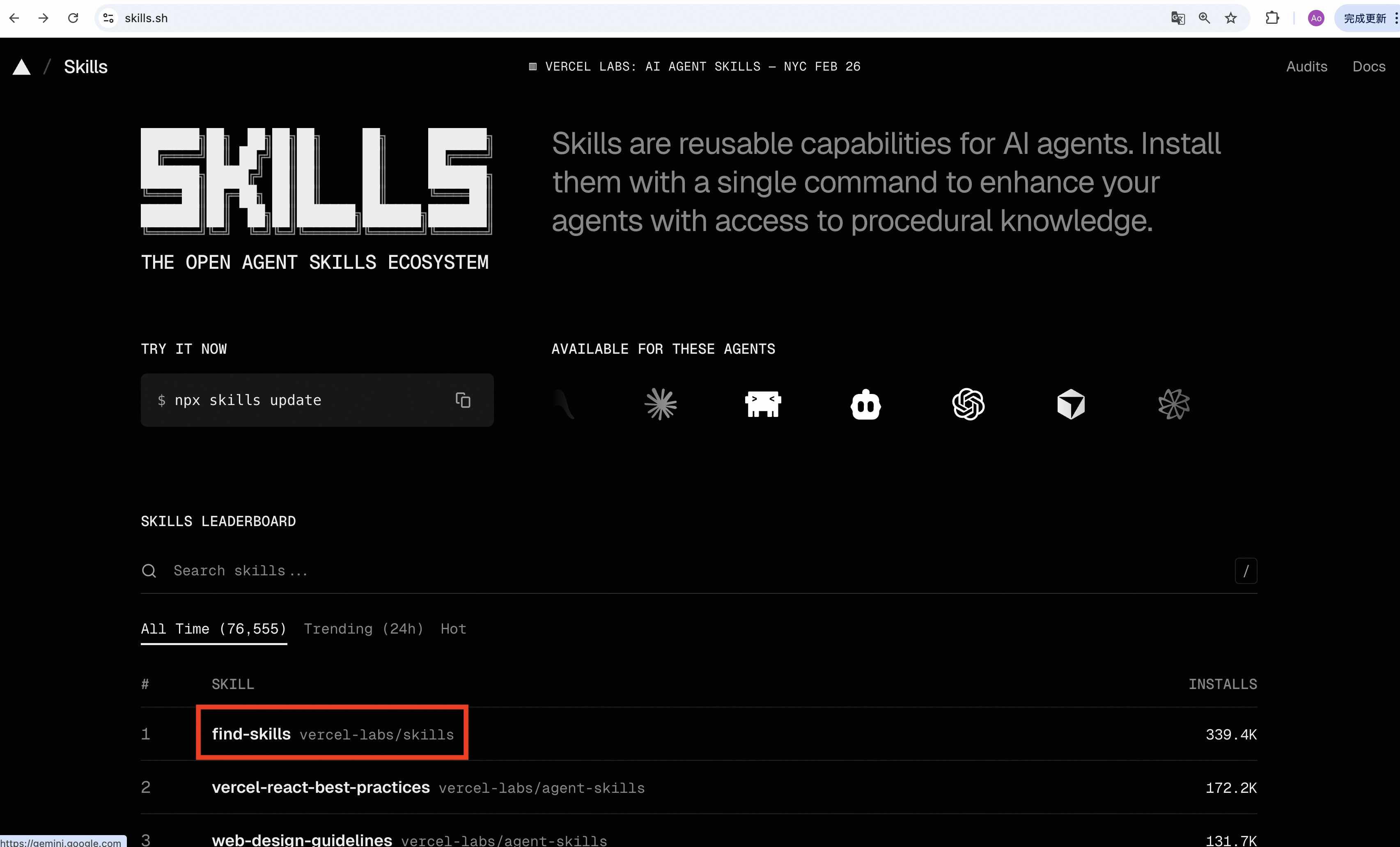
-
Copy the URL from the address bar — this is the Skill URL used for import.
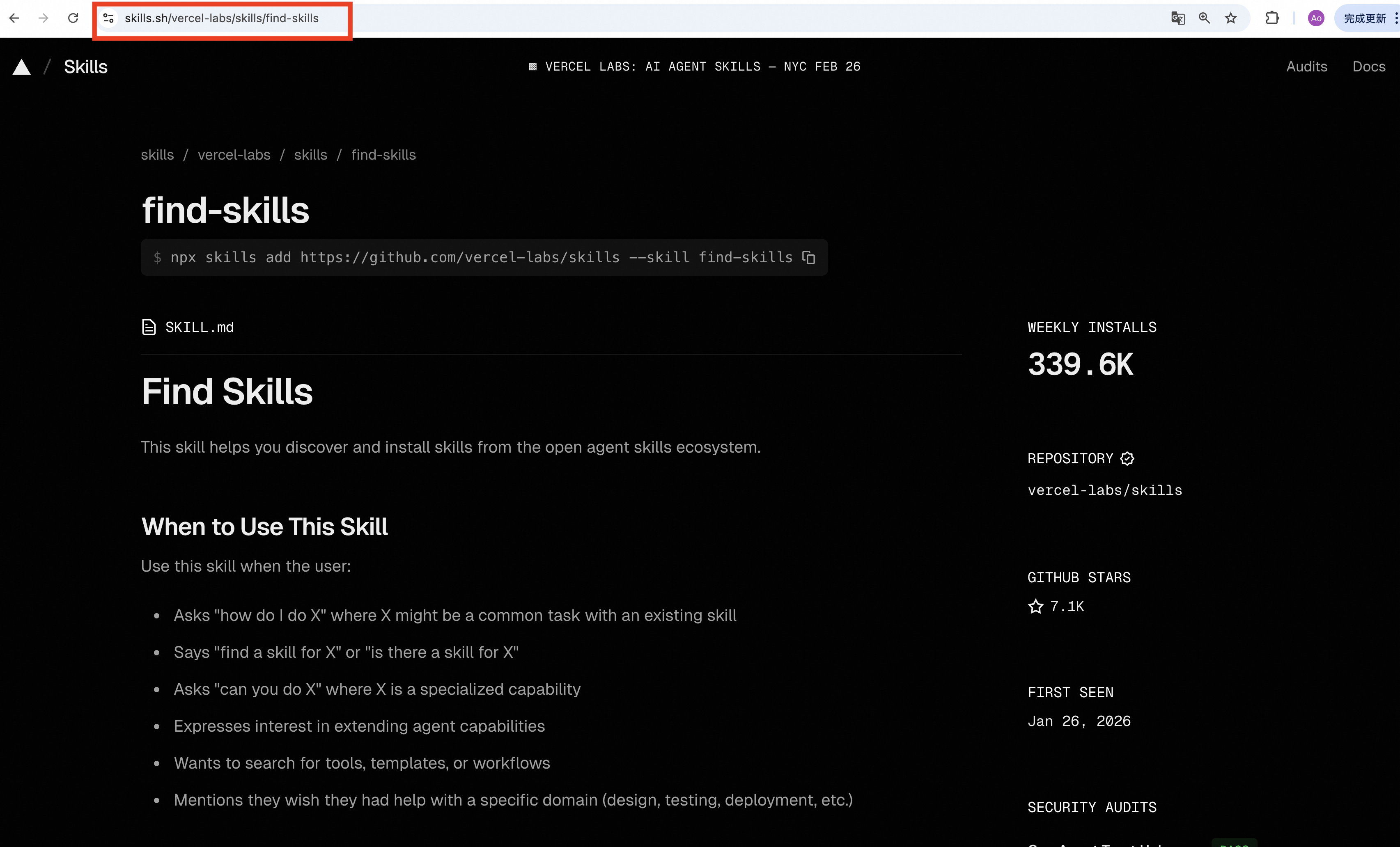
LobeHub also exposes a direct download endpoint on
https://market.lobehub.com/..., which is accepted as well. -
To import from GitHub, open a page containing
SKILL.md(e.g.skill-creatorin the anthropics skills repo) and copy the URL.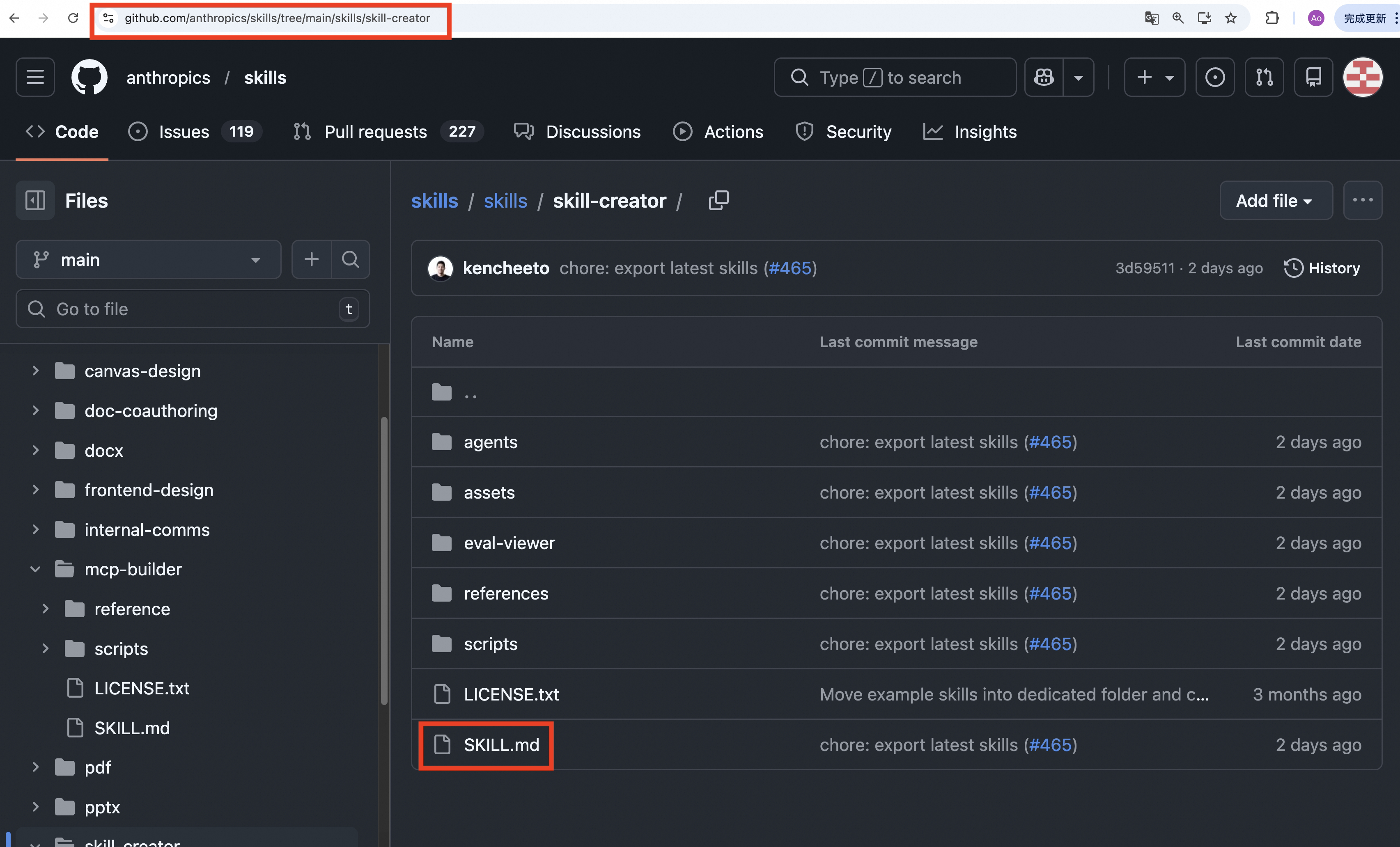
Notes
- If a skill with the same name already exists, import does not overwrite. Check the existing one first.
- If import fails, check URL completeness, supported domains, and outbound
network access. If GitHub rate-limits requests, add
GITHUB_TOKENin Console → Settings → Environments. See GitHub docs: Managing your personal access tokens.
Create manually in the workspace
You can also create a workspace skill directly by writing files under
$QWENPAW_WORKING_DIR/workspaces/{agent_id}/skills/, including using QwenPaw itself to help
generate those files.
This is flexible, but the write location and resulting skill quality are not always fully controlled. You should supervise the creation process carefully, verify that files land in the right workspace path, and review the skill content before relying on it.
Create a directory under $QWENPAW_WORKING_DIR/workspaces/{agent_id}/skills/, add a
SKILL.md, and make sure it includes YAML front matter with name and
description. If the skill depends on external binaries or environment
variables, declare them in metadata.requires; QwenPaw exposes them as
require_bins and require_envs metadata, but does not disable the skill
automatically.
Example SKILL.md
---
name: my_skill
description: My custom capability
metadata:
  requires:
    bins: [ffmpeg]
    env: [MY_SKILL_API_KEY]
---

# Usage

This skill is used for…
name and description are required. metadata is optional.
Manually placed skills are detected on the next manifest reconcile and added
to skill.json as disabled. Enable them in the Console or CLI.
Create from current session via /make-skill (Beta)
When you've just walked through a workflow in chat: tried tools, hit errors, found a working approach. Turn that session into a skill:
/make-skill cooking
You'll see a short plan card with the proposed skill name and step outline. Approve, refine, or cancel in natural language. After approval the agent writes the skill based on the conversation and saves it to your workspace, enabled by default.
<focus> becomes the skill name; internal spaces collapse to -
(e.g. view image debug → view-image-debug). Other characters
(Chinese, case, digits) are kept as-is.
/make-skill is itself a built-in skill — make sure it's enabled in
your workspace via /skills before invoking.
Auto sync (Skill Pool & Workspace)
Turn on Auto sync for a pool skill and any change to its pool content is synced to the relevant workspaces automatically — no manual broadcast needed.
- How to enable: Toggle it on the skill card in Settings → Skill Pool (applies immediately), or enable it and pick associated agents in the skill drawer (applies on save).
- Sync scope:
- Default (no associated agents configured): syncs only to workspaces that already have the skill; agents that never had it are not installed.
- Explicit agents: syncs to exactly those agents; ones in the list that lack the skill get it installed, while agents not listed are left untouched.
- Change detection: based on the content of
SKILL.md. - Inbox notification: each run posts one message to the Inbox listing which agents each skill was synced to (sender shown as "Skill Pool").
Common workspace operations:
- Enable / disable: Turn a skill on or off without changing its files.
- Delete: Delete a workspace skill. If the skill is currently enabled, it is automatically disabled first.
- Sync to Skill Pool: Publish a workspace skill to the shared pool for reuse by other workspaces.
- Edit channel scope / config: Adjust where the skill applies and what runtime config it receives in this workspace.
Skill Market
Search and install skills from multiple marketplaces in one place. The market is embedded in the skill pages: on Workspace → Skills or Settings → Skill Pool, click Add Skill → Browse Market to switch to the market view (click Back or use browser back to return to the list). This is the search-driven alternative to the per-URL Import from URL flow above.
Four providers ship out of the box:
- QwenPaw — public, always enabled.
- ClawHub — public, always enabled.
- ModelScope — public, always enabled.
- Aliyun — requires
ALIBABA_CLOUD_ACCESS_KEY_ID/ALIBABA_CLOUD_ACCESS_KEY_SECRETin Settings → Environments; without them the provider chip is disabled and the tooltip explains why.
How it works:
- Filter by provider, category, and keyword; categories map to each provider's native category codes or equivalent search terms automatically.
- Search runs across all enabled providers in parallel; one provider failing doesn't block results from the others.
- Save installs to where you entered from: the current workspace (from Workspace → Skills) or the pool (from Settings → Skill Pool).
- Installs run through a queue (one at a time) with retry and cancel; name conflicts surface as a failed item with the server message — rename the existing workspace skill and retry the install.
After install, every skill remembers its origin in an installed_from field, shown in the skill drawer as Installed from. Values include clawhub,
modelscope, aliyun, skills-sh, lobehub, skillsmp, github, url, zip. Skills with no recorded origin (built-ins, hand-created, legacy entries) display an empty value.
The per-URL Import from URL flow above remains the way to pull from sources not covered by these search providers (skills.sh, lobehub.com, github.com, etc.).
Channel routing
Each skill can be restricted to specific channels. By default, skills apply to
all channels (channels: ["all"]).
To limit a skill to certain channels:
- In Workspace → Skills, click the channel setting on a skill.
- Select the channels where this skill should be active (e.g.
discord,telegram,console).
When the agent runs on a given channel, only skills whose channels list
includes that channel (or "all") are loaded. This lets you keep
channel-specific skills. For example, a DingTalk-only onboarding skill does
not need to appear on Discord.
Skill config
Each skill can have a config object stored in its manifest entry. This config
is not just stored metadata. When a skill is effective for the current
workspace and channel, QwenPaw injects that config into the runtime environment
for that agent turn, then restores the environment after the turn completes.
You can set config per skill in the Console (Workspace → Skills → click the config icon on a skill) or via the API.
How it works
Config keys that match a metadata.requires.env entry in SKILL.md are
injected as environment variables. Keys not declared in requires.env are
skipped (but still available via the full JSON variable). If a required key
is missing from the config, a warning is logged.
The full config is always available as QWENPAW_SKILL_CONFIG_<SKILL_NAME>
(JSON string), regardless of requires.env.
Existing host environment variables are never overwritten.
Example
If SKILL.md declares:
---
name: my_skill
description: demo
metadata:
  requires:
    env: [MY_API_KEY, BASE_URL]
---
And the config is:
{
  "MY_API_KEY": "sk-demo",
  "BASE_URL": "https://api.example.com",
  "timeout": 30
}
The skill can read:
MY_API_KEYcomes from config and matchesrequires.env.BASE_URLcomes from config and matchesrequires.env.timeoutis not inrequires.env, so it is only available via the full JSON below.QWENPAW_SKILL_CONFIG_MY_SKILLalways contains the full JSON config.
Python example:
import json
import os

api_key = os.environ.get("MY_API_KEY", "")
base_url = os.environ.get("BASE_URL", "")
cfg = json.loads(os.environ.get("QWENPAW_SKILL_CONFIG_MY_SKILL", "{}"))
timeout = cfg.get("timeout", 30)
Config is also preserved across pool ↔ workspace sync: uploading a workspace skill copies its config to the pool entry, and downloading copies the pool config into the workspace entry.
Config priority
When a skill runs, the effective config follows this priority (highest wins):
- Host environment: Existing env vars on the machine are never overwritten.
- Workspace config: The
configobject in the workspace manifest entry (skill.json). This is what you edit in the Console per agent. - Pool config: When downloading a pool skill to a workspace, the pool's
configis copied as the initial workspace config. Subsequent workspace edits take precedence.
For requires metadata, the parser checks keys in order: metadata.openclaw.requires → metadata.qwenpaw.requires → metadata.requires. The first one found is used.
Upgrading from Earlier Versions
Converts legacy active_skills/ and customized_skills/ directories into the
unified workspace skills/ layout.
Migration runs automatically on first start. Skills are copied, not moved —
the original active_skills/ and customized_skills/ directories are
preserved. Back up any important custom skill content before upgrading.
Migration reduces manual work, but you should still manage valuable skills
carefully and keep your own copies when needed. After verifying the migration
result, you can manually delete the old directories. Skills in the old
active_skills/ and customized_skills/ directories are no longer read.
| Before | After |
|---|---|
active_skills/ |
Workspace skills/ (enabled) |
customized_skills/ |
Workspace skills/ (disabled unless also active with identical content) |
If the same skill name exists in both directories with different content,
both copies are kept with -active / -customize suffixes. To share a
workspace skill across agents, upload it to the skill pool via the UI.
Related pages
- Introduction — What the project can do
- Console — Manage skills and channels in the Console
- Channels — Connect DingTalk, Feishu, iMessage, Discord, QQ
- Heartbeat — Scheduled check-in / digest
- CLI — Cron commands in detail
- Config & working dir — Working dir and config